gimpusers.com logo
German version English version

Not logged in

Sign up! | Lost password?

External news

Poll

Would you like to be able to use your Google/Yahoo/MSN (OpenID) login on gimpusers, too?

Definately! I would enjoy the possibility to use my OpenID on different websites!

I don't have a special need for OpenID but I think it could be useful

Doesn't matter to me

Never, OpenID is a pain regarding privacy and personal data protection!

No. (please post a comment)

See results

Stats

gimpusers.com RSS feed

RSS feed Retweet this!

18 May 2007 08:27 AM, by devvv (Bernhard Stockmann)

Smoke and Flames

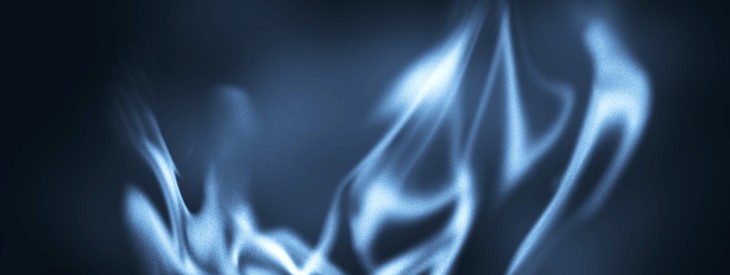
In this tutorial, I'll show how to create fairly realistic smoke in the GIMP. After that I'll show you how to convert the smoke into cool looking flames in just some very easy steps. Enjoy!

This article has been written using GIMP 2.3.16. It's divided into 23 steps and takes about 15 min to complete for an average user. 135820 times read so far. Category: Special FX, required skill: 1 of 5

15 comments have been posted so far.

Available in other languages:

Relevant links:

  1. 1
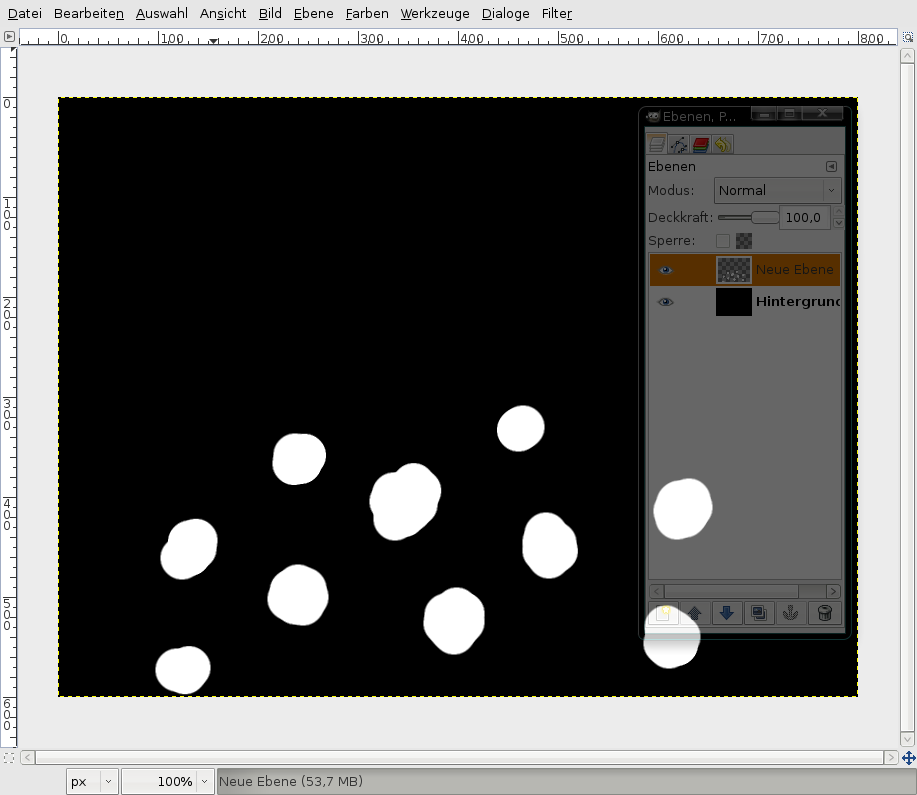
    Create a new file: 800x600px. (black background-color)
    - add a new layer, it shall be transparent
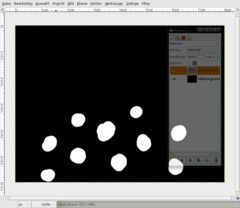
    - take a big, white brush and paint some big dots as seen on the picture below.
    Screenshot of step 1
    Click to enlarge
  2. 2
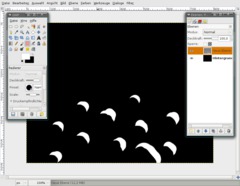
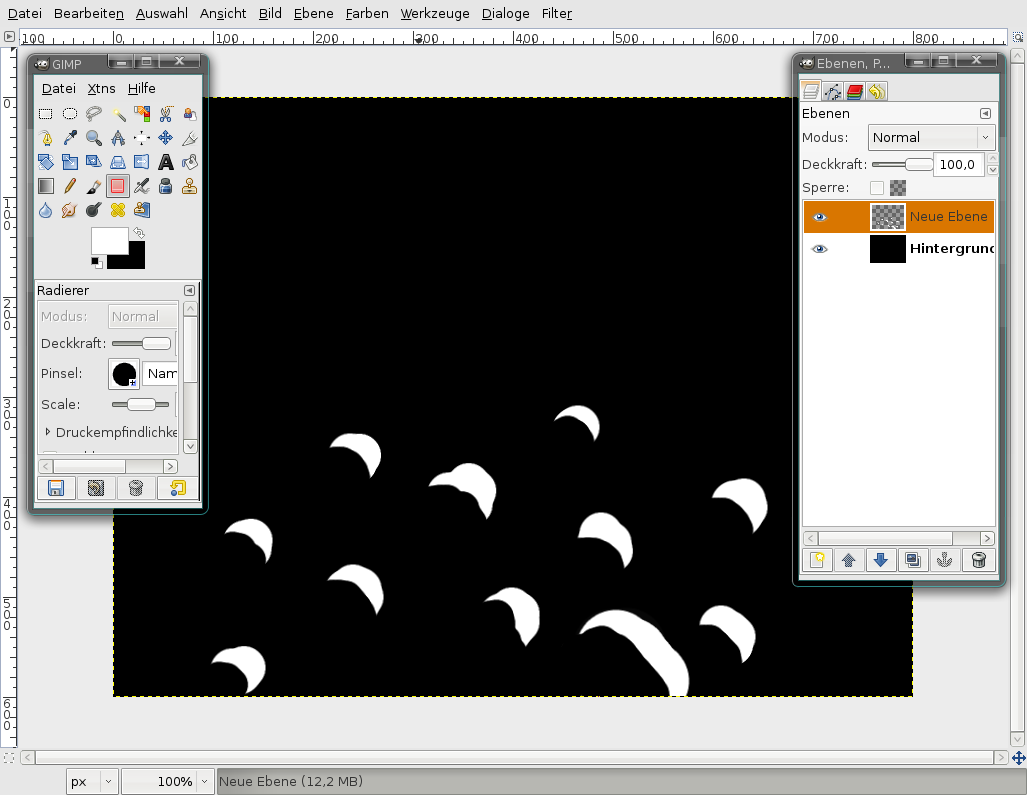
    Now take the Eraser-Tool, and delete some parts of these dots, so that you get something like a half moon at the end.
    Screenshot of step 2
    Click to enlarge
  3. 3
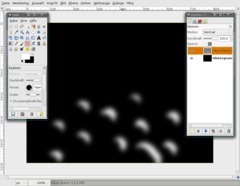
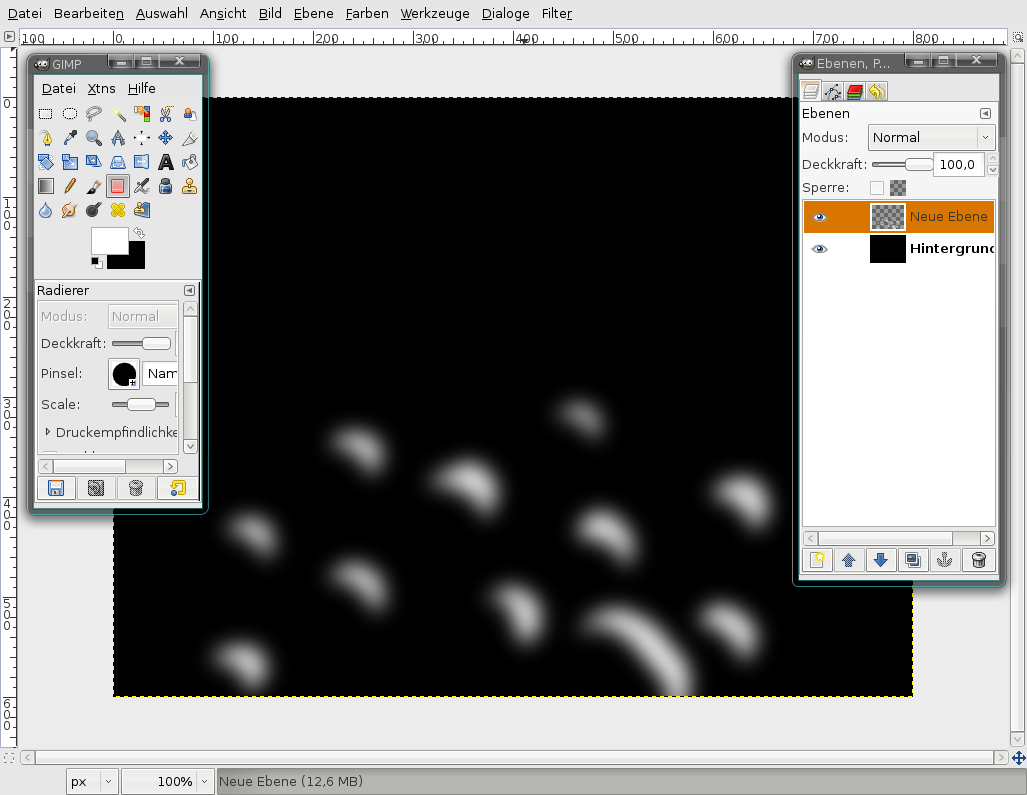
    Next apply a gaussian blur to this layer: Filter / Blur / Gaussian
    Screenshot of step 3
    Click to enlarge
  4. 4
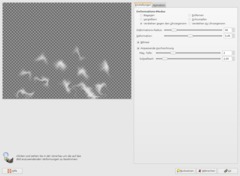
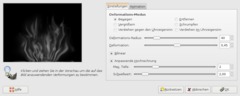
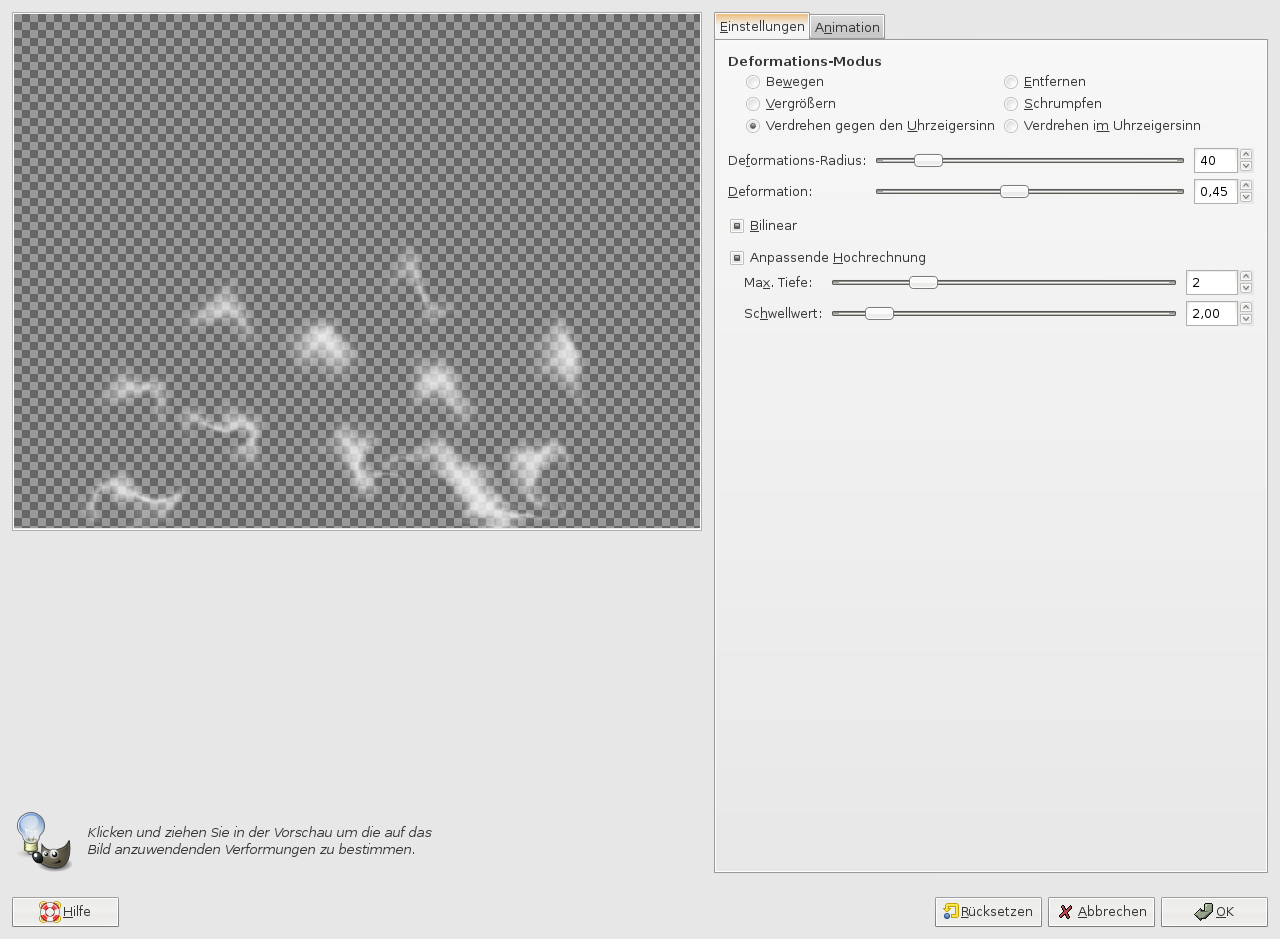
    This step is now very important: Go to Filter / Distorts / IWarp.

    Adjust the settings as seen on the picture.

    Deform Mode: Swirl CW. In the preview window hold your left mousebutton down and start to zigzag from left to the right pretty fast.

    The purpose of this is to get points that are streched a little bit. DON'T click the OK button yet.
    Screenshot of step 4
    Click to enlarge
  5. 5
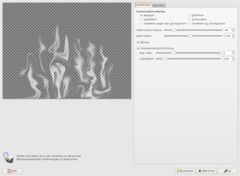
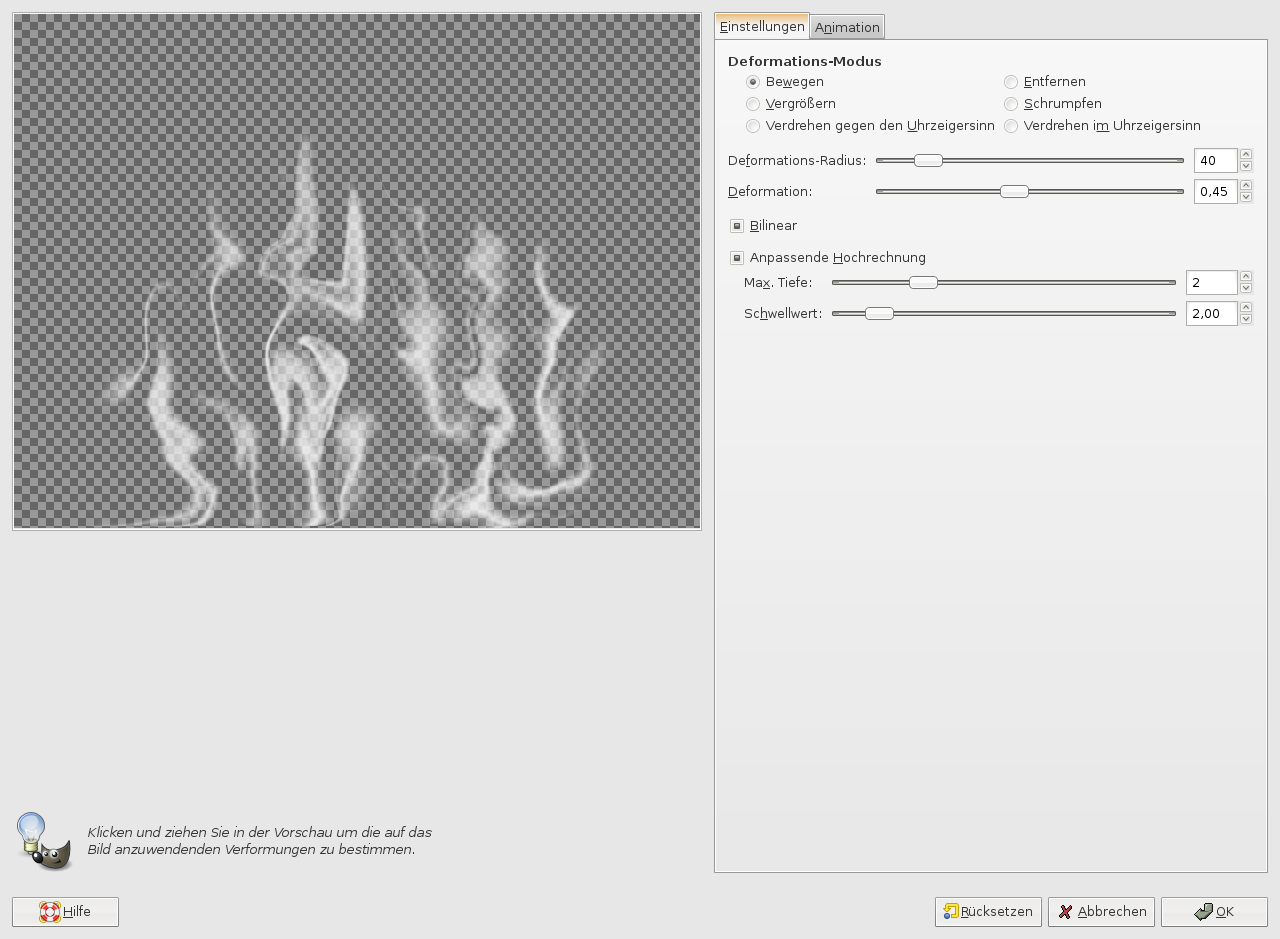
    Now swith to another Deform Mode: Move. This step will take some time until you're finished. Try to move the single points/dots together and alsy try to move them a little to the top. Look at my picture to see what it should look like.

    When finished click OK.
    Screenshot of step 5
    Click to enlarge
  6. 6
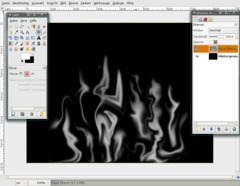
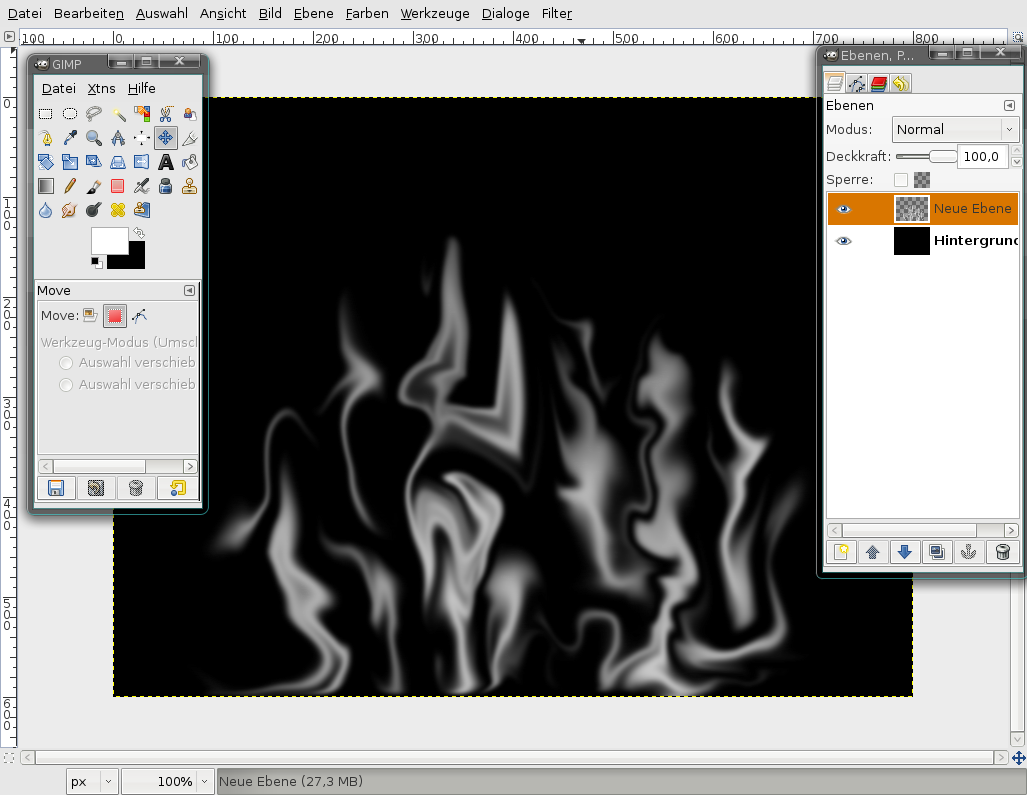
    It looks like this now (of course you will have no the identical image but you should now have something like this):
    Screenshot of step 6
    Click to enlarge
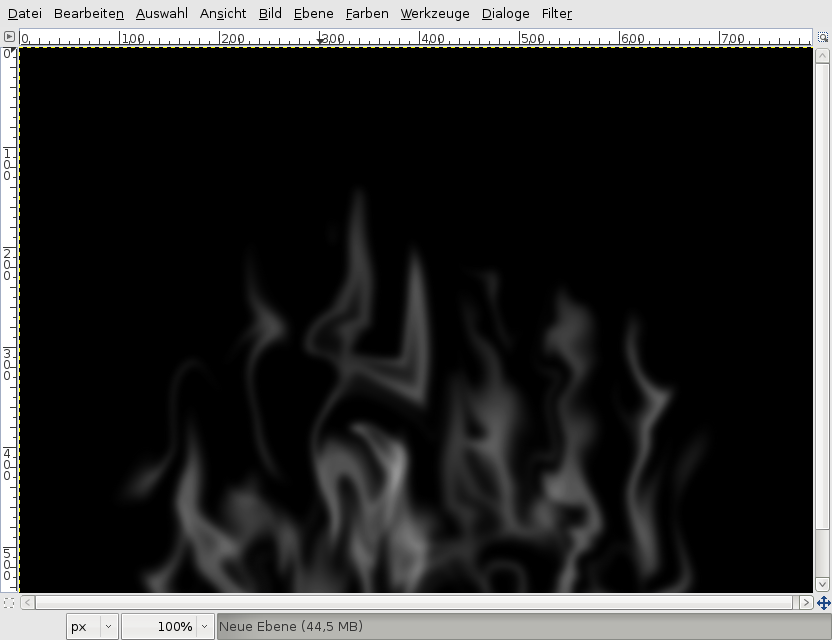
  7. 7
    Duplicate the layer. Select the Flip-Tool (SHIFT+F), click the layer once and you should have a flipped layer.
    Screenshot of step 7
    Click to enlarge
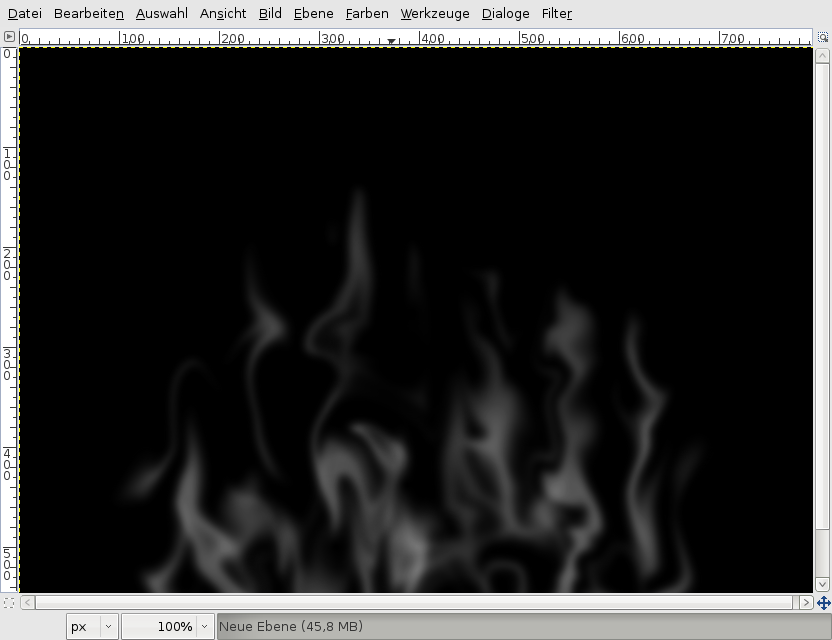
  8. 8
    - Filter / Blur / Gaussian: 10px.
    - Move the layer a little more to the bottom.
    - In the layers dialog click the one layer that is at the top.
    - Click right and choose "Merge down".
    Screenshot of step 8
    Click to enlarge
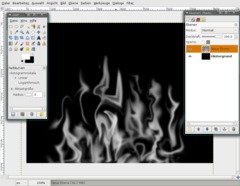
  9. 9
    - Filter / Blur / Gaussian: 10px.

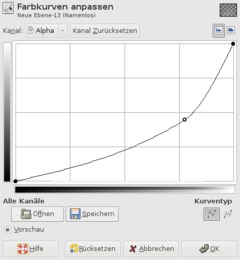
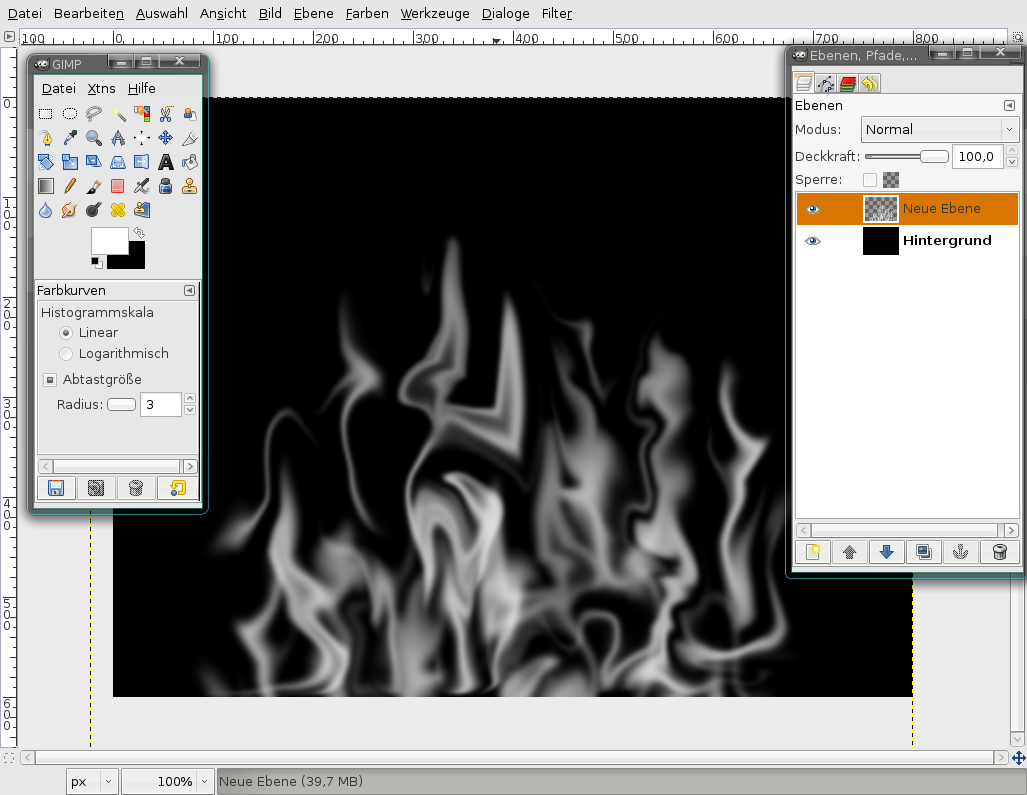
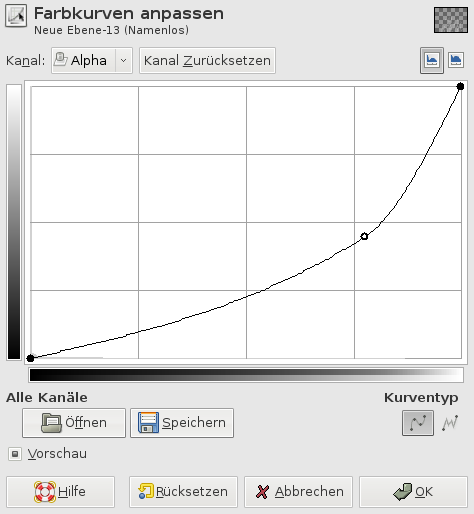
    Okay. So that does not look like real smoke, doesn't it. It is to thick/strong. To get rid of the strongness go to Colors / Curves. Top left select "alpha". Then adjust the curve seen below.
    Screenshot of step 9
    Click to enlarge
  10. 10
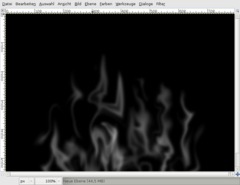
    Now it looks better!
    Screenshot of step 10
    Click to enlarge
  11. 11
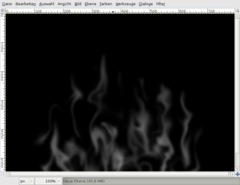
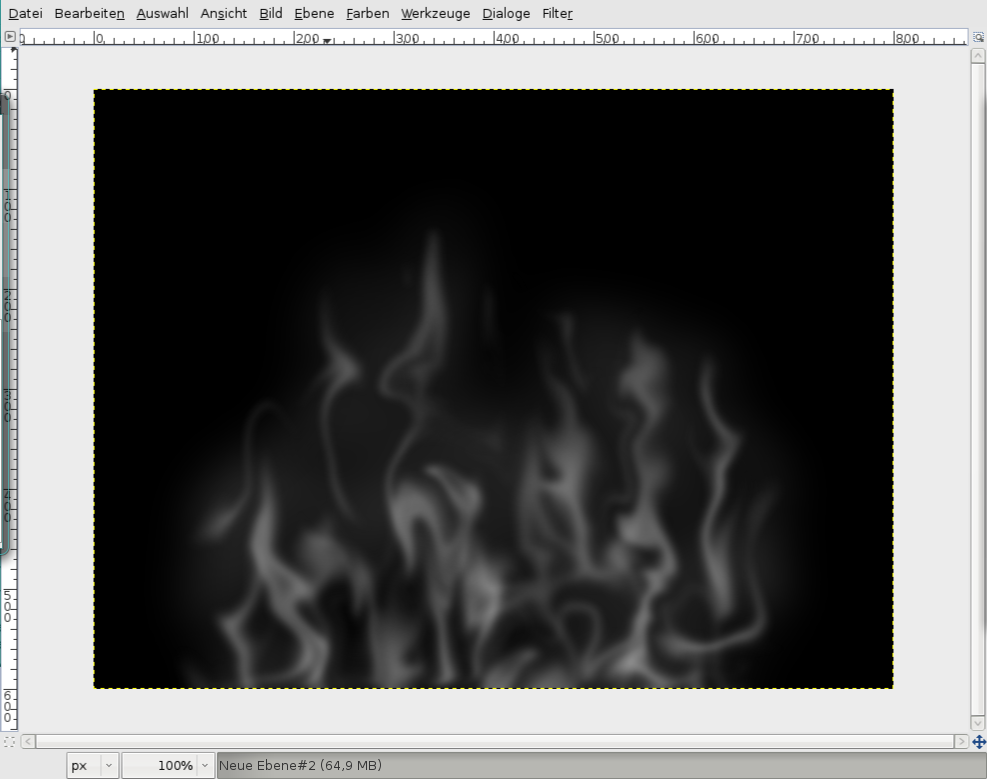
    We want to make our smoke look more realistic, so we have to remove some parts of the picture that don't look natural ;)

    For this take the Erase-Tool. In the settings chhoose a big soft brush. (If you don't habe a big soft brush you've to create one in the brushes-editor first!)

    In my picture I've removed some smoke in the top middle.
    Screenshot of step 11
    Click to enlarge
  12. 12
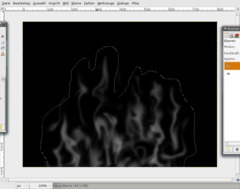
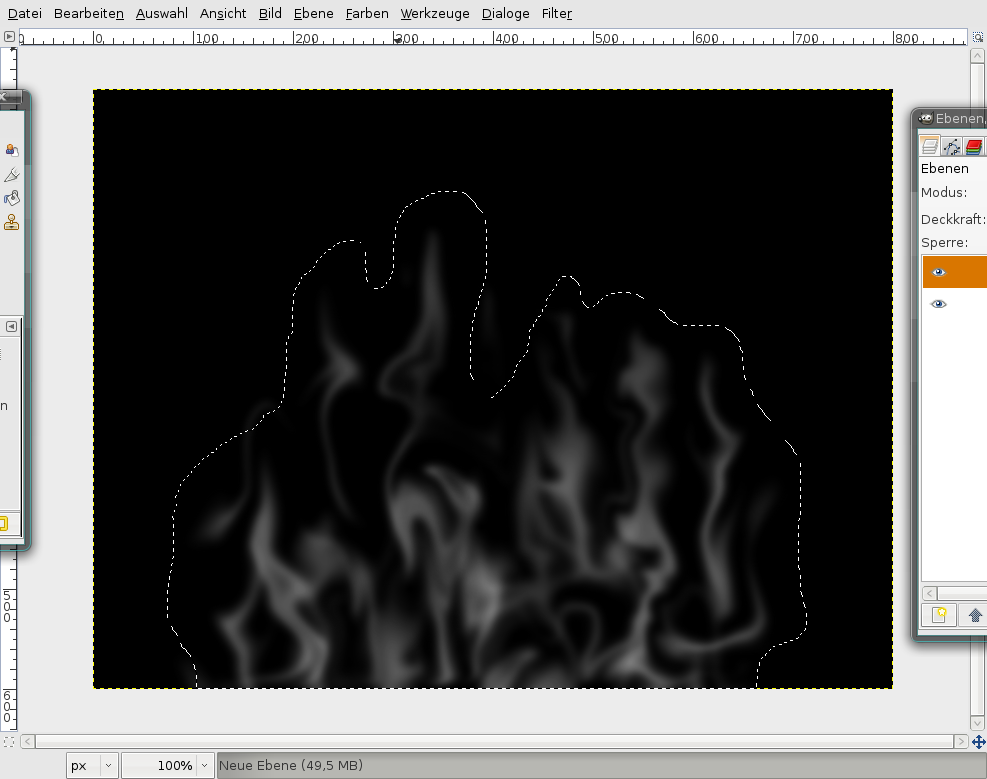
    We're now done with the details of the smoke. To get a better overall feeling we're going to enhance it with a very slight backgound that shoud give us the feeling of have some sort of environment smoke.

    Take the free select tool (F) and draw a selection around our smoke (like an outline).
    Screenshot of step 12
    Click to enlarge
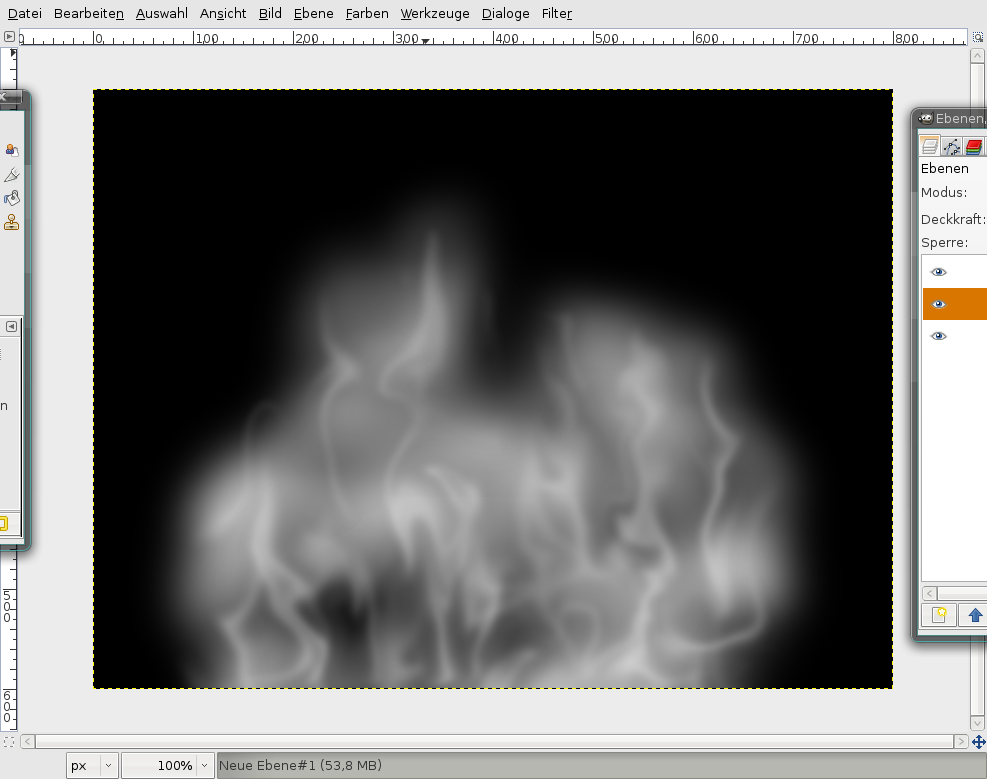
  13. 13
    - add a new layer
    - Filter / Render / Clouds / Solid noise.

    Random: checked, others unchecked.
    X/Y: 4/4.
    Details: 1
    Screenshot of step 13
    Click to enlarge
  14. 14
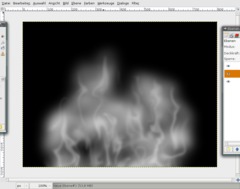
    Adjust the opacity of the layer to 20%.
    Screenshot of step 14
    Click to enlarge
  15. 15
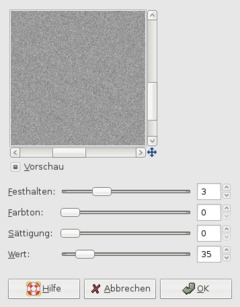
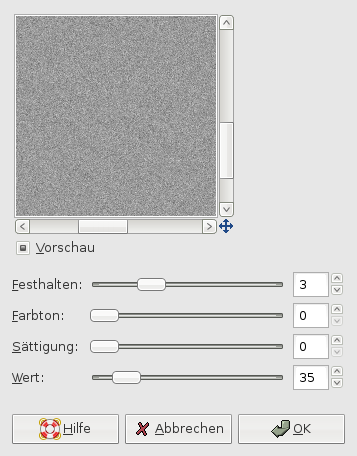
    Smoke dows also have a structure/pattern. We're goint to simulate this as follows:

    - add a new layer on the very top.
    - Fill it with a medium grey tone.
    - Filter / Noise / HSV and take these values
    Screenshot of step 15
    Click to enlarge
  16. 16
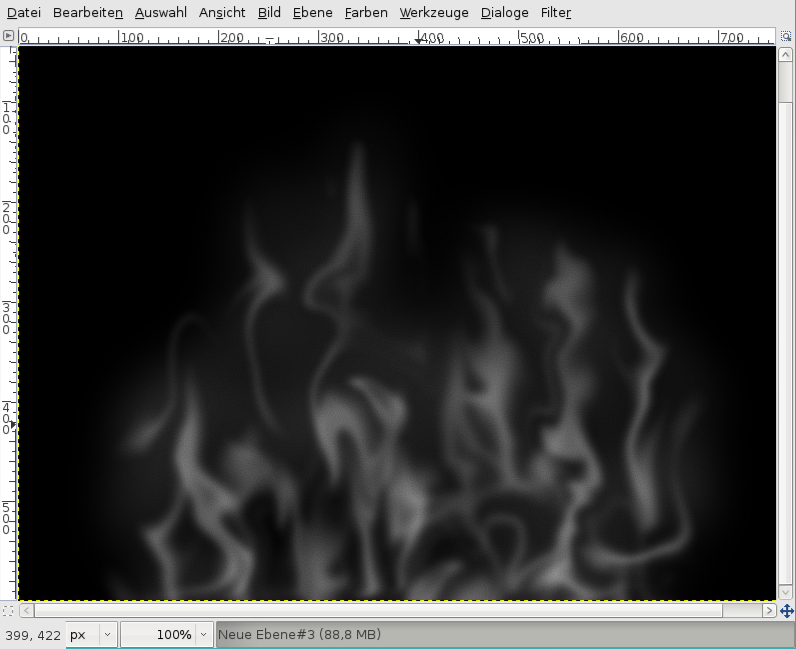
    Filter / Enhance / Sharpen: 85px.

    Set the layers mode to Divide and the opacity / transparency to 40%.
    Screenshot of step 16
    Click to enlarge
  17. 17
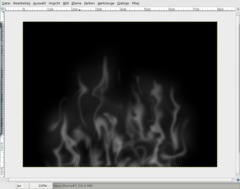
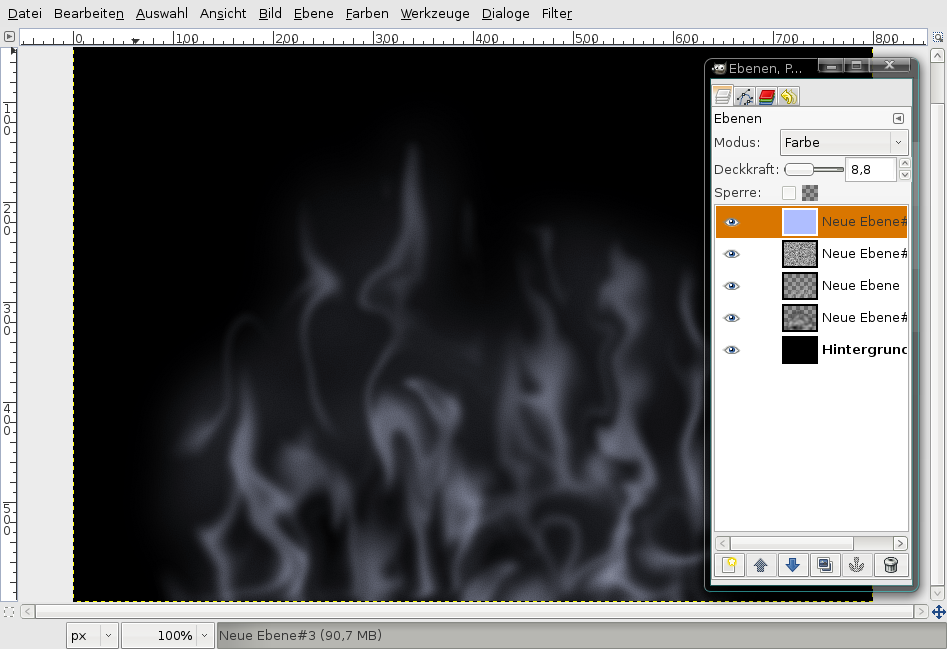
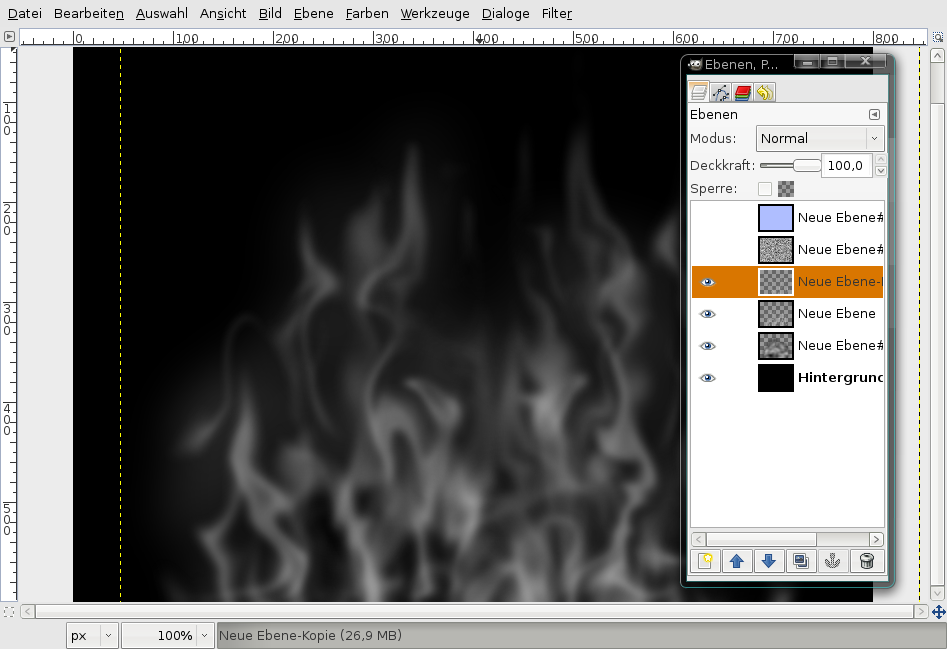
    Now we're just going to colorize our smoke a little bit.

    Create a new layer on top of all. Fill it with #afbeff and set the layers mode to "Color", the opacity to 10%.

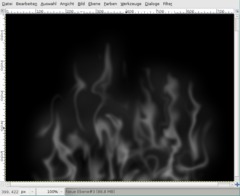
    The smoke is done!
    Screenshot of step 17
    Click to enlarge
  18. 18
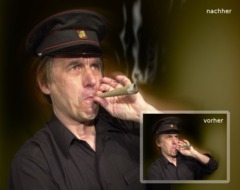
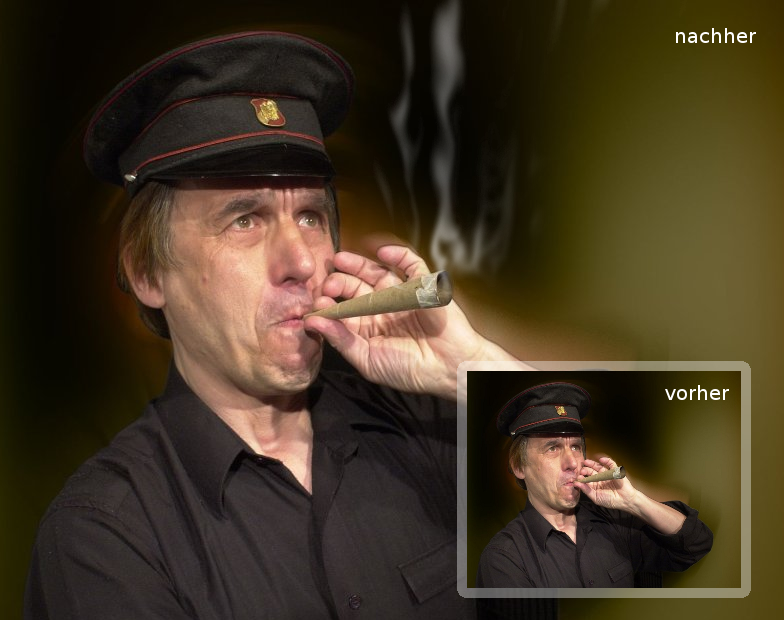
    Here is a photo which I added our just created smoke to.
    Screenshot of step 18
    Click to enlarge
  19. 19
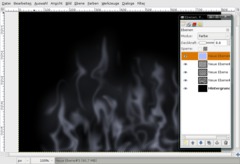
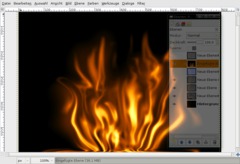
    Now we're going to convert our smoke to some cool looking flames.

    Save your smoke to smoke.xcf.

    Click the eye icon of the blue layer to make it invisible.

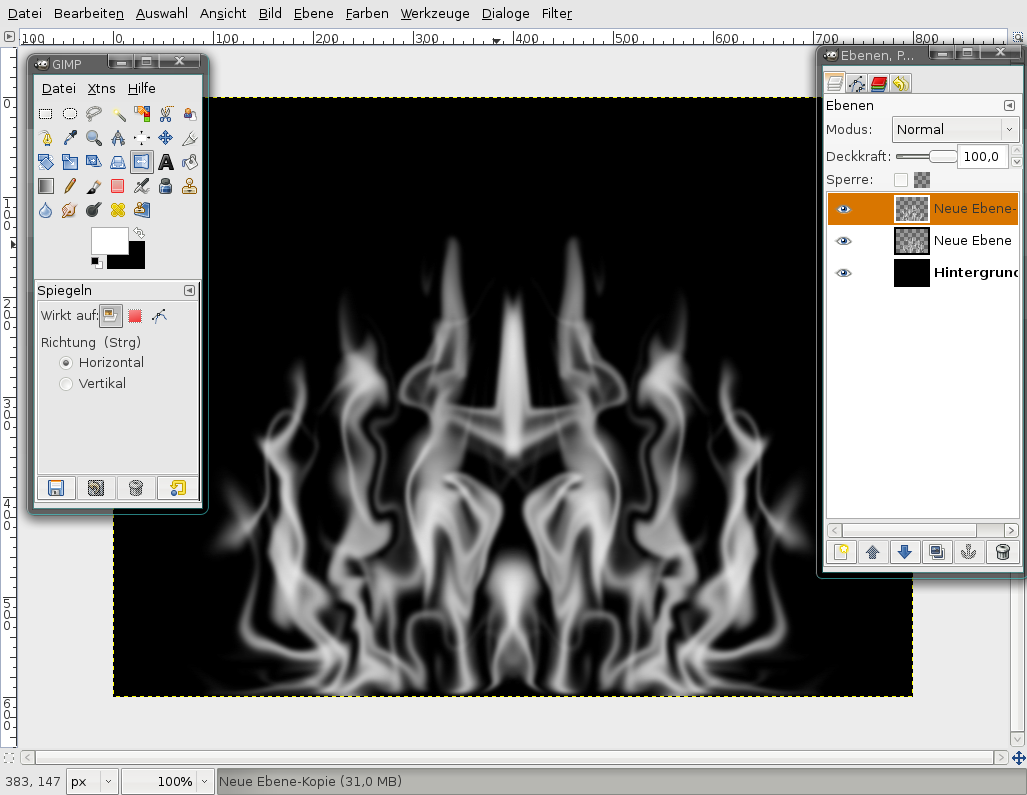
    Duplicate the smoke-layer, flip it, move it to another place in the image and remove some parts of the duplicated layer so that we don't see that it is just a duplicate.
    Screenshot of step 19
    Click to enlarge
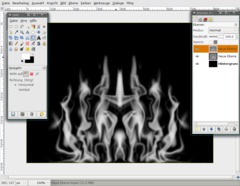
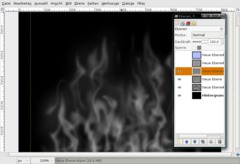
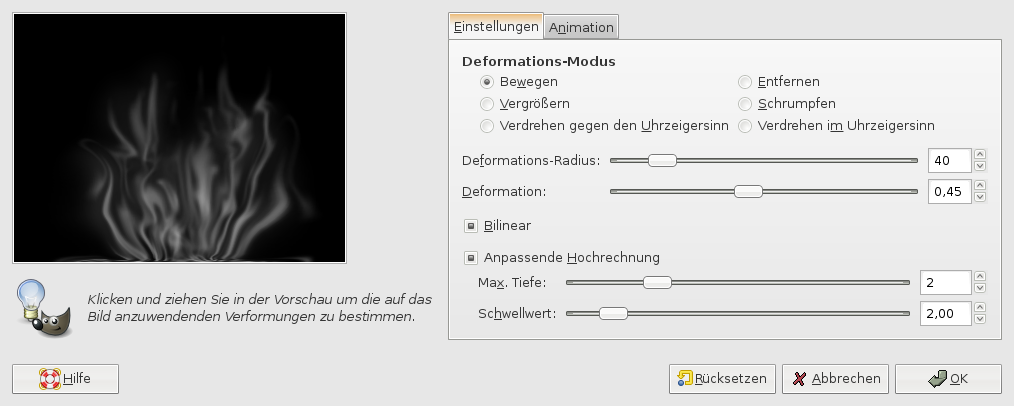
  20. 20
    - Go to Edit / Copy visible.
    - Edit / Paste

    Click the anchor-button in the layers dialog to get the pasted to a seperate layer.

    After that choose the IWarp Filter again, select Move and in the preview window move the "flames" from left to the middle and from right to the middle. It looks like this now:
    Screenshot of step 20
    Click to enlarge
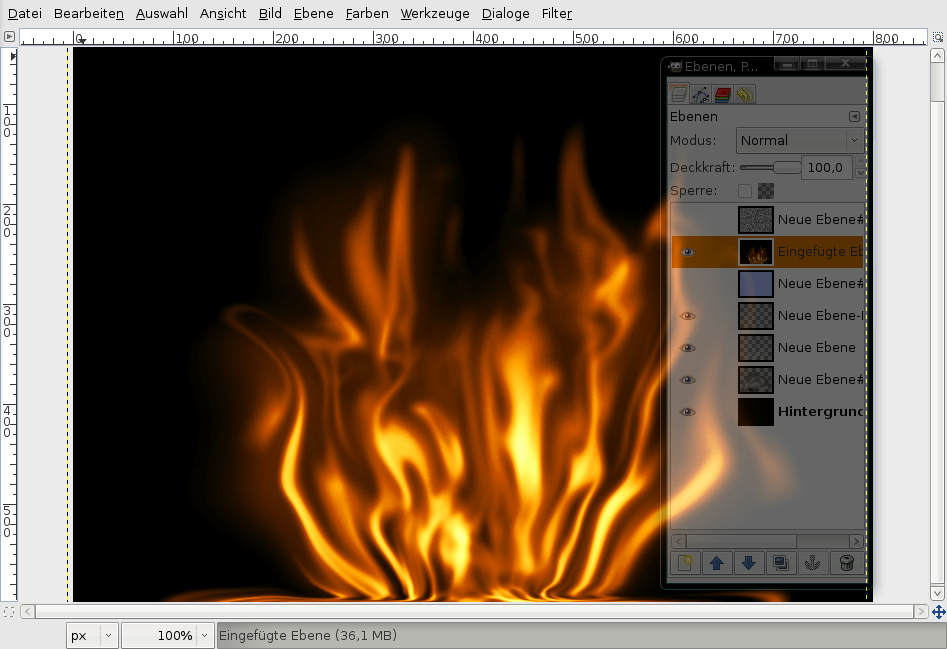
  21. 21
    Colors / Brightness & Contrast: 60/50.

    Then apply Colors / Color Balance

    Shadows: 100 / -100 / -100
    Midtones: 100 / 100 / -100
    Highlights: 100 / 100 / -100

    Thats it ;)
    Screenshot of step 21
    Click to enlarge
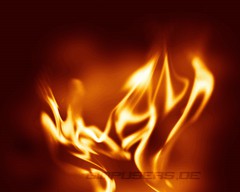
  22. 22
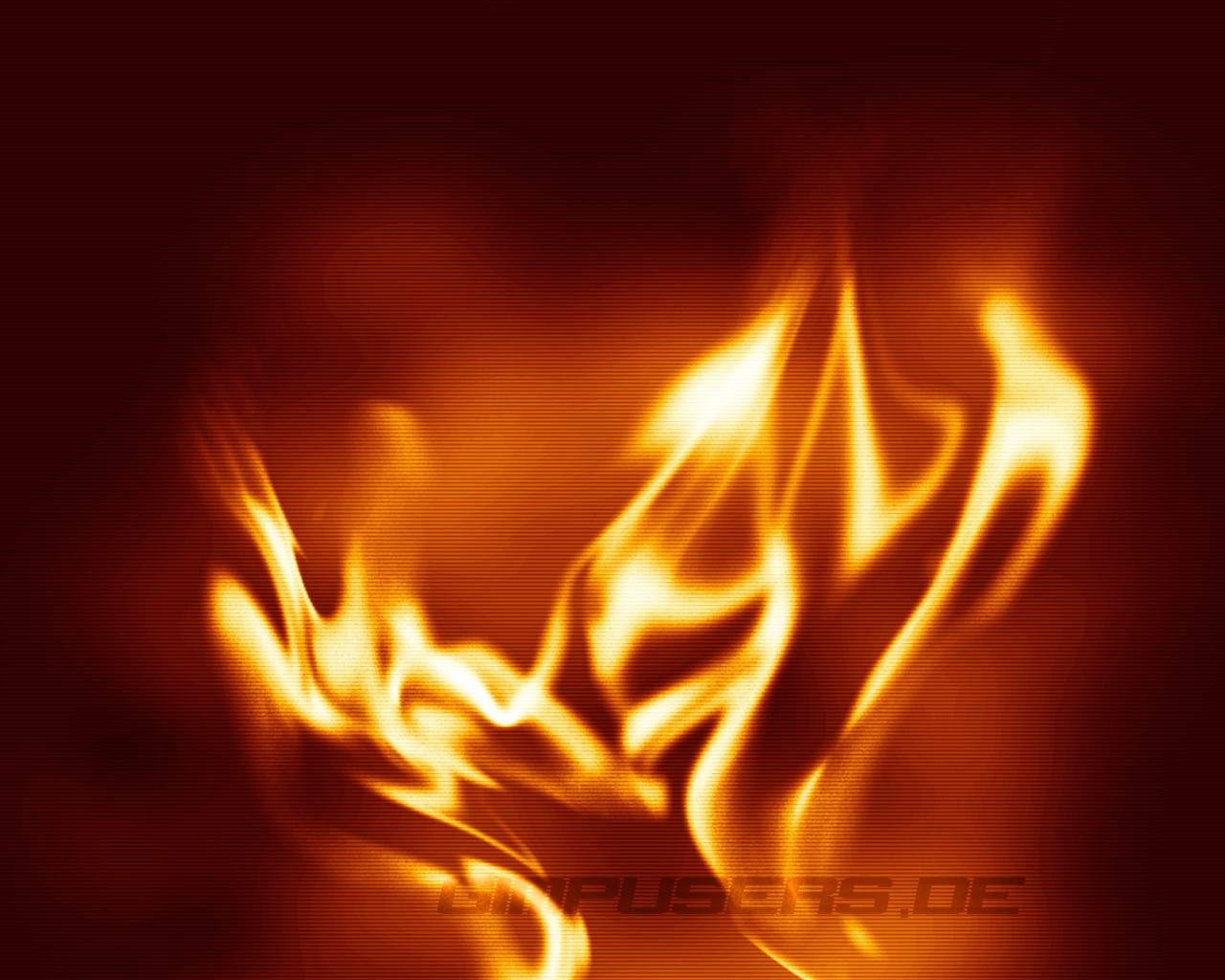
    I've you're playing around abit like me you can do some cool flames. I'm using this one as a desktop wallpaper atm ;)
    Screenshot of step 22
    Click to enlarge
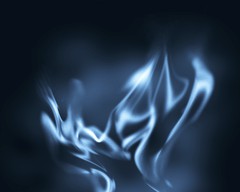
  23. 23
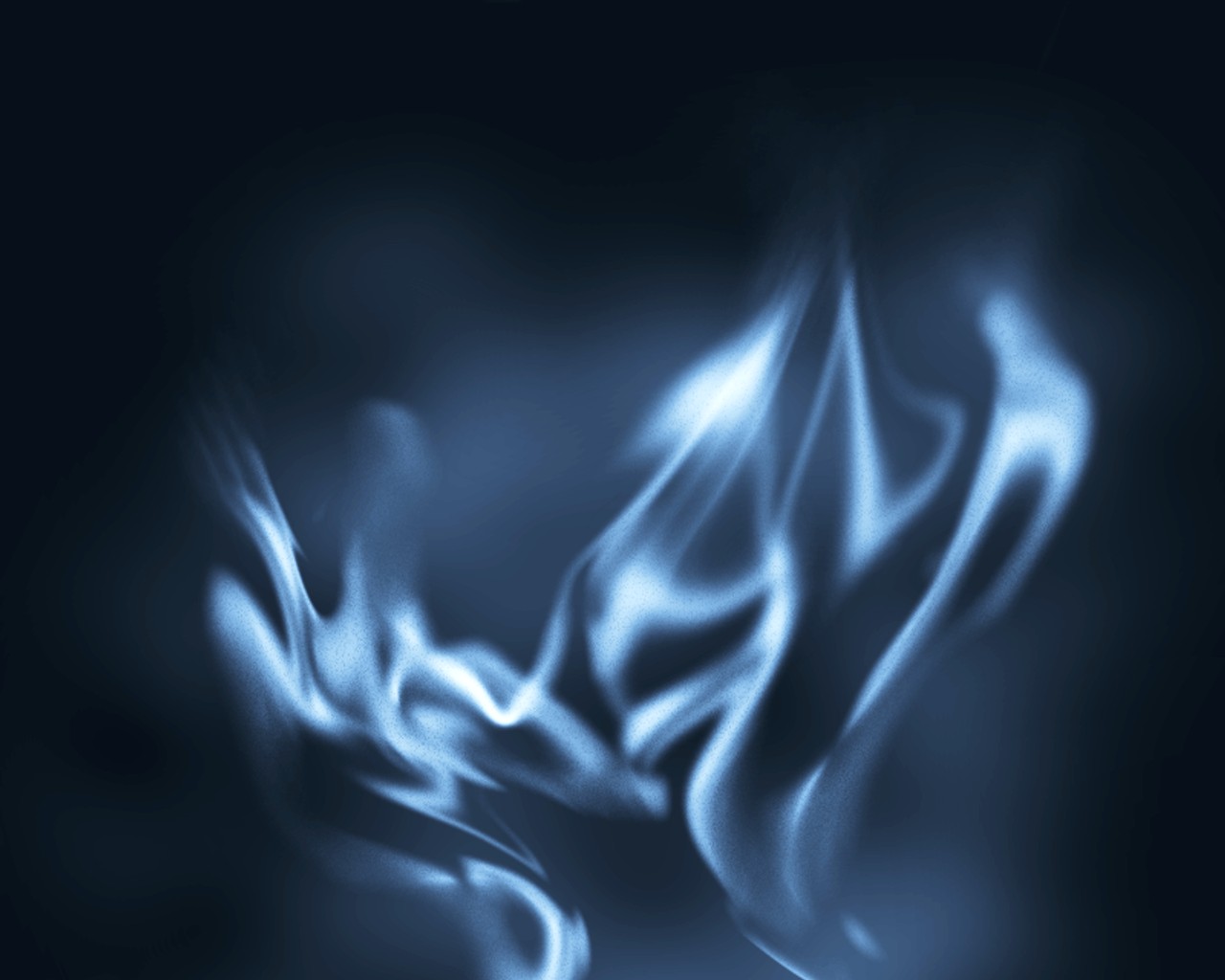
    Or you can just colorize it blue, looks cool too!
    Screenshot of step 23
    Click to enlarge

This article is licensed under the following license: Attribution-Noncommercial 3.0 Austria

Comments

Post your own comments, questions or hints here. The author and other users will see your posting and can reply to it. Of course, you can also ask in the chat.

Comments are chronologically arranged.

1 rating(s) with 3.0 of 5 stars in average

  1. http://www.gimpusers.com/tutorials/smoke-and-flames.html Thu 14 Jun 2007 11:52:20 AM CEST M.rSnow, 14 Jun 2007 11:52 AM

    Really nice. Il use this tut some time.
    TFS (thanks for sharing)

  2. http://www.gimpusers.com/tutorials/smoke-and-flames.html Wed 04 Jul 2007 04:40:54 PM CEST Tyler Gillies, 04 Jul 2007 04:40 PM

    nice!

  3. http://www.gimpusers.com/tutorials/smoke-and-flames.html Sun 15 Jul 2007 12:05:26 AM CEST I_Greedious, 15 Jul 2007 12:05 AM

    wow!..i have only been using gimp for a week..and thanks to great tuts like this one i have really learned alot!
    i followed this tut half way then experimented with my own effects and set it as wallpaper too!...lol
    great stuff.

  4. http://www.gimpusers.com/tutorials/smoke-and-flames.html Sun 09 Dec 2007 07:53:47 PM CET Pixkid, 09 Dec 2007 07:53 PM

    This tut is insane!!!! I mentioned you and your tut at http://www.gimptalk.com/forum/topic/Hand-in-fire-tut-26869-1.html#top to make this:


    Click to enlarge

  5. http://www.gimpusers.com/tutorials/smoke-and-flames.html Sun 13 Jan 2008 05:56:46 AM CET Robert, 13 Jan 2008 05:56 AM

    Wow this tutorial is just great!! thanks for sharing!

  6. http://www.gimpusers.com/tutorials/smoke-and-flames.html Thu 12 Jun 2008 07:31:39 PM CEST Bobby, 12 Jun 2008 07:31 PM

    little trouble at first, but this is a great way for making somoke or flames

  7. http://www.gimpusers.com/tutorials/smoke-and-flames.html Sun 15 Jun 2008 12:00:12 AM CEST Bobby, 15 Jun 2008 12:00 AM

    [URL=http://imageshack.us][IMG]http://img382.imageshack.us/img382/273/77944440lm1.jpg[/IMG][/URL]

  8. http://www.gimpusers.com/tutorials/smoke-and-flames.html Sun 15 Jun 2008 12:01:36 AM CEST Bobby, 15 Jun 2008 12:01 AM

    [URL=http://img382.imageshack.us/my.php?image=77944440lm1.jpg][IMG]http://img382.imageshack.us/img382/273/77944440lm1.th.jpg[/IMG][/URL]

    the other screenshot didnt work

  9. http://www.gimpusers.com/tutorials/smoke-and-flames.html Fri 11 Jul 2008 06:23:43 PM CEST Maria, 11 Jul 2008 06:23 PM

    nicee i have 1 as my backroundd!!! they rockk! AIM ME AT soccababi103xX

  10. http://www.gimpusers.com/tutorials/smoke-and-flames.html Mon 08 Sep 2008 10:12:56 PM CEST Tom, 08 Sep 2008 10:12 PM

    VERY NICE! a bit hard to do but so be it!

  11. http://www.gimpusers.com/tutorials/smoke-and-flames.html Sun 01 Mar 2009 05:06:17 PM CET Brandon, 01 Mar 2009 05:06 PM

    Makes a very nice icon for things like MSN. Very helpful.

  12. http://www.gimpusers.com/tutorials/smoke-and-flames.html Sun 03 May 2009 10:34:16 PM CEST Angel, 03 May 2009 10:34 PM

    Wow, ok. Great stuff but man I got lost a few times. Maybe I am used to Photoshop more then gimp, I was struggling on how to deselect the free select tool for about 20 mins. But I will keep trying, great stuff once again.

  13. http://www.gimpusers.com/tutorials/smoke-and-flames.html Sat 15 Aug 2009 10:48:53 PM CEST Alexx, 15 Aug 2009 10:48 PM

    This is the best tut I've ever read about creating smoke and flames in Gimp, a little bit complicated but the most professional!!!

  14. http://www.gimpusers.com/tutorials/smoke-and-flames.html Sat 17 Oct 2009 09:53:03 AM CEST kimberly, 17 Oct 2009 09:53 AM

    This is a great tutorial. I made this picture by following your instructions.

    [IMG]http://i36.tinypic.com/97plb9.jpg[/IMG]

  15. http://www.gimpusers.com/tutorials/smoke-and-flames.html Sun 07 Mar 2010 08:44:04 PM CET n00b, 07 Mar 2010 08:44 PM

    I haven't finished it yet I had some difficulty figuring out how to change the layer opacity then my computer over heated, will try again. Thanks these tutorials are very helpful in learning how to do new things.

Registered users can log in (top right of the page) to use their profile name to post comments, request email notification on new comments and attach images (e.g. their versions of the effect) to their postings.

Are you human?

Adobe® Photoshop® is a registered trademark of Adobe Systems, Inc. Linux is a trademark of Linus Torvalds. Ubuntu and Canonical are registered trademarks of Canonical Ltd. | Clock times are shown as CET / CEST | Imprint / Privacy policy | powered by bitfire it services