gimpusers.com logo
German version English version

Not logged in

Sign up! | Lost password?

Latest discussion

  1. gimp-user | today 09:49 AM
    Need help: "correcting" exposures in time-lapse imagesets
  2. gimp-developer | today 06:14 AM
    GIMP color-management spec and further discussion
  3. gimp-user | yesterday 11:13 PM
    collages in gimp?
  4. gimp-developer | yesterday 07:07 PM
    Color management (UI perspective for GIMP 2.8)
  5. gimp-user | yesterday 02:42 PM
    printing

External news

Poll

Would you like to be able to use your Google/Yahoo/MSN (OpenID) login on gimpusers, too?

Definately! I would enjoy the possibility to use my OpenID on different websites!

I don't have a special need for OpenID but I think it could be useful

Doesn't matter to me

Never, OpenID is a pain regarding privacy and personal data protection!

No. (please post a comment)

See results

Stats

gimpusers.com RSS feed

RSS feed Retweet this!

07 Oct 2006 11:07 PM, by devvv (Bernhard Stockmann)

Rays of Light (behind text)

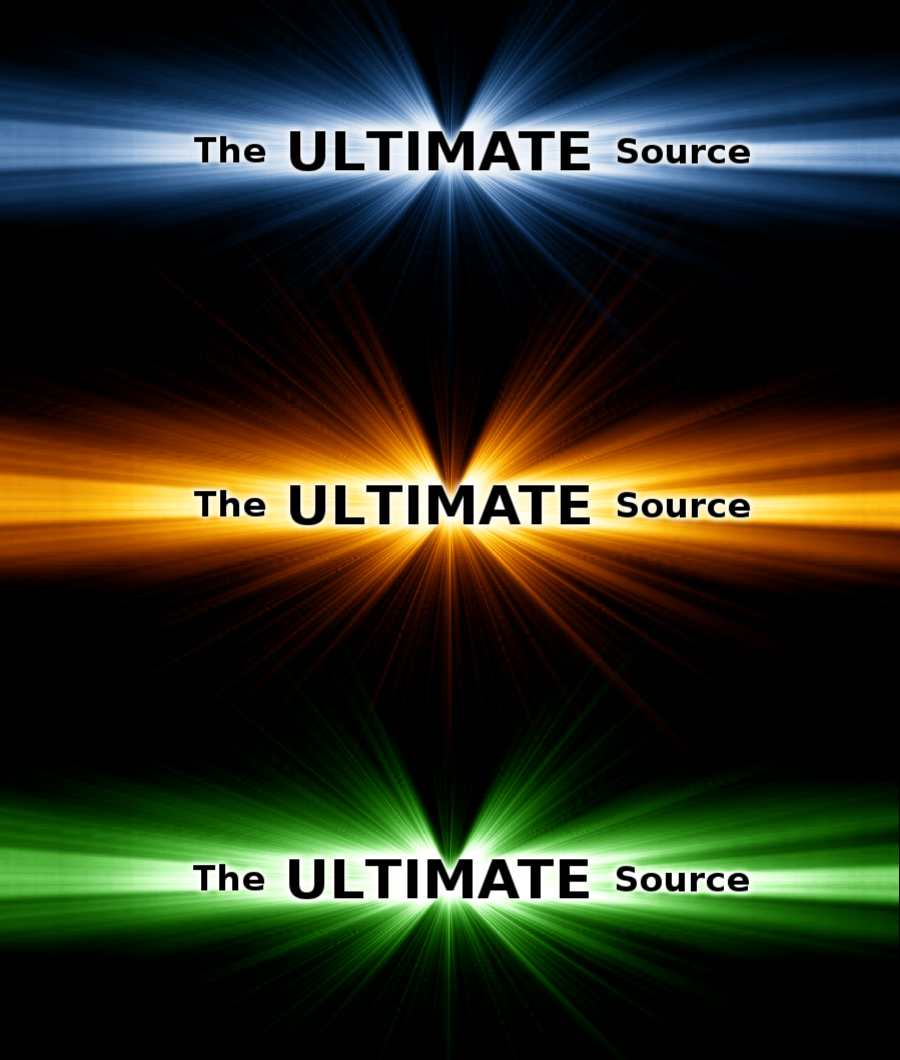
I bet you all know this effect where cool rays of light can be seen behind some text. In this tutorial I'll show you how to make such an explosion. This effect is also very often used by gaming companies.

This article has been written using GIMP 2.3. It's divided into 11 steps and takes about 15 min to complete for an average user. 87315 times read so far. Category: Special FX, required skill: 2 of 5

41 comments have been posted so far.

Available in other languages:

  1. 1
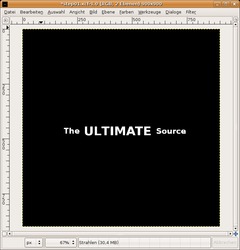
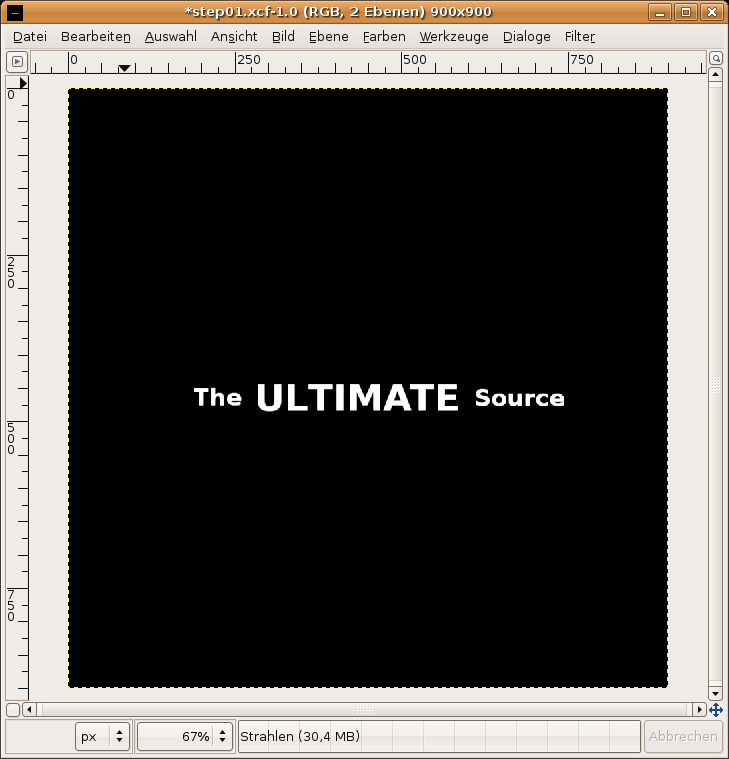
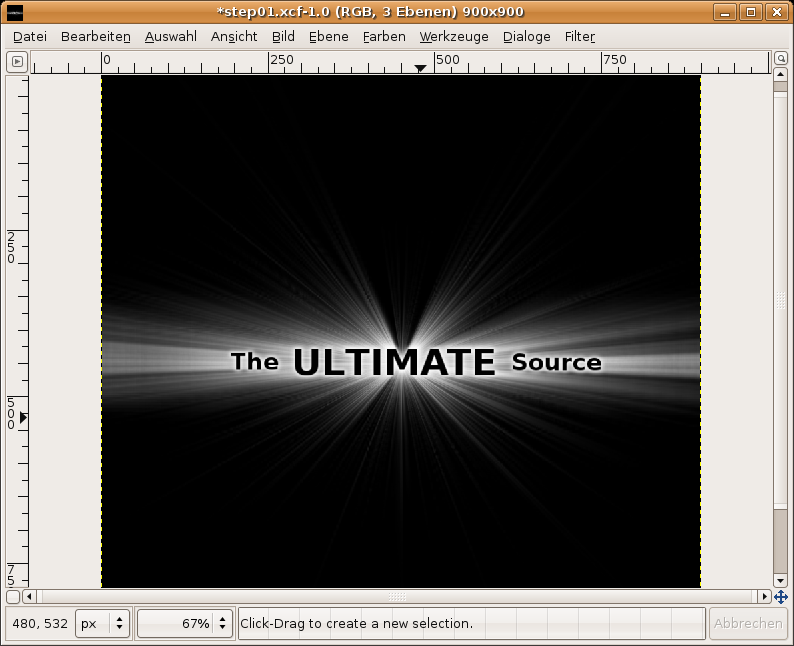
    - New file: 900 x 900px. Black Background.
    - add three text-layers: "The" "ULTIMATE" "Source".
    - Take a very bold font, that gives us a better look.
    - "The" and "Source" should have a size of 35, "ULTIMATE" has a size of 55px.
    - Move the 3 text-layers together (as seen on the picture below).
    Screenshot of step 1
    Click to enlarge
  2. 2
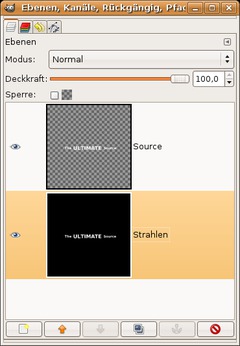
    Merge these 3 layers. To do this select (in the layers-dialog) the text-layer thats on top of all the text-layers. Right-mouse-click and choose "Merge Down". Repeat once.

    Now the whole text should be on a single layer.
    Move the Text to the very center of the picture. To do this you can either use the Alignement-Tool or just use guides. Go to Image / Guides / New Guide: Choose horizontal: 450px - then click OK, same again with a vertical guide. Move the text-layers "M" (from the "ultiMate") to the point where the guides are crossing.

    Go to View / Show guides (Deselect).

    Now go to Layer / Layer to Image Size. Duplicate this layer. Now merge the layer thats above the Background-layer down with the Background-layer.

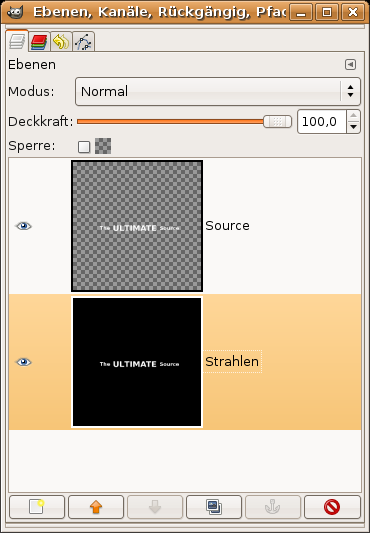
    Name that text-layer "Source" and the Background-layer "Strahlen" (which is the german word for "rays").

    Click the Eye-Icon for the "Source"-layer in the layers-dialog to make it invisible. After this long step your layers should look like this:
    Screenshot of step 2
    Click to enlarge
  3. 3
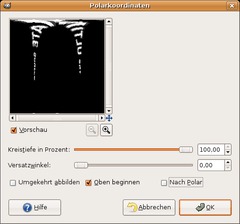
    - Make sure that the "Strahlen"-Ebene is active.
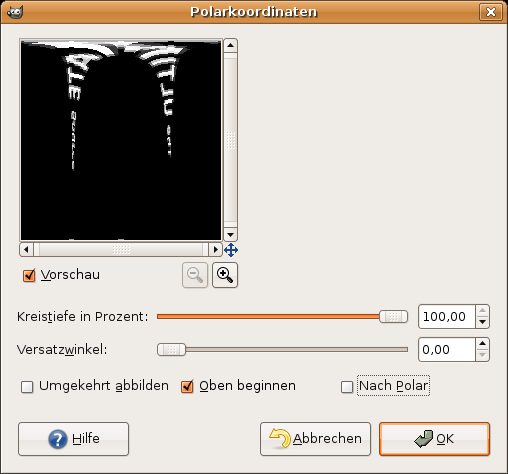
    - Go to Filter / Distorts / Polar coordinates and take the values from the picture below.
    Screenshot of step 3
    Click to enlarge
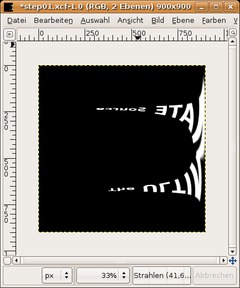
  4. 4
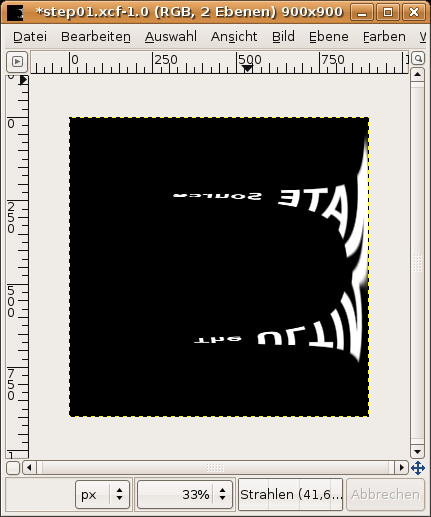
    Go to Image / Transform / Rotate 90° clockwise
    Screenshot of step 4
    Click to enlarge
  5. 5
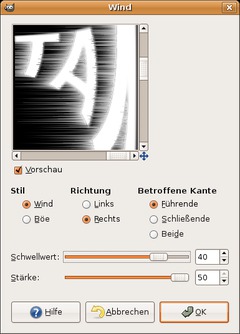
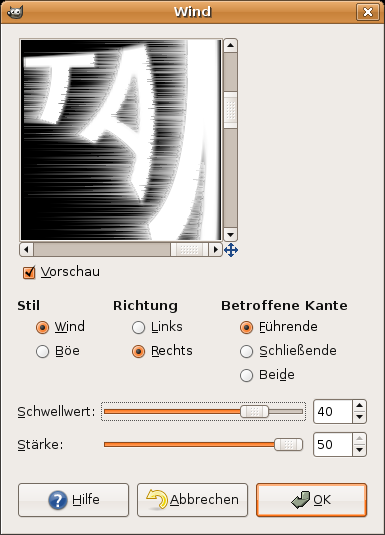
    Go to Filter / Distorts / Wind and choose the options from the picture below.
    Screenshot of step 5
    Click to enlarge
  6. 6
    Repeat the filter once but now choose "Left" as direction, the other options remain unchanged.

    Go to Image / Transform / Rotate 90° counter-clockwise. After that apply the polar-coordinates filter again. Click the "To Polar"-option. The text should look like this now.
    Screenshot of step 6
    Click to enlarge
  7. 7
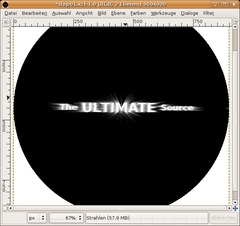
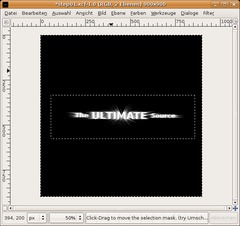
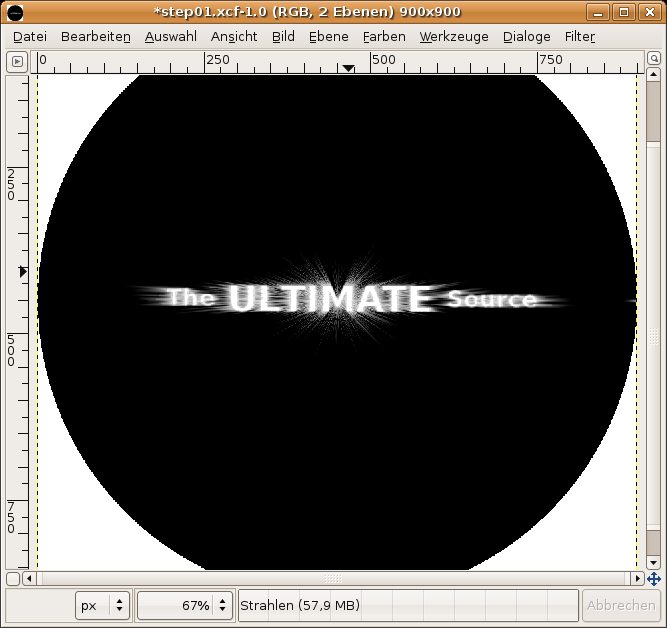
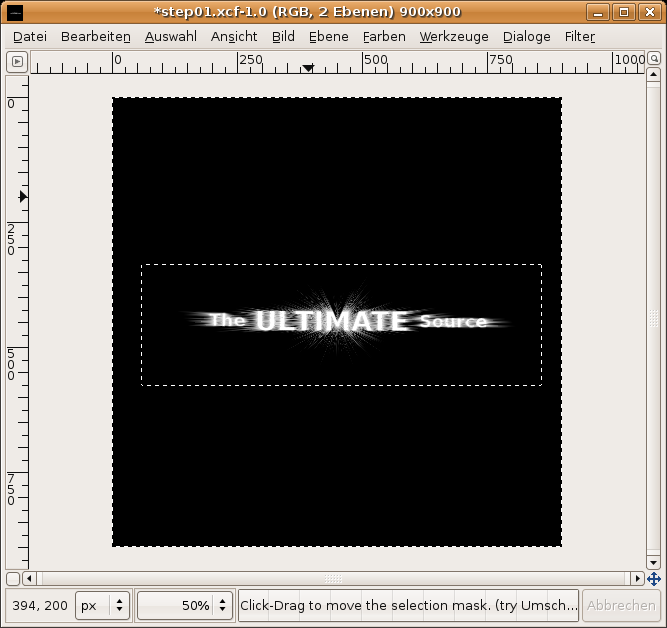
    Choose the Rectangle-Select-Tool and draw a selection around the rays.

    - Select / Invert.
    - Choose black as FG-color.
    - After that: Edit / Fill FG-color.
    - Select / None.
    Screenshot of step 7
    Click to enlarge
  8. 8
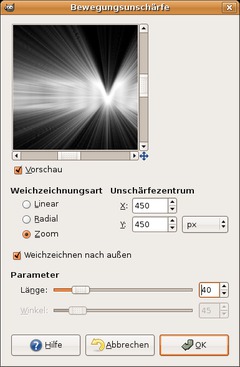
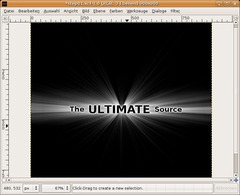
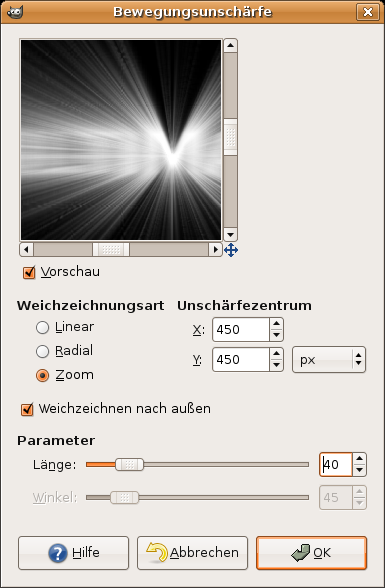
    The rays look pretty bad... To change this go to Filter / Blur / Motion Blur and choose the values from the image below:
    Screenshot of step 8
    Click to enlarge
  9. 9
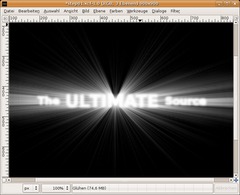
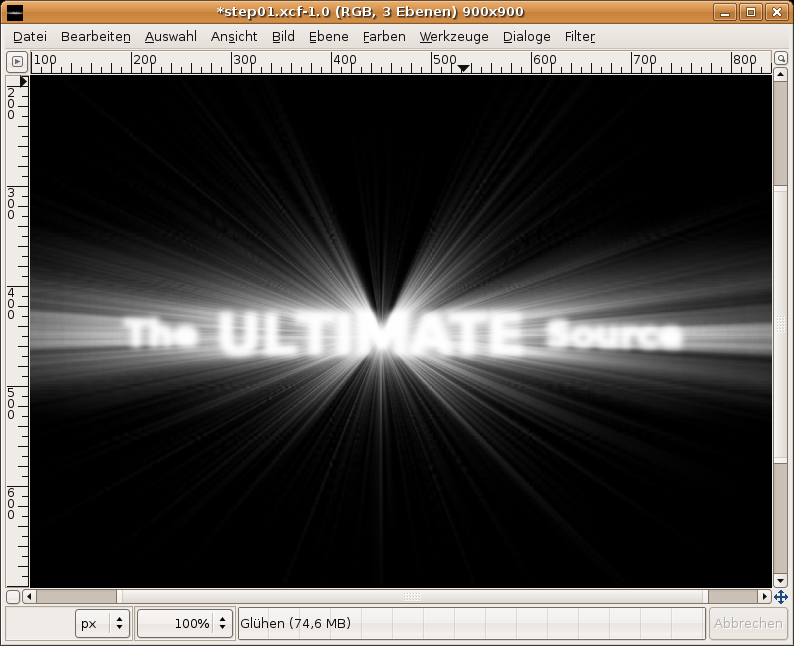
    Click the Source-layer in the layers-dialog and choose "Alpha to Selection". Create a new layer, name it "Glühen" (german word for glow). Activate the created layer.

    - Select / Grow: 2px
    - Fill the selection with white.
    - Press CTRL+SHIFT+A to deactivate the selection
    - Filter / Blur / Gaussian: 10px
    - Choose "Screen" as layermode (you can find the layer modes dropdown-menu in the layers-dialog above the transparency-control.
    Screenshot of step 9
    Click to enlarge
  10. 10
    - Move this layer between "Source" and "Strahlen", in case it is not already there.
    - Click the Eye-Icon of the "Source"-layer to make it visible. Go to Colors / Invert. (in Gimp 2.2 this option is under Layer / Colors / Invert).
    Screenshot of step 10
    Click to enlarge
  11. 11
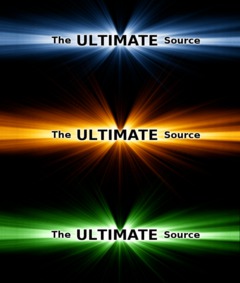
    Choose the "Strahlen"-layer and go to (Layer /) Colors / Color Balance

    For a blue shine take these values:
    ------------------------------------
    Shadow 0 | +30 | +40
    Midtones: -70 | -35 | +30
    Highlights:-85 | -25 | -50

    For a gold shine:
    ---------------------------------
    Shadows 100 | +50 | -50
    Midtones: +70 | -30 | -100
    Highlights: +20 | 0 | -50

    Done ;)

    Tip: If you want your rays to shine even more, duplicate the "strahlen"-layer, blur it with gaussian blur and set the layers mode to "Screen".
    Screenshot of step 11
    Click to enlarge

This article is licensed under the following license: Attribution-Noncommercial 3.0 Austria

Links (pingbacks)

Comments

Post your own comments, questions or hints here. The author and other users will see your posting and can reply to it. Of course, you can also ask in the chat.

Comments are chronologically arranged.

  1. http://www.gimpusers.com/tutorials/rays-of-light-behind-text.html Sat 02 Jun 2007 02:00:58 PM CEST moi, 02 Jun 2007 02:00 PM

    superbe mais vous pouvez faire un site en francais aussi :) ( il faut en faire profiter les autres :p )

  2. http://www.gimpusers.com/tutorials/rays-of-light-behind-text.html Fri 06 Jul 2007 01:57:33 PM CEST marv, 06 Jul 2007 01:57 PM

    very clever! Thank you

  3. http://www.gimpusers.com/tutorials/rays-of-light-behind-text.html Sat 21 Jul 2007 03:35:17 AM CEST anomymous, 21 Jul 2007 03:35 AM

    Thanks Very Helpful

  4. http://www.gimpusers.com/tutorials/rays-of-light-behind-text.html Tue 24 Jul 2007 07:52:53 AM CEST Mathy, 24 Jul 2007 07:52 AM

    very nice !, I love the effect , thank you

  5. http://www.gimpusers.com/tutorials/rays-of-light-behind-text.html Tue 07 Aug 2007 08:45:43 AM CEST dch, 07 Aug 2007 08:45 AM

    I LOVE this.Now I can show off to my friends.lol

  6. http://www.gimpusers.com/tutorials/rays-of-light-behind-text.html Tue 07 Aug 2007 03:03:47 PM CEST mauro, 07 Aug 2007 03:03 PM

    amazing effect... i will use it on my website

  7. http://www.gimpusers.com/tutorials/rays-of-light-behind-text.html Sat 25 Aug 2007 10:33:00 AM CEST somaraju, 25 Aug 2007 10:33 AM

    good work,

  8. http://www.gimpusers.com/tutorials/rays-of-light-behind-text.html Thu 13 Sep 2007 09:10:56 AM CEST lawl, 13 Sep 2007 09:10 AM

    lawl naab :p

  9. http://www.gimpusers.com/tutorials/rays-of-light-behind-text.html Thu 17 Jan 2008 12:28:42 PM CET cool, 17 Jan 2008 12:28 PM

    Does anyone know how to animate this?

  10. http://www.gimpusers.com/tutorials/rays-of-light-behind-text.html Sat 09 Feb 2008 03:07:47 AM CET Lag, 09 Feb 2008 03:07 AM

    you could try changing the position of the motion blur by 1-10 pixels on the X and Y axis, that would give you 100 variants, use those to make the gif? Not sure if that would actually work but I think its worth a try...

  11. http://www.gimpusers.com/tutorials/rays-of-light-behind-text.html Tue 04 Mar 2008 10:37:51 AM CET ice rose, 04 Mar 2008 10:37 AM

    *cry* i can't get it to work!!! my pic looks horrible, nothing at all like the display!!!

  12. http://www.gimpusers.com/tutorials/rays-of-light-behind-text.html Tue 04 Mar 2008 12:53:52 PM CET devvv, 04 Mar 2008 12:53 PM

    where is the problem? please specify

  13. http://www.gimpusers.com/tutorials/rays-of-light-behind-text.html Fri 14 Mar 2008 09:34:46 AM CET stingerman, 14 Mar 2008 09:34 AM

    Hmmm...my glow is not as big and spread out as yours. I used a different font and different words. Could that be it? I think your step 9 looks a lot "bigger". I also did another strahlen layer. I like the effect, good job.


    Click to enlarge

  14. http://www.gimpusers.com/tutorials/rays-of-light-behind-text.html Tue 18 Mar 2008 06:48:23 PM CET Oliver, 18 Mar 2008 06:48 PM

    thx

  15. http://www.gimpusers.com/tutorials/rays-of-light-behind-text.html Thu 20 Mar 2008 04:03:40 AM CET rogle, 20 Mar 2008 04:03 AM

    SWEET! This is probably the best gimp tutorial I've found! Easy to follow...conversions from German to English...and uses the current verison of GIMP. Keep up the good work!

  16. http://www.gimpusers.com/tutorials/rays-of-light-behind-text.html Fri 21 Mar 2008 08:49:28 AM CET Lineman, 21 Mar 2008 08:49 AM

    Very nice tut.

  17. http://www.gimpusers.com/tutorials/rays-of-light-behind-text.html Tue 25 Mar 2008 12:30:46 AM CET arikel, 25 Mar 2008 12:30 AM

    Va donc apprendre l'anglais, t'en reviendras pas de tout ce que tu loupais (y'a sérieusement trop de bouffons).

  18. http://www.gimpusers.com/tutorials/rays-of-light-behind-text.html Sat 26 Apr 2008 10:07:30 PM CEST furion, 26 Apr 2008 10:07 PM

    Hello! I have a question: Can i translate this tutorial for polish forum about GIMP - www.gimpuj.info? In a tutorial will be added link to this page and the author's nick. If you answer my question, i will be happy.
    PS. Sorry for my not good english.

  19. http://www.gimpusers.com/tutorials/rays-of-light-behind-text.html Sun 27 Apr 2008 01:44:23 AM CEST devvv, 27 Apr 2008 01:44 AM

    yes, you can. the license says that you have to add the linkt to the original tutorial and also please drop a note to the authors name (in this case this is me ;)) thank you!

  20. http://www.gimpusers.com/tutorials/rays-of-light-behind-text.html Sun 27 Apr 2008 10:15:36 AM CEST furion, 27 Apr 2008 10:15 AM

    Thank you.

  21. http://www.gimpusers.com/tutorials/rays-of-light-behind-text.html Wed 30 Apr 2008 08:09:10 PM CEST eNeRgy, 30 Apr 2008 08:09 PM

    Cool..
    Kann mir das jemand in Deutscher Sprache erklären???

    Wäre nett..
    Good bye

  22. http://www.gimpusers.com/tutorials/rays-of-light-behind-text.html Thu 24 Jul 2008 12:08:39 AM CEST Matt, 24 Jul 2008 12:08 AM

    I'm having trouble following step 9. It says to grow the selection. However, the previous time anything about a selection was mentioned it said to select none. As it stands, the meaning of step nine appears to be: Fill with white, then blur this white area. Blur something that is white? I think that this step should be clarified to eliminate the possibility of confusion.

  23. http://www.gimpusers.com/tutorials/rays-of-light-behind-text.html Thu 24 Jul 2008 05:28:07 AM CEST Torbjorn, 24 Jul 2008 05:28 AM

    Matt, you missed the first part of the step, immediately after the number 9. There it says to (right-)click the source layer and choose "Alpha to selection", and then creating a new layer, before proceeding with the steps listed.

  24. http://www.gimpusers.com/tutorials/rays-of-light-behind-text.html Mon 28 Jul 2008 01:25:45 AM CEST Matt, 28 Jul 2008 01:25 AM

    I see the cause of confusion. Really simple actually. It is that it says:
    Click the Source-layer in the layers-dialog
    Where it should say:
    Click the "Source" layer in the layers-dialog...

    That makes it clear which layer is meant. As it is now, it is unclear whether the original layer or the layer named that is named "Source".

  25. http://www.gimpusers.com/tutorials/rays-of-light-behind-text.html Mon 22 Sep 2008 03:53:03 PM CEST Ozzy, 22 Sep 2008 03:53 PM

    Great tutorial, i like it very much, i tried adding different effects from motion blurring, and finally i got this :)

    <a href="http://img218.imageshack.us/my.php?image=rayofsunxs8.jpg" target="_blank"><img src="http://img218.imageshack.us/img218/9052/rayofsunxs8.th.jpg" border="0" alt="Free Image Hosting at www.ImageShack.us" /></a><br /><br /><a href="http://img604.imageshack.us/content.php?page=blogpost&files=img218/9052/rayofsunxs8.jpg" title="QuickPost"><img src="http://imageshack.us/img/butansn.png" alt="QuickPost" border="0"></a>

  26. http://www.gimpusers.com/tutorials/rays-of-light-behind-text.html Mon 22 Sep 2008 03:54:09 PM CEST Ozzy, 22 Sep 2008 03:54 PM

    omg :D [url=http://img218.imageshack.us/my.php?image=rayofsunxs8.jpg][img=http://img218.imageshack.us/img218/9052/rayofsunxs8.th.jpg][/url][url=http://g.imageshack.us/thpix.php][img=http://img218.imageshack.us/images/thpix.gif][/url] hope this will work :/

  27. http://www.gimpusers.com/tutorials/rays-of-light-behind-text.html Mon 22 Sep 2008 03:55:18 PM CEST Ozzy, 22 Sep 2008 03:55 PM

    god damn, i hate it :D
    [URL=http://imageshack.us][IMG]http://img218.imageshack.us/img218/9052/rayofsunxs8.jpg[/IMG][/URL]

  28. http://www.gimpusers.com/tutorials/rays-of-light-behind-text.html Tue 23 Sep 2008 01:27:52 AM CEST carljeff, 23 Sep 2008 01:27 AM

    that was amazing.I couldn't find one problem with it if I tried. Perfect.

  29. http://www.gimpusers.com/tutorials/rays-of-light-behind-text.html Tue 04 Nov 2008 05:04:11 PM CET Dmyan, 04 Nov 2008 05:04 PM

    I really appreciate your guide.
    But probably something is missing on the step 9. Could you show us how to make the rays so big and spread out as yours.

  30. http://www.gimpusers.com/tutorials/rays-of-light-behind-text.html Mon 08 Dec 2008 09:13:54 PM CET Bob, 08 Dec 2008 09:13 PM

    Yeah... something is missing on step 8-9... your rays suddenly look really big and spread out! but great tutorial nd really nice effect :)

  31. http://www.gimpusers.com/tutorials/rays-of-light-behind-text.html Mon 08 Dec 2008 11:54:45 PM CET Torbjorn, 08 Dec 2008 11:54 PM

    Try using a larger value for the motion blur.

  32. http://www.gimpusers.com/tutorials/rays-of-light-behind-text.html Tue 09 Dec 2008 04:55:48 PM CET Bob, 09 Dec 2008 04:55 PM

    Torbjorn-> Hello, yeah i tried using a bigger value but it doesnt work as good as his, for some reason the middle rays dont look as big :(

  33. http://www.gimpusers.com/tutorials/rays-of-light-behind-text.html Mon 05 Jan 2009 01:38:17 AM CET aj1908, 05 Jan 2009 01:38 AM

    great Tut. :D
    But is there a way to do this to the render ??

  34. http://www.gimpusers.com/tutorials/rays-of-light-behind-text.html Sun 22 Mar 2009 06:28:20 AM CET Paulo, 22 Mar 2009 06:28 AM

    Great tutorial! However, the new Gimp is slightly off from your figures.

    1. Motion blur needs to be 100+ to achieve an effect like your examples (which is so cool btw)

    2. Too much values on highlights makes the shines slightly saturated but those values are a good start to experiment on more shines and glows.

    Overall, this is one of the best tutorials! 10/10!

  35. http://www.gimpusers.com/tutorials/rays-of-light-behind-text.html Fri 03 Apr 2009 04:41:57 AM CEST michaek, 03 Apr 2009 04:41 AM

    anyone know if there is a plugin for this? to automatically do this?

    if there's not someone should make one

  36. http://www.gimpusers.com/tutorials/rays-of-light-behind-text.html Sun 12 Apr 2009 07:46:14 PM CEST darkbhudda, 12 Apr 2009 07:46 PM

    Great tutorial. Thank you. I already have a use for it.

  37. http://www.gimpusers.com/tutorials/rays-of-light-behind-text.html Fri 17 Apr 2009 03:11:47 PM CEST Adam, 17 Apr 2009 03:11 PM

    Great tutorial, Just need to add the font name due to the blur not being as powerful as your example. Even with motion blur higher.

  38. http://www.gimpusers.com/tutorials/rays-of-light-behind-text.html Tue 12 May 2009 11:40:09 PM CEST Kevin, 12 May 2009 11:40 PM

    Thanks so much! I love learning new GIMP techniques. Keep posting!

    Kevin

  39. http://www.gimpusers.com/tutorials/rays-of-light-behind-text.html Fri 15 May 2009 04:02:39 AM CEST Alyoshablue, 15 May 2009 04:02 AM

    Even though you've heard this all throughout this post, this is freaken awesome. Mind boggling - true craft.

  40. http://www.gimpusers.com/tutorials/rays-of-light-behind-text.html Wed 22 Jul 2009 09:37:29 PM CEST matt, 22 Jul 2009 09:37 PM

    I noticed on your #8 under Parameter, your angle is at 45, mine is at 10 and won't let me change it. Any idea how I do?

  41. http://www.gimpusers.com/tutorials/rays-of-light-behind-text.html Sun 03 Jan 2010 09:18:43 AM CET brandon, 03 Jan 2010 09:18 AM

    i would really like is someone can please make me one blue that say "TEAM OV3RDOSE" because i cant download gimp and its a bit of a problem because my team need a 300x200 image can anyone help

Registered users can log in (top right of the page) to use their profile name to post comments, request email notification on new comments and attach images (e.g. their versions of the effect) to their postings.

Are you human?

Adobe® Photoshop® is a registered trademark of Adobe Systems, Inc. Linux is a trademark of Linus Torvalds. Ubuntu and Canonical are registered trademarks of Canonical Ltd. | Clock times are shown as CET / CEST | Imprint / Privacy policy | powered by bitfire it services