gimpusers.com logo
German version English version

Not logged in

Sign up! | Lost password?

Latest discussion

  1. gimp-user | today 10:18 AM
    Installing gegl for gimp-2.7
  2. gimp-user | today 05:37 AM
    gimp
  3. gimp-user | today 03:30 AM
    Enlarge Canvas: Is there a way to do it by dragging? Could/Should there be?
  4. gimp-user | today 03:10 AM
    Quick compiling question
  5. gimp-developer | yesterday 06:57 PM
    GIMP distributing sRGB profiles: license issues?

External news

Poll

Would you like to be able to use your Google/Yahoo/MSN (OpenID) login on gimpusers, too?

Definately! I would enjoy the possibility to use my OpenID on different websites!

I don't have a special need for OpenID but I think it could be useful

Doesn't matter to me

Never, OpenID is a pain regarding privacy and personal data protection!

No. (please post a comment)

See results

Stats

gimpusers.com RSS feed

RSS feed Retweet this!

16 Dec 2009 01:32 AM, by HostedDinner (Fabian), translated to English by HostedDinner (Fabian)

Create a simple Grunge-Stamp!

This Tuturial shows you how to make a simple stemp, with a Grunge Effect.

This article has been written using GIMP 2.6. It's divided into 5 steps and takes about 8 min to complete for an average user. 5148 times read so far. Category: Text effects, required skill: 1 of 5

2 comments have been posted so far.

Available in other languages:

  1. 1
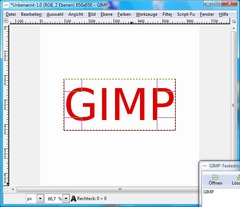
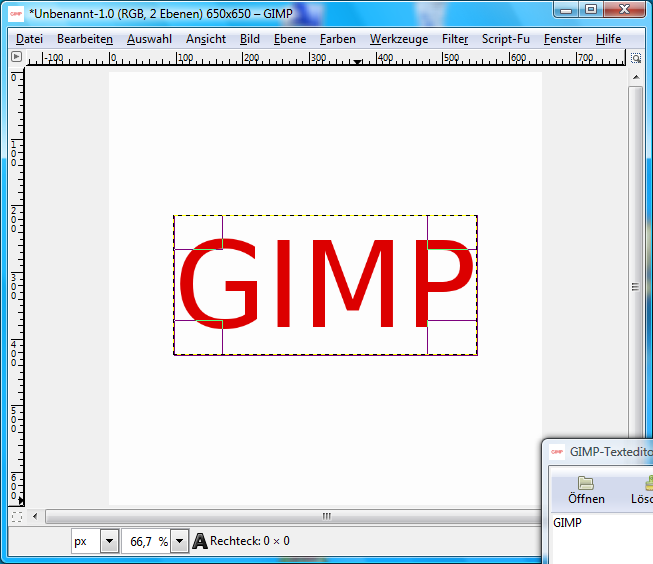
    - Create a new picture (e.g. 650x650).
    - Choose a color for the stamp text, I have used a red one: #dd0000.
    - Now write a text using the text-tool
    Screenshot of step 1
    Click to enlarge
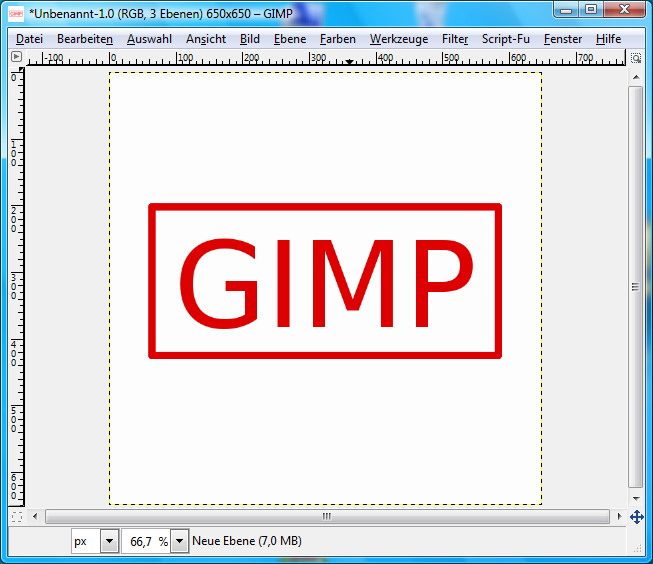
  2. 2
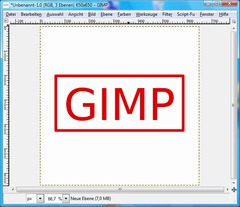
    Now we make the text look better by adding a border to it

    - Therefore add a new layer and activate it
    - Choose the Selection-Tool and drag a border. The distance to each side shoud be approximately the same to look asthetically.
    - Select / Border... (5px depending how thick the border shoud be)
    - Edit / Fill with FG Color
    - Select / None

    It should look like this:
    Screenshot of step 2
    Click to enlarge
  3. 3
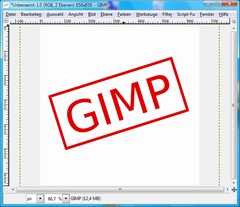
    In this step we rotate the picture

    - right click the layer and choose "Merge down"
    - Choose the Rotate Tool and rotate the picture to a desired position
    Screenshot of step 3
    Click to enlarge
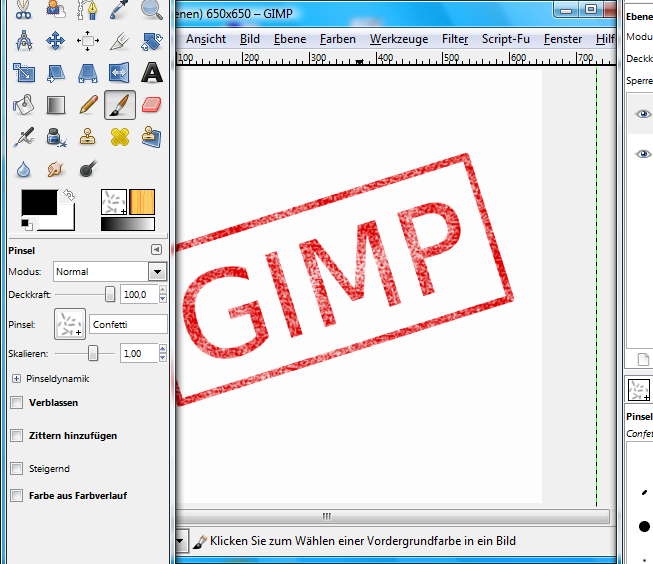
  4. 4
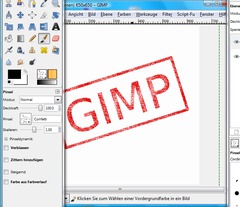
    Now we're coming to the Grunge-Effect:

    - Layer / Mask / Add Layer Mask (White)
    - Choose Paintbrush (Brushtyp Confetti)
    - Reset the color to black (use D on your keyboard)
    - Paint at will on the Layer mask (Black becomes transparent, so it looks white)
    Screenshot of step 4
    Click to enlarge
  5. 5
    Second part of the noise:

    - Choose Ink Tool
    * Opacity: 70-80%
    * Size: 6
    * Typ: rhombus
    * Shape: thin, so you have to drag the pointer a little bit down
    - Paint again at will (sometimes a little bit faster and slower)
    - Opacity could be change for some strokes to 80-90%, so there is some variety in it

    We're done! I hope you like your newly created stamp ;)
    Screenshot of step 5
    Click to enlarge

This article is licensed under the following license: Attribution-Noncommercial 3.0 Austria

Links (pingbacks)

Comments

Post your own comments, questions or hints here. The author and other users will see your posting and can reply to it. Of course, you can also ask in the chat.

Comments are chronologically arranged.

  1. http://www.gimpusers.com/tutorials/create-a-simple-grunge-stamp.html Wed 16 Dec 2009 02:12:30 AM CET aclim, 16 Dec 2009 02:12 AM

    It look real stamp...

  2. http://www.gimpusers.com/tutorials/create-a-simple-grunge-stamp.html Wed 16 Dec 2009 05:38:53 AM CET Jose, 16 Dec 2009 05:38 AM

    Wow really nice, I tried a similar effect before with GIMP, but this one is much better!

Registered users can log in (top right of the page) to use their profile name to post comments, request email notification on new comments and attach images (e.g. their versions of the effect) to their postings.

Are you human?

Adobe® Photoshop® is a registered trademark of Adobe Systems, Inc. Linux is a trademark of Linus Torvalds. Ubuntu and Canonical are registered trademarks of Canonical Ltd. | Clock times are shown as CET / CEST | Imprint / Privacy policy | powered by bitfire it services