gimpusers.com logo
German version English version

Not logged in

Sign up! | Lost password?

Latest discussion

  1. gimp-docs | yesterday 10:55 PM
    a new user perspective
  2. gimp-developer | yesterday 08:04 PM
    scanner support should be File->Acquire
  3. gegl-developer | yesterday 06:24 PM
    babl docs
  4. gimp-docs | yesterday 12:46 PM
    GIMP Manual
  5. gimp-user | yesterday 09:42 AM
    Bug

External news

Poll

How good are you at programming?

OMG, that is nothing for me at all!

I've been coding a little bit but I'm not very fit at it

I'm pretty good at programming and would maybe be able to write a Plug-In for GIMP

I'm very good at programming and I would theoretically be able to hack for the GIMP core

See results

Stats

gimpusers.com RSS feed

RSS feed Retweet this!

06 Feb 2009 12:13 AM, by devvv (Bernhard Stockmann)

Splash Screen: Create a colorful stream of light with particles

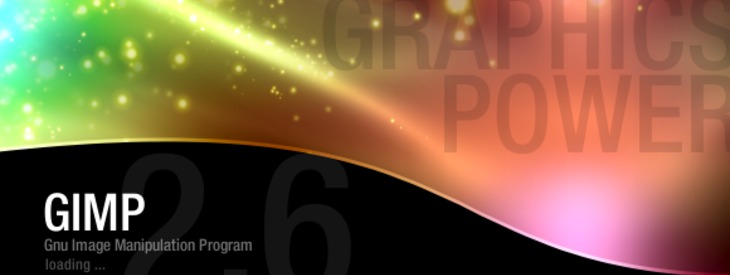
You all probably know these images that are shown on starting up a certain program: these are so called splash screens. In this tutorial I will show you how to make a special, very beautiful splash. It will be a colorful stream of light with particles!

This article has been written using GIMP 2.6. It's divided into 19 steps and takes about 30 min to complete for an average user. 40964 times read so far. Category: Printed graphics & layout, required skill: 2 of 5

31 comments have been posted so far.

Available in other languages:

  1. 1
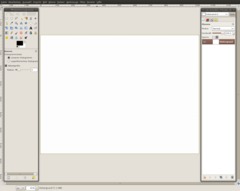
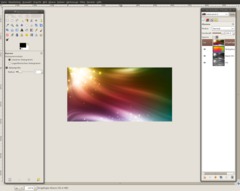
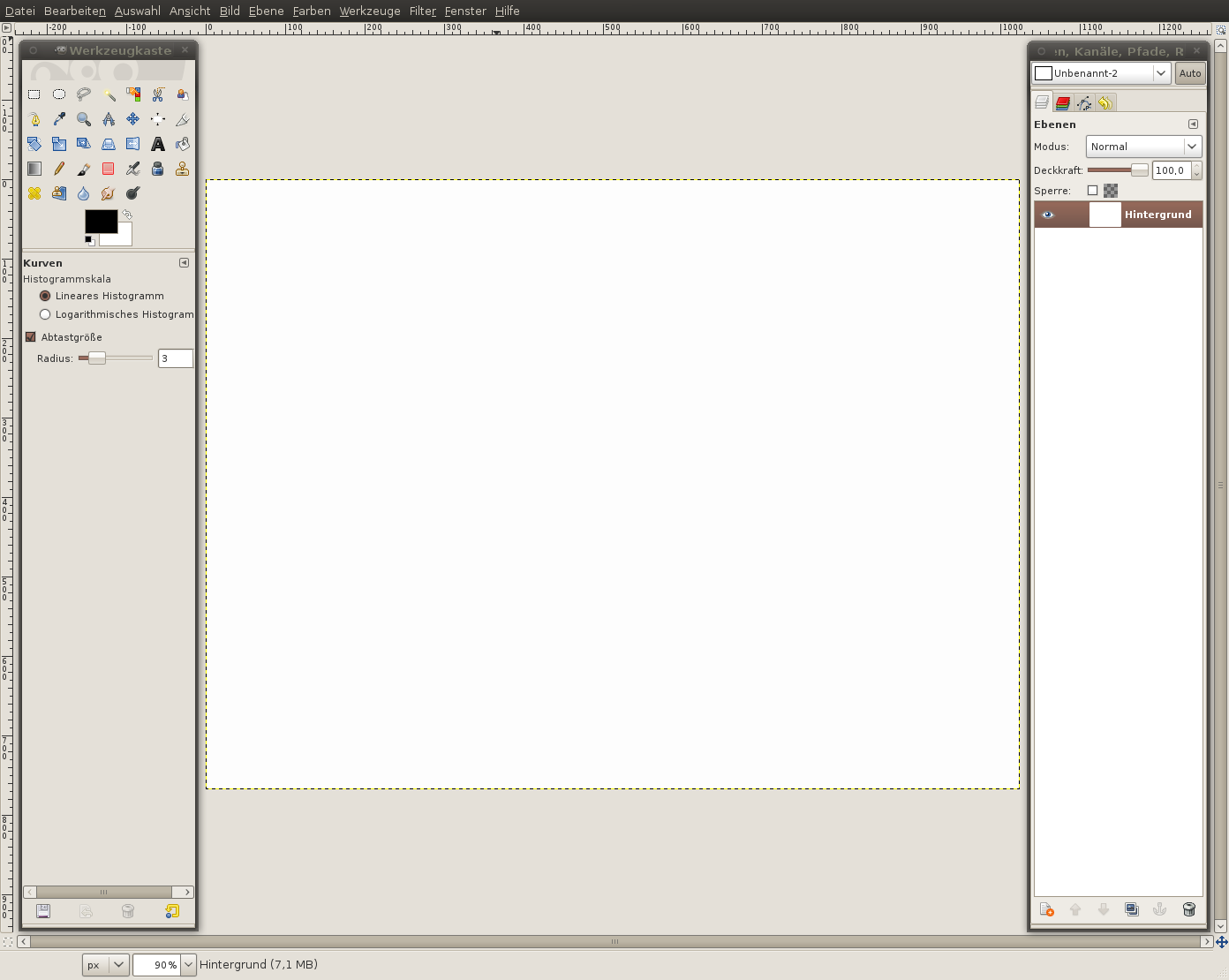
    Create a new image: 1024x1024px. Don't be afraid - the splash screen will be cropped later
    Screenshot of step 1
    Click to enlarge
  2. 2
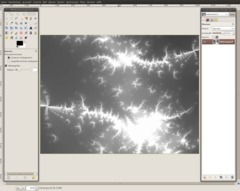
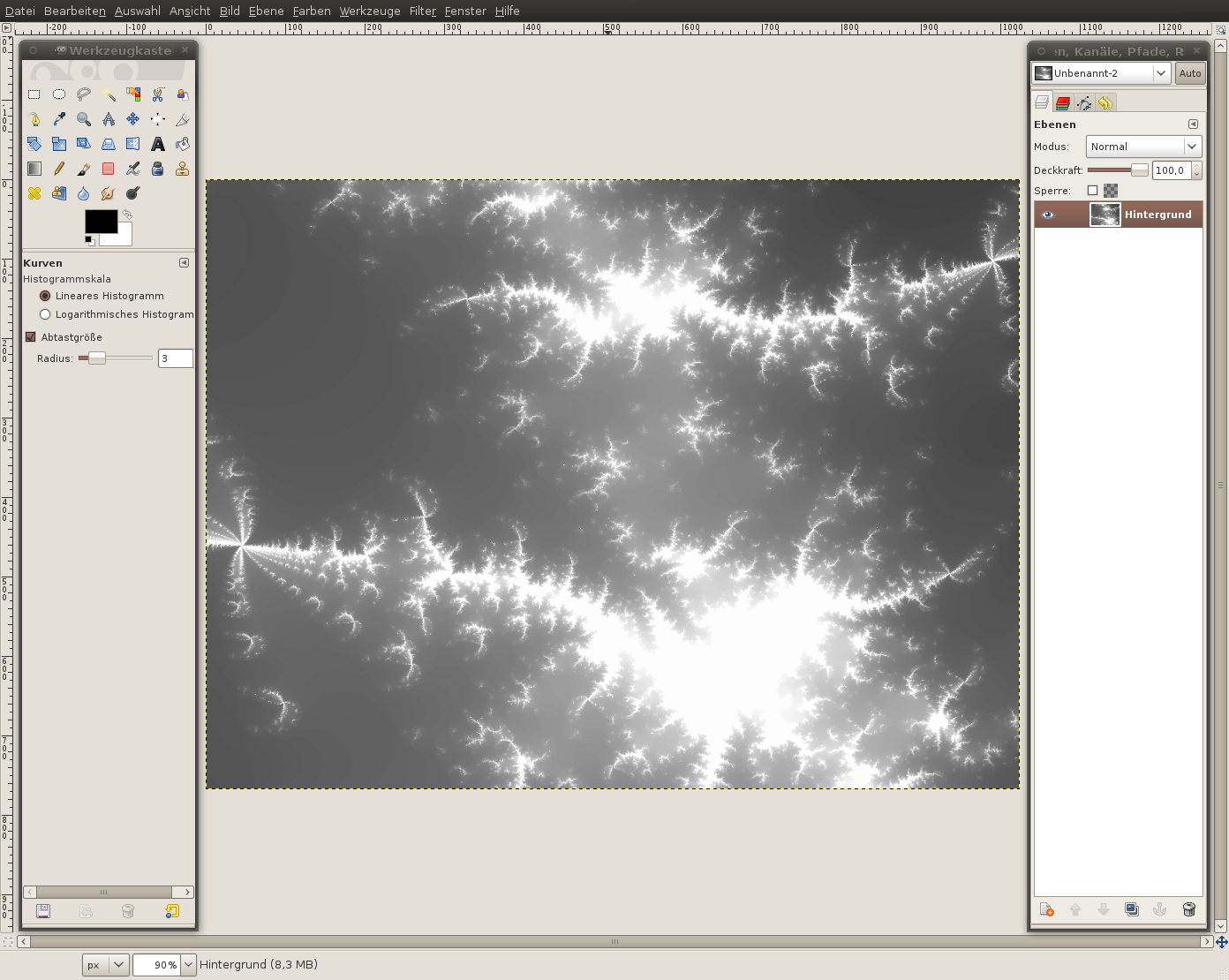
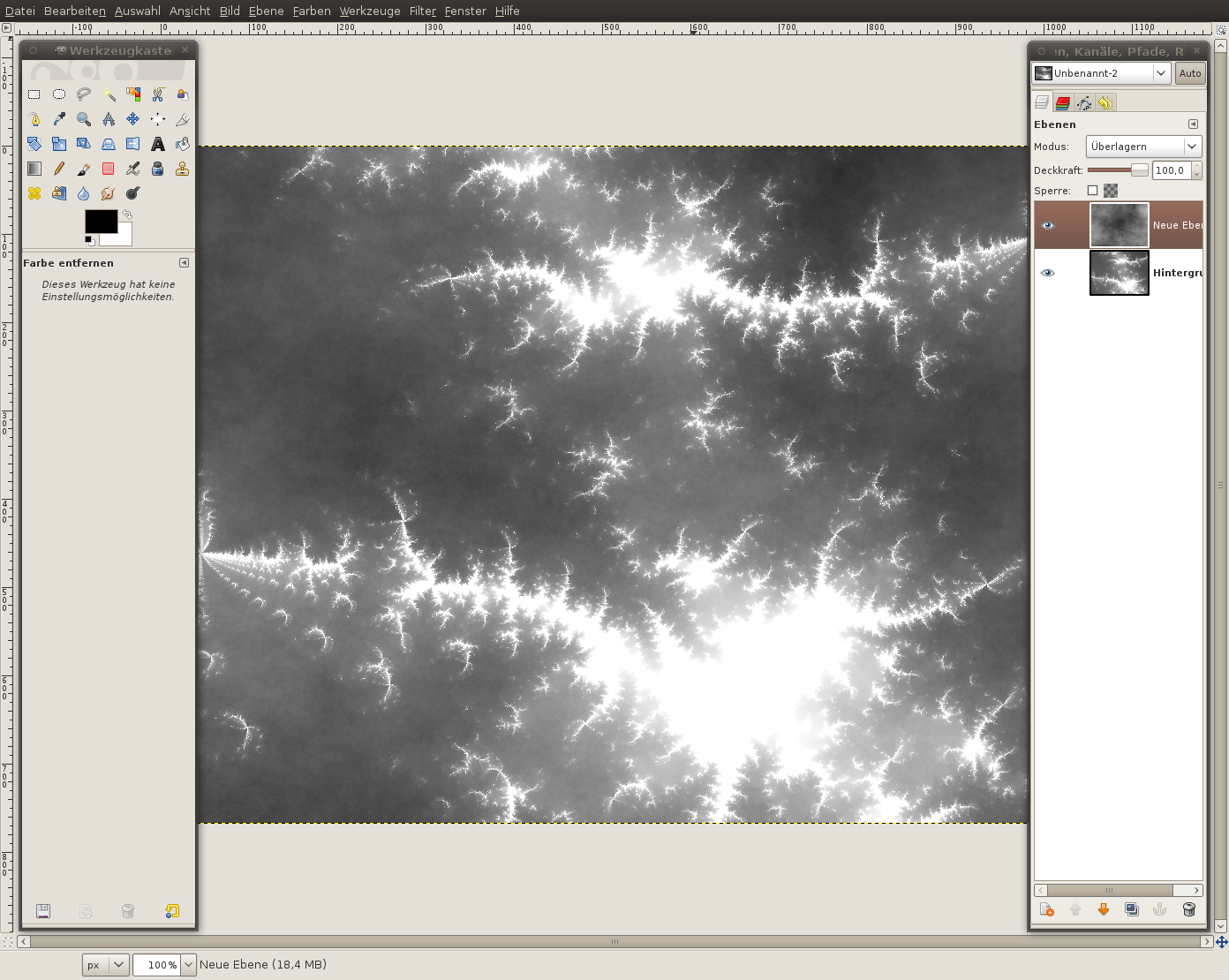
    To create really varied light and dark parts in the image we're gonna use a combination of clouds and fractals.

    tip: Fractals are objects that are repeated in itself. If you zoom into a fractal the same part is viewed again, and again - infinite repeats.

    To create a fractal in GIMP you can use the built-in fractal explorer.

    - Filter / Render / Fractal explorer

    Leave the settings as they are. Otherwise - if you clicked something - press the reset button.

    Activate the "Fractals" tab. Select "Explosive" and press accept
    Screenshot of step 2
    Click to enlarge
  3. 3
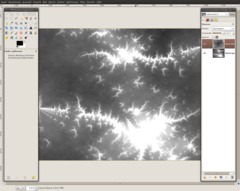
    - Create a new layer
    - Filter / Render / Clouds / Plasma - use the preset settings and press OK
    - Colors / Desaturate: Brightness. Press OK
    - Set the layers mode to "Overlay". (The layers mode drop down is found in the layers dialog above the opacity ruler.
    Screenshot of step 3
    Click to enlarge
  4. 4
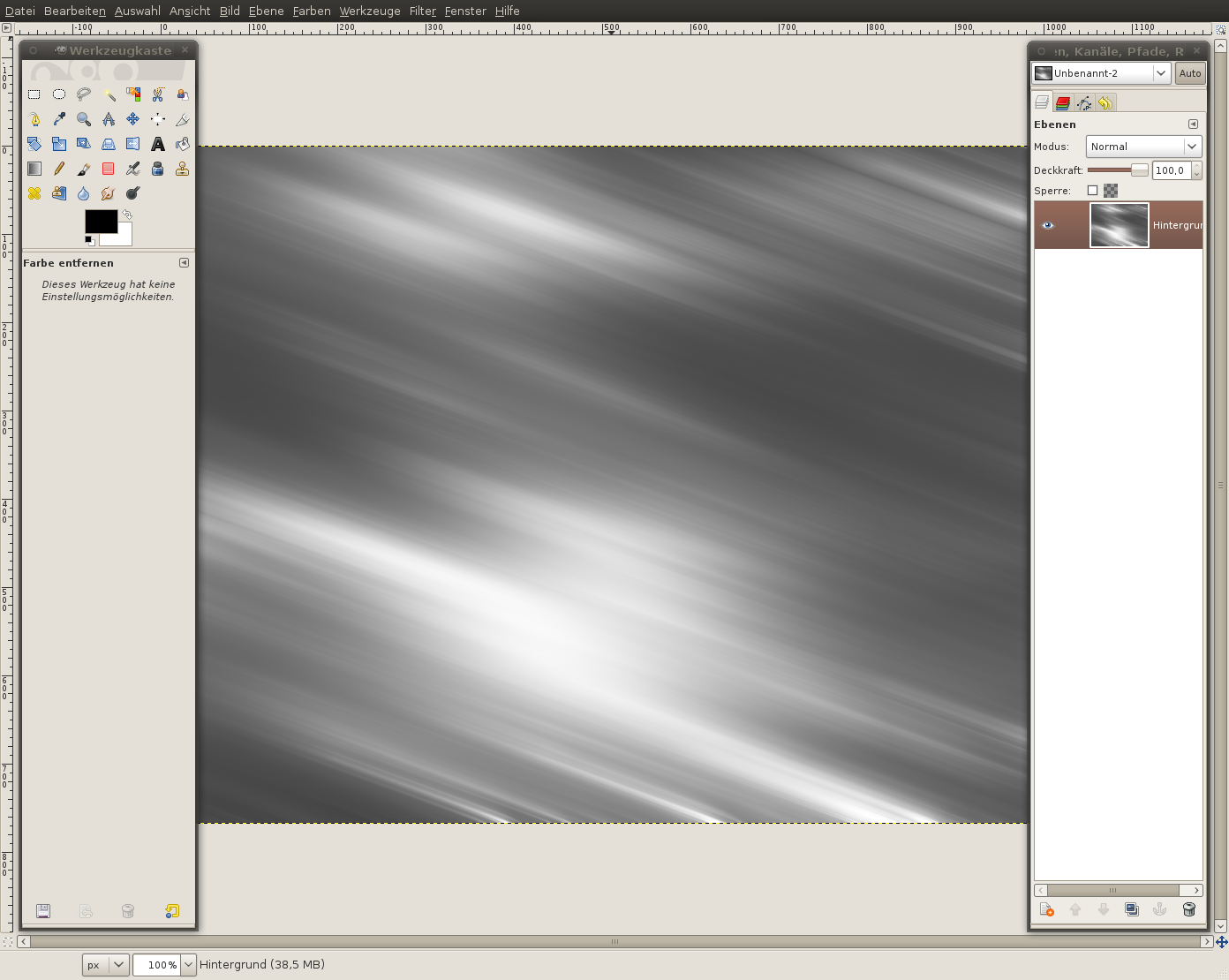
    - Press CTRL+M to merge the visible layers into one layer.

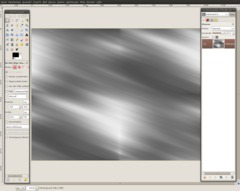
    - Filter /Blur / Motion Blur: 200 / 20. After that repeat the filter by pressing just CTRL+F
    Screenshot of step 4
    Click to enlarge
  5. 5
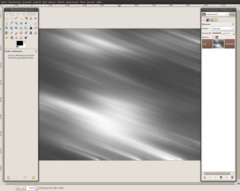
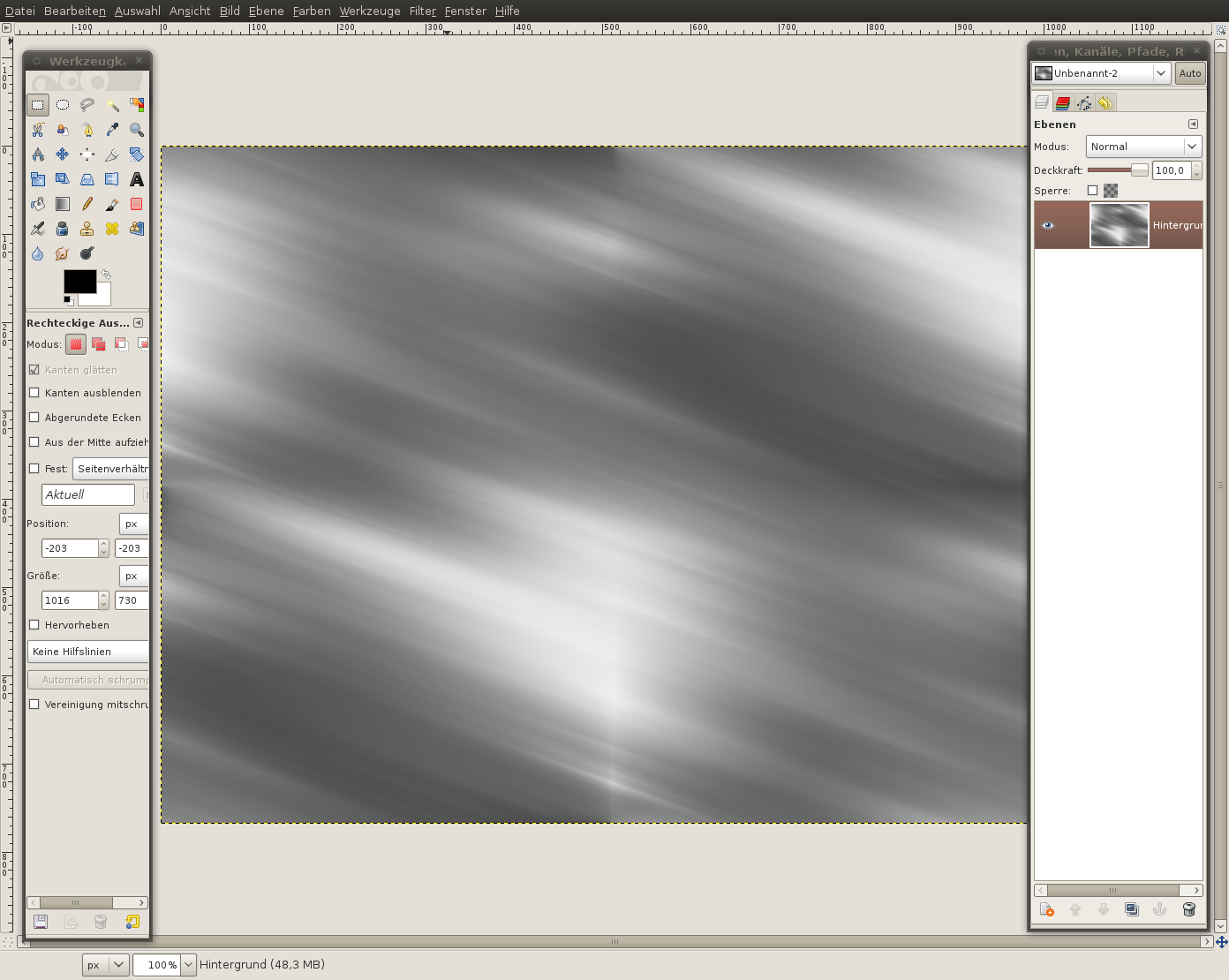
    - Filter / Map / Make Seamless. Doing this makes it possible to put copies of the image to the right/left/top/bottom without seeing any border. You can create seamless transitions with it. That is needed for the next step.
    Screenshot of step 5
    Click to enlarge
  6. 6
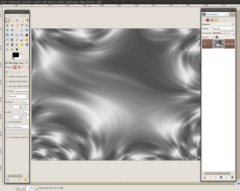
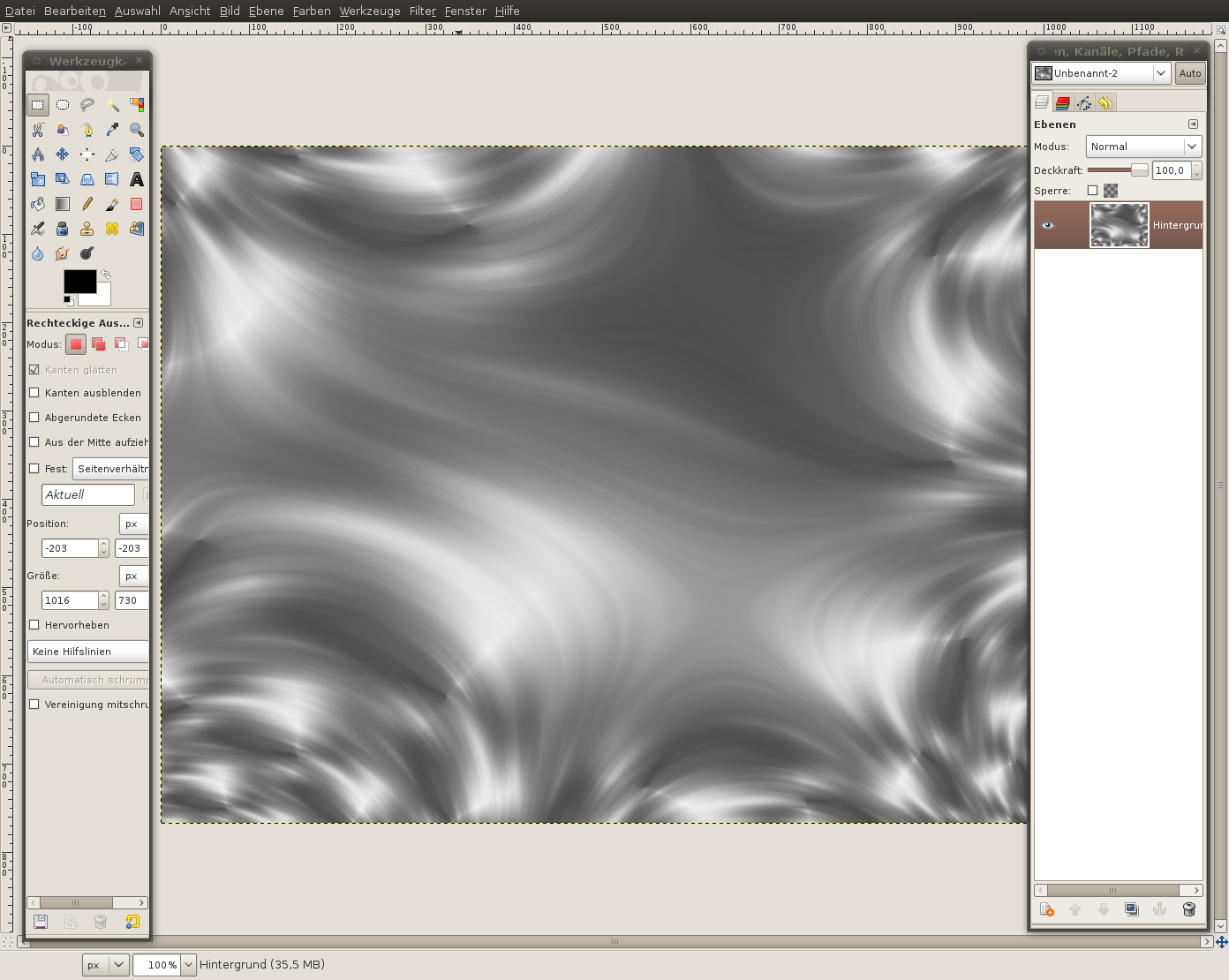
    In this step our main goal is to get nice and smooth waves into the image.

    We're going to transform our picture into a fractal now. Doing this will make your picture look evenly distorted and nice waves will be created.

    Tip: Before I told you how you can imagine a fractal in a good way (in the graphics environment). That a part can be repeated nicely we've just used the seamless-filter. And that is why we can easily transform our pic into a repeated fractal now.

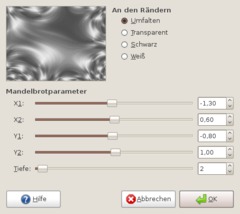
    - Filter / Map / Fractal Trace (Use the Values of the picture below)
    Screenshot of step 6
    Click to enlarge
  7. 7
    Now we got some really smooth waves. So it is now time to get some color into our image.
    Screenshot of step 7
    Click to enlarge
  8. 8
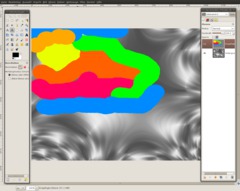
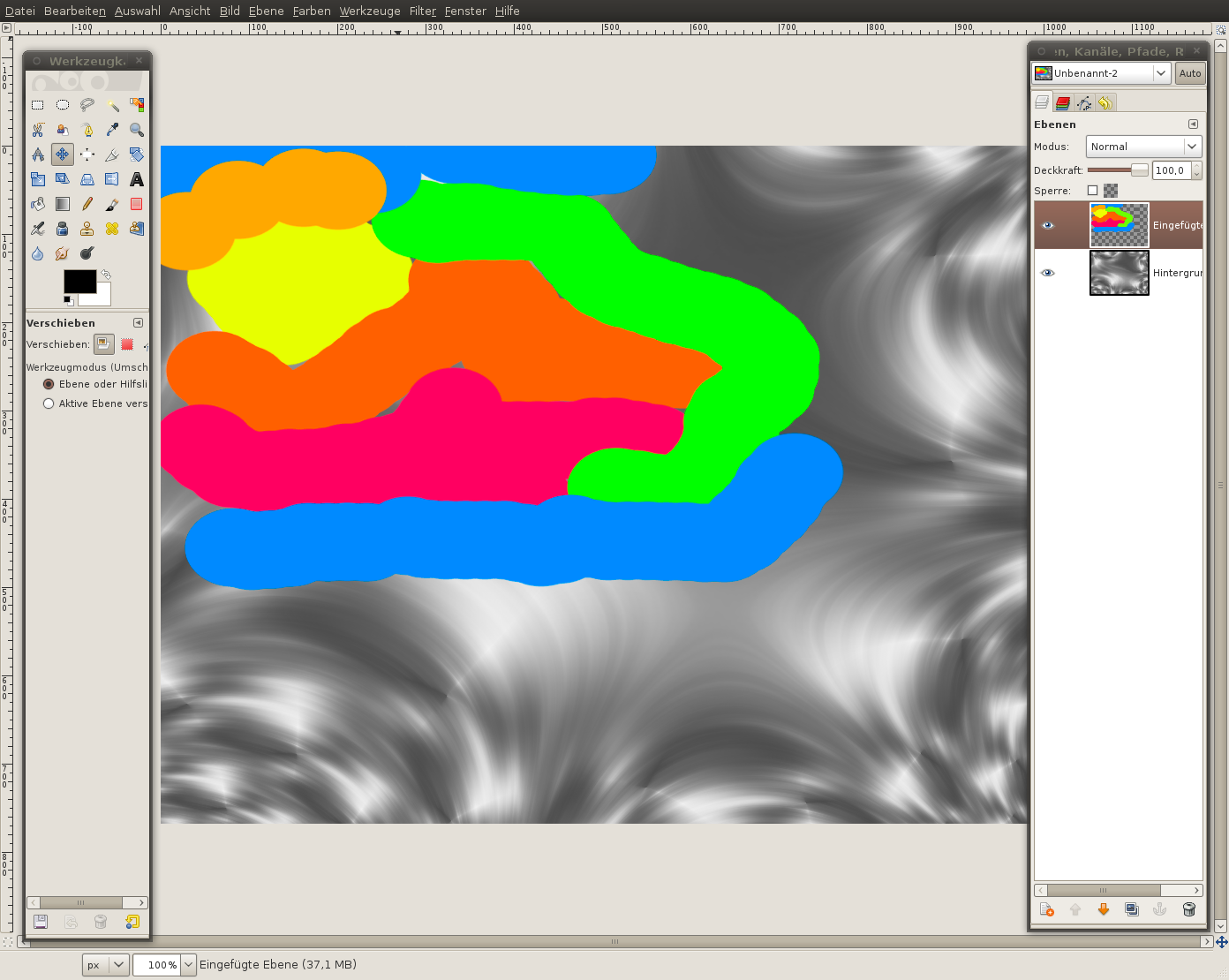
    To get smooth colors that flow together we will first paint some color on the canvas and blur these colors afterwards.

    - Create a new and transparet layer
    - ue the brush tool. choose a big brush size (scale it to 10,0). Paint some big yellow-orangy dots. Then use another color like orange or red, paint close by the first yellow dots. Paint the yellow on the lighter parts of the background layer.
    Screenshot of step 8
    Click to enlarge
  9. 9
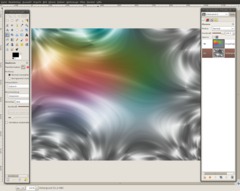
    - Filter / Blur / Gaussian Blur: 300px.

    Set the layers mode to "Overlay". The yellow part should glare/shine a bit already. Don't worry - this will be enhanced soon.
    Screenshot of step 9
    Click to enlarge
  10. 10
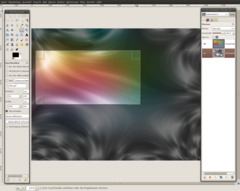
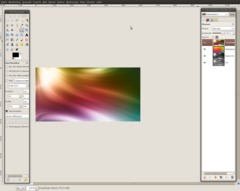
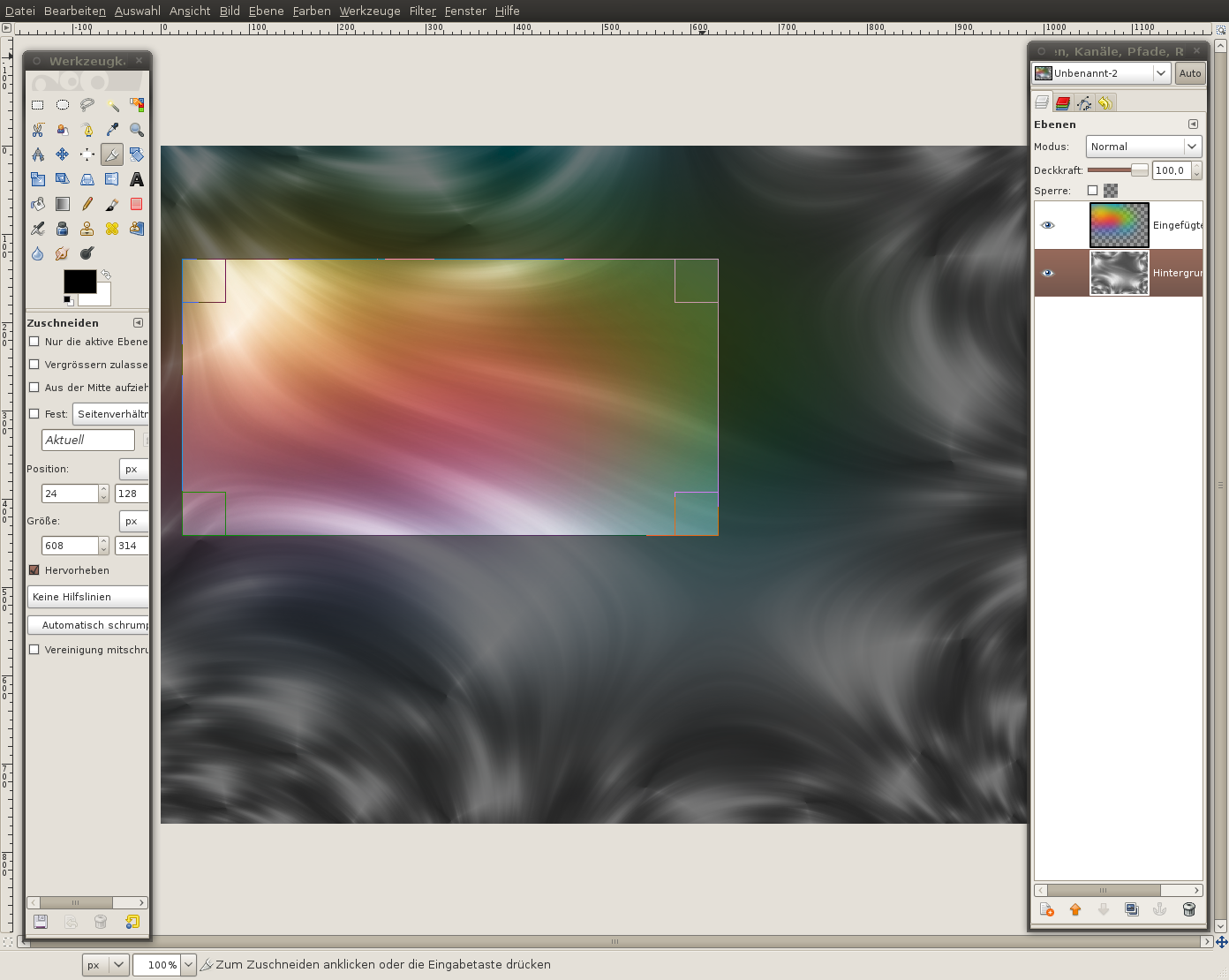
    - Press SHIFT+C to use the Crop tool.
    - Choose any part ofthe picture but the upper left part is pretty nice I think. (Tip: You can transform the background layer, or flip it, rotate it... whatever you want until you found a nice part to cut out.)

    - I draw a selection that includes also some small parts ofthe blue/green color.
    Screenshot of step 10
    Click to enlarge
  11. 11
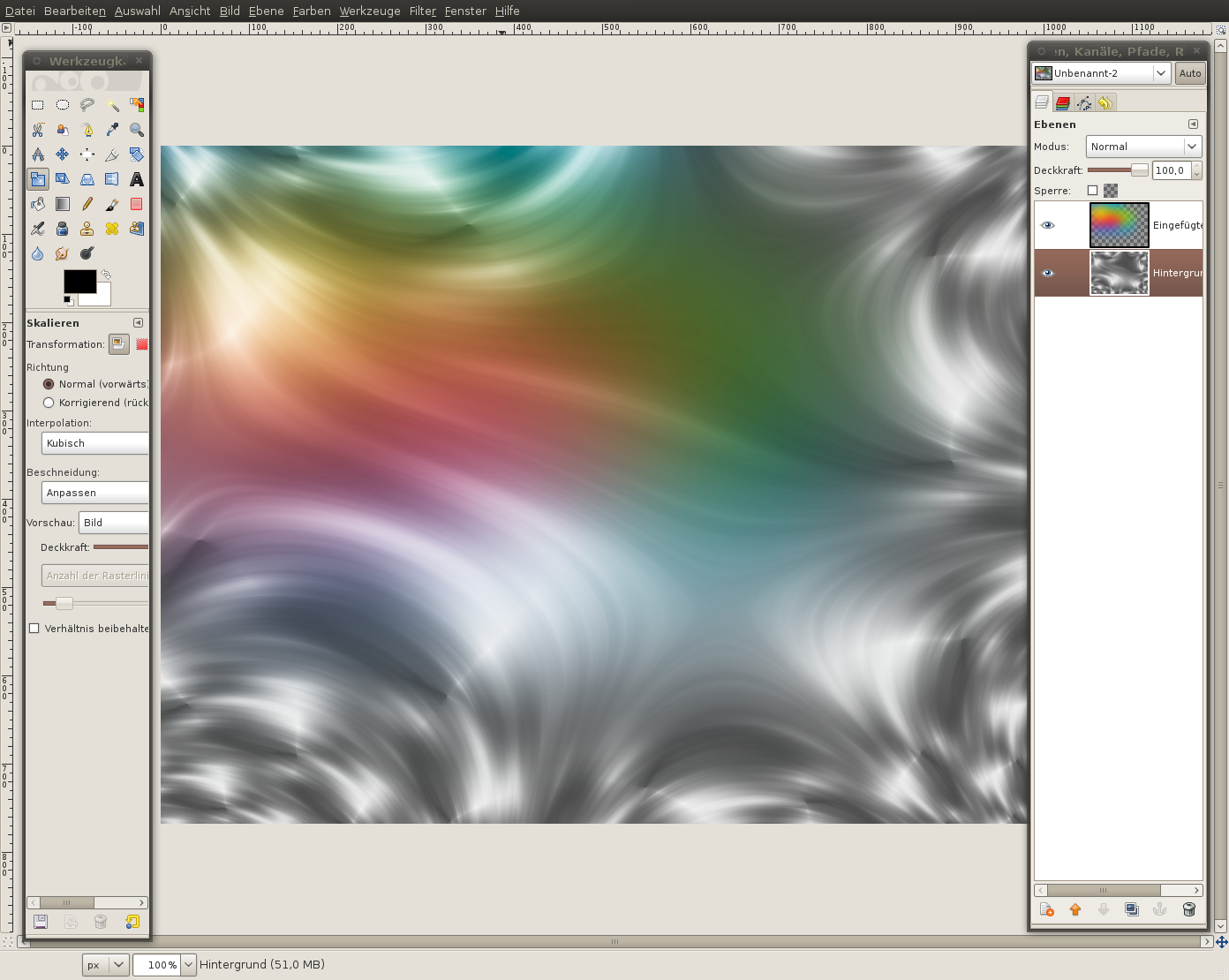
    - Duplicate the background layer.
    - Move the copy between the colors layer and the original background (if it is not automatically there)
    - Set the layers mode to "Overlay".
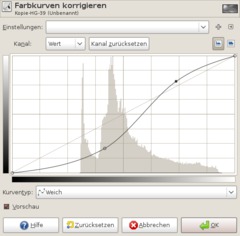
    - Colors / Curves: Apply this curve:
    Screenshot of step 11
    Click to enlarge
  12. 12
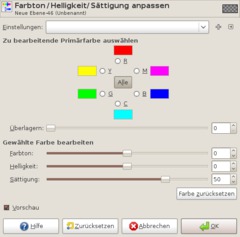
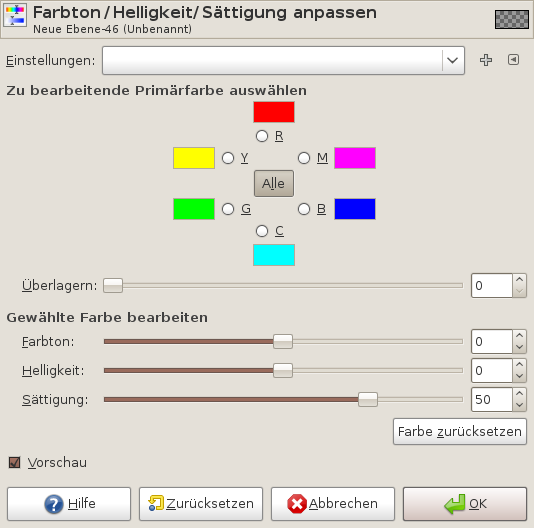
    - Activate the colors layer: Colors / Hue-Saturate: Move the saturation ruler to +50.
    Screenshot of step 12
    Click to enlarge
  13. 13
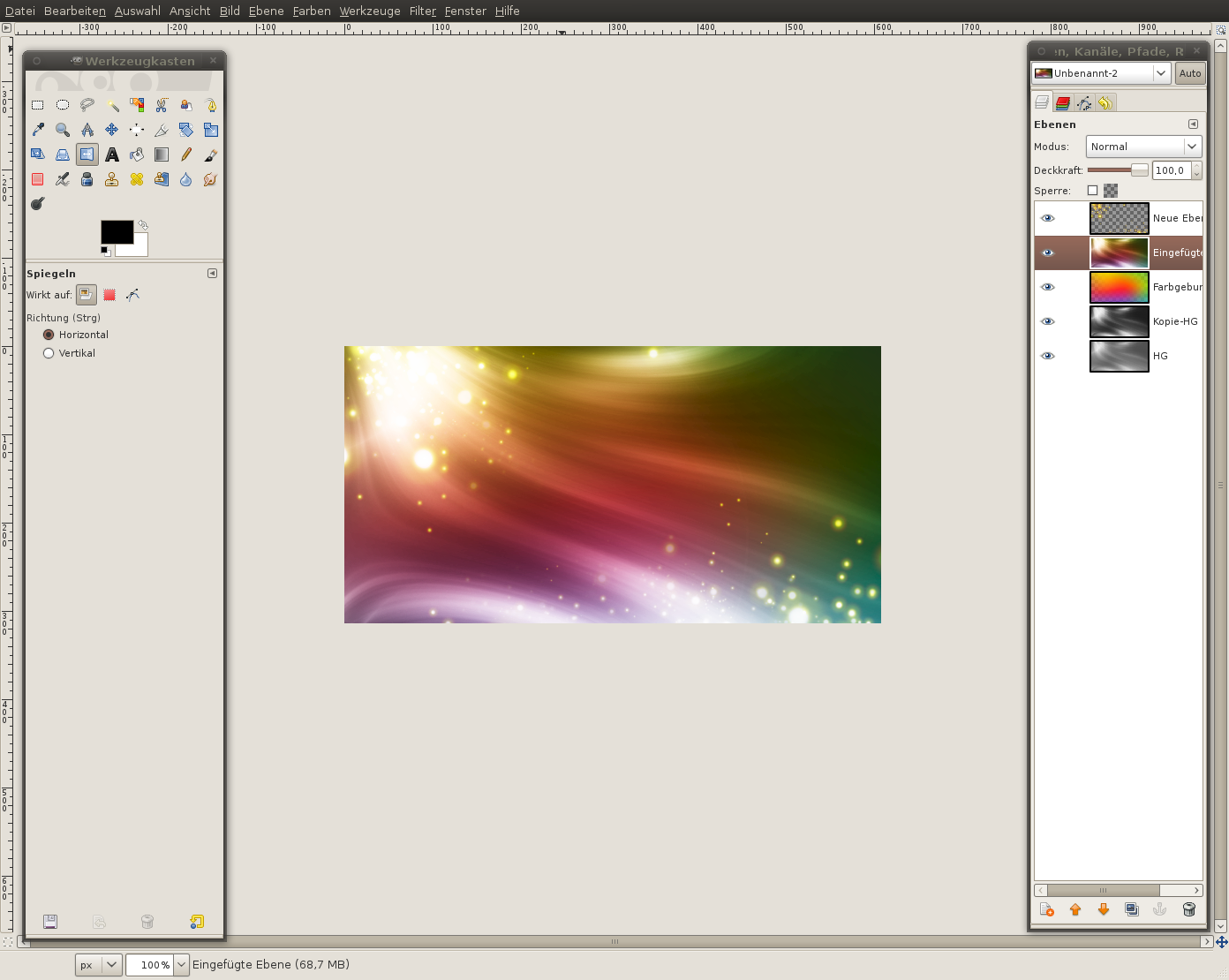
    We're pretty finished already and we want to continue working on a copy of the current state of our image.

    To do this:
    - Edit / Copy visible
    - Edit / Paste as new layer
    Screenshot of step 13
    Click to enlarge
  14. 14
    Now we get to the particles part. We would like to create the illusion of many lightning particles on the brighter parts of the picture.

    Best used for this is the sparks brush.

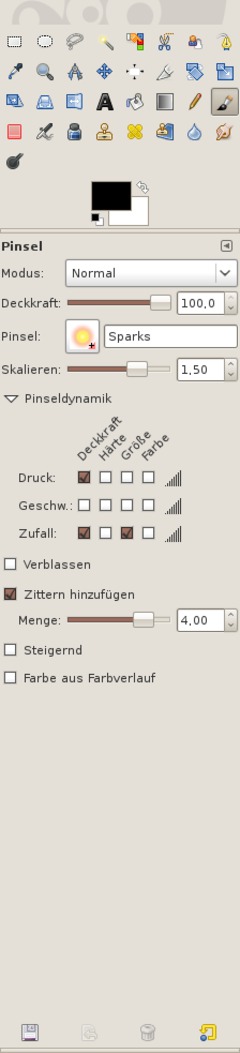
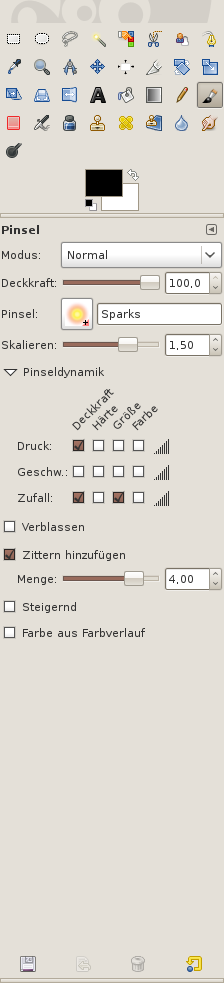
    - Choose the brush tool. Select the yellow "sparks" brush. Excellent for this are the new brush dynamics (available since GIMP 2.6). Using them you can adjust size, opacity and randomness of the pained brush.

    See the image for more detail: Make a selection at "Pressure/Opacity", Random/OPacity and Random/Size.

    Scale: 1,5
    Jitter: 4,0
    Screenshot of step 14
    Click to enlarge
  15. 15
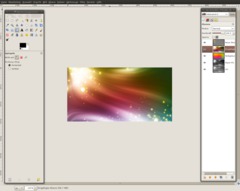
    - Create a new layer and paint the "particles" in the upper left part of the image and also on some other bright parts (as you like it)

    - Set the layers mode to "Dodge". Doing that the Shining/Glowing will be enhanced.
    Screenshot of step 15
    Click to enlarge
  16. 16
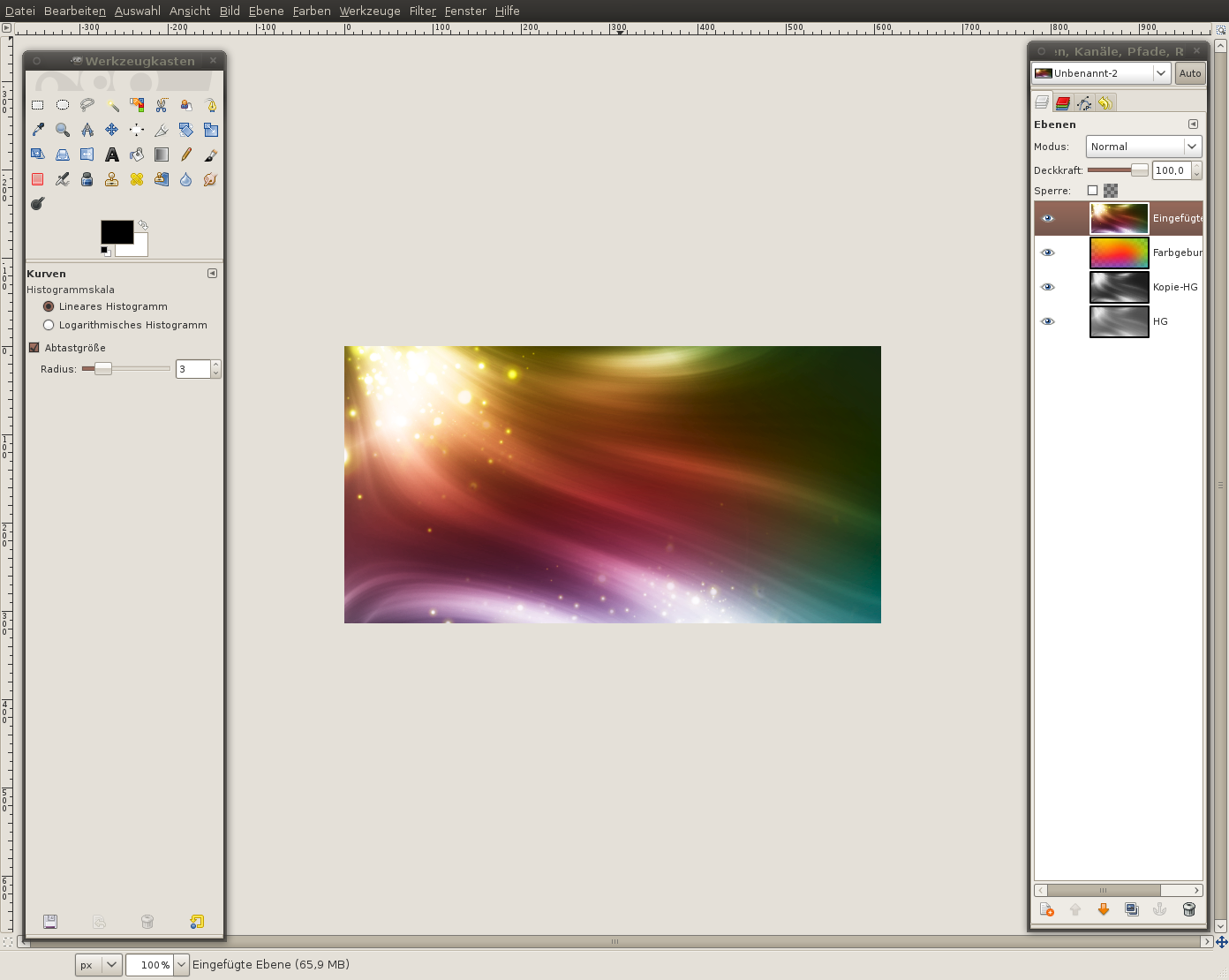
    - In the layers dialog rightclick the particle layer and click "merge down". the particles are then copied to the layer below.

    Darken the image if you enjoy more contrast/color images, use Color / Curves for that.
    Screenshot of step 16
    Click to enlarge
  17. 17
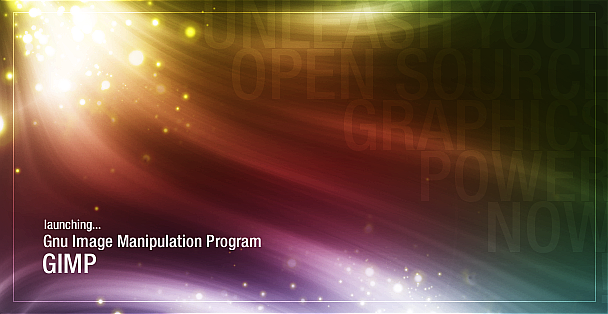
    That the splash screen looks like a real splash screen we have to add some text now.

    Use the text tool and write

    "UNLEASH YOUR
    OPEN SOURCE
    GRAPHICS
    POWER
    NOW!"

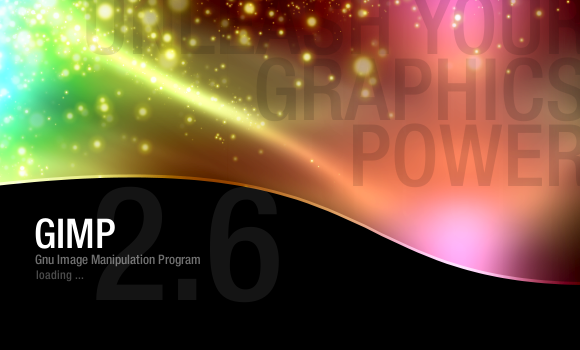
    on a new layer. Change the alignment of the text to right and set a line spacing so that the lines have only a very small space left between them. Set the transparency of the layer to 10% and move the text to the right.

    See my image below for the other text alignements. it should be easy to do this =)
    Screenshot of step 17
    Click to enlarge
  18. 18
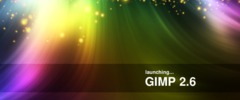
    here is another version:
    Screenshot of step 18
    Click to enlarge
  19. 19
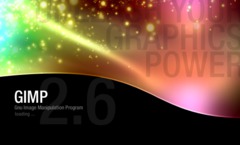
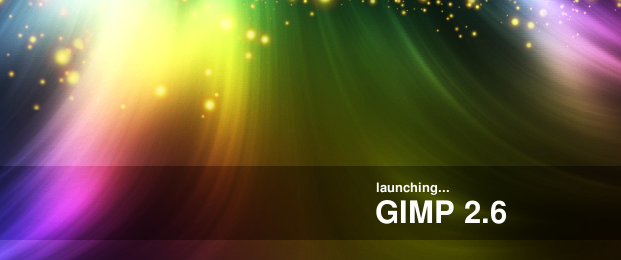
    And this one is my first version which I also created using this thechnique!

    Hope you enjoy the splash screens ;)
    Screenshot of step 19
    Click to enlarge

This article is licensed under the following license: Attribution-Noncommercial 3.0 Austria

Links (pingbacks)

Comments

Post your own comments, questions or hints here. The author and other users will see your posting and can reply to it. Of course, you can also ask in the chat.

Comments are chronologically arranged.

1 rating(s) with 4.0 of 5 stars in average

  1. http://www.gimpusers.com/tutorials/colorful-light-particle-stream-splash-screen-gimp.html Fri Feb 6 02:25:53 2009 Robert, 06 Feb 2009 02:25 AM

    Wow really impressive devvv, thanks for sharing!

  2. http://www.gimpusers.com/tutorials/colorful-light-particle-stream-splash-screen-gimp.html Fri Feb 6 04:19:53 2009 ggdancer, 06 Feb 2009 04:19 AM

    Nice tutorial. found it very easy to follow.

  3. http://www.gimpusers.com/tutorials/colorful-light-particle-stream-splash-screen-gimp.html Fri Feb 6 10:14:41 2009 Vlasta, 06 Feb 2009 10:14 AM

    Very nice. I'll need to take a closer look at the fractal render filters :-).

  4. http://www.gimpusers.com/tutorials/colorful-light-particle-stream-splash-screen-gimp.html Fri Feb 6 22:56:40 2009 interhuss, 06 Feb 2009 10:56 PM

    Awesome! I gotta try this soon. I have done similar things but not this way. Thx!

  5. http://www.gimpusers.com/tutorials/colorful-light-particle-stream-splash-screen-gimp.html Fri Feb 6 23:00:31 2009 spotty, 06 Feb 2009 11:00 PM

    Cool! Thank you - and it is for 2.6... ;)

  6. http://www.gimpusers.com/tutorials/colorful-light-particle-stream-splash-screen-gimp.html Sat Feb 7 13:21:50 2009 andrew, 07 Feb 2009 01:21 PM

    Impressive. I like it very much. Is this like a part to of the Vista-ish effect?

    Thanks for this tutorial. Keep up your good work.

  7. http://www.gimpusers.com/tutorials/colorful-light-particle-stream-splash-screen-gimp.html Sat Feb 7 14:56:09 2009 devvv, 07 Feb 2009 02:56 PM

    thanks for the comments! i appreciate you all like it ;)

    andrew: it's some kind of vista effect, yes. however it is also pretty different to the original vista thing

  8. http://www.gimpusers.com/tutorials/colorful-light-particle-stream-splash-screen-gimp.html Wed Feb 11 12:12:45 2009 bafman, 11 Feb 2009 12:12 PM

    book! thanks! exactly I was looking for!

  9. http://www.gimpusers.com/tutorials/colorful-light-particle-stream-splash-screen-gimp.html Tue Feb 17 09:25:29 2009 Shashwat, 17 Feb 2009 09:25 AM

    Awesome tutorial..

    Can you please tell me how to create splash of the second type ...

    Regards

  10. http://www.gimpusers.com/tutorials/colorful-light-particle-stream-splash-screen-gimp.html Wed Feb 18 18:36:03 2009 Lamoot, 18 Feb 2009 06:36 PM

    Very nice tutorial and final result. I wouldn't mind if the official gimp website was more like http://www.gimpusers.com/images/tutorials/135/19.png than the calm grey/orange it is now.

  11. http://www.gimpusers.com/tutorials/colorful-light-particle-stream-splash-screen-gimp.html Sat Feb 21 08:15:28 2009 Pranav, 21 Feb 2009 08:15 AM

    Excellent tutorial! Today I found the best use of Fractals and Motion blur with this tutorial. The splash screens of Gimp you created are amazing too. Thank you so much for everything.

  12. http://www.gimpusers.com/tutorials/colorful-light-particle-stream-splash-screen-gimp.html Tue Feb 24 08:42:43 2009 Hartroc, 24 Feb 2009 08:42 AM

    Amazing! Thanks alot

  13. http://www.gimpusers.com/tutorials/colorful-light-particle-stream-splash-screen-gimp.html Sat Feb 28 04:28:58 2009 Lasia, 28 Feb 2009 04:28 AM

    I like this effect, but I'm having a hard time finding ther Fractals tab so I can set the mode to Explosion. I've tried going to Add Tabs, but can't find it on my menu. :( I use 2.4.6, surely it's not that I have an old version?

  14. http://www.gimpusers.com/tutorials/colorful-light-particle-stream-splash-screen-gimp.html Sun Mar 1 00:37:44 2009 Miller, 01 Mar 2009 12:37 AM

    Great tutorial! Pretty useful. Figured out a way to brush a perfect spectrum which I guess is pretty useful for this technique...

  15. http://www.gimpusers.com/tutorials/colorful-light-particle-stream-splash-screen-gimp.html Sun Mar 1 16:02:13 2009 ggdancer, 01 Mar 2009 04:02 PM

    Lasia the fractals tab is part of the fractal explorer dialog.

  16. http://www.gimpusers.com/tutorials/colorful-light-particle-stream-splash-screen-gimp.html Mon Mar 2 13:48:26 2009 ChrisM, 02 Mar 2009 01:48 PM

    damn awesome results! i've been looking for this for months!!! you are my hero!

  17. http://www.gimpusers.com/tutorials/colorful-light-particle-stream-splash-screen-gimp.html Tue Mar 10 00:14:21 2009 xXx, 10 Mar 2009 12:14 AM

    this is awsome devv i never thought i would be able to do this!

  18. http://www.gimpusers.com/tutorials/colorful-light-particle-stream-splash-screen-gimp.html Sun Mar 15 16:17:42 2009 BrianneB, 15 Mar 2009 04:17 PM

    this is a wonderful tutorial, i loved it, but i have one question...when i try to use the paint brush for the sparks...i dont have the random option...where can i find that at?

  19. http://www.gimpusers.com/tutorials/colorful-light-particle-stream-splash-screen-gimp.html Sat Mar 28 01:17:29 2009 Gus, 28 Mar 2009 01:17 AM

    Many thanks for this. Dodge in step 15 didn't do anything for me, but it can also be made with the color tools of course.

  20. http://www.gimpusers.com/tutorials/colorful-light-particle-stream-splash-screen-gimp.html Sun Mar 29 05:45:06 2009 Nyne, 29 Mar 2009 05:45 AM

    Great tutorial. I made a few of mine with a different fractal explorer and a few different settings and I love the end result. Your examples are great but I'd like to know how to get the effect of the last example. That's really nice. What did you do to get the curved line that separates the black area from the colored area?

  21. http://www.gimpusers.com/tutorials/colorful-light-particle-stream-splash-screen-gimp.html Sun Mar 29 14:38:36 2009 devvv, 29 Mar 2009 02:38 PM

    it is a simple curved path using the paths tool ;)

  22. http://www.gimpusers.com/tutorials/colorful-light-particle-stream-splash-screen-gimp.html Sun Apr 5 06:33:38 2009 numb3r_5ev3n, 05 Apr 2009 06:33 AM

    Hello new desktop wallpaper! I might also use this along with a css large background site tutorial and see what I come up with. Thanks!

  23. http://www.gimpusers.com/tutorials/colorful-light-particle-stream-splash-screen-gimp.html Fri Apr 10 21:45:54 2009 Kayla, 10 Apr 2009 09:45 PM

    is it possible to add a picture of yourself into it.

  24. http://www.gimpusers.com/tutorials/colorful-light-particle-stream-splash-screen-gimp.html Fri May 22 06:33:45 2009 asdfgdh, 22 May 2009 06:33 AM

    woa... i guess it'll take some practice to get it like the pics but awesome tutorial..

  25. http://www.gimpusers.com/tutorials/colorful-light-particle-stream-splash-screen-gimp.html Sun May 31 00:59:17 2009 Oriental, 31 May 2009 12:59 AM

    I am having trouble with the curve since I can't understand German so I am trying to decode it at the moment.

  26. http://www.gimpusers.com/tutorials/colorful-light-particle-stream-splash-screen-gimp.html Fri Jun 5 12:50:21 2009 Alzhaid, 05 Jun 2009 12:50 PM

    Wonderful, thanks. I always find GIMP difficult to use as I'm a newbie, but your tutorial was easy to follow! I needed more time to do something like the 18th step than to do the rest of the tutorial ;)

  27. http://www.gimpusers.com/tutorials/colorful-light-particle-stream-splash-screen-gimp.html Wed Aug 26 04:41:29 2009 sadia, 26 Aug 2009 04:41 AM

    That tutorial is amazing! You did a great job! Finally someone who can explain good while doing a tutorial! LOL seriously i always get confused or mess up in some part of a tutorial when i try to do them, i got a little confused on some parts, than i figured them out so it's all good =D this tutorial is nice, thanks for posting it! =D

  28. http://www.gimpusers.com/tutorials/colorful-light-particle-stream-splash-screen-gimp.html Sun Sep 13 04:06:54 2009 Louna, 13 Sep 2009 04:06 AM

    wow! this is very good. i will do the same thing for our thesis. thanks.

  29. http://www.gimpusers.com/tutorials/colorful-light-particle-stream-splash-screen-gimp.html Sat Sep 19 21:03:23 2009 Michael, 19 Sep 2009 09:03 PM

    Great work! Just a question to your first version (the last image): Could you briefly explain how you did the bottom part, espeacially the line which separates both parts of the image?

  30. http://www.gimpusers.com/tutorials/colorful-light-particle-stream-splash-screen-gimp.html Sun May 16 01:57:35 2010 jr22, 16 May 2010 01:57 AM

    fantastic tutorial. thank you very much. opened my eyes to several new techniques and some general gimp stuff I didn't know!

  31. http://www.gimpusers.com/tutorials/colorful-light-particle-stream-splash-screen-gimp.html Tue May 25 14:13:51 2010 ann philip, 25 May 2010 02:13 PM

    <a href="http://www.louielighting.com/" rel="nofollow">This Steps are really helpful</a>

Registered users can log in (top right of the page) to use their profile name to post comments, request email notification on new comments and attach images (e.g. their versions of the effect) to their postings.

Are you human?

Adobe® Photoshop® is a registered trademark of Adobe Systems, Inc. Linux is a trademark of Linus Torvalds. Ubuntu and Canonical are registered trademarks of Canonical Ltd. | Clock times are shown as CET / CEST | Imprint / Privacy policy | powered by bitfire it services | sponsored by Hirners Hotel Guide