gimpusers.com logo
German version English version

Not logged in

Sign up! | Lost password?

Latest discussion

  1. gimp-user | today 06:33 AM
    Crashes in GIMP 2.6.6
  2. gimp-docs | yesterday 11:28 PM
    Can the gimp-help-2 module be maintained using Damned-Lies?
  3. gimp-user | yesterday 11:25 PM
    Error on script-fu
  4. gimp-developer | yesterday 10:55 PM
    Summary: How to submit gimp/gegl bugzilla with GIT patch
  5. gimp-docs | yesterday 10:01 PM
    Where have all my pictures gone?

External news

Poll

Did you ever buy products (books, video dvds) about GIMP?

No, never did

Yes, helped alot (please post)

Yes, helped a little bit (please post)

Yes but I was disappointed (why? please post)

See results

Stats

gimpusers.com RSS feed

RSS feed Retweet this!

25 May 2007 07:31 PM, by devvv (Bernhard Stockmann)

Creating 3D icons

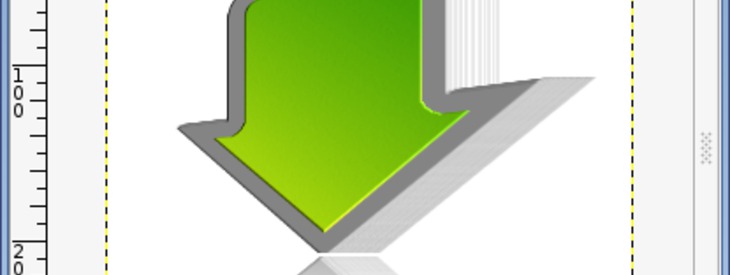
Want some cool 3d-icons? Then you're right here ;) We're going to create some 3d-icons today. We're demonstrating the 3D-effect with a simple arrow that could be used as a download-button.

This article has been written using GIMP 2.3.11. It's divided into 23 steps and takes about 35 min to complete for an average user. 82264 times read so far. Category: Buttons, icons, web, required skill: 2 of 5

32 comments have been posted so far.

Available in other languages:

  1. 1
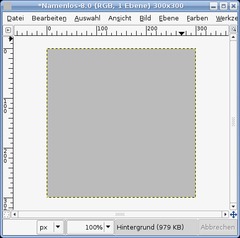
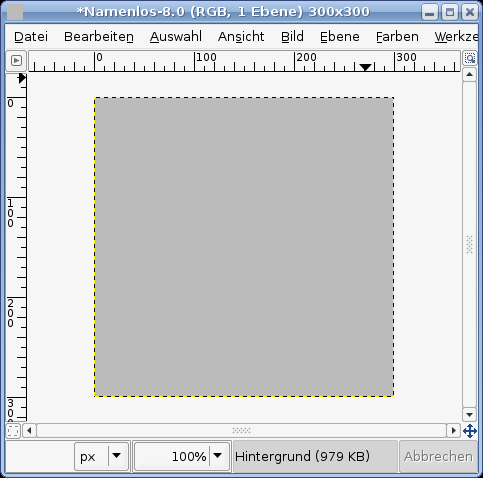
    Create a new file: 300x300px. Set the background to any color of your choice. I chose #bbbbbb as color.
    Screenshot of step 1
    Click to enlarge
  2. 2
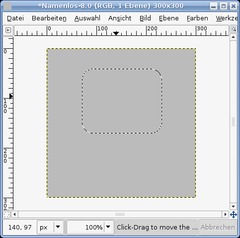
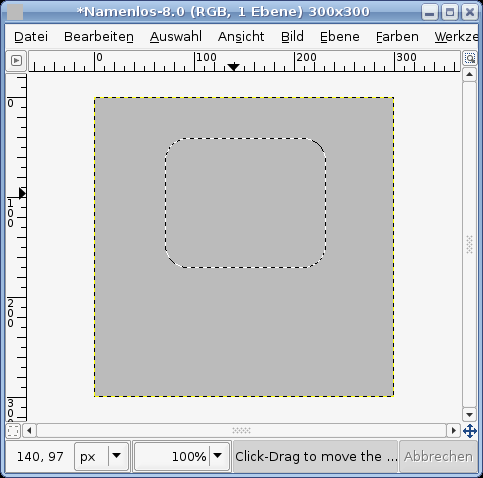
    The first step is to create the basic form of the arrow.

    - Add a new empty layer.
    - Rectangle Selection Tool. Draw a selection as seen on the picture. To get rounded corners go to: Selection / Rounded Rectangle: 35px
    Screenshot of step 2
    Click to enlarge
  3. 3
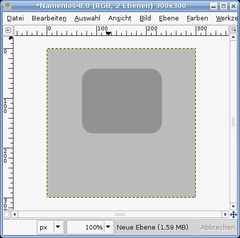
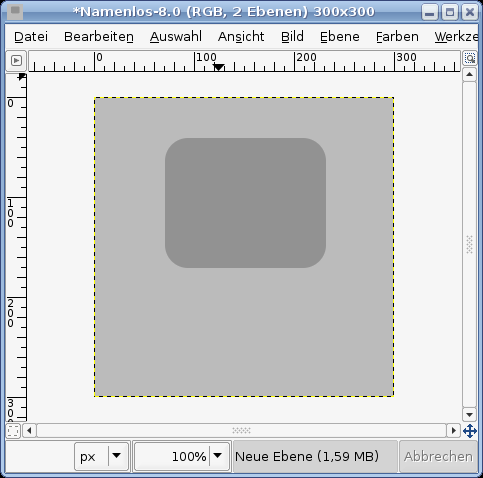
    Fill the Selection with: #929292. Deactivate the selection afterwards (CTRL+SHIFT+A)
    Screenshot of step 3
    Click to enlarge
  4. 4
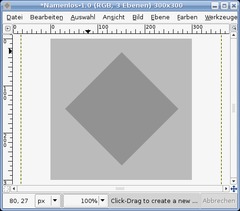
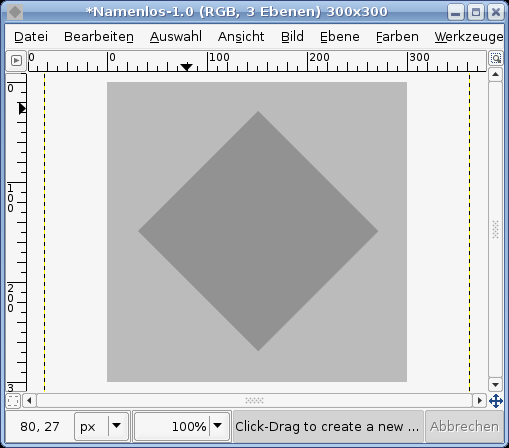
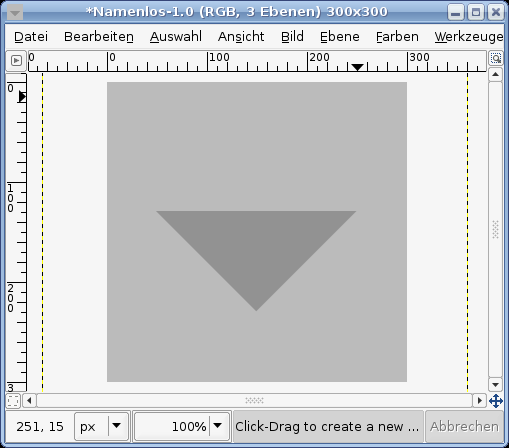
    Deactivate the visibility of this layer (click the eye icon in the layers dialog). After that create a new layer.

    Draw a quadrate. Fill the selection with the same color as before: #929292. Deactivate the selection.

    Take the Rotate-Tool. 45° and rotate it.
    Screenshot of step 4
    Click to enlarge
  5. 5
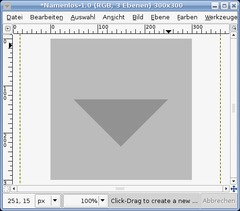
    Now draw a rectangle selection above more than a half of the rotated quadrate and remove that part of the object by pressing CTRL+K (if you're using GIMP 2.3 just press DEL).

    After that go to SELECTION / None to deselect all.
    Screenshot of step 5
    Click to enlarge
  6. 6
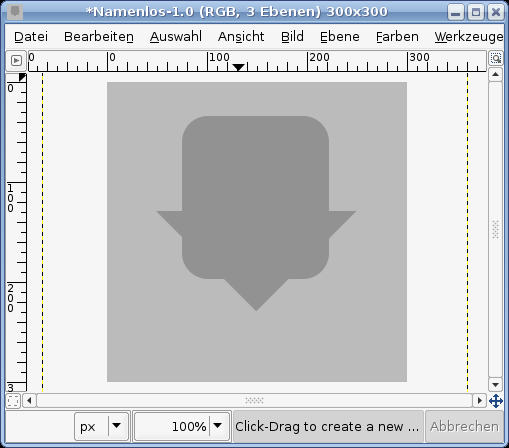
    Make the layer that we made insvisible visible again by clicking the eye icon in the layers dialog.
    Screenshot of step 6
    Click to enlarge
  7. 7
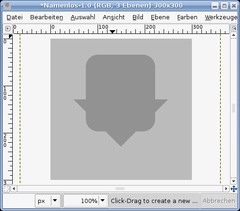
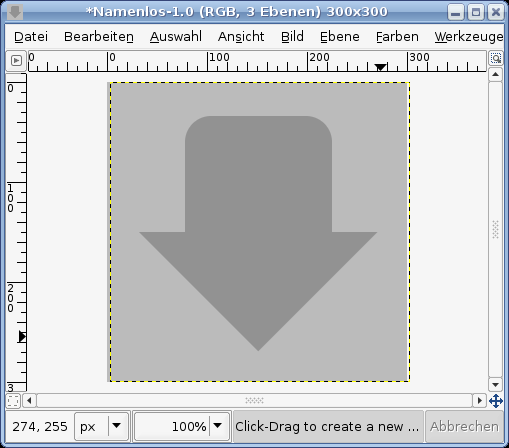
    Arrange both layers so that you get an arrow as seen below. If the rounded Rectangle is to big cut the bottom.
    Screenshot of step 7
    Click to enlarge
  8. 8
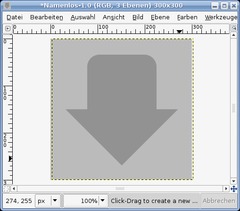
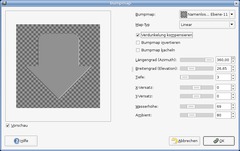
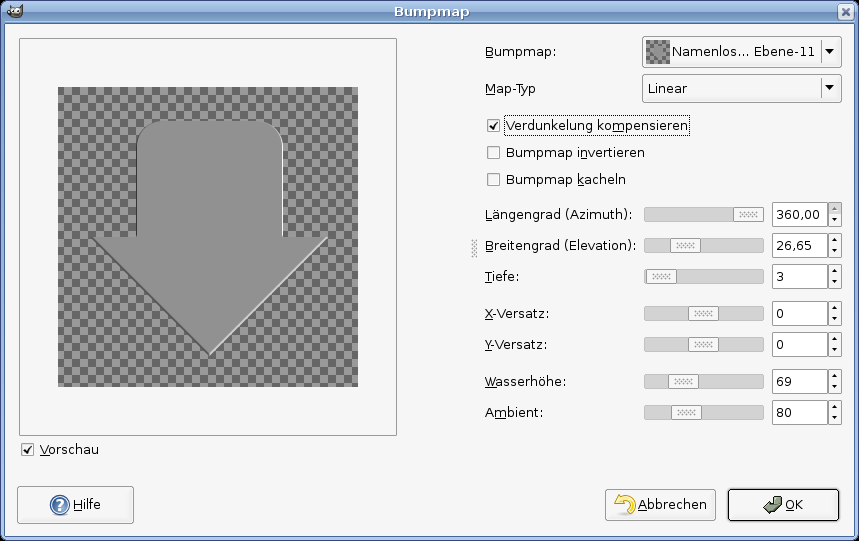
    Now merge these layers. To do this click the layer at the top, right click it in the layers dialog and choose "merge down". We now have the whole arrow on one single layer. Now go to Filter / Map / Bumpmap. Choose values from below:
    Screenshot of step 8
    Click to enlarge
  9. 9
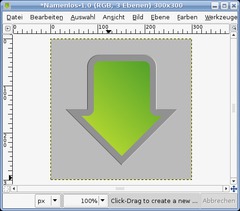
    In the layers dialog click right: "Selection from Alpha".

    - Add a news layer.
    - Selection / Shrink : 15px.
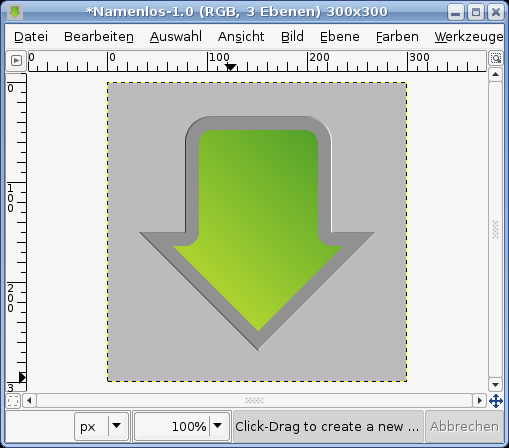
    - Choose #b1d631 as FG color and #55a32a as BG color.
    - Fill the layer susing the gradient tool. Draw the gradient from the left bottom to the top right.
    - decativate the selection.

    Now you should have this picture.
    Screenshot of step 9
    Click to enlarge
  10. 10
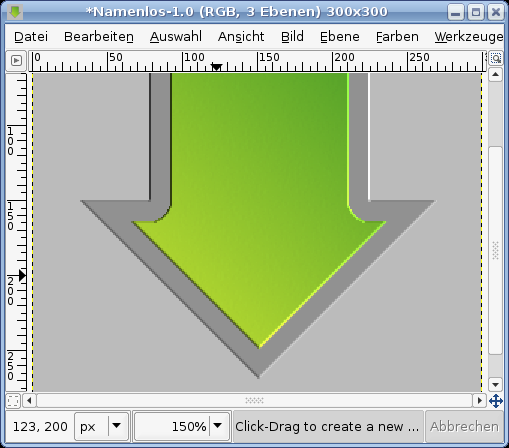
    Use the Bumpmap filter again, and apply the same values as before to this layer.

    - Merge down these two layers.
    Screenshot of step 10
    Click to enlarge
  11. 11
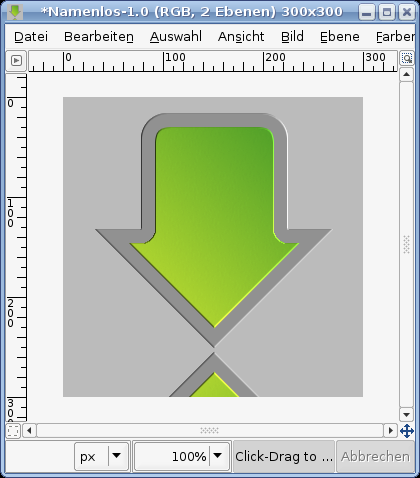
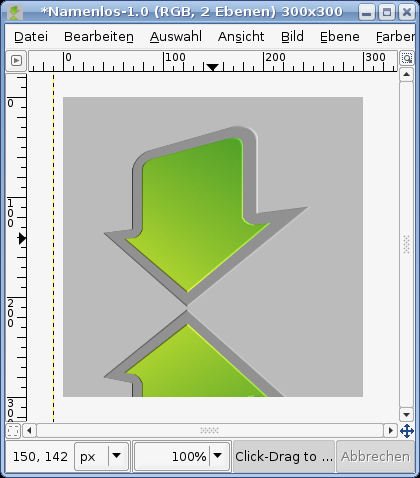
    Duplicate the layer now.

    The we're going to flip it.

    - Layer / Transform / Flip vertically.

    Move the layer down as seen on the picture. Merge down these two layers again so that the arrow and the flipped one are on a single layer.
    Screenshot of step 11
    Click to enlarge
  12. 12
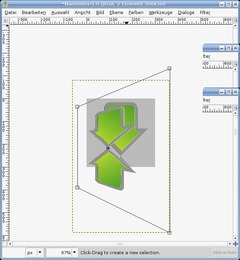
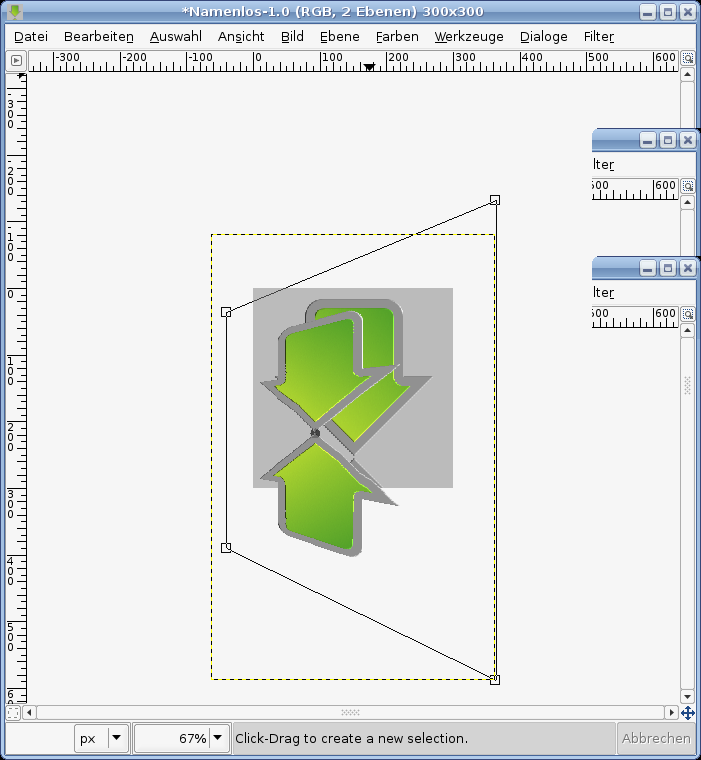
    Now use the Perspective-Tool. Zoom out a bit to get a better view.

    Then click the layer. 4 points appear. Move the points as seen below. Then click OK.
    Screenshot of step 12
    Click to enlarge
  13. 13
    Move the layer a bit more to the middle. It should look like this now.
    Screenshot of step 13
    Click to enlarge
  14. 14
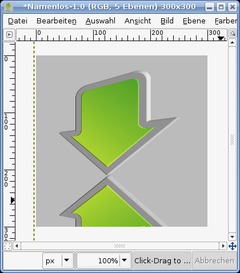
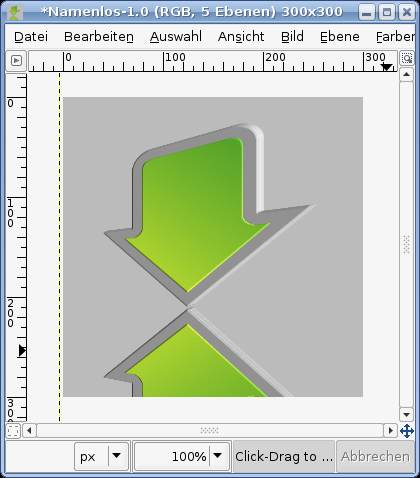
    The 3D-Effect is done pretty easy. Duplicate this layer, activate the duplicate in the layers dialog by clicking it. That should be the layer below the original one. Click in the picture to make it active. The click the "Right arrow"-key on you keyboard to move the layer exactly 1px to the right.

    Duplicate the duplicate again, activate it and move it with you arrow key again to the right.

    Repeat this step 3 more times. You should then have 5 layers of this in total. Some depth can be already seen.
    Screenshot of step 14
    Click to enlarge
  15. 15
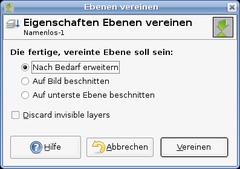
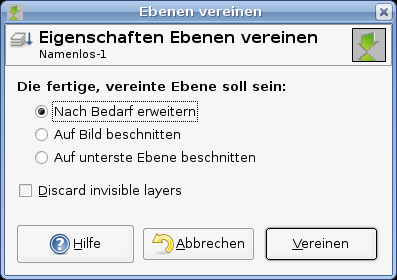
    To speed things up, click the eye symbol in the layers dialog of the background layer. Press CTRL+M or go to Image / Merge visible layers.
    Screenshot of step 15
    Click to enlarge
  16. 16
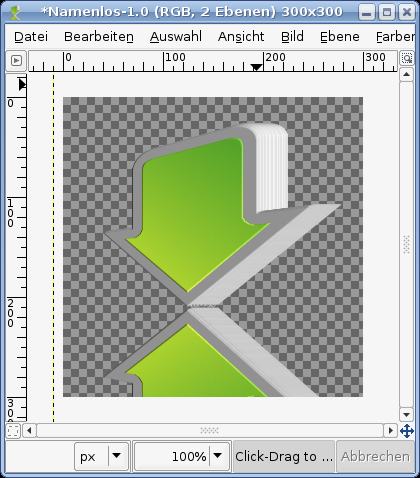
    Now repeat step 14. and move the layer 4 px to the right with your keyboard. Then merge the visible layers again.
    Screenshot of step 16
    Click to enlarge
  17. 17
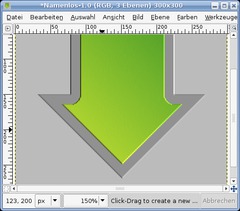
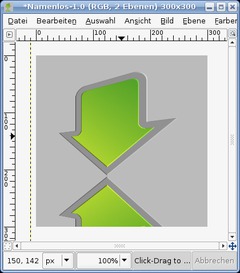
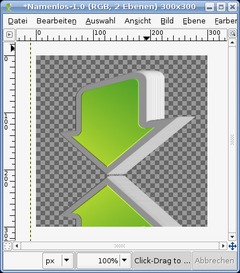
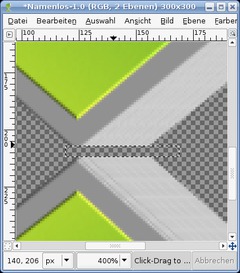
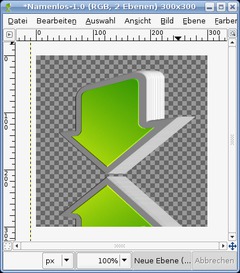
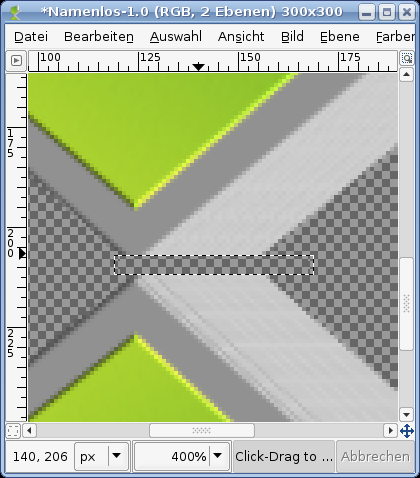
    Zoom into the middle of the picture. Take the selection tool and cut the arrowheads so that they have a nice horizontal edge.
    Screenshot of step 17
    Click to enlarge
  18. 18
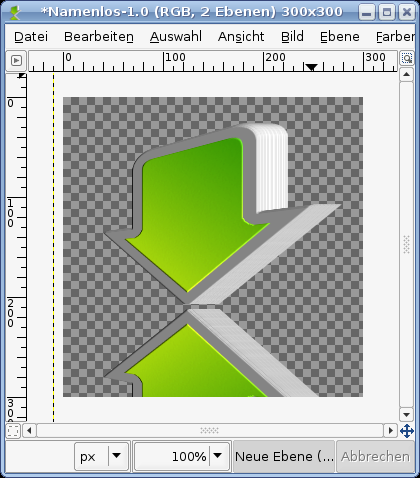
    Go to (GIMP 2.2: Layer /) Colors / Brightness & Contrast and lower the brightness by -25, set the contrast to +25.
    Screenshot of step 18
    Click to enlarge
  19. 19
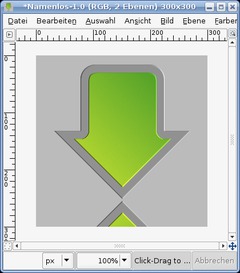
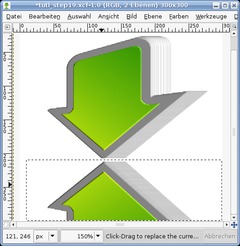
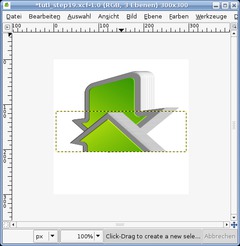
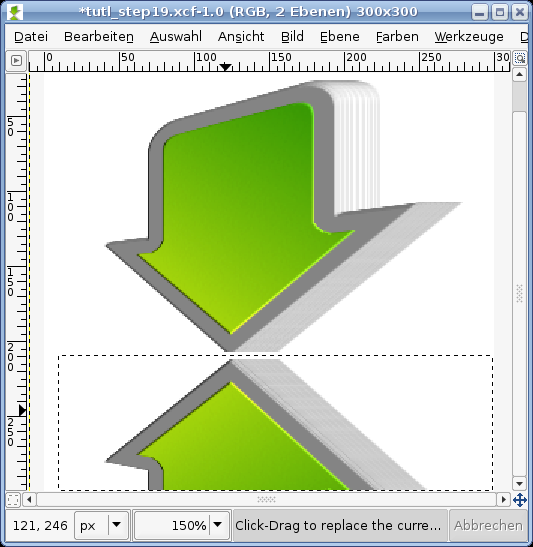
    Now make the background visible again and fill it white. Draw a rectangle selection over the bottom (the flipped) arrow.
    Screenshot of step 19
    Click to enlarge
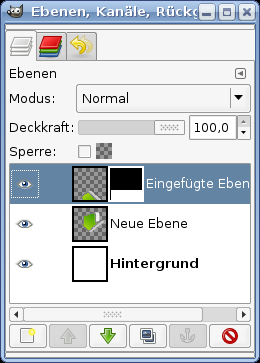
  20. 20
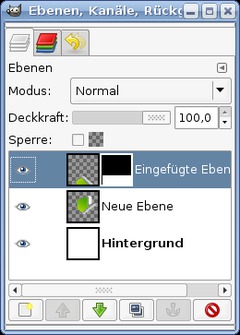
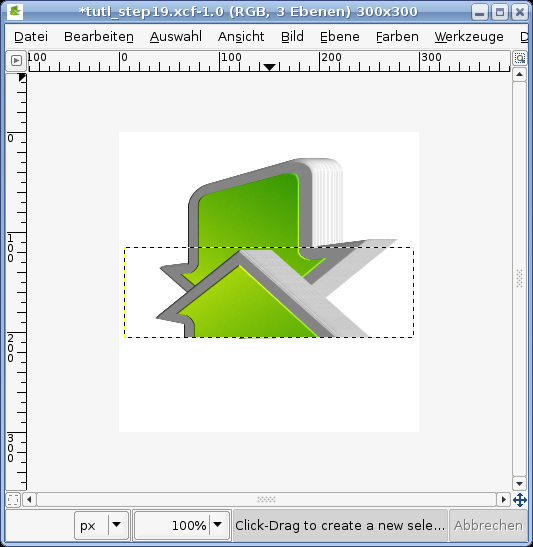
    Cut the part by using CTRL+X and paste it with CTRL+V. Click the "New layer"-Button to get this layer to a seperate one.
    Screenshot of step 20
    Click to enlarge
  21. 21
    Move the part to the same position as before. In the layers dialog right click the layer and add a layer mask.
    Screenshot of step 21
    Click to enlarge
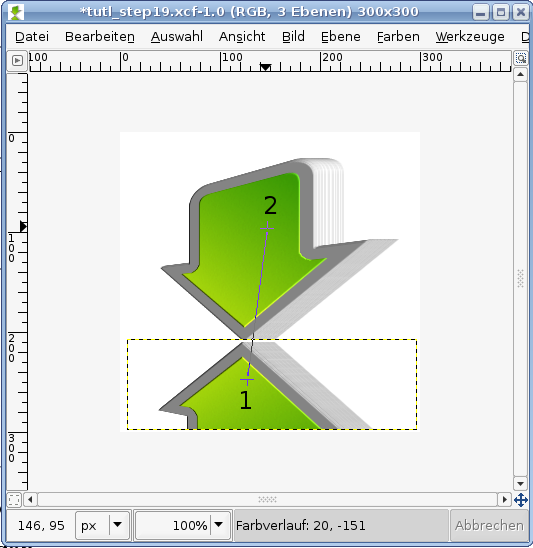
  22. 22
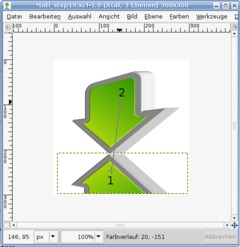
    Press D to reset the colors to black and white. Choose the gradient tool. Draw a gradient from point 1 to point 2 on the picture.
    Screenshot of step 22
    Click to enlarge
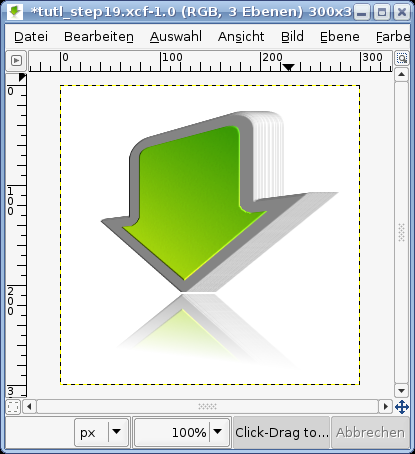
  23. 23
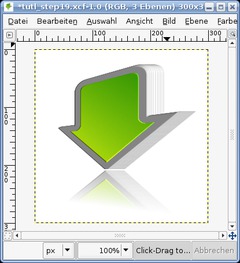
    You're done ;)
    Screenshot of step 23
    Click to enlarge

This article is licensed under the following license: Attribution-Noncommercial 3.0 Austria

Links (pingbacks)

Comments

Post your own comments, questions or hints here. The author and other users will see your posting and can reply to it. Of course, you can also ask in the chat.

Comments are chronologically arranged.

  1. Miguel, 30 May 2007 04:36 AM

    I get lost in the #5 line of the tutorial, for me is not clear. How can i cut to form a triangle?, thanks.

  2. devvv, 30 May 2007 09:59 AM

    make a rectangle selection on the upper half of that rotated quadrate, then use ctrl+k (or if yopu use gimp 2.3 press del) to cut the part away. hope it works now! i wrote some additional text to that step now.

  3. randolph, 27 Dec 2007 11:53 PM

    y need the tutorial

  4. eloar, 02 Jan 2008 01:47 AM

    The border of that arrow is not exectly solid. How easier than by hand can I make it solid? It looks like it is dirty, or something.

  5. devvv, 02 Jan 2008 02:02 PM

    use the bezier curves (paths)-tool, and cut a bit of the arrow so that it is solid. i hope i understand you right, otherwise put an url here wit the picture - or login and attach one to the comment

  6. eloar, 02 Jan 2008 07:17 PM

    ok, my arrow: http://images27.fotosik.pl/134/e11330917b10da68.png

    As you can see there is some of vertical lines on the border of my arrow.

  7. devvv, 02 Jan 2008 11:04 PM

    i see what you mean. you could select that part that has the vertical lines, and then blur it using the gaussian blur.

  8. Eater, 03 Jan 2008 11:48 AM

    I have problems with changing the perspecetive, it shows a block image around the tool

  9. devvv, 03 Jan 2008 12:16 PM

    what do you mean with block image?

  10. Eloar, 04 Jan 2008 07:12 PM

    Method with blur is good.

    There is some my variations with this method :). All works were made quick so I didn't use blur.

    http://images32.fotosik.pl/94/edf081ad0065d01c.png
    http://images26.fotosik.pl/135/aa6c476949df64ea.png
    http://images34.fotosik.pl/96/4a95a5bb12e92307.png

    There is some more instructions in german tutorial. There is shown how to make full button with text and make it glosy.

  11. devvv, 04 Jan 2008 08:18 PM

    very nice! especially the 3d star is very well done ;)

  12. Eloar, 05 Jan 2008 01:36 AM

    Star is just simple and common. I made some stars in web 2.0 style, but this one in 3D is much better. And it is made in gimp not in 3D modeling soft like Blender which I'm using rarly.

  13. Eloar, 05 Jan 2008 01:41 AM

    Of course I rerly using Gimp, not Blender. In Blender I'm making whole scens. In Gimp just sometimes parts of sites, or textures to models in 3D.

  14. donna, 10 Feb 2008 06:18 PM

    can you make me a picture with a small arrow pointing to the left corner saying i love her(blue writing) and Best hugs in the world with arrow pointing upwards(pink writing)..please get back to me xxx

  15. M.rSnow, 28 Mar 2008 12:01 AM

    Wow extremely nice. And pretty handy.
    [Bookmarked]

  16. Prasanna, 09 Sep 2008 08:31 PM

    Thanks a lot. It is really an useful material i have ever found for gimp.

  17. anon, 18 Oct 2008 02:44 AM

    On step 6-7, how do I move the rectangle? Doesn't make sense to me. I need that visible hand on the screen to move things around?

  18. TeeMO, 23 Oct 2008 05:28 AM

    Brilliant. Thank you for this Tute.

  19. Nyne, 08 Dec 2008 02:40 AM

    I'm getting stuck on step #9 'In the layers dialog click right: "Selection from Alpha"'. Where do I find that? What does that mean? What am I clicking on? I have the 2.6.3 version and I cannot figure out how to get to that part. My arrow is looking good until I get to that step.

  20. devvv, 08 Dec 2008 01:40 PM

    if you right click a layer in the layers dialog (at the bottom) there should be an option in 2.6 named "alpha to selection" - thats what i mean!

  21. Nyne, 21 Jan 2009 08:04 PM

    Thanks devvv. Your tutorial is really great. I am relatively new at Gimp so I was lost when I first attempted to create this. Now that I have a much better understanding of Gimp, I've not only made the arrow but I've used the tutorial with words and phrases. Thanks.

  22. Reon, 26 Feb 2009 05:15 PM

    On step #9, what do you mean by "- decativate the selection."?

  23. Eloar, 26 Feb 2009 11:27 PM

    Reon, I think it is "deactivate", and it means to use Ctrl+Shift+A.

  24. Car, 11 Mar 2009 04:13 PM

    Im using Gimp 2.6 and I cant " the eye icon in the layers dialog"- on step 4.
    Please help. Thanks.

  25. Helper, 11 Mar 2009 05:40 PM

    press CTRL+L to view the layers dialog - every layer has a small eye-symbol to the left. with it you can switch visibility on or off.

  26. ShockwaveLover, 26 Mar 2009 04:05 AM

    I'm having a problem with the Alpha to Selection part in stage 9. When I click that options, it selects, and then shrinks from, the image border. This means I can't use the gradient tool, and create the smaller arrow. What can I do to solve this?

  27. devvv, 26 Mar 2009 12:06 PM

    you have to get the alpha selection from the arrow layer - not from the newly created one. maybe that is the problem

  28. ShockwaveLover, 27 Mar 2009 02:55 AM

    I restarted GIMP, and that appeared to fix the problem; it selected fine after that. A very useful tutorial, thanks!


    Click to enlarge

  29. Pedro, 28 Apr 2009 02:46 PM

    Thank you, very usefull!! exactly what i needed. :)

  30. misstarnia, 10 May 2009 09:42 AM

    Wow, that was a really worthwhile process, thanks to all those who asked the questions I had as I progressed. Awesome job Devv

  31. wdalhaj, 21 May 2009 06:11 PM

    good
    looking for better

  32. Miripi, 05 Jun 2009 12:10 PM

    Thanks for the tutorial!

    I have made my first image manipulation using Gimp. (^_^)

Registered users can log in (top right of the page) to use their profile name to post comments, request email notification on new comments and attach images (e.g. their versions of the effect) to their postings.

Are you human?

Adobe® Photoshop® is a registered trademark of Adobe Systems, Inc. Linux is a trademark of Linus Torvalds. Ubuntu and Canonical are registered trademarks of Canonical Ltd. | Clock times are shown as CET / CEST | Imprint / Privacy policy | powered by bitfire it services