gimpusers.com logo
German version English version

Not logged in

Sign up! | Lost password?

External news

Poll

Would you like to be able to use your Google/Yahoo/MSN (OpenID) login on gimpusers, too?

Definately! I would enjoy the possibility to use my OpenID on different websites!

I don't have a special need for OpenID but I think it could be useful

Doesn't matter to me

Never, OpenID is a pain regarding privacy and personal data protection!

No. (please post a comment)

See results

Stats

gimpusers.com RSS feed

RSS feed Retweet this!

06 Apr 2009 03:18 PM, by devvv (Bernhard Stockmann)

Create sparkle on any object!

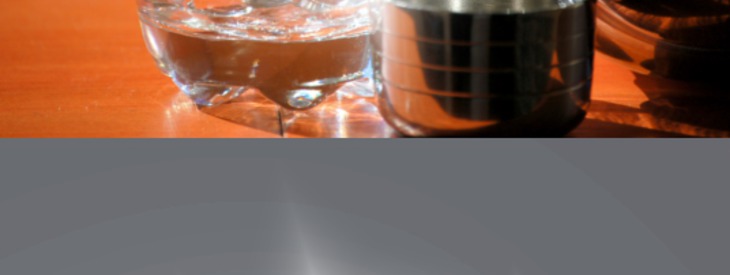
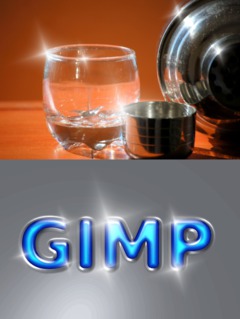
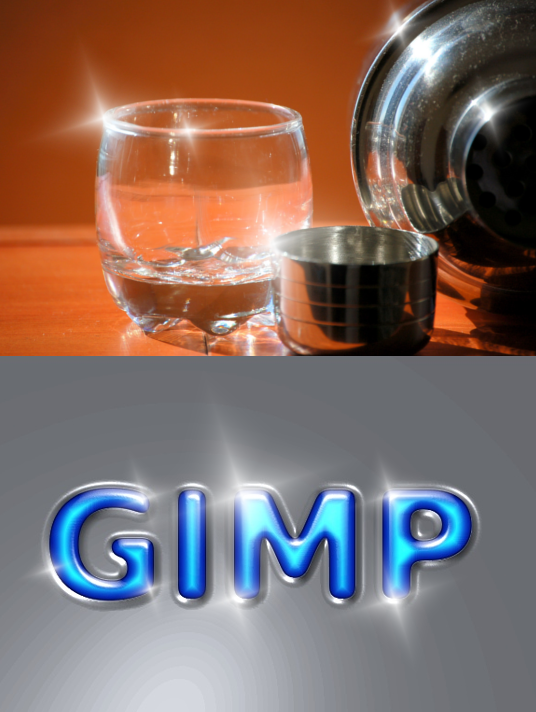
You all know these exaggerated advertisments where objects glitter very clearly. I.e. think about a dishwasher commercial where the glasses sparkle in an extreme way after the washing. It is pretty easy in GIMP to accomplish this effect - you only have to know how you do it ;)

This article has been written using GIMP 2.6. It's divided into 5 steps and takes about 10 min to complete for an average user. 17462 times read so far. Category: Techniques, required skill: 1 of 5

20 comments have been posted so far.

Available in other languages:

  1. 1
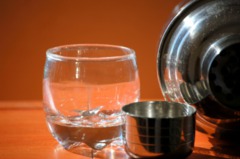
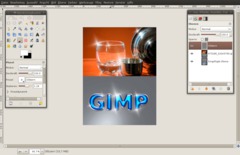
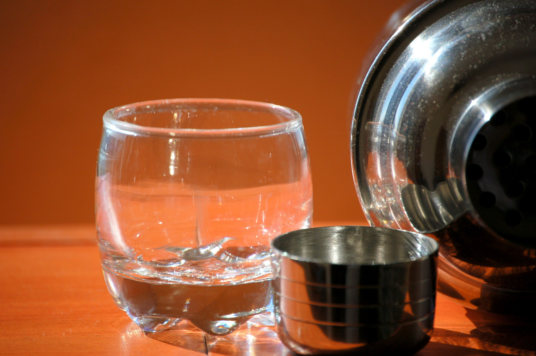
    Open up any image that you want sparkle on. That could be text, a photo or something else.

    I'm using a cocktail glass photo in this tutorial.
    Screenshot of step 1
    Click to enlarge
  2. 2
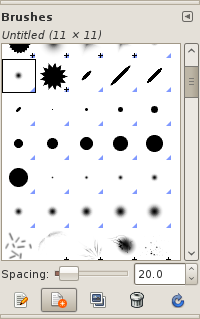
    To create the sparke we'll need a special brush that has to be created by ourselfes.

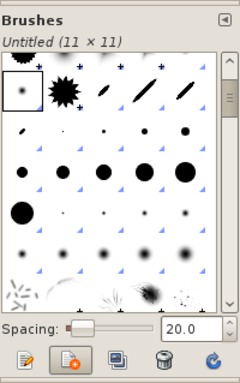
    Open the brush dialog: Window / Dockable Dialogs / Brushes or simply press SHIFT+CTRL+B.
    Screenshot of step 2
    Click to enlarge
  3. 3
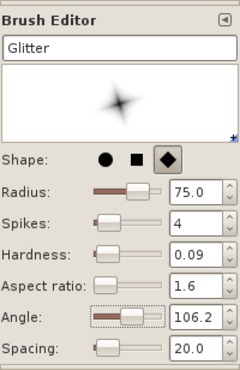
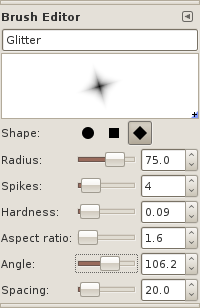
    Click "New Brush" at the bottom of the dialog - name it "Glitter".

    As FORM use the third option.

    The radius depends on the size of object you want the glitter to be on.

    I use ~75 - thats a good value for most objects.
    Use the values of the screenshot below:

    SPACING is not important for us in this case because we only apply a single sparkle at a time.
    Screenshot of step 3
    Click to enlarge
  4. 4
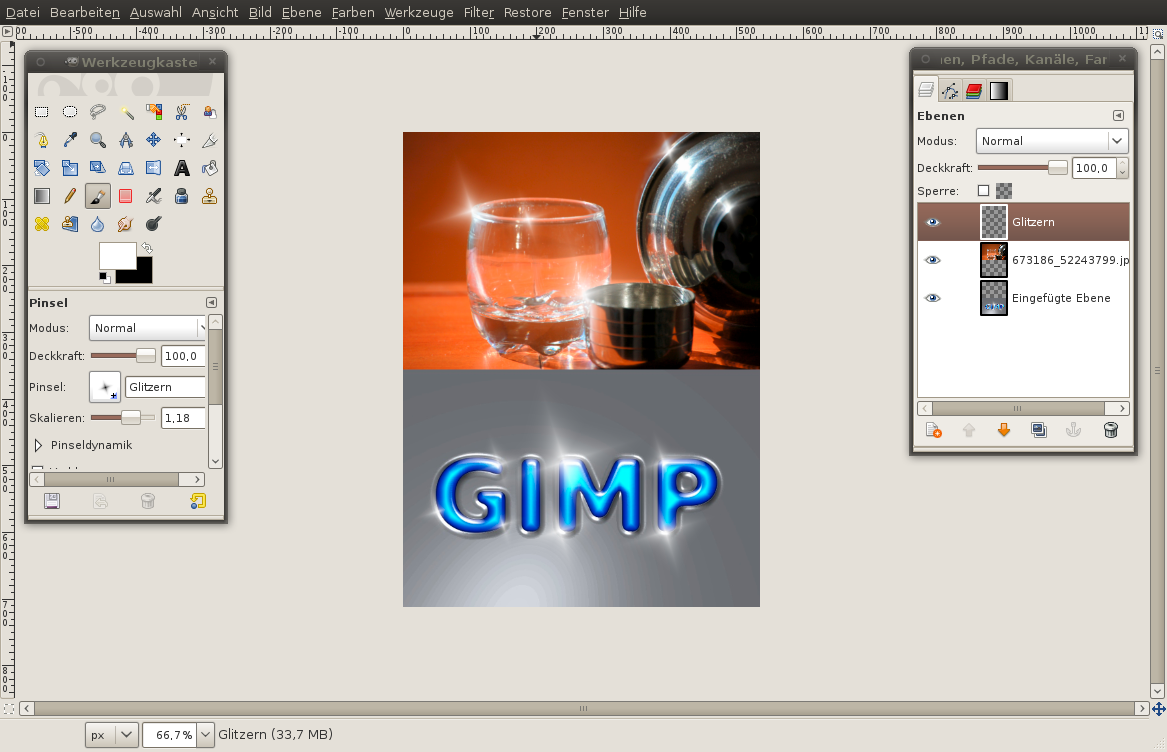
    Now choose the paintbrush tool. The "Glitter" brush should be active automatically. If not please choose it from the dropdown where you can assign the brush.

    - Create a new transparent layer. Press at different places in the picture preferably at bright/highlighted areas.

    Tip: While applying the glitter also change the size of the brush using the brush scale option in the tool prerferences. You'll get a more appealing look if the sparkle is not always the same size.

    You can apply that sparkle to almost everything. Please don't use too much of it or you'll lose the effect!
    Screenshot of step 4
    Click to enlarge
  5. 5
    Tip #2: If you want to refine the sparkle effect:

    - Duplicate the layer with the sparkle
    - Set layers mode of the duplicate to "soft edges"
    - Move the duplicate below the original sparkle layer. After that the sparkle is shining a bit more.
    Create a sparkle and glitter effect with GIMP
    Click to enlarge

This article is licensed under the following license: Attribution-Noncommercial 3.0 Austria

Links (pingbacks)

Comments

Post your own comments, questions or hints here. The author and other users will see your posting and can reply to it. Of course, you can also ask in the chat.

Comments are chronologically arranged.

  1. http://www.gimpusers.com/tutorials/sparkle-on-objects.html Mon 06 Apr 2009 04:46:32 PM CEST Kitusha, 06 Apr 2009 04:46 PM

    koolness xD

  2. http://www.gimpusers.com/tutorials/sparkle-on-objects.html Mon 06 Apr 2009 04:52:48 PM CEST Pat, 06 Apr 2009 04:52 PM

    neat !

    Step 4 you should indicate to use Paintbrush tool, caus won't work with pencil tool (

  3. http://www.gimpusers.com/tutorials/sparkle-on-objects.html Mon 06 Apr 2009 05:23:21 PM CEST devvv, 06 Apr 2009 05:23 PM

    thanks pat! updated the tutorial ;)

  4. http://www.gimpusers.com/tutorials/sparkle-on-objects.html Mon 06 Apr 2009 05:45:57 PM CEST tulcod, 06 Apr 2009 05:45 PM

    But be careful not to overuse sparkles!

  5. http://www.gimpusers.com/tutorials/sparkle-on-objects.html Mon 06 Apr 2009 08:36:14 PM CEST Snowy, 06 Apr 2009 08:36 PM

    Noting too new or intresting. Mediocre tutorial.

  6. http://www.gimpusers.com/tutorials/sparkle-on-objects.html Mon 06 Apr 2009 10:23:18 PM CEST Gimpster, 06 Apr 2009 10:23 PM

    A useful technique, nice to be able to generate flare effects on highlights. Tutorial is well written and easy to follow. I am going to try other shapes; I want more of a soft-focus-filter effect in the highlights, without blurring the image. Curious how one user finds it old/boring/mediocre and another user finds it a creative inspiration! Thanks Bernhard!

  7. http://www.gimpusers.com/tutorials/sparkle-on-objects.html Tue 07 Apr 2009 12:04:02 AM CEST devvv, 07 Apr 2009 12:04 AM

    Thanks gimpster!

    Maybe you could try to use the curves on the sparkle. set the channel in the curves to Alpha and move the points togethter into the center. that would remove the blurry thing on the glare effect and make it sharper.

    Hope that helps ;)

    @ snowy: it is a skill-1-tutorial - thats usually a tutorial that is very easy to accomplish by anyone. I'm very sure this tutorial is not too boring for most users.

  8. http://www.gimpusers.com/tutorials/sparkle-on-objects.html Wed 08 Apr 2009 01:25:06 AM CEST content_writer, 08 Apr 2009 01:25 AM

    Thanks devv,

    I'm going to try this right now. Please keep making new tutorials. You're consistantly one of the best GIMP tutors in both content and style

  9. http://www.gimpusers.com/tutorials/sparkle-on-objects.html Thu 09 Apr 2009 01:52:49 AM CEST devvv, 09 Apr 2009 01:52 AM

    thanks for the nice words content_writer ;) more tutorials are coming for sure - it's a bit hard since I write them in german first and have to translate them afterwards (lot of work =))

  10. http://www.gimpusers.com/tutorials/sparkle-on-objects.html Sat 18 Apr 2009 12:01:01 PM CEST Carusoswi, 18 Apr 2009 12:01 PM

    Snowy, as one who users Gimp and CS4 on a lot of photos, my interest in this sort of manipulation has just been piqued by this tut that I have ignored for weeks, now. Just ran through it and was amazed that Gimp could do such a thing in so few steps. It's part of the program I have never explored previously. Is anyone, anywhere helped by your negative commment served up because you already knew how to do this? I just discovered a whole new dimension of GIMP (probably photo manipulation in general) of which I was not aware. Pretty exciting to me. Devvv, thanks for posting.

    caruso

  11. http://www.gimpusers.com/tutorials/sparkle-on-objects.html Sun 19 Apr 2009 08:54:04 PM CEST alejandro, 19 Apr 2009 08:54 PM

    thanks, cool tutorial!!!

  12. http://www.gimpusers.com/tutorials/sparkle-on-objects.html Thu 23 Apr 2009 11:20:31 AM CEST Hinachan, 23 Apr 2009 11:20 AM

    Thanks for this tutorial! I have a separate program that can apply sparkle effects, but it's nice to see how it can be done within the GIMP. Sure beats having to save a picture, and open it in another program to add this effect!

  13. http://www.gimpusers.com/tutorials/sparkle-on-objects.html Fri 24 Apr 2009 09:36:49 PM CEST mbrown, 24 Apr 2009 09:36 PM

    Nice tutorial. As a new user to GIMP, I'm really appreciative. Please continue to provide tutorials.

  14. http://www.gimpusers.com/tutorials/sparkle-on-objects.html Sun 10 May 2009 12:13:49 PM CEST learner, 10 May 2009 12:13 PM

    Hi Devvv. I'm a newbie in graphical area. How do I reduce glaring or sparkling objects that's already in a photo ?

  15. http://www.gimpusers.com/tutorials/sparkle-on-objects.html Sun 10 May 2009 01:46:46 PM CEST devvv, 10 May 2009 01:46 PM

    learner: i guess this is very hard task and depends heavily on the photo itself. sometimes you can use tha clone-tool, sometimes you can manipulate using fine color corrections using the levels/curves.

  16. http://www.gimpusers.com/tutorials/sparkle-on-objects.html Tue 26 May 2009 01:09:58 AM CEST mamboze, 26 May 2009 01:09 AM

    Very good tut. It showed me an effect I had not thought of. Thanks

  17. http://www.gimpusers.com/tutorials/sparkle-on-objects.html Wed 03 Jun 2009 06:13:28 PM CEST gimp_newbie, 03 Jun 2009 06:13 PM

    g8 tut. Simple step & easy to understand. Thx.

  18. http://www.gimpusers.com/tutorials/sparkle-on-objects.html Sun 19 Jul 2009 01:36:38 PM CEST 127markaz, 19 Jul 2009 01:36 PM

    For those criticizing the simplicity of this and finding no value to the tutorial, fine. We cannot all be experts who know everything and cannot learn any more. This is very valuable and from those of us who appreciate a tip on making our crude graphics better, thank you!!!!!!

  19. http://www.gimpusers.com/tutorials/sparkle-on-objects.html Fri 24 Jul 2009 09:09:06 PM CEST KiaC, 24 Jul 2009 09:09 PM

    ok, I am a complete idiot when it comes to this program but I'm trying to teach myself. When I tried this tutorial, I was able to make the sparkle marks but only in black. How do I change it to the clear/white sparkle color? Thanks.

  20. http://www.gimpusers.com/tutorials/sparkle-on-objects.html Sat 22 Aug 2009 08:55:56 PM CEST Rada, 22 Aug 2009 08:55 PM

    This works very well, thank you. I find a small 5-point star can go well on teeth. I'm new to GIMP, so I'd like to know the purpose of the new transparent layer because I made mine without it. I couldn't find a 'soft edges' layer mode, so I used 'soft light' instead.

Registered users can log in (top right of the page) to use their profile name to post comments, request email notification on new comments and attach images (e.g. their versions of the effect) to their postings.

Are you human?

Adobe® Photoshop® is a registered trademark of Adobe Systems, Inc. Linux is a trademark of Linus Torvalds. Ubuntu and Canonical are registered trademarks of Canonical Ltd. | Clock times are shown as CET / CEST | Imprint / Privacy policy | powered by bitfire it services