Titelbild gimpusers.de

German version of this page English version of this page

Not logged in
Sign up
Login

Last online: myke4, AvatarOfDeath0, Marcel2, eatofid13, bam0, Pianist2, MyOwnOwner0, Avarra24, MaxPhilip14, devvv535, RedHawk20210, Tille0

The GIMP
» All GIMP shortcuts / hotkeys
» GIMP changelog
» What's new in GIMP 2.4
» GIMP manual
» Books about GIMP

new tutorials

Making a pencil drawing from a photo Spicing up black/white images Deletion of unused user accounts GIMP 2.4.6 released MeetTheGimp.org is again not reachable Libre Graphics Meeting 2008: Videos online!

random tutorials

How to generate realistic mass waterdrops on a surface A colored swirl of light How to change a boring sky to a cool cloudy sky Creating a simple Company Logo Hot Wallpaper with Flames Stylish buttons

[show all tutorials]

» email archive

Join the GIMP chat!

tutorial details

Difficulty: difficulty 0/5

GIMP version: 2.3.15

Category: Photos / wallpapers

Author: devvv

Steps: 4

Needed time: ca. 5 min

Hits: 13282

Downloads for this tutorial:

Others from this category:

» 6 comments

Miscellaneous

Facts and numbers
Current version: 2.4.6
Dev. version: 2.5.1

38 tutorials with
36 downloads,
175 news and 11290 list messages

Feedburner

Umfrage

Which section should we put focus on here on gimpusers.com?

Please put focus on community stuff (forum, discussions, galleries etc.)

more written tutorials

more video tutorials

more news and information / articles

all kind of gimp resources (i.e. plugins, brushes, fonts etc.)

other stuff (please post a comment)


→ Poll results

Tutorial: Simple Scanlines

Written by devvv (04 Apr 2007 11:09 AM)

The effect of scanlines is pretty popular, mainly for forum-signatures. This tutorial shows probably the easiest way to do this simple effect in the GIMP, in just 4 very short steps!

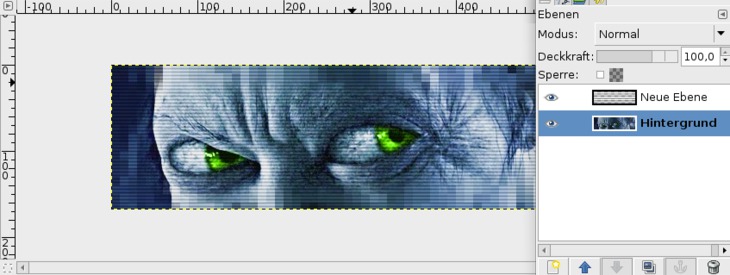
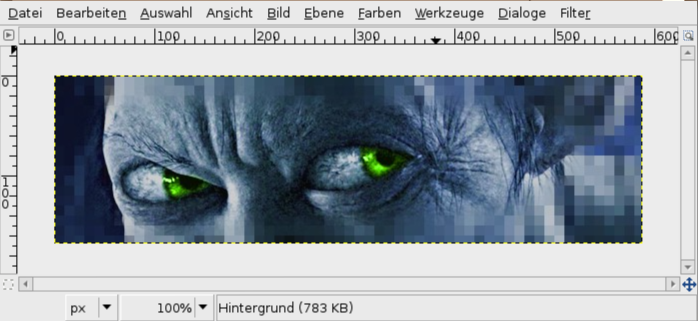
  1. Open up a photo, or something else that you want to provide with scanlines. If you just want to test this tutorial download my sample-signature from the right and open it.
    screenshot of step 1
    click to enlarge
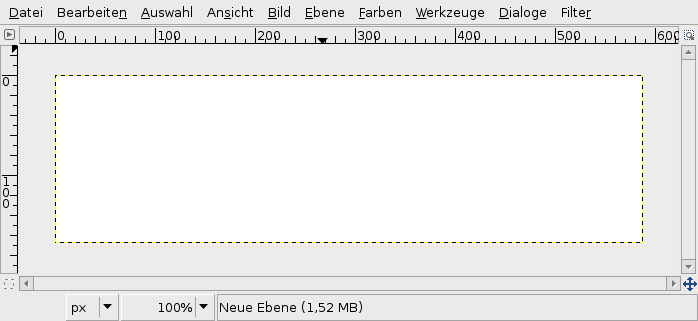
  2. Create a new empty layer. Take the Bucket Fill-Tool, choose white as foreground color and then fill the layer with it.
    screenshot of step 2
    click to enlarge
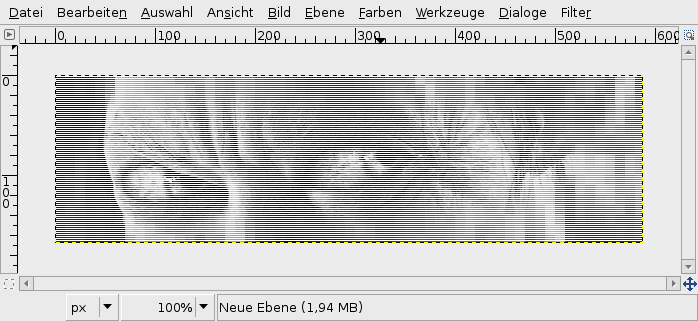
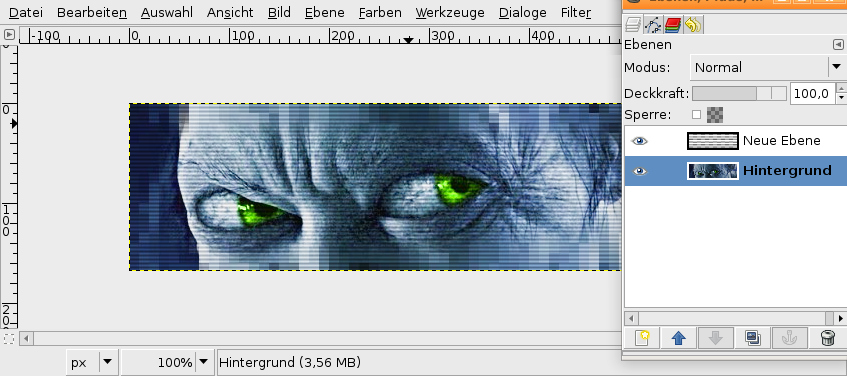
  3. Now apply Filter / Distorts / Erase every other row and just click OK. The lines are divided already, but the effect is not clearly visible. Click the picture to see what i mean.
    screenshot of step 3
    click to enlarge
  4. We're going to enlarge the layer.

    Take the Scale-Tool. Click the layer. In the upcoming dialog choose 200 "Percent" as Value for height and width. Click OK.

    Now set the layer mode to "Overlay".

    Done, enjoy the effect ;)
    screenshot of step 4
    click to enlarge
Creative Commons Attribution-NonCommercial 2.0 Austria
This work is licensed under the following license: Creative Commons Attribution-NonCommercial 2.0 Austria.

Discussion / comment this tutorial

Post your own comments, questions or hints here. The author and other users will see your posting and can answer to it. Of course, you can also ask in the chat.

Newer comments are displayed first!

From: ibizzle (27 Aug 2007 12:43 AM) – Send a private message

Filters > Distorts > Video > Striped is all I needed for my scanlines.
Nevertheless, neat tutorial. :)

From: Igno (15 Aug 2007 12:37 AM)

That bucket fill in step two is unnecessary. Just pick 'white' from Layer Fill Type while creating new layer. Same effect, less work. ;)

From: henriquemaia (02 Aug 2007 04:07 PM) – Send a private message

Thanks for this tutorial. It works great.

From: Dedo (03 Jun 2007 07:07 AM)

To fins5423:
try this Script-Fu/Alchemy/Erase every other row

From: devvv (29 May 2007 08:40 AM) – Send a private message

here the fuck it is dude ;) look at my attachment and please use 2.3.14 - its pretty stable

From: fins5423 (29 May 2007 01:26 AM) – Send a private message

Give better intructions dude,"apply filter/distort/ erase evry other row" where the fuck is "erase every other row" ??????????

Registered users can log in to use their profile name to post comments, request email notification on new comments and attach images (e.g. their versionen of the effect) to their postings.

Post a comment:

Your name:
Not logged in yet? Register at gimpusers.com or log in if you already have an account!
Email address: (optional, wird nicht angezeigt!)
Comment:
Security code:

Adobe® Photoshop® is a registered trademark of Adobe Systems, Inc. Linux is a trademark of Linus Torvalds. Ubuntu and Canonical are registered trademarks of Canonical Ltd. | Imprint | powered by bitfire.at