Titelbild gimpusers.de

German version of this page English version of this page

Not logged in
Sign up
Login

Last online: devvv547, cocoav0, erossini0, Freak19801, Vadi0, wischmoep0, redforce82, Funny0, CreativeDaniel3, buran0, Mhenlo0, punk76340

The GIMP
» All GIMP shortcuts / hotkeys
» GIMP changelog
» What's new in GIMP 2.6
» GIMP manual
» Books about GIMP

new tutorials

First Windows build for GIMP 2.5 available! GIMP 2.5.3 development snapshot released GIMP 2.4.7 released Dev version: GIMP 2.5.2 available Preview: What's new in GIMP 2.6? GIMP 2.6 nears

random tutorials

Vexel Simulation on Photos Cool glowing text Simple Scanlines Create a cool starfield Planet in a wireframe model Smoke and Flames

[show all tutorials]

» email archive

Join the GIMP chat!

tutorial details

Difficulty: difficulty 1/5

GIMP version: 2.2.x

Category: Photos / wallpapers

Author: MaleXx

Steps: 20

Needed time: ca. 15 min

Hits: 17429

Others from this category:

» 7 comments

Miscellaneous

Facts and numbers
Current version: 2.4.7
Dev. version: 2.5.3

39 tutorials with
39 downloads,
185 news and 11779 list messages

Feedburner

Umfrage

Would you use the GIMP mailing lists if you could use them like a forum?

Yes

I don't know what mailing lists are, but I would use a forum

No


→ Poll results

Tutorial: Create a shocking sphere/ball

Written by MaleXx (11 Aug 2007 02:33 PM)

In this tutorial our user MaleXx wll show you how you can create a shocking sphere by combining some tutorials of gimpusers.de to a new one. Have fun!

  1. First we are making the shock ball. For that we create a new file with the size 500x500px.
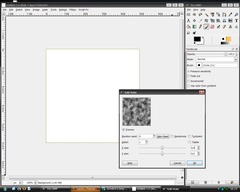
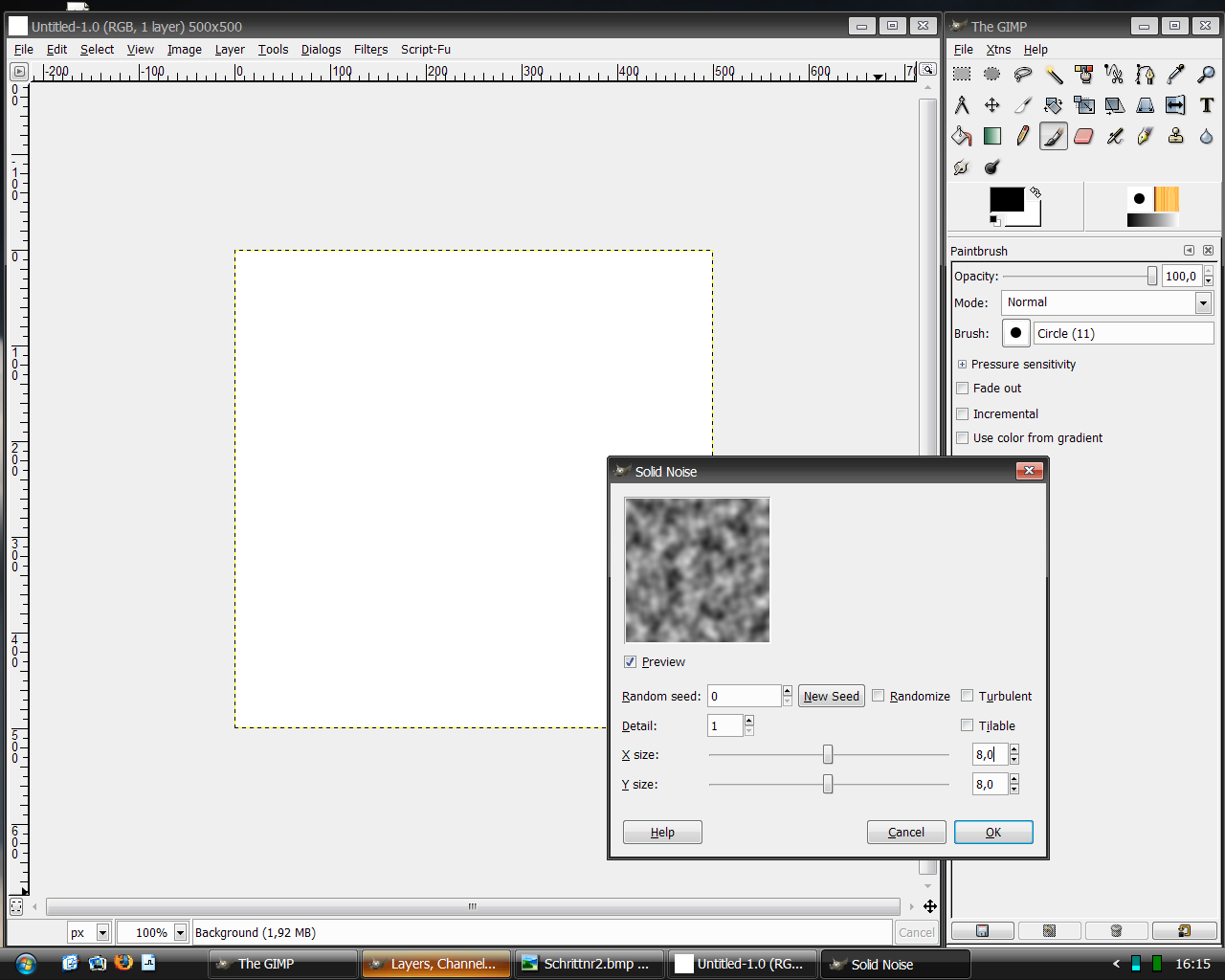
  2. Filters>Render>Clouds>solid noise, use parameters from picture
    screenshot of step 2
    click to enlarge
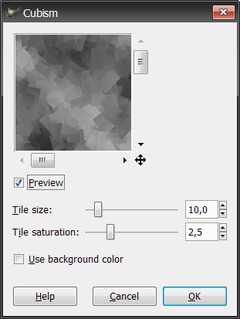
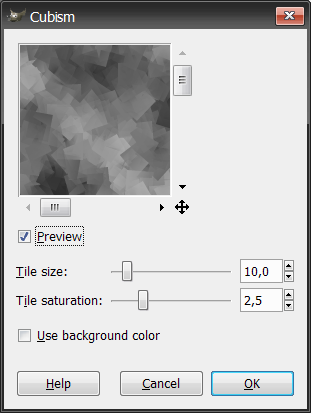
  3. Filters>Artistic>Cubism, use parameters from picture and then Filters>Edge-Detect>Edge with standard parameter
    screenshot of step 3
    click to enlarge
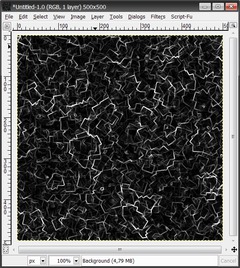
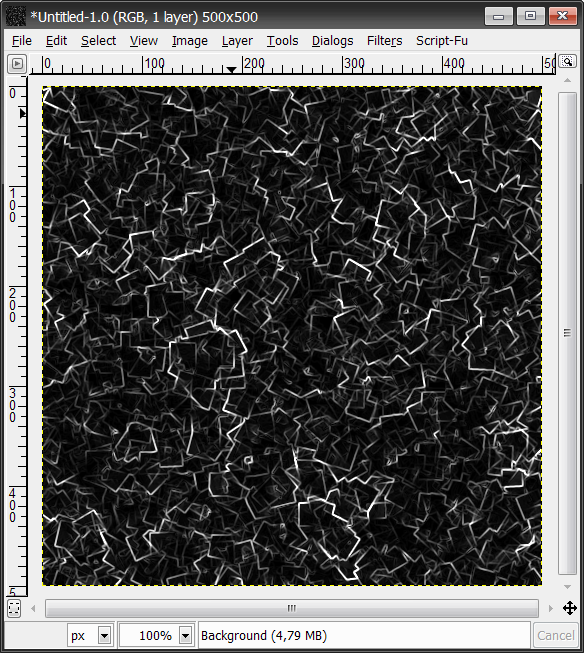
  4. Now your picture should look like this:
    screenshot of step 4
    click to enlarge
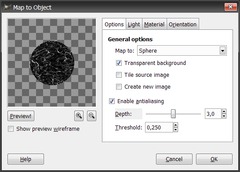
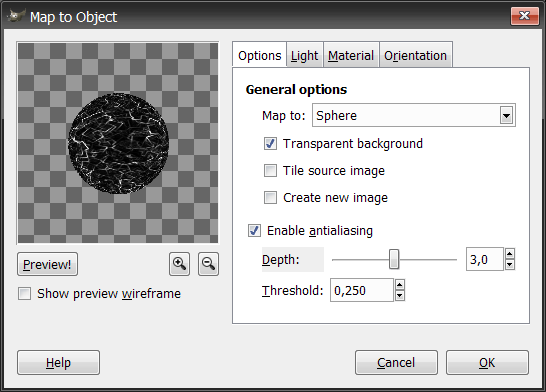
  5. Filters>Map>Map Object, use parameters from picture, select by Lightsource type “no light”
    screenshot of step 5
    click to enlarge
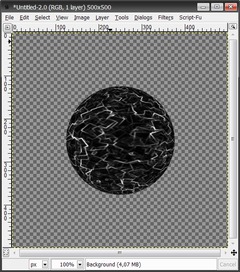
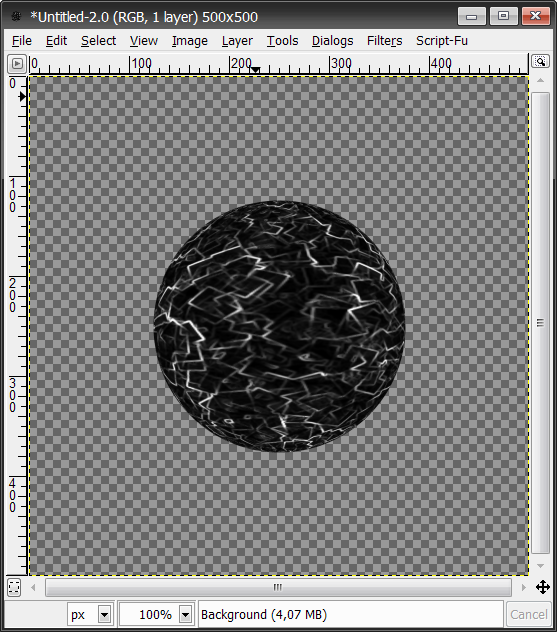
  6. Now your picture should look like this:
    screenshot of step 6
    click to enlarge
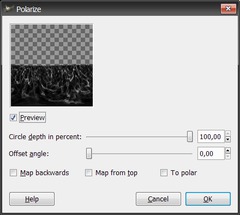
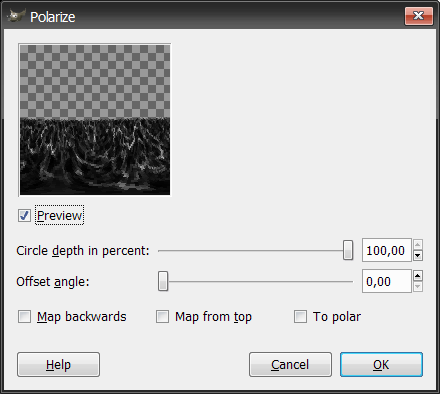
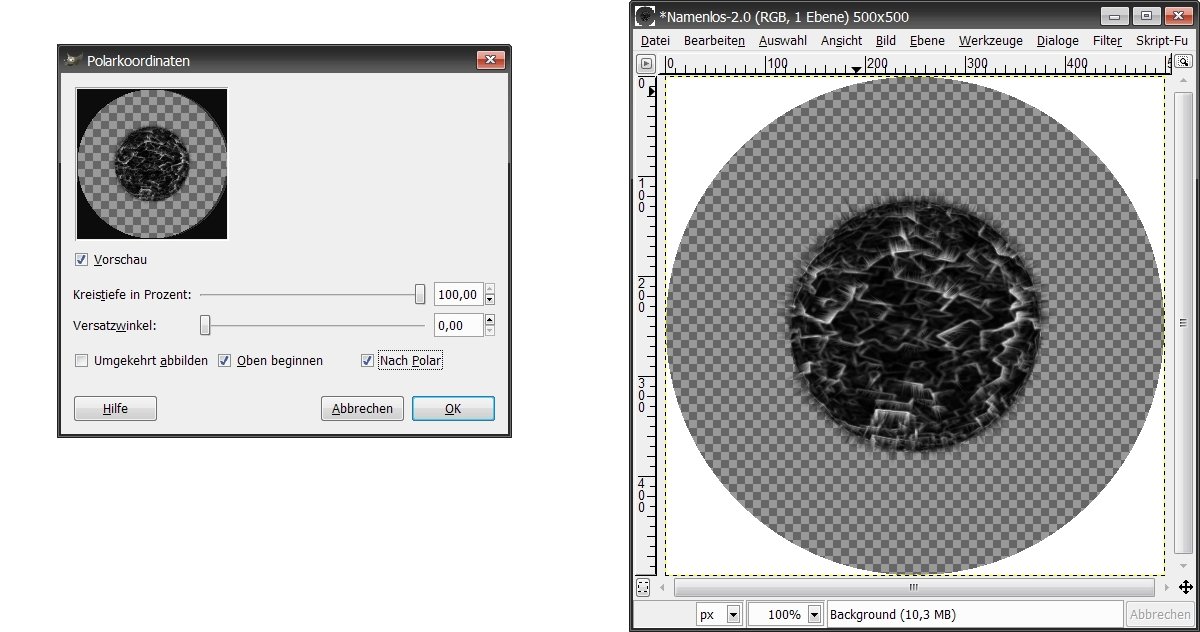
  7. Filters>Distorts>Polar Coords, use parameters from picture
    screenshot of step 7
    click to enlarge
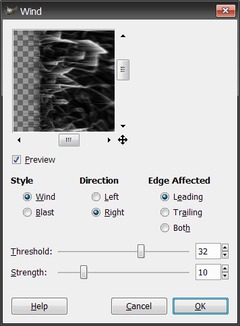
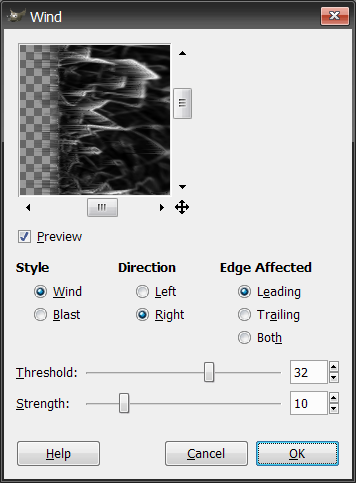
  8. Bild> Transform>Rotate 90 degrees CCW, then Filters>Distorts>Wind, use parameters from picture
    screenshot of step 8
    click to enlarge
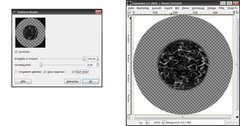
  9. Then repeat with Ctrl+F. Image>Transform>Rotate 90 degrees CCW, then Filters>Distorts>Polar Coords, use parameters from picture (look at the left picture)

    Now your picture should look like this:(look at the right picture)
    screenshot of step 9
    click to enlarge
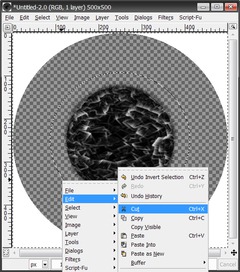
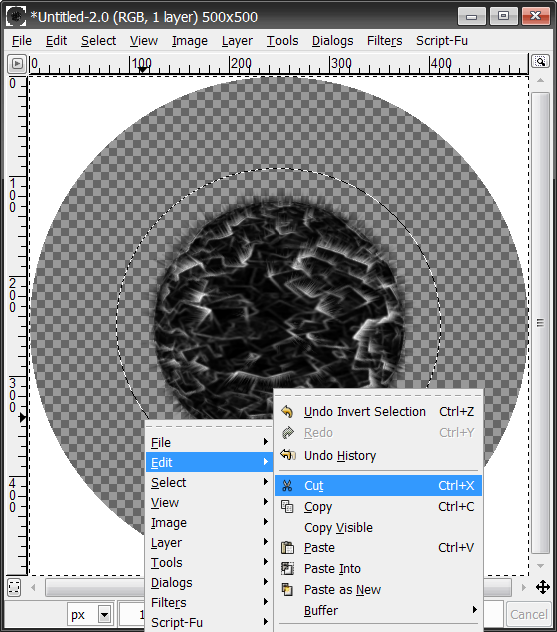
  10. Now there is a white border round the image. Select therefore the ball with the selection tool and click on Select>Invert
    screenshot of step 10
    click to enlarge
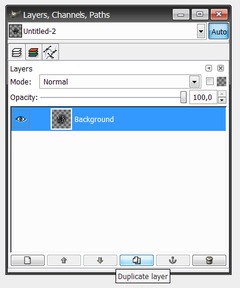
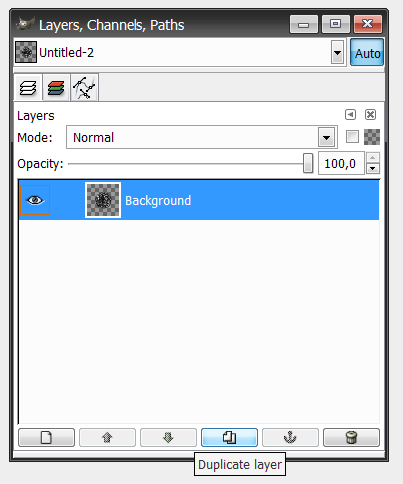
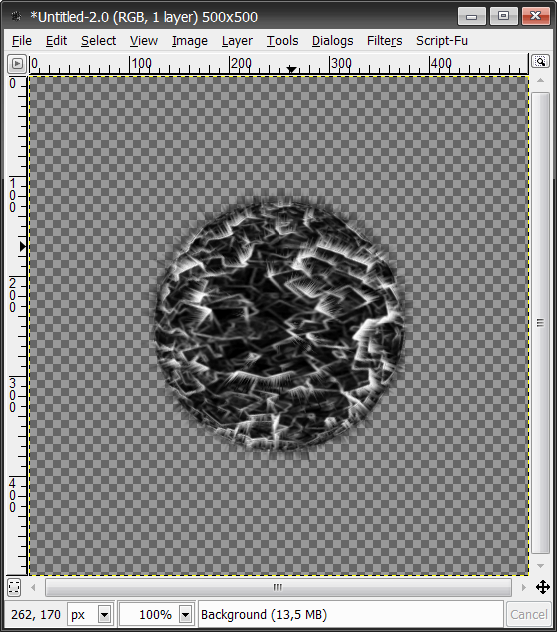
  11. After you cut out the white border, duplicate the layer with the ball and adjust the upper layer on “screen” mode.

    Now the white parts in the picture are brighter.
    screenshot of step 11
    click to enlarge
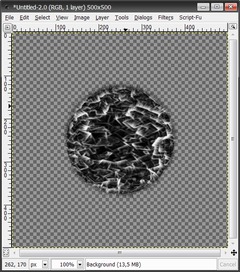
  12. Your picture should look like this now:
    screenshot of step 12
    click to enlarge
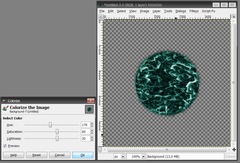
  13. Right click the Layers dialog: "Merge down".

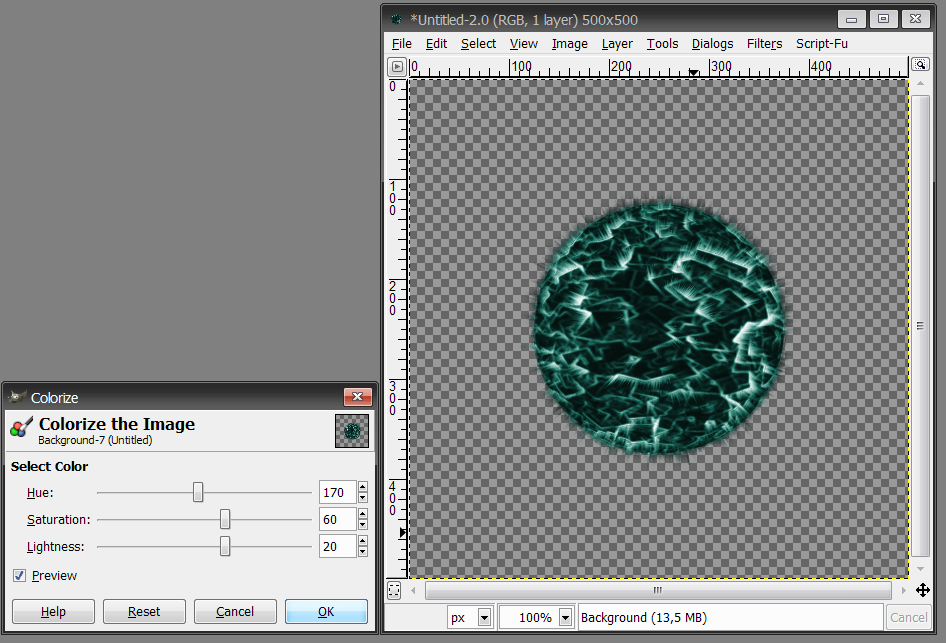
    Here the picture can be colored. For that click on Layer>Colors>Colorize and create the color you like.
    screenshot of step 13
    click to enlarge
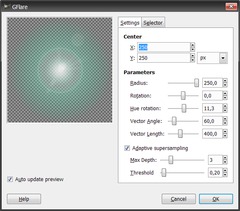
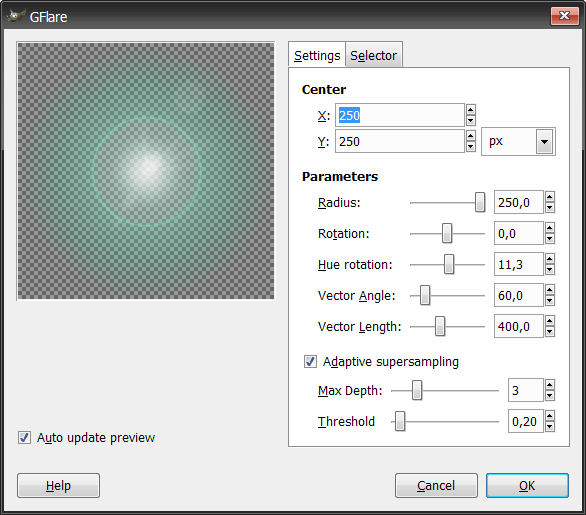
  14. Create the „atmosphere“. Built a transparent layer und put it in the background. Click on >Filters>Light Effects>GFlare and take the parameter out of the next image.

    The color doesn´t matter. Repeat effect with Ctrl+F. Create a second layer the same way and click again on Filters>Light Effects>GFlare, with the same parameters. This layer needs to b e shift one level before the planet layer.
    screenshot of step 14
    click to enlarge
  15. Now create a black layer und put it in the background.
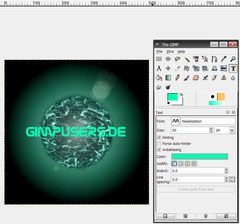
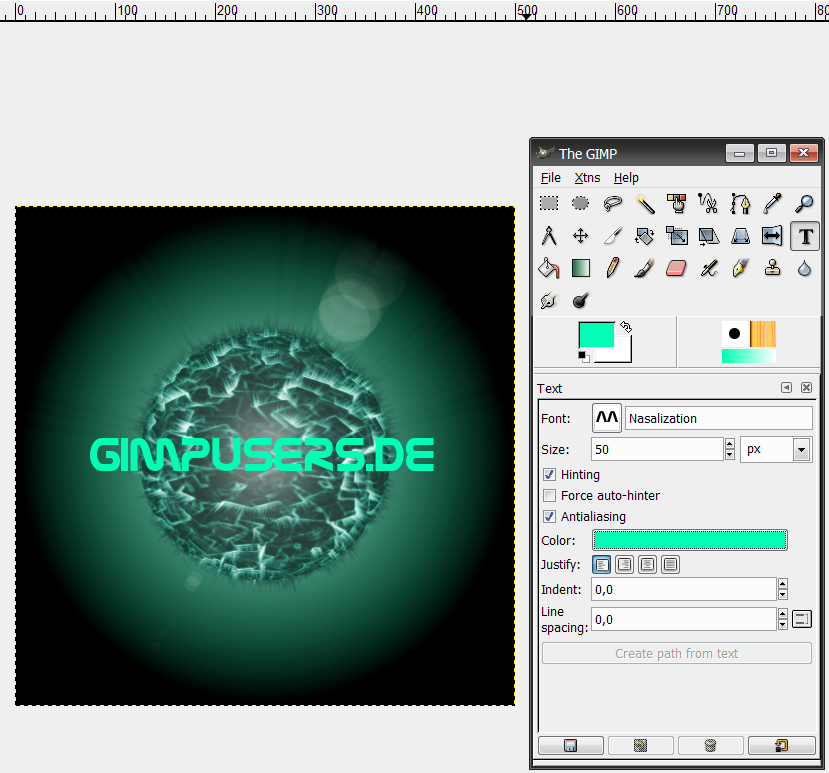
  16. The ball is complete now. Add a name. Use the Text Tool and write a short name with a font with less details.
    screenshot of step 16
    click to enlarge
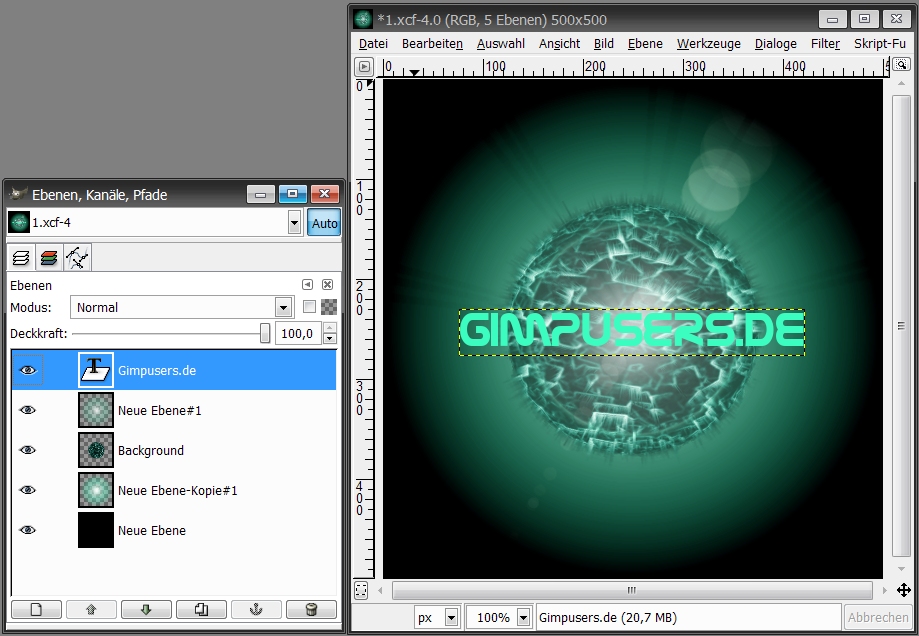
  17. The color should be the same as used on the planet.
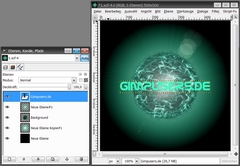
    Your image and the layer now should look like this:
    screenshot of step 17
    click to enlarge
  18. Create a new transparent layer and scroll it under the text layer.
    Go to the layer toolbox and select the “text layer”. Then click with the right mouse-button on it and choose “Merge down“
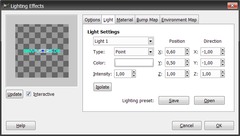
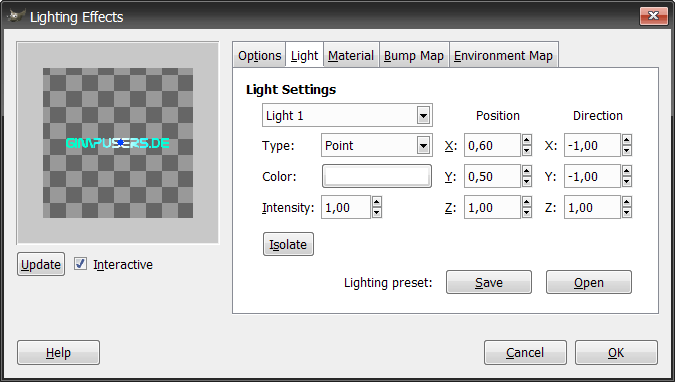
    Go to Filters>Light-Effects>Lighting Effects and put the blue point into the middle of your text, that the light flashes text in the middle. After that, choose OK.
    screenshot of step 18
    click to enlarge
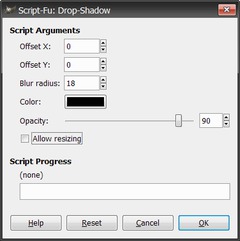
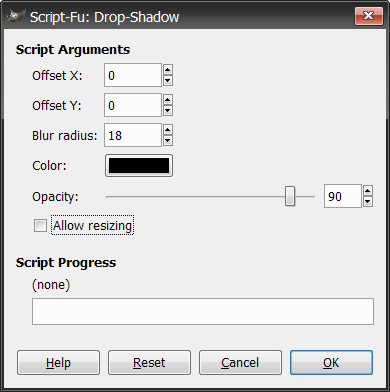
  19. Now click on Script-Fu>Shadow>Drop-Shadow and use the parameters of the next image.
    screenshot of step 19
    click to enlarge
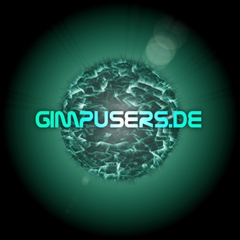
  20. Done. The final picture should look like this:
    screenshot of step 20
    click to enlarge
Creative Commons Attribution-NonCommercial 2.0 Austria
This work is licensed under the following license: Creative Commons Attribution-NonCommercial 2.0 Austria.

Discussion / comment this tutorial

Post your own comments, questions or hints here. The author and other users will see your posting and can answer to it. Of course, you can also ask in the chat.

Newer comments are displayed first!

From: Ice (23 Aug 2008 01:33 AM)

Magnificent!!
But a question:
Create the „atmosphere“: which selector do you use? I still have a lot of 'stripes' around the sphere, not the smooth green color like yours in the example?
Where did it go wrong?
And how can I create this in another color like blue?

From: JPEGJedi (10 Dec 2007 01:13 PM) – Send a private message

I figured it out, finally. I forgot to rotate the extra CCW...the polar coords dont work without it.
To Scerwup: The polar coords dont work bcuz they are polar, for spheres.

From: Scerwup (08 Dec 2007 04:13 AM) – Send a private message

I'm pretty new to gimp, but I saw this tutorial and really liked it, it allowed me to expirement with a bunch of things. I keep coming back to it for certain things. So, great tut in my opinion. I was wondering if anyone has any idea how to do this on a cube? I made the cube and put the renders and stuff on each side, but polar coords wont work with the cube, any ideas would be appreciated. Im posting one of the balls i made.

From: JPEGJedi (30 Nov 2007 01:59 PM) – Send a private message

I got something wrong in the road...great tutorial, tho

From: exn (10 Oct 2007 07:49 PM) – Send a private message

Very nice tutorial !

afftar peshi ischo :)

From: mm.matus (15 Sep 2007 07:11 PM)

Simple tutorial, but great outcome. I am waiting for some more :O)

From: Eduardo (12 Aug 2007 05:11 AM)

Great Tutorial, good technique with polar conversions and nice texture.

Registered users can log in to use their profile name to post comments, request email notification on new comments and attach images (e.g. their versionen of the effect) to their postings.

Post a comment:

Your name:
Not logged in yet? Register at gimpusers.com or log in if you already have an account!
Email address: (optional, wird nicht angezeigt!)
Comment:
Security code:

Adobe® Photoshop® is a registered trademark of Adobe Systems, Inc. Linux is a trademark of Linus Torvalds. Ubuntu and Canonical are registered trademarks of Canonical Ltd. | Imprint | powered by bitfire.at