gimpusers.com logo
German version English version

Not logged in

Sign up! | Lost password?

Latest discussion

  1. gimp-user | today 01:45 AM
    Crashes in GIMP 2.6.6
  2. gimp-docs | yesterday 11:28 PM
    Can the gimp-help-2 module be maintained using Damned-Lies?
  3. gimp-user | yesterday 11:25 PM
    Error on script-fu
  4. gimp-developer | yesterday 10:55 PM
    Summary: How to submit gimp/gegl bugzilla with GIT patch
  5. gimp-docs | yesterday 10:01 PM
    Where have all my pictures gone?

External news

Poll

Did you ever buy products (books, video dvds) about GIMP?

No, never did

Yes, helped alot (please post)

Yes, helped a little bit (please post)

Yes but I was disappointed (why? please post)

See results

Stats

gimpusers.com RSS feed

RSS feed Retweet this!

15 Jun 2007 10:43 PM, by devvv (Bernhard Stockmann)

Old Parchment Paper

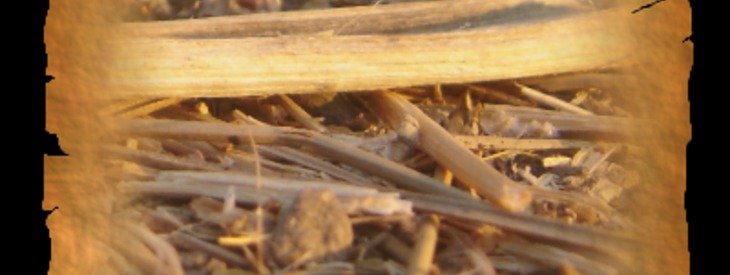
This tutorial is a bit aimed on fantasy-fans! I will show you how to generate an old parchment paper. You can than add an old map, a photo or just plain text to it!

This article has been written using GIMP 2.3.11. It's divided into 15 steps and takes about 25 min to complete for an average user. 53536 times read so far. Category: Special FX, required skill: 3 of 5

29 comments have been posted so far.

Available in other languages:

  1. 1
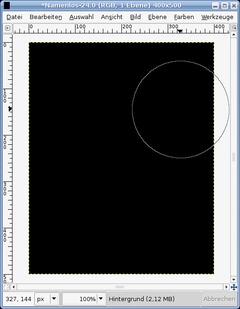
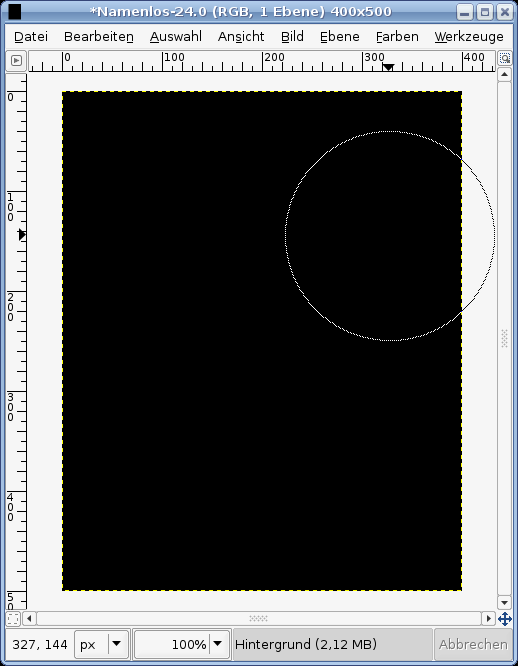
    Open a new file: 400x500 px and set the background color to black.
    Screenshot of step 1
    Click to enlarge
  2. 2
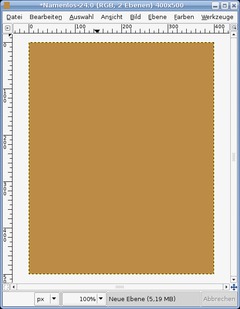
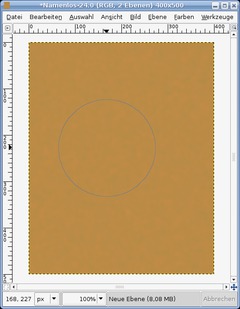
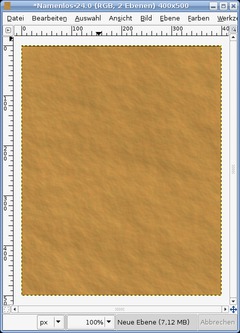
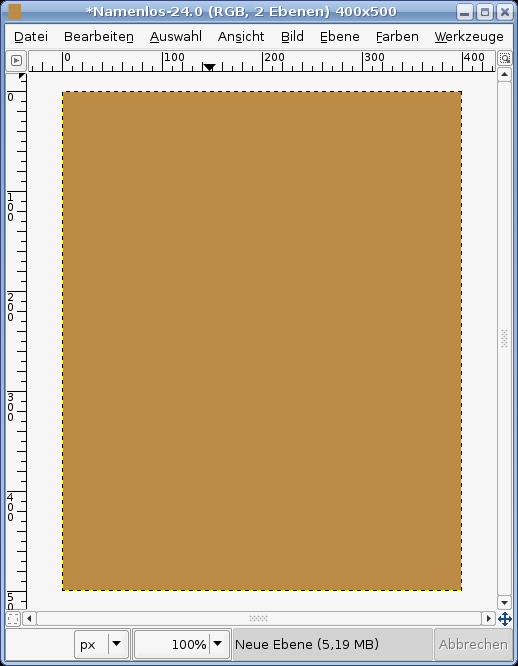
    Create a new transparent layer, fill it with #bc8b46.
    Screenshot of step 2
    Click to enlarge
  3. 3
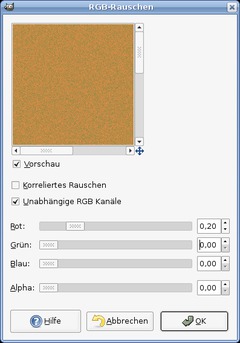
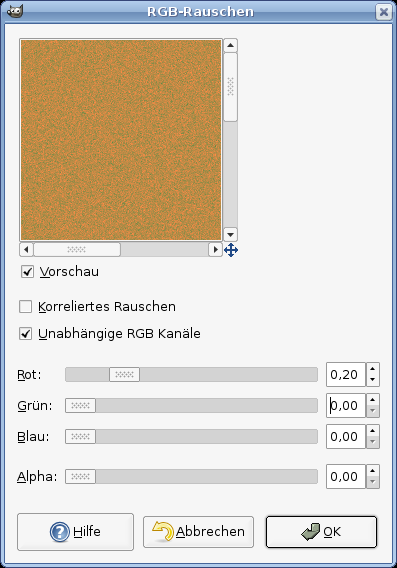
    Go to Filter / Noise / RGB Noise and use these values as input:

    Independent RGB Channels: checked
    RED: 0,20
    GREEN: 0
    BLUE: 0
    ALPHA: 0
    Screenshot of step 3
    Click to enlarge
  4. 4
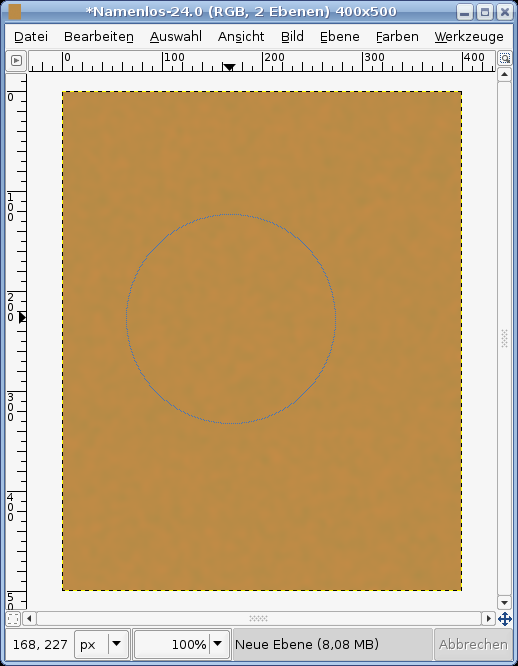
    - Filter / Blur / Gaussian Blur: 10px.

    The noise-effect should be still very little visible-
    Screenshot of step 4
    Click to enlarge
  5. 5
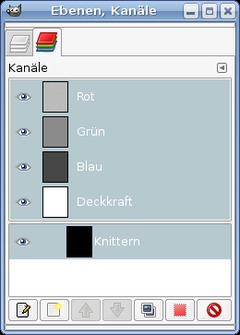
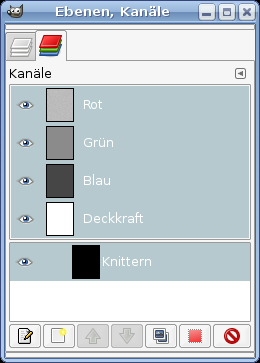
    Now, we're going to bring some depth into play. Open the channels tab (Dialogs / Channels). Create a new channel there, name it "knittern" or "crinkle" which is the english word for this.

    Opacity to 100%.
    Screenshot of step 5
    Click to enlarge
  6. 6
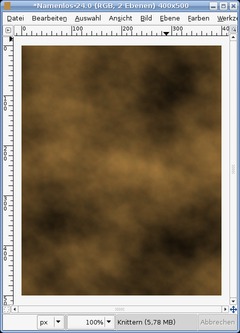
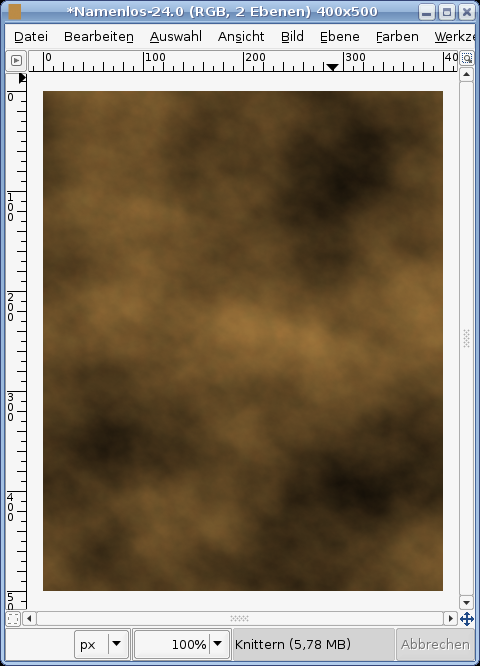
    Click the just created channel to make it active.

    Apply Filter / Render / Plastic Noise. Activate "Random".

    Values:
    --------
    Random: on
    X: 2,3
    Y: 3,3
    Details 15.

    You get this kind of picture:
    Screenshot of step 6
    Click to enlarge
  7. 7
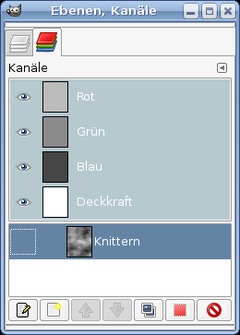
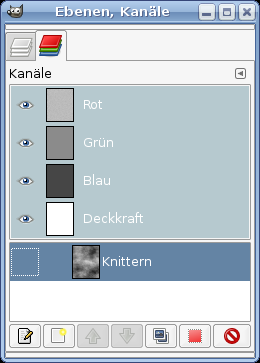
    In the channels tab deactivate the eye-symbol to make it invisible.
    Screenshot of step 7
    Click to enlarge
  8. 8
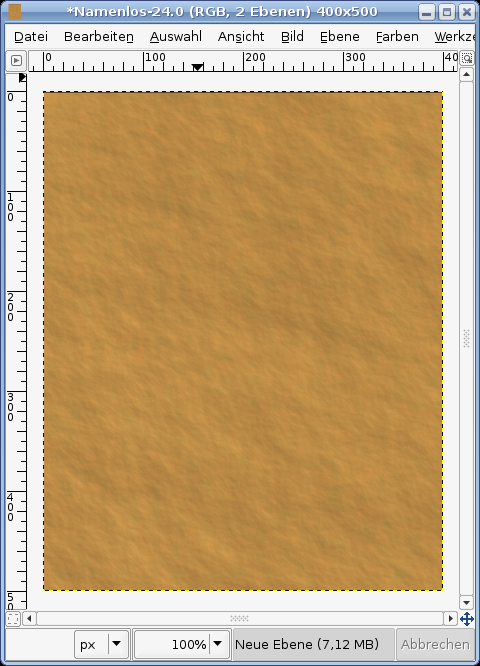
    Change to the layers-tab and click the brown layer to make it active. Now apply Filter / Light and Shadow / Lighting Effect. In the tabs of the filter enter these values

    Options:
    (optinal) Distance: 2000

    Light:
    ------
    Light1:
    Type: Directional
    Color: White:
    Direction: X: -2,25 Y: 1,75 Z: 1

    Material:
    Glow: 0,5
    Bright: 0,75
    Shiny: 0,12
    Polished: 20

    Bumpmap:
    use the "crinkle"-Channel
    Max Height: 0,01
    Screenshot of step 8
    Click to enlarge
  9. 9
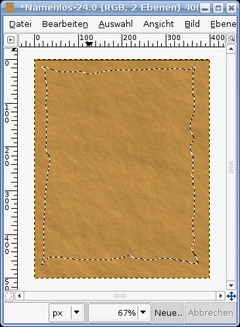
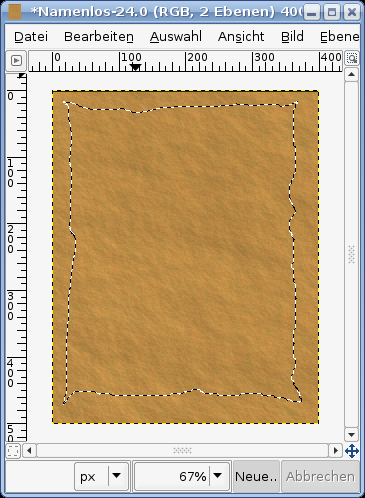
    - Filter / Enhance / Sharpen: 60.

    After that choose the "Free selection"-tool. Draw a selection as seen on the picture.
    Screenshot of step 9
    Click to enlarge
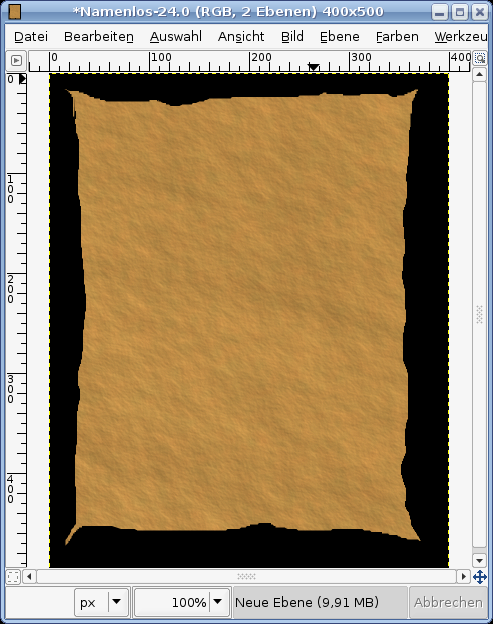
  10. 10
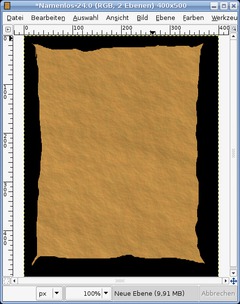
    Now choose Selection / Invert. Cut that part or just delete it using DEL (or CTRL+K in GIMP 2.2).
    Deactivate the current selection by pressing CTRL+SHIFT+A or Selection / None
    Screenshot of step 10
    Click to enlarge
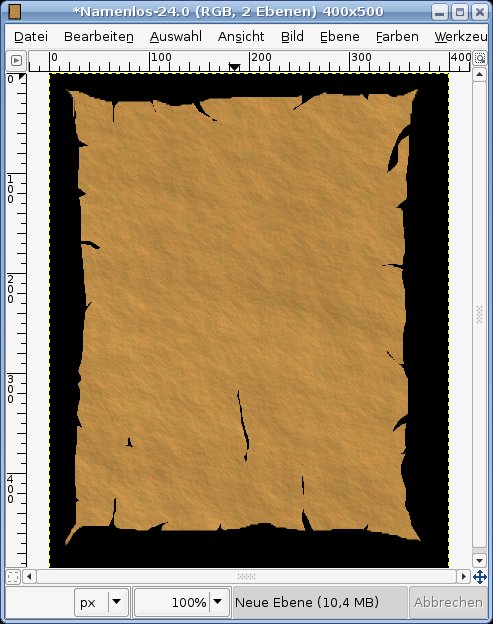
  11. 11
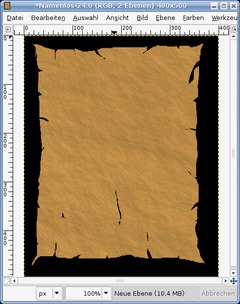
    The next step is to create some more cuts into the parchment. Use the free selection tool for this again. Cut many small cranks into the parchment. You can also do small very thin ones in the middle.
    Screenshot of step 11
    Click to enlarge
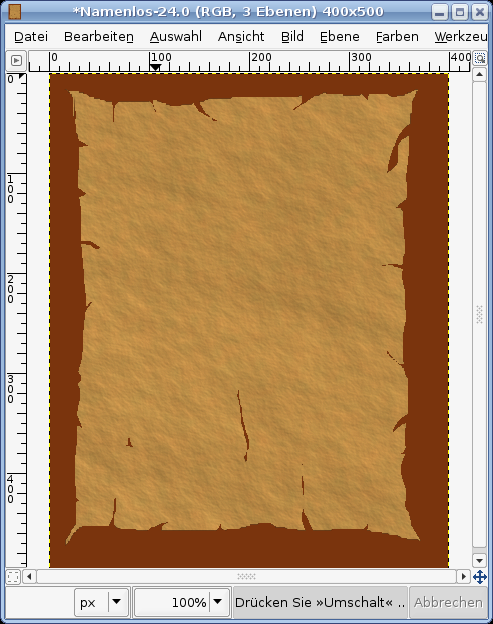
  12. 12
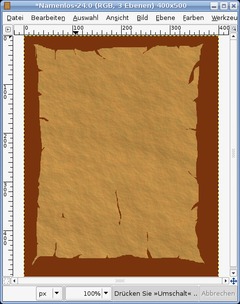
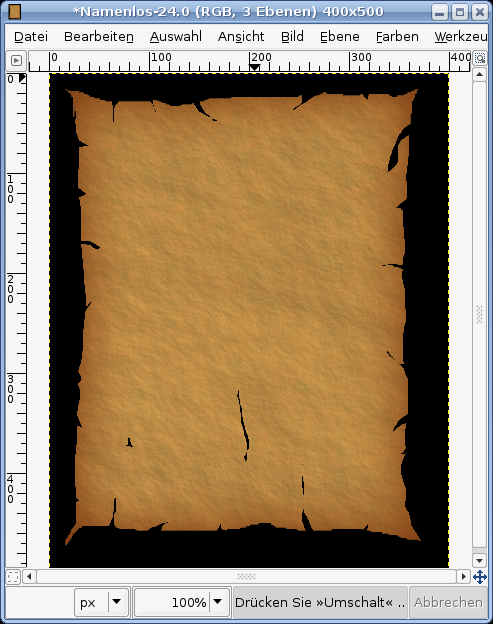
    Now we're adding a darker border to it.

    - Right click in the layers dialog. "Alpha to selection". This gives us a perfect selection of the layer.
    - Add a new empty layer
    - Selection / Invert
    - Fill this selection with #7a340d
    - Selection / None
    Screenshot of step 12
    Click to enlarge
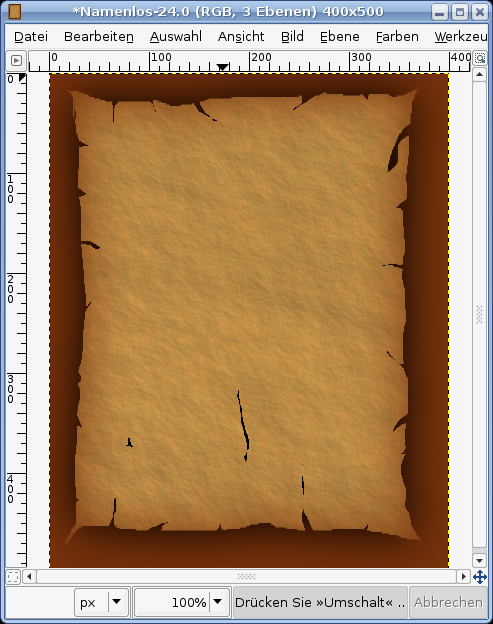
  13. 13
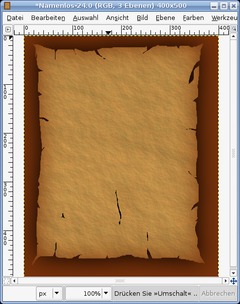
    Apply Filter / Blur / Gaussian: 75.
    Screenshot of step 13
    Click to enlarge
  14. 14
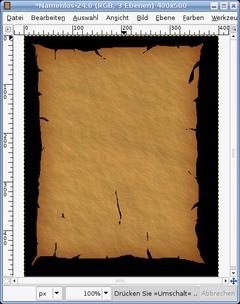
    Activate the parchement layer. Choose "alpha to selection" from the right click context menu of the layers dialog again.

    Activate the just blurred layer. Press CTRL+I to invert the selection and the press DEL to delete the unwanted parts. The brown inner shine should be visible now.

    The hard part is done ;) Now you can finetune your parchment paper by using Brightness and Contrast. Or you can apply the depth-effect again if you want more crinkle! Feel free to play around with it.
    Screenshot of step 14
    Click to enlarge
  15. 15
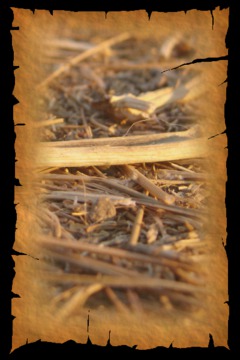
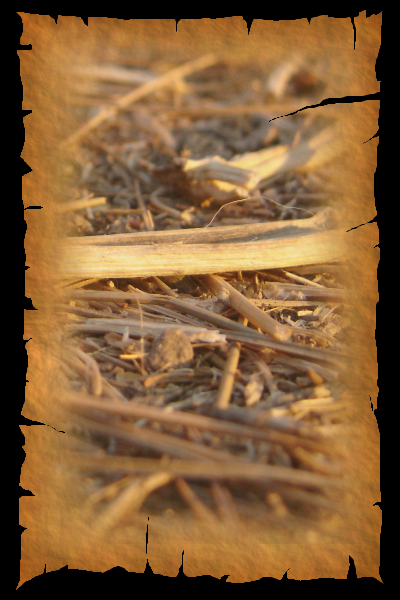
    You can the add a photo to it or write some text or you can also add an old map to make your own treasure map! Have fun!
    Screenshot of step 15
    Click to enlarge

This article is licensed under the following license: Attribution-Noncommercial 3.0 Austria

Comments

Post your own comments, questions or hints here. The author and other users will see your posting and can reply to it. Of course, you can also ask in the chat.

Comments are chronologically arranged.

  1. James, 16 Jul 2007 11:58 AM

    Fantastic tutorial! This has given me the know-how to make the minimaps on my hl2 mod look rustic and old fashioned. Thank you!

  2. Chelmite, 07 Aug 2007 06:44 AM

    I'm running gimp 2.2.12. DEL doesn't do anything. What's the equivalent function from the menus?

  3. lala, 07 Aug 2007 09:06 AM

    wow

  4. cemkalyoncu, 27 Aug 2007 12:19 PM

    @Chelmite: you can use Ctrl + K or edit -> clear

  5. ali, 15 Sep 2007 08:55 AM

    selam

  6. rwacles, 24 Sep 2007 02:52 PM

    Nice Tutorial! I've been looking for this. Thanks


    Click to enlarge

  7. yht, 04 Oct 2007 02:51 AM

    What program are you using to do this? I have windows xp2000 with word perfect. Will that work?

  8. PhotoMan, 14 Oct 2007 12:24 PM

    Does anyone have a GIMP 2.2 version of this tutorial? Options do not match.

  9. devvv, 14 Oct 2007 12:33 PM

    you may use the new gimp 2.4 release candidate - it is found in our downloads section.

  10. Snugglie, 15 Nov 2007 06:42 PM

    I'm stuck at #6 <_< What exactly shall I do?

  11. Snugglie, 15 Nov 2007 07:33 PM

    Never mind, found it. Great tutorial, thanks!

  12. milliepat, 31 Dec 2007 08:11 AM

    This needs some editing, after step 12, I never got the look. Using Gimp 2.4.2 on Win XP.

  13. rebaler, 05 Jan 2008 11:54 PM

    helllo okay i was wondering... if you were to say put a desk / wood like background in a layer under the paper layer... to make it look like its on a table , how would you go about making wood / desk texture? also in stead of a wood/desk textue what if you were to make everything but the letter invisable... i dont know how to make a area invisable..

  14. elmister, 20 Jan 2008 10:29 PM

    Step 6 (Gimp 2.4)
    Filters / Render / Clouds / Solid Noise

  15. coche, 23 Jan 2008 04:28 PM

    Great tutorial thx. I've a lot of fun doing it!

  16. anna, 17 Feb 2008 02:09 PM

    You can make that effect using coffee, can't you? Does anyone know the best way to do it?

  17. justin, 25 Feb 2008 04:52 PM

    same here, after stpe 12 i couldn't get the look right, at all. greta tutorial though, and does anyone know how to work with text, it just runs off the layer, i can't seem to edit it at all.

  18. hucane2000, 09 May 2008 09:01 PM

    Very cool, Thanks it was fun learning
    how to use the filters to manipulate the different layers.

  19. sandra, 26 Oct 2008 03:04 AM

    I'm using version 2.6.0 so some of the options can't match. For example, there's no channels tab!

  20. devvv, 26 Oct 2008 12:58 PM

    the channels are found through the menu WINDOWS / DOCKABLE / Channels in 2.6

  21. Sazzy, 30 Oct 2008 08:22 PM

    I am really new to Gimp and any graphics program.
    In step #2 it says to "Create a new transparent layer, fill it with #bc8b46." Again in Step #12 "Fill this selection with #7a340d" I have no idea what the number/letter thing is. Where am I entering those values?

  22. sandra, 11 Nov 2008 08:03 AM

    [Sazzy] Those number/letter thing as you say are colour codes sort of. Like, FFFFFF is white and 000000 is black.

  23. sandra, 11 Nov 2008 08:04 AM

    [Sazzy] Those number/letter thing as you say are colour codes sort of. Like, FFFFFF is white and 000000 is black.

  24. sandra, 11 Nov 2008 08:26 AM

    oops, sorry for the double comment. anyway, I can't cut/delete that part in step 10. D:

  25. regards, 03 Dec 2008 09:30 AM

    Tuto très bien fait ! Manque un peu de détails pour les débutants, mais une fois la main faite, c'est un régal !! Thank you :o)

  26. Merissa, 11 Jan 2009 05:14 AM

    All of this is great for me except step 8. In the bump map section of the lighting effect I do not have the option to choose the crinkle layer I made. I only have a drop down box with 2 of my layers as choices. I'm using version 2.6.4. I really want this to work...can anyone help me with this? Thank you!

  27. Doug, 01 May 2009 08:05 AM

    Thanks a bunch for the tutorial! It was awesome, almost magic. When I got through I realized that I wanted the edges to have a smoother look. I waish I would have just checked "Feather Edges" and set it at 2 or so. Also I added one more step which I really liked. Filters > Enhance > GREYCstoration. I maight have done it 2 iterations, other than that, I didn't change any settings. I used Gimp 2.6.4 on Mac Os 10.5.6

  28. Xtraspecialj, 17 May 2009 09:34 PM

    Umm, Step 6, I went to Filters|Render| But there is no Plastic Noise selection. I even searched in the manual and there is absolutely nothing like that. A google search for "Plastic Noise" only links to this same tutorial. What the heck is that and how do I get it. I'm stuck, Please help

  29. Xtraspecialj, 17 May 2009 09:45 PM

    nevermind, i see it up in the list, disregard my above comment (#28)

Registered users can log in (top right of the page) to use their profile name to post comments, request email notification on new comments and attach images (e.g. their versions of the effect) to their postings.

Are you human?

Adobe® Photoshop® is a registered trademark of Adobe Systems, Inc. Linux is a trademark of Linus Torvalds. Ubuntu and Canonical are registered trademarks of Canonical Ltd. | Clock times are shown as CET / CEST | Imprint / Privacy policy | powered by bitfire it services