Tutorial: Masking hair with fine strands

Motivation / Intro

There are many ways of masking objects with GIMP. This tutorials shows a way that produces good results for fine details like strands of hair, especially for portrait photos with a simple background.

Tutorial details

  • Category: Techniques
  • Written by , translated by redforce
  • Created on Nov 23, 2008, last updated about 1 year ago
  • Time to reproduce: ≈30 minutes Skill_4
  • Tested with GIMP 2.6
Creative Commons License
This work by Bernhard Stockmann is licensed under the Attribution-NonCommercial 3.0 Unported terms.
Your Ad Here
  1. 1

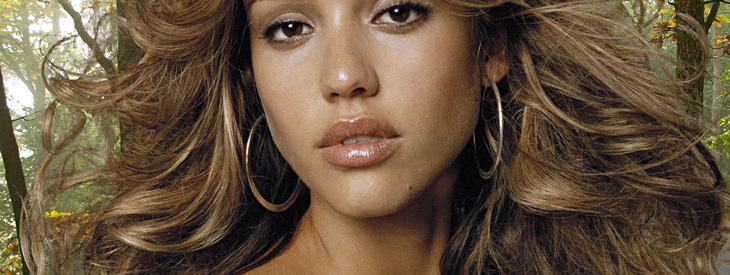
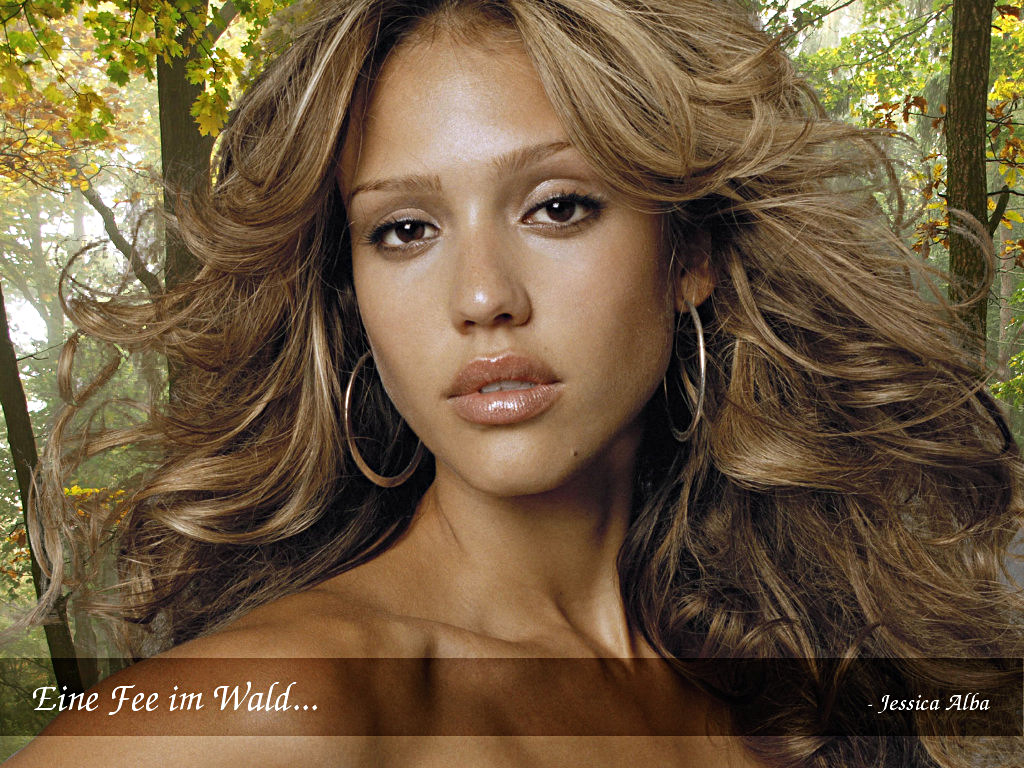
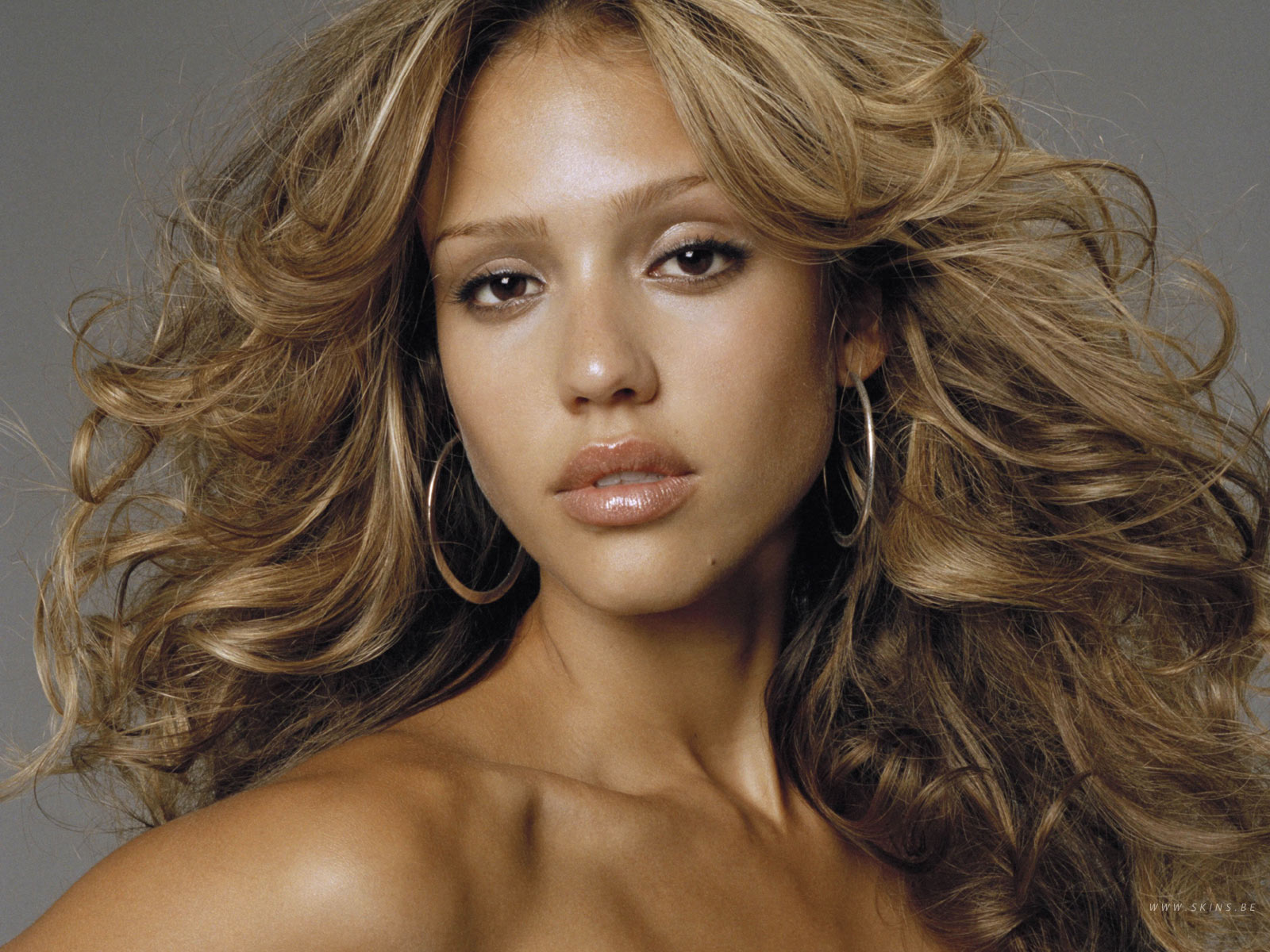
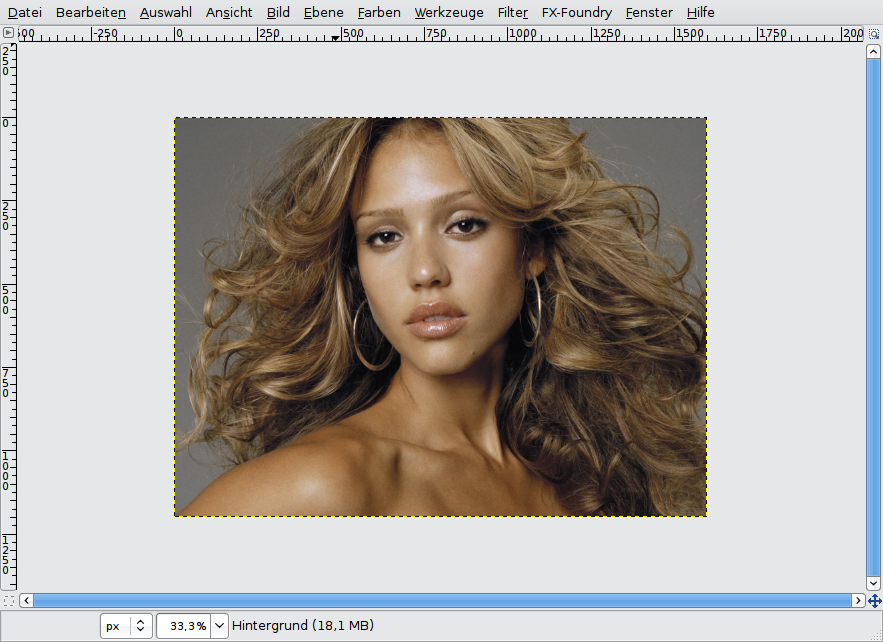
    This masking technique is good for strands of hair or to replace the sky.

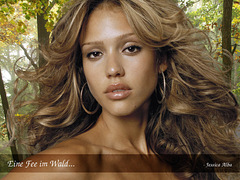
    On the image, you can see the fine hair strands and the mat gray background.

  2. 2

    Now we want to create a detailled layer mask that contains all fine details of the hair.

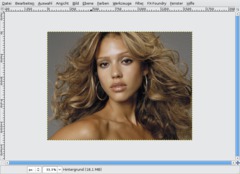
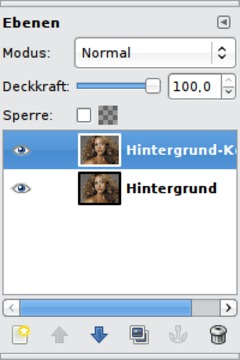
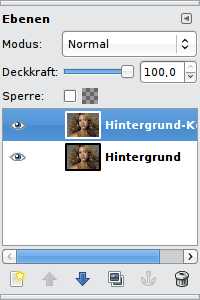
    To do so, we have to create a copy of the background layer first:

    Click on the “Duplicate layer” button in the layer dialog or press Ctrl+Shift+D.

  3. 3

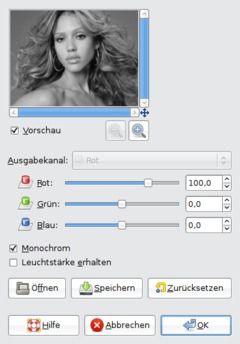
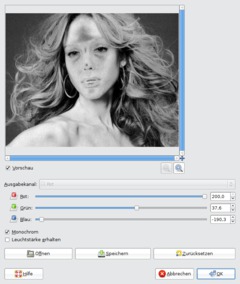
    The next step is important: We reduce the layer’s color by disaturation. The best way to do so is using the channel mixer:

    - Colors / Components / Channel Mixer

  4. 4

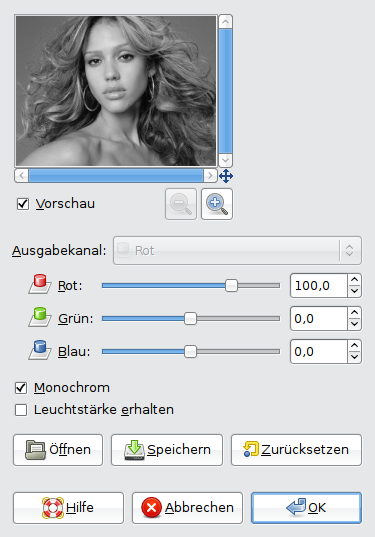
    Now click on “Monochrome” so the image will become grayscaled.

  5. 5

    You can see in the preview that the image doesn’t have colors anymore.

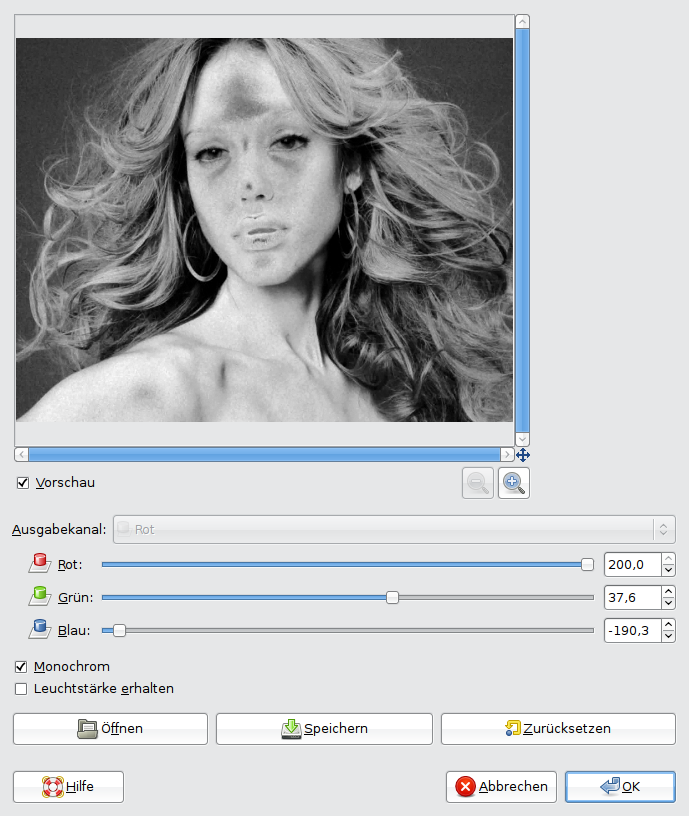
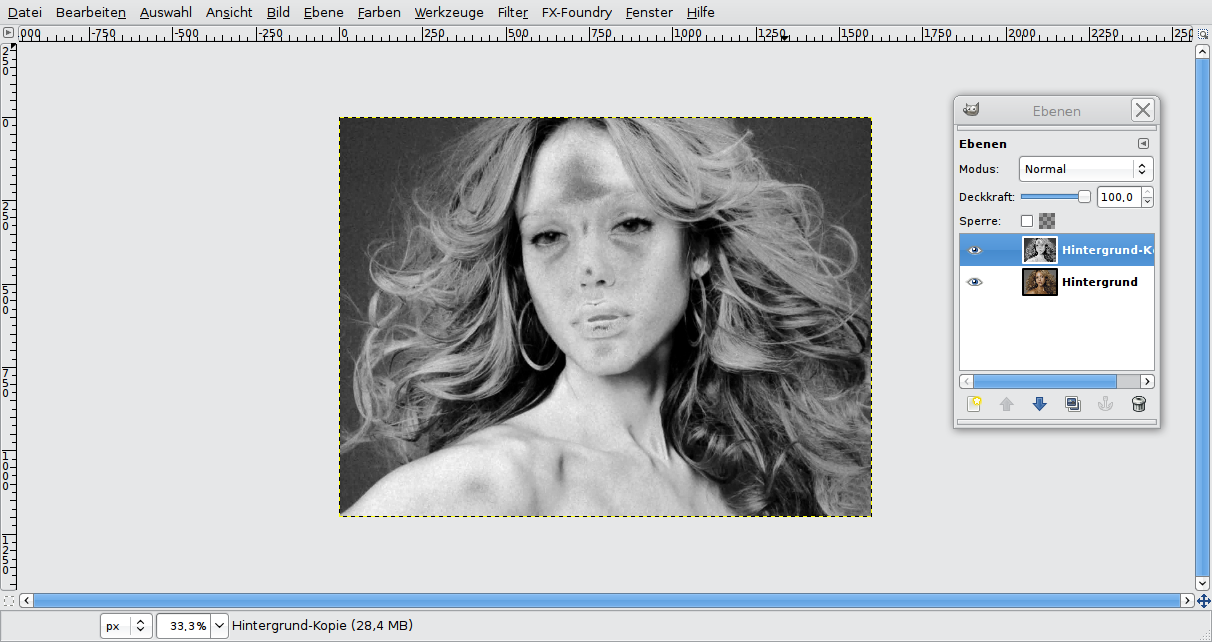
    Now it is important that we achieve a good contrast between the background and Jessica’s hair.

    For this you have to find out the individual settings for each image. There are no working generic settings. Pay special attention on the fine hair parts. Try to make them light gray while the background (here: gray) should become darker or stay at least the same. It doesn’t have to be perfect because in the next step, we’ll do some fine-tuning.

    The fine hair details should NOT blur with the background. It doesn’t matter if the image becomes granular or if the face looks strange (like on the screenshot). Only the HAIR matters.

    I have also amplified the red color tones (the hair contains many of them and become brighter) and reduced the blue tones so that in sum the background doesn’t become brighter. I slightly amplified the green part. The green channel often contains details and contrasts, so the hair is masked even better.

  6. 6

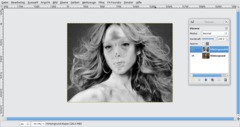
    Now my image looks like this:

  7. 7

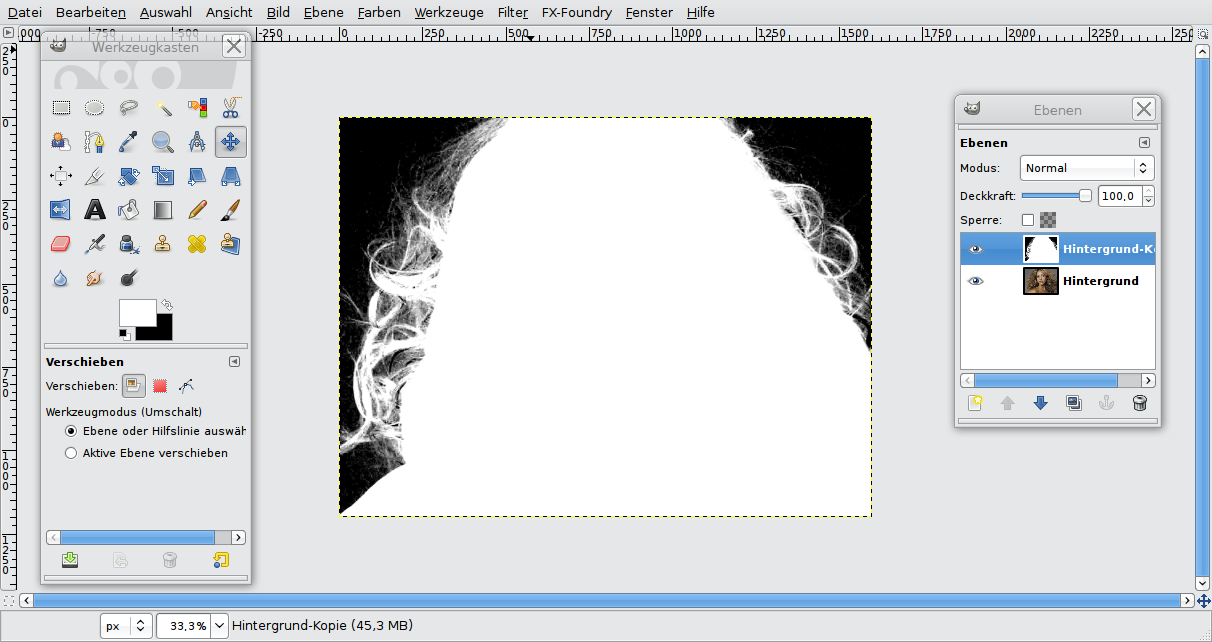
    Now we paint the parts that don’t need masking with white (the skin and the hair where’s no background).

    - Select the Paintbrush tool
    - Use a big brush size (relatively hard with some soft edge)
    - Choose foreground color: white
    - Make the parts white

    Hint: Choose a very hard brush for the region at the left bottom (shoulder skin). It’s often useful to combine different brushes.

    Then start painting the regions that don’t contain details revelant for masking. You can paint them roughly/quickly.

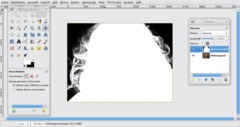
    Now my image looks like this:

  8. 8

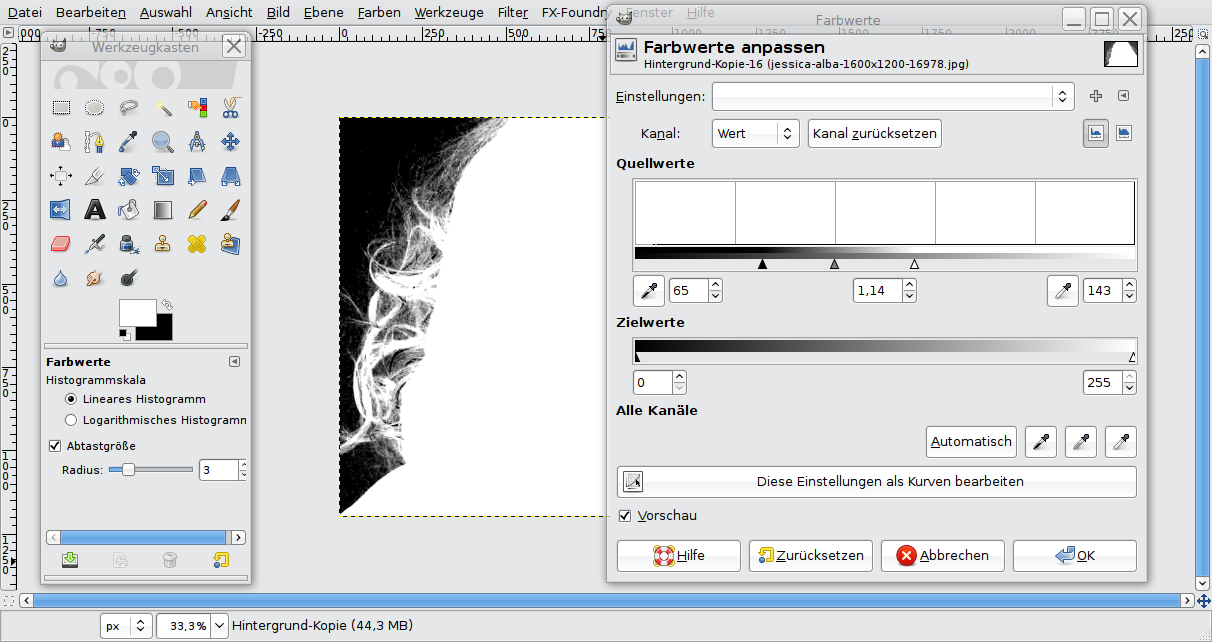
    Now we adjust the gray tones of the picture. For this it is important to make the background completely black while the hair should become (nearly) white. In the next step everything that is white will become visible and black regions will become transparent.

    Choose: – Colors / Levels

    In the dialog, you can find three moveable control triangles. The gradient from black to white represents the amount of different gray tones in the image. If you move the left control triangle towards the center, the amount of black will be reduced and become a dark grey. The right control works vice versa. The middle control is for fine-tuning. You can use it to make the remaining grey tones a bit brighter or darker.

    As you can see in the preview, the bright hair strands have become even brighter while the background has become darker.

  9. 9

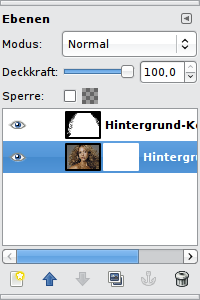
    We have a perfectly adjusted grayscale layer now that determines which regions become visible or transparent.

    Now we have to create a layer mask and copy the details from the grayscale layer to this mask.

  10. 10

    - Select / All (oder hit Ctrl+A)
    - Edit / Copy (or hit Strg+C)
    - activate background layer
    - Right-click into the layers dialog: “Add layer mask” (White)

  11. 11

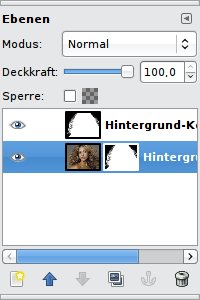
    - Click on the small white area next to the background layer in the layer dialog to ensure that you’re working on the mask and not on the picture itself.

    - Edit / Paste (or Ctrl+V)

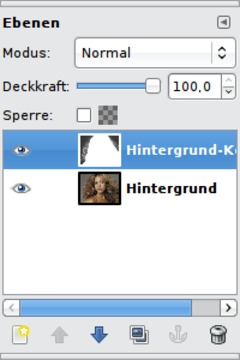
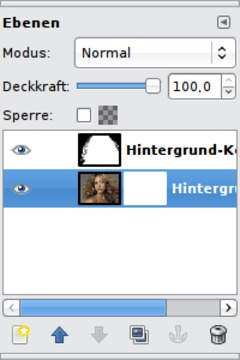
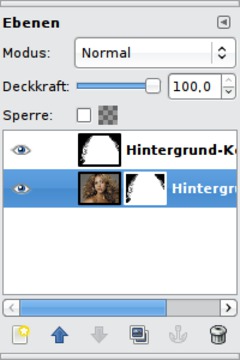
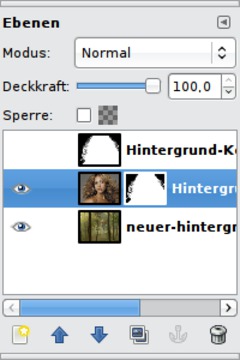
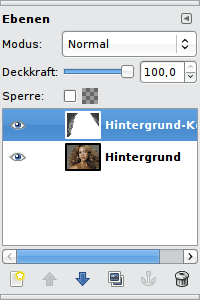
    Important: After that, the pasted layer is a floating selection. To fixate it on the layer, use the “Anchor” button of the layer dialog (at the bottom, 2nd from right). Your layers dialog should now look like this:

  12. 12

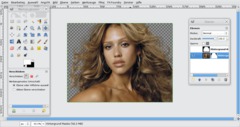
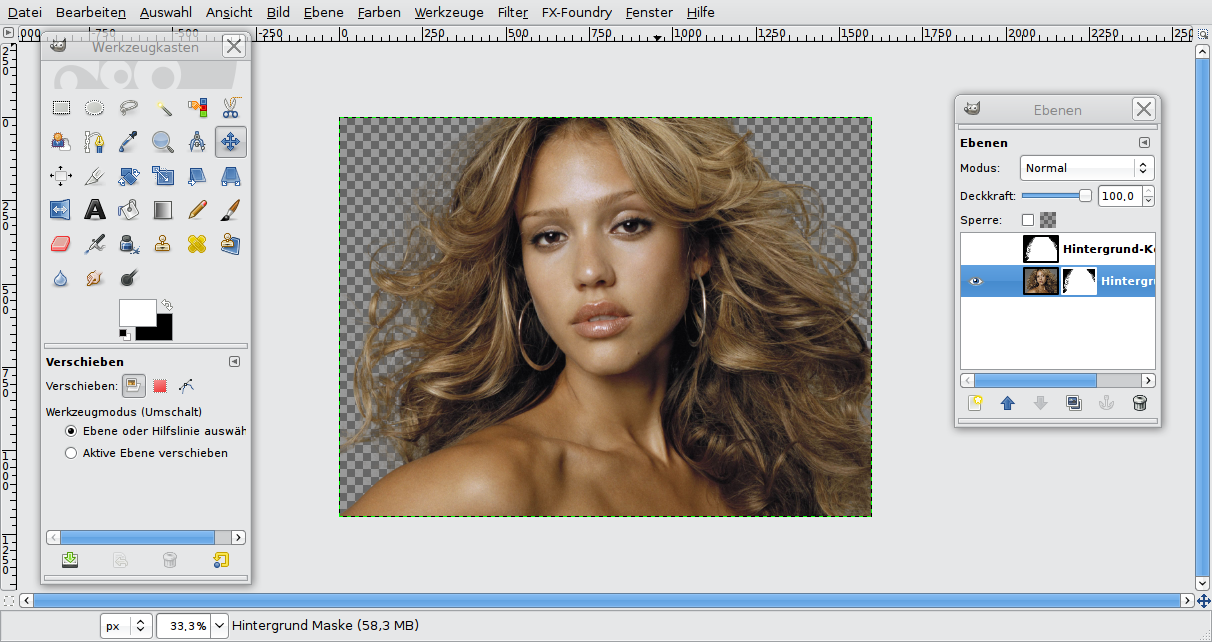
    Click on the eye symbol next to the grayscale layer above. Then the layer will disappear and the hair details should be visible on a transparent background.

  13. 13

    At the end, we want to insert a new background and do some final adjustments.

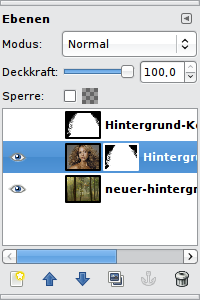
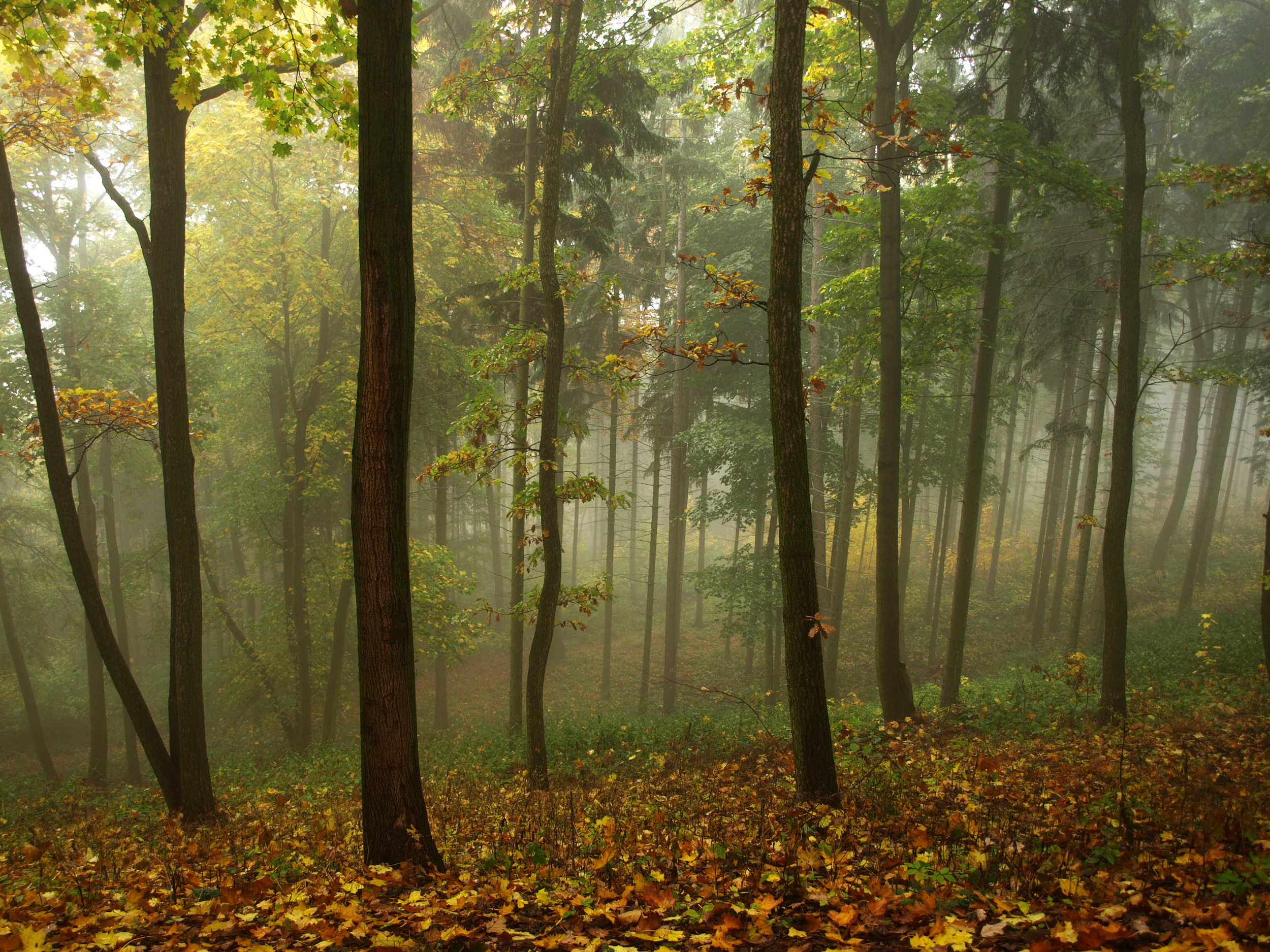
    Save the “wood” background (you can find the download link at the beginning of the tutorial), choose File / Open as Layers and select the wood.

    It should be an own layer in the image now. In the layers dialog, move the wood layer to the bottom.

  14. 14

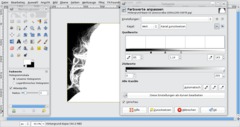
    Now it’s nearly perfect, but we can do even better (because when you zoom in, you can see some remaining gray of the original image background).

    We can improve this with some color adjustments again:

    - Select the layer mask
    - Colors / Levels

    The aim is to get the hair strands even darker (i.e. more transparent). So I move the left control to the center. You can see the results in the preview immediately.

    I hope you could learn something and it was fun for you.

    Ideas for more improvements:

    - On the layer mask, you could work with light/dark gray brushes to do some detailled corrections, for instance to remove regions that are not so beautiful.

    - Use the Smear tool to “melt” the foreground with the background in order to remove too hard transitions.
Comments

Post your own comments, questions or hints here. The author and other users will see your posting and can reply to it.

Of course, you can also ask in the chat.

Subscription management

Please log in to manage your subscriptions.

User rating

This topic (Masking hair with fine strands) was rated 4.2/5.0 in 8 votes out of 39 comments.

*

As a registered user, you can rate articles and comments, attach files to comments, subscribe to topics and you don't need to solve CAPTCHAs anymore.

*…optional

Sigdrifa77 Sigdrifa77 member for 8 days rated this topic with 5/5
8 days ago

Works great! Took some tweaks for my picture, though. I had a picture with darker hair and a lighter background. In the channel mixer it was impossible to get the background darker than the hair. So I made it lighter instead, and in step 7 masked with black instead of white. When I was done masking, I inverted the colors. Thanks a lot!

Awhiteman
3 months ago

Excellent Tutorial. Very well explained and superbly detailed- Thank you.

hannes
3 months ago

sorry again: Gimp RGGJAN Fork ;)

hannes
3 months ago

look at www.Partha.com. Here is a very good version (branch) of gimp to do this jop. ( video too) ;)

viny
3 months ago

hey yeah it's german^^ =)
so i think it's quite good but you can see many grey things between the hair and her face hope you understand it

IN DEUTSCH:
ich kannte diese Technik schon im Voraus, allerdings hilf diese nur bedingt bei einigen bildern wie hier ist es schwer die zwischenpikmente also zwischen den haaren undd em kopf herauszubekommen man sieht viele graue flächen und die rauszubekommen ist entweder richtig zeitaufwendin (und sieht dazu noch meistens nicht so gut aus) und andererseits oftmals mit unschönen kanten verbunden! keine ahnung wie lage die profisan so einem ausschnitt sitzen müssen um das richtig gut hinzubekommen (photopshop!?--> mag ich aber nicht xD)

ssaldkar
8 months ago

pictures in a diffrent language

Morten
about 1 year ago

Very nice tutorial, mate

hannes61 hannes61 member for about 1 year
about 1 year ago

Thank you this tut is very good and understandable written.

krishnan rated this topic with 4/5
over 1 year ago

Very useful tutorial. I welcome like this more.

moggins rated this topic with 5/5
over 1 year ago

all the other tutorials for masking in gimp are terrible, but this one explains it very well! :) keep up the good work!

Sam rated this topic with 4/5
over 1 year ago

I found the tutorial itself very good. The application was a little short of useful because one would need a gray/very dark background for any useful or effective images. These are hard to come by. BUT that being said, I think you did a very good job on this tutorial. I hope you make more, it was very easy for me to follow.

Thanks for your time and efforts.

devvv devvv member for over 5 years
almost 2 years ago

magnoliasouth: in some cases you need to invert colors to get the right things masked, so to answer your question: yes ;)

trees can be masked in the same way as shown above. iwould do it the same way. it depends on the photo itself though. the object must be shown against a relativley clear background. trees and a sky in the bg is a good start. try to light out the whites and blues in the sky into total white so that the tree is shown against (pretty alsmost) plain white.

hope i could help ;)

cheers,bernhard

magnoliasouth
almost 2 years ago

Thanks devv! This is really great and I appreciate any time anyone ever volunteers to do a tutorial. I can't stand ungrateful folks and just ignore the nasties here.

I do have a question though. Let's say I'm removing a sky. I cannot seem to get through your tutorial without needing to invert the colors. In any case, what is your suggestion for painting around trees? I can't seem to find a good solution for that.

clipping path rated this topic with 4/5
almost 2 years ago

Cool. Hope to learn a lot from you and good luck. this is very informative tutorial. :)

Türk rated this topic with 5/5
about 2 years ago

thanks for the tutorial. its very helpfull

mahvin
about 2 years ago

I agree with Roy. Don't get angry, just ask questions. I spend a great deal of my time helping beginners by explaining things in more detail, because I sometimes have trouble with the present instructions, myself. It's frustrating to experience a stall, however, the best solution to that would be to do as Roy suggests: "Ask questions."

Roy Stannard
about 2 years ago

@tobreme
No teacher or tutorial can anticipate all questions or cover all possibilities on any topic. Impossible! So what to do? Ask questions, that's all. All good students do that if they are not sure about some point(s). Maybe you should try that.

tobreme rated this topic with 2/5
about 2 years ago

If you do a tutorial then decide: am I going to give a step-by-step description, or am I going to assume the reader already has knowledge of this area? if
it's the former then cover every tedious step. If it's the latter then do as is done in this tutorial. I recommend you tell the reader which it is, to avoid disappointment and frustration on the part of those like myself who come to the whole masking funtionality with no prior knowledge. Thanks for your effort, but for me it fell short of what I expected.

rahoof rated this topic with 5/5
about 2 years ago

hai

kestrel4 kestrel4 member for about 2 years
about 2 years ago

I came to this tutorial after several hours of GIMP self-learning on the basics and found it very good.

I am looking for tutorials on the more subtle stuff, getting the best out of a photograph, without it being obvious that it has been edited. Guidance, anyone?

Thanks

danish
about 2 years ago

good

khaled
over 2 years ago

i dont know >>>the name of these program

mahvin
over 2 years ago

Using the "Preserve Luminosity" setting along with the Monochrome setting on the Mixer takes out several later steps. Once an image is black and white, as preserving luminosity will create, your image is mask ready from that point.

kirl
over 2 years ago

Thank you for taking the time to put this down 'in print'. Very helpful!!!

diosanne
over 2 years ago

wow!..it's great,,thanks for that tutorial.. that is helpful for me to mask a picture like that....

Emily
almost 3 years ago

Wow... I've been looking for a good tutorial on how to render fine areas for weeks, and this is more helpful than I thought it would be(usually there's a lot of guess work with tuts). Very thoroughly explained-- thank you!

mamboze mamboze member for about 3 years
about 3 years ago

Thank you very much for a brilliant tutorial; would that other tutorials be as clear and concise as this one. I'm on a steep learning curve with GIMP but this helps big time. Thanks again.

Adianna
about 3 years ago

wow.. I've been looking for something like this for soooo long... problem is... the hair I have is platinum with black tips... I have it on a white BG .... how do I set the levels? I couldn't get anything but complete white or Black.

janrode janrode member for about 3 years
about 3 years ago

Very well structured tutorial, as beginner I came to a good result in less than 30 minutes.

Saere
about 3 years ago

I found this tutorial when I first started using Gimp, and I'll admit I was rather lost. Now, a few weeks later, I've reread it and recognize how helpful it is. Thank you! I need to keep practicing of course, but now understand the basics. :)

Pete
about 3 years ago

Brilliant tutorial. Its comments like some above that stop people doing such great pieces of work. Ignore the idiots, because the rest of us appreciate it.

ellen
about 3 years ago

Hi, I am a gimp beginner and I found this excellent. You explained everything in a very straight forward way. The other people who left comments need to spend a little time learning about easier things like masks before they attempt the harder stuff like this. They seem to want the whole of gimp explained to you by them which is impossible to do. The best way to learn it to spend time with Gimp. Thank you so much for this information. I'm going to really enjoy messing around with this feature.

Tyler
about 3 years ago

Yeah not enough explanation behind things, far too many steps left out that took a while to figure out, then in a part you explained it wasn't nearly well done enough so I just gave up because I had no clue what I was doing. The rest were simple things that just took a long time to find, but the part with the greyscale just doesn't work out without you explaining it at all..

In tutorials you shouldn't just say "Okay make this white, okay add a transparent mask to this" etc etc. It should be "Make this white by doing this, now add a transparent mask to it. (You add transparent masks by doing this this and this)..

Simply not enough information.

Travelster Travelster member for over 3 years
about 3 years ago

Leaves out explanation of too many steps for Gimp beginners.

devvv devvv member for over 5 years
about 3 years ago

Matt: yes, first take a big brush, paint skin and body very fast with a big brush-size. then take a smaller one to paint the parts that are nearer to the fine detail. only paint over the parts that should be totally visible in the end!

Matt
about 3 years ago

I'm lost after part 6. Part 7 just says "make it white". Well that's fine, but do I have to go through the image and tediously paint everything white while "staying inside the lines"?

Roger
about 3 years ago

Once you have your mask created and your background layer pasted beneath, right click the foreground image layer and click "Edit Layer Mask" and you can paint the mask with white and black to fine tune it. This is very nice to get the finishing touches because you can see the background and the foreground together.

ardie
about 3 years ago

wow!

Robert
about 3 years ago

Wow very impressive devv!! Thanks

Welcome!


Lost password?

Sign in with Facebook
Sign in with Google
Sign in with Twitter

Not a member? Sign up!

Random tutorials | Latest tutorials

  1. Generate a stripe-like texture Generate a stripe-like texture 6
  2. How to generate realistic mass waterdrops on a surface How to generate realistic mass waterdrops on a surface 40
  3. Creating a Vista-like wallpaper Creating a Vista-like wallpaper 14
  4. Creating an industrial-style wallpaper Creating an industrial-style wallpaper 9

Latest comments

I have been attempting to compile GIMP version 2.7.4 with the instr... (2 days ago in Compiling GIMP 2.7.2 for Ubuntu 11.04)

Fantastic beginner tutorial for Python filter writing. Thanks much... (3 days ago in Write a Python plugin in GIMP (HD-VIDEO))

OK I got it I think. I am using Windows 7 (Pro I think...) 64 bit (... (3 days ago in Installing Python for GIMP 2.6 (Windows))

Poll

How well do you accomplish the tutorials and instructions for GIMP here on gimpusers.com.

View results

Latest forum activities

Your Ad Here

facts & numbers

gimpusers.com RSS feed

51 identi.ca followers
754 Twitter followers

powered by bitfire it services