Titelbild gimpusers.de

German version of this page English version of this page

Not logged in
Sign up
Login

Last online: Marcel2, eatofid13, bam0, Pianist2, MyOwnOwner0, Avarra24, MaxPhilip14, devvv535, RedHawk20210, Tille0, deni6642, Wambo0

The GIMP
» All GIMP shortcuts / hotkeys
» GIMP changelog
» What's new in GIMP 2.4
» GIMP manual
» Books about GIMP

new tutorials

Making a pencil drawing from a photo Spicing up black/white images Deletion of unused user accounts GIMP 2.4.6 released MeetTheGimp.org is again not reachable Libre Graphics Meeting 2008: Videos online!

random tutorials

Rounded Corners Create futuristic looking tech pattern Stylish buttons Rays of Light (behind text) Generate a stripe-like texture GIMP 2.4: The new features

[show all tutorials]

» email archive

Join the GIMP chat!

tutorial details

Difficulty: difficulty 1/5

GIMP version: 2.3.15

Category: Buttons, icons, web

Author: devvv

Steps: 10

Needed time: ca. 10 min

Hits: 19620

Others from this category:

» 15 comments

Miscellaneous

Facts and numbers
Current version: 2.4.6
Dev. version: 2.5.1

38 tutorials with
36 downloads,
175 news and 11290 list messages

Feedburner

Umfrage

Which section should we put focus on here on gimpusers.com?

Please put focus on community stuff (forum, discussions, galleries etc.)

more written tutorials

more video tutorials

more news and information / articles

all kind of gimp resources (i.e. plugins, brushes, fonts etc.)

other stuff (please post a comment)


→ Poll results

Tutorial: Orb-Icons for Websites

Written by devvv (18 Mar 2007 02:11 PM)

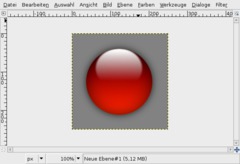
Of course you know these small little icons which can be often seen all around the web that look like a small glossy orb. Pretty nice to enhance also your personal website with it!

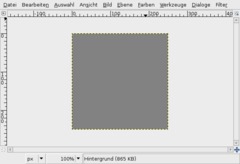
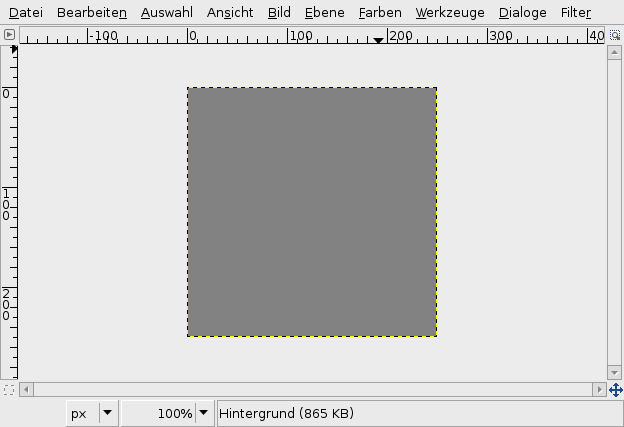
  1. Create a new file: 250x250px. Fill the background with #828282.
    screenshot of step 1
    click to enlarge
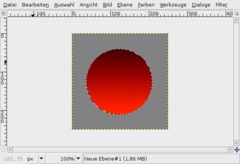
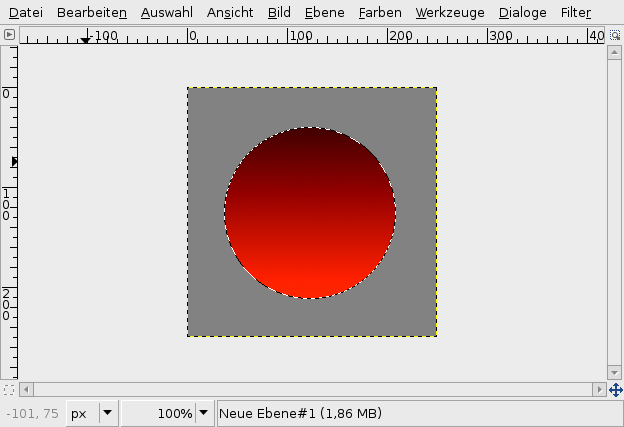
  2. Take the Elliptical Selection-Tool and create an exact circle. After that create a new empty layer, take the Gradient-Tool (L). As a FG-color choose #571f00, for the BG-color choose #ff5a00.

    Now draw a gradient from top to the bottom of that layer.
    screenshot of step 2
    click to enlarge
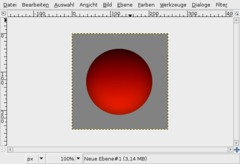
  3. The selection should still be active.

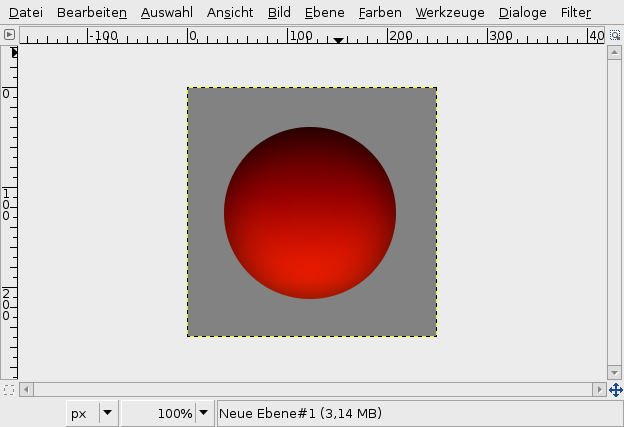
    Again create a new layer. Fill it black. To do this very fast first press D then press CTRL+,

    Now follow these steps:

    - Select / Shrink: 1px
    - Select / Feather: 100px

    After that press DEL two times to delete the selected part.
    screenshot of step 3
    click to enlarge
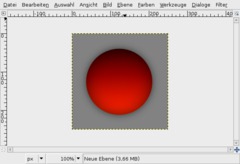
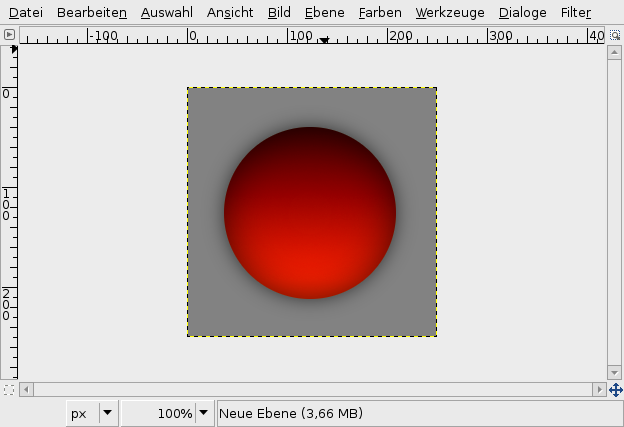
  4. Activate the layer that contains the gradient.

    Go to Filter / Licht & Shadow: Drop Shadow. X/Y: 0/0, Tranparency: 60%.
    screenshot of step 4
    click to enlarge
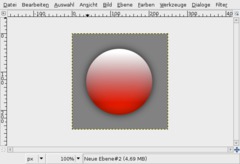
  5. Activate the layer that contains the gradient. From the context-menu of the layers-dialog choose "Alpha to selection".

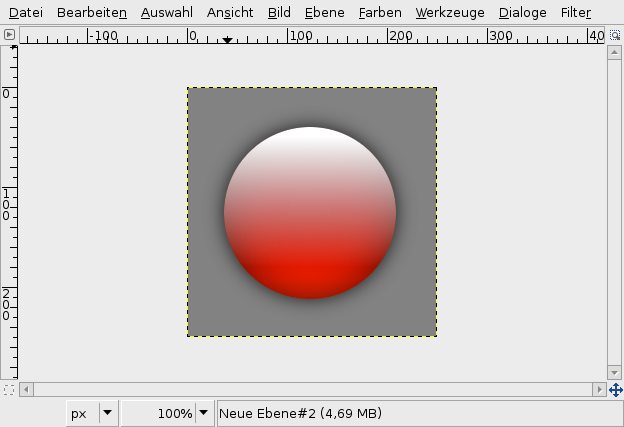
    Add a new layer. Choose white as FG-color. Take the "Gradient-Tool". In the preferences-box of this tool choose the fourth option in the drop-down-menu for the gradients: "FG to Trasparent". Apply this gradient from top to bottom.
    screenshot of step 5
    click to enlarge
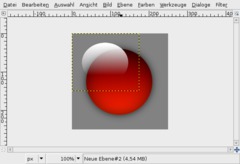
  6. - Select / None
    - Activate the Scale-Tool
    - Click the layer, when the popup-menu appears enter 175 as width and 150px for the new height. Click OK.
    screenshot of step 6
    click to enlarge
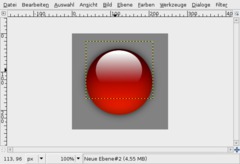
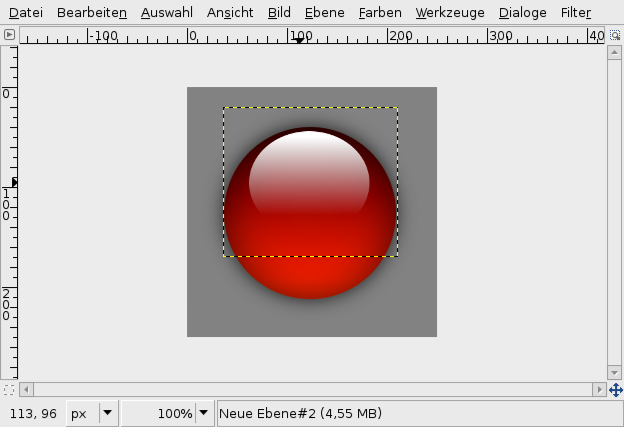
  7. Take the Move-Tool now and move the white shine (the gradient ;)) to the top in the upper center of the sphere.
    screenshot of step 7
    click to enlarge
  8. Go to Filter / Blur / Gaussian Blur: Value: 5.
    screenshot of step 8
    click to enlarge
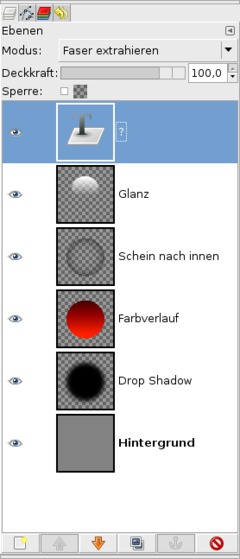
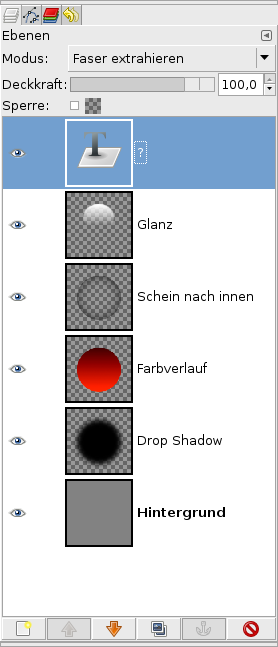
  9. We're almost done. Now you can add for example a single character or any small symbol you want.

    I took the Text-Tool and simply wrote a question-mark "?" in white color into the middle of the orb. Then i chose "Grain extract" from the layers-mode drop-down.
    screenshot of step 9
    click to enlarge
  10. Thats it! Have fun with your new orbs ;)
    screenshot of step 10
    click to enlarge
Creative Commons Attribution-NonCommercial 2.0 Austria
This work is licensed under the following license: Creative Commons Attribution-NonCommercial 2.0 Austria.

Discussion / comment this tutorial

Post your own comments, questions or hints here. The author and other users will see your posting and can answer to it. Of course, you can also ask in the chat.

Newer comments are displayed first!

From: stalepretzel (06 Apr 2008 09:43 PM)

Thanks for the tutorial!
I've wanted to makes some Web-2.0-looking graphics for some time, now, but I was unable; I only had Photoshop Elements. That's problematic because:
1) It was on the Windows computer, not the Mac that's much easier to use, and,
2) Almost all Photoshop Tutorials use CS, often relying on tools that weren't available in elements.
Then GIMP came along!
Free, easy, and it comes with a comunity of other GIMPers making tutorials for the same version I use!

Thanks again for the tutorial!

From: Ztoph (16 Feb 2008 01:18 PM) – Send a private message

I Could never dream of using windows.
its a fucking shit OS.!!

But thanks. Now i just gotta find the folder.

From: Split-Visionz (16 Feb 2008 02:51 AM) – Send a private message

You put the files in the gimp scripts folder, there are two folders you can use...
1.
documents and settings> user_name >.gimp2.4> scripts
If you put it in that folder only the account who user_name refers to can use them or...
2.
C:>Program Files>GIMP-2.0>share>gimp>2.0>scripts
all accounts on the pc can use them if you place them there... Also to note... what i said is for Windows only and the scripts folder may be located somewhere else on linux or Mac...

Also I created a gelbar script you might be interested in....
http://www.gimptalk.com/forum/topic/Gelbar-Script-Pack-26975-1.html

Even though its not my tutorial, in my opinion it is sometimes better to through on generic background layer on images so you can fully view things such as the shadow or edge of something your cutting which is sometimes not noticeable on gimps checkerboard BG it uses to symbolize transparency.

From: Ztoph (15 Feb 2008 12:57 PM) – Send a private message

Nice tut, but wouldnt it be better with a transparent bg? then you could put it on anything

And a little question to Split-Visionz:
How do i install that script?

From: devvv (17 Jan 2008 08:07 AM) – Send a private message

the result of step five should be a gradient that is white at top and transparent at bottom. if you have other detailed questions please just ask

From: Gimpwarrior (17 Jan 2008 01:04 AM) – Send a private message

i got lost at step five

From: Split-Visionz (13 Dec 2007 02:13 PM) – Send a private message

Sorry, I guess I didn't post the link. lol.
Here:
http://split-visionz.net/Scripts/GlossOrbScript%20Pack%20version%201.zip

From: devvv (13 Dec 2007 01:54 PM) – Send a private message

very cool ;) but where do we get it?

From: Split-Visionz (13 Dec 2007 01:28 AM) – Send a private message

I created a Gimp Script based off of this tutorial that will create the orbs. You can get it at:

From: cemkalyoncu (24 Aug 2007 09:16 AM)

Great.
When I use gain extract I get a black text with some tinting on it. Instead I used gain merge and it looks fine.

From: devvv (06 Jul 2007 11:21 AM) – Send a private message

you can simply try rectangle shapes or any other shape, the steps remain pretty much the same.

From: Mirat Bayrak (06 Jul 2007 09:48 AM)

Can you show it with another shape? with rectangle or something else

From: devvv (22 May 2007 05:30 PM) – Send a private message

hey peter! i don't know exactly what you mean. but only the preview of the pictures are saved as jpg, the full size is lossless png.

From: Peter Grosse (22 May 2007 05:11 PM)

Dude , nice tut , but never save images as jpg , unless you computers memory is like 64mb.

From: kyle87 (05 May 2007 08:32 PM)

This tutorial is very cool

Registered users can log in to use their profile name to post comments, request email notification on new comments and attach images (e.g. their versionen of the effect) to their postings.

Post a comment:

Your name:
Not logged in yet? Register at gimpusers.com or log in if you already have an account!
Email address: (optional, wird nicht angezeigt!)
Comment:
Security code:

Adobe® Photoshop® is a registered trademark of Adobe Systems, Inc. Linux is a trademark of Linus Torvalds. Ubuntu and Canonical are registered trademarks of Canonical Ltd. | Imprint | powered by bitfire.at