gimpusers.com logo
German version English version

Not logged in

Sign up! | Lost password?

External news

Poll

Would you like to be able to use your Google/Yahoo/MSN (OpenID) login on gimpusers, too?

Definately! I would enjoy the possibility to use my OpenID on different websites!

I don't have a special need for OpenID but I think it could be useful

Doesn't matter to me

Never, OpenID is a pain regarding privacy and personal data protection!

No. (please post a comment)

See results

Stats

gimpusers.com RSS feed

RSS feed Retweet this!

29 Jul 2007 10:34 PM, by devvv (Bernhard Stockmann)

GIMP 2.4: The new features

This article has been obsoleted by: What's new in GIMP 2.6?

Updated on Oct. 24th. GIMP 2.4 is done and now officially announced! After a pretty long development cycle and after hundreds and hundreds of hours of coding, the developers of the GNU Image Manipulation Program have announced the next stable release. GIMP 2.4 comes with brand new tools, a better user interface and lots of cool other stuff. This list shows you most of the new things you will find in GIMP 2.4. Enjoy!

This article has been written using GIMP 2.4. It's divided into 28 steps and takes about 30 min to complete for an average user. 124210 times read so far. Category: Basics, required skill: 0 of 5

28 comments have been posted so far.

Available in other languages:

  1. 1
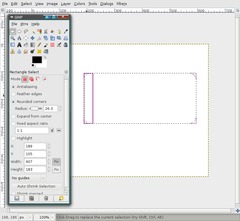
    Brand new selection tools

    The old selection tools have been thrown overboard and are replaced by ones that are totally rewritten for your selection pleasure.

    After a selection is made, rectangular and elliptical selections can be adjusted and moved easily without using the transform tool.

    This is an interactive process now: Just change the selections size at the edges. Also, if a selection is already active and you worked with it, you can click inside the selection and you can then resize it and work further.

    Additionally you can get rounded corners on rectangular selections by selecting it in the tool preferences.
    The new selection tool
    Click to enlarge
  2. 2
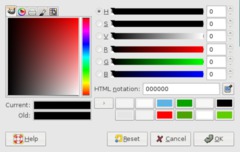
    Desktop color picker

    In the dialog where you choose your colors you can now use the pipette to pick a color from everywhere on your screen (not just from your images).
    Pick a color from your desktop
    Click to enlarge
  3. 3
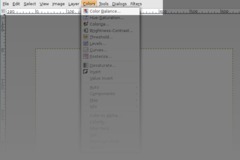
    Redesigned menus

    The user interface has been redesigned, especially the top and context menus. There is now a seperate menu for colors, and the ScriptFu and PythonFu menu are no longer available. All filters and plugins can now be found in the Filters menu. For instance: Script-Fu -> Shadows -> Drop Shadow is now located at Filters -> Light and Shadow -> Drop Shadow. This is much more intuitive.
    The redesigned menus
    Click to enlarge
  4. 4
    New tango style icons

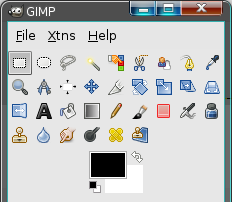
    The new tango style has more colors and is much more visually pleasing! The new icons have been designed to comply with the Tango Style Guidelines. All operating systems are supported by this new polished look.
    new tango style of GIMP 2.4
    Click to enlarge
  5. 5
    Brightness & Contrast behaviour

    When using the Brightness & Contrast color plugin you can now simply click inside the image, hold the mouse button down and move the mouse to the left, right, up or down while the image's brightness and contrast will be adjusted.
  6. 6
    Copying SVG files

    Information in the SVG format (scalable vector graphics) can now be easily exchanged between applications (e.g. paths in GIMP and Inkscape).
  7. 7
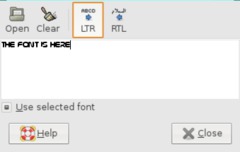
    Enhanced text plugin

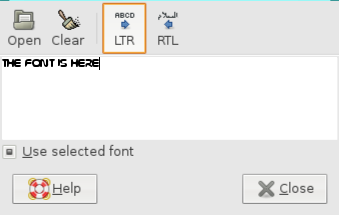
    You can now see the actual font you are using -- not just on the canvas as usual, but also inside the text editor.
    see the font face directly in the input window
    Click to enlarge
  8. 8
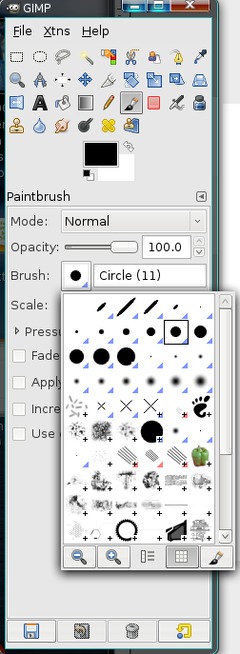
    Dynamic brushes

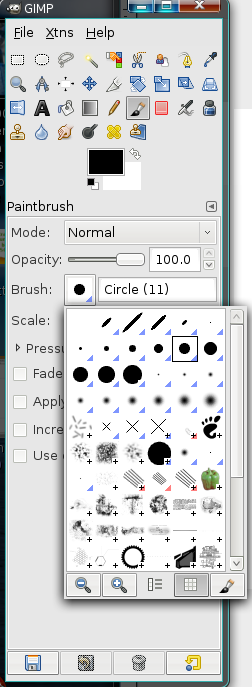
    All brushes that are marked by a small blue triangle in the bottom right corner are so-called dynamic brushes now. Their brush size can be changed dynamically by pressing Alt Gr+[ to scale down or Alt Gr+] to enlarge the brush. You don't have to readjust the brush in the brushes editor any longer.
    dynamincally scalable brushes
    Click to enlarge
  9. 9
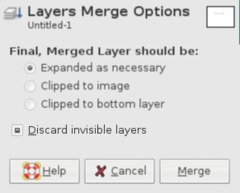
    Merge Layers dialog has a new option

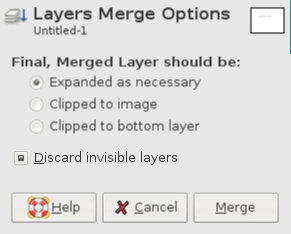
    When pressing Ctrl+M or go to Image / Merge Layers, the dialog now has a new option where you can discard invisible layers automatically.
    merge layers
    Click to enlarge
  10. 10
    Speed!

    There have been done lots of performance enhancements to the new GIMP 2.4:

    - Launching GIMP is now faster
    - The often-used Gaussian blur filter is working faster
    - Even so does the selective Gaussian blur
    - Inverting values has been optimized and works faster now
  11. 11
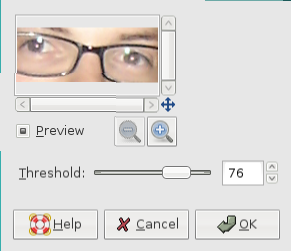
    New plugin: Red Eye Removal

    A new plugin takes care for red eyes effect that often occurs when using cameras that have no pre-flash to avoid this. Make a elliptical selection around the eyes, the use the threshold option of the plugin to remove the redness of the eyes.
    remove these red eyes
    Click to enlarge
  12. 12
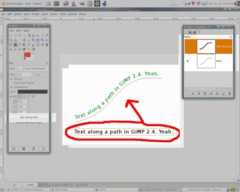
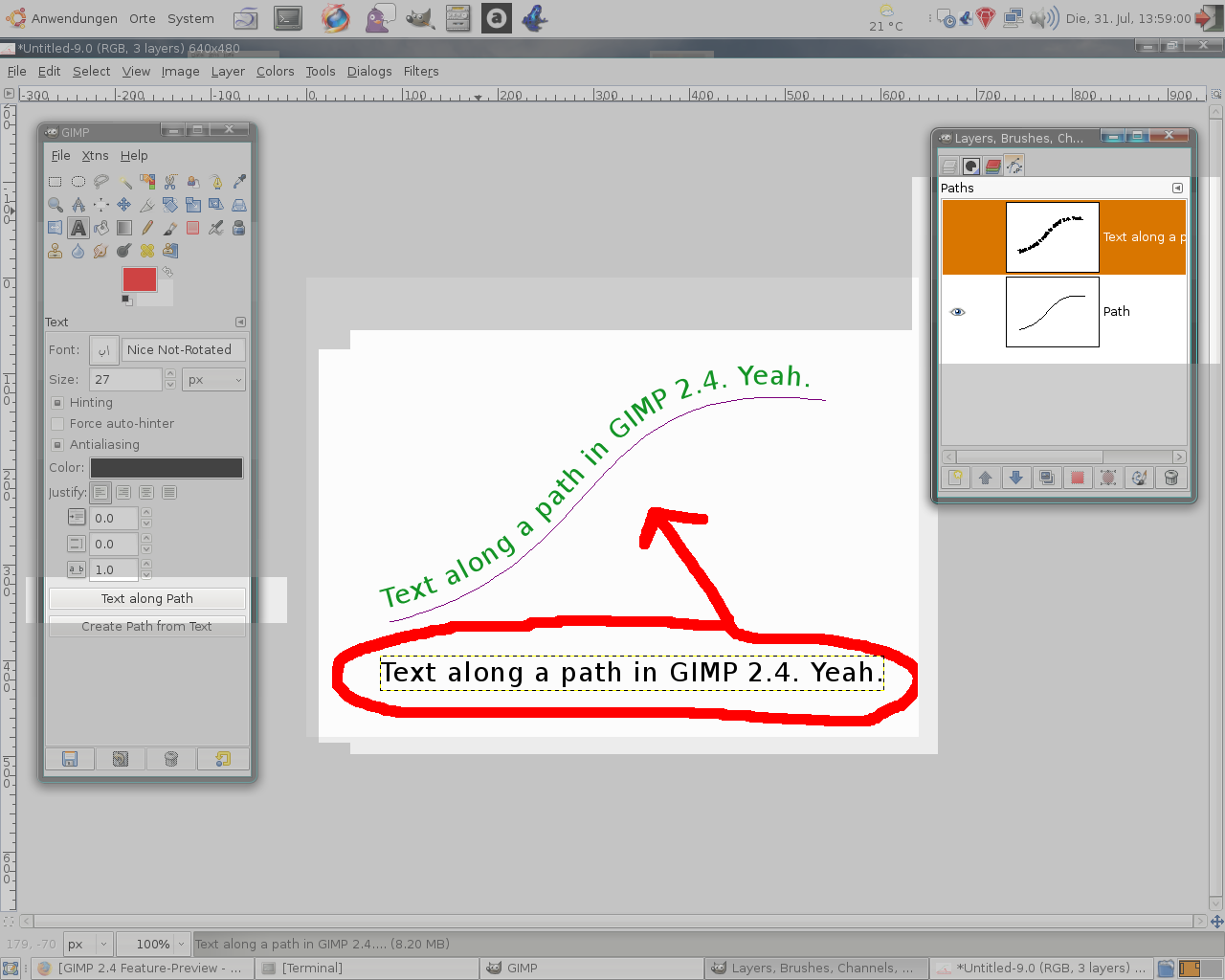
    Text on a path

    Although GIMP is no vector graphics editor, it has some nice basic functions. The new text-to-path option allows you to write/align text along a specified path. The aligned text is created as a new path that can then be used as a selection and be filled with a certain color.
    text can be aligned along path
    Click to enlarge
  13. 13
    Strong undo/redo

    By pressing Shift+Ctrl+Z / Shift+Ctrl+Y it is now possible to undo a bunch of actions at one time. This is good for experimenting on something!
  14. 14
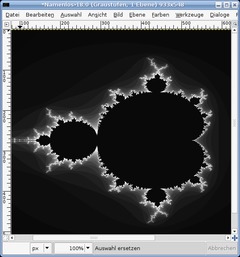
    The fractal explorer is now also working on grayscale pictures.
    Screenshot of step 14
    Click to enlarge
  15. 15
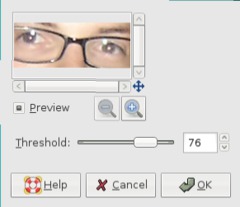
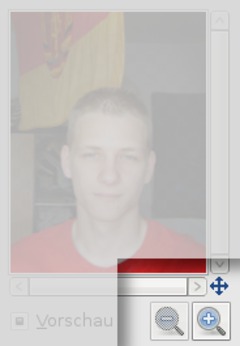
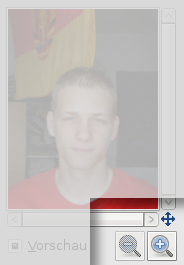
    Preview windows found in various filters or plugins have a better navigation now. Just use the cross to get a certain part of the image in the preview and use the zoom functions to navigate on the picture fast.
    Screenshot of step 15
    Click to enlarge
  16. 16
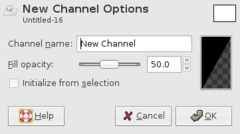
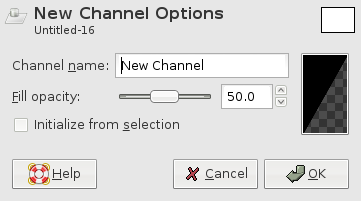
    New channels feature

    In the channels dialog there is a new very useful function to initialize the channel automatically from the active selection.
    Screenshot of step 16
    Click to enlarge
  17. 17
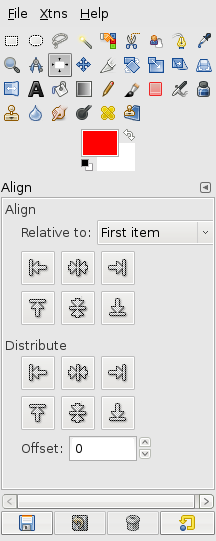
    New alignment tool

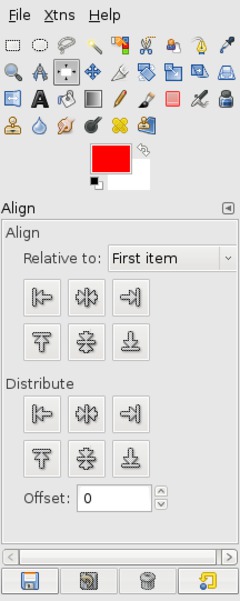
    For all those who had the pain to manually align a layer very exactly: GIMP 2.4 comes with a new tool that allows you to easily position layers exactly by entering values and/or align a layer relative to the picture or to another specified layer.

    For example, you can now align a layer exactly into the middle of the canvas by just clicking 2 buttons!
    positioning made easy with the new alignement tool
    Click to enlarge
  18. 18
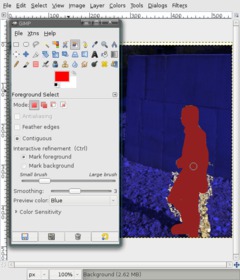
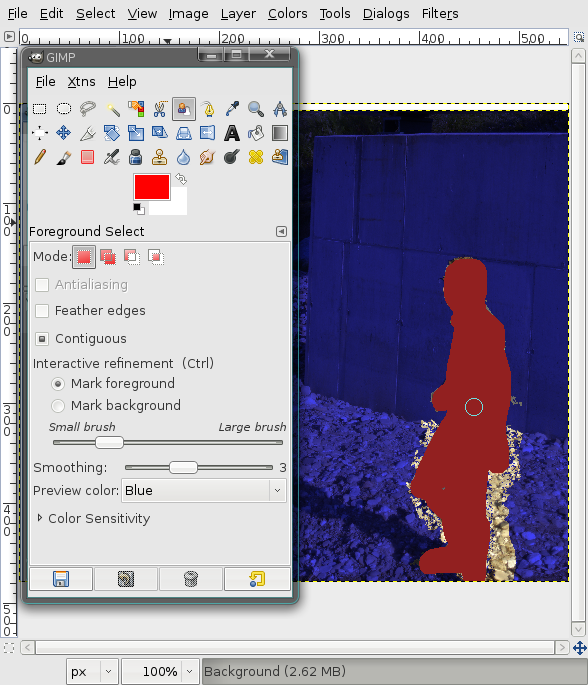
    New tool: Foreground extraction

    By using this tool, you can extract objects of a picture intuitionally. It uses the SIOX algorithm. Just select the tool, then tell it which object you want to mask by making a rough selection around it.

    Then you paint in the object approximately. After that, the algorithm tries to to detect edges and brightness to select the object by itself. You can redo the painting step until the object is masked perfectly from the background.

    By pressing Enter you get the final selection.
    foreground objects can be easily masked with this new tool
    Click to enlarge
  19. 19
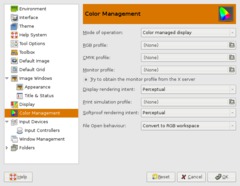
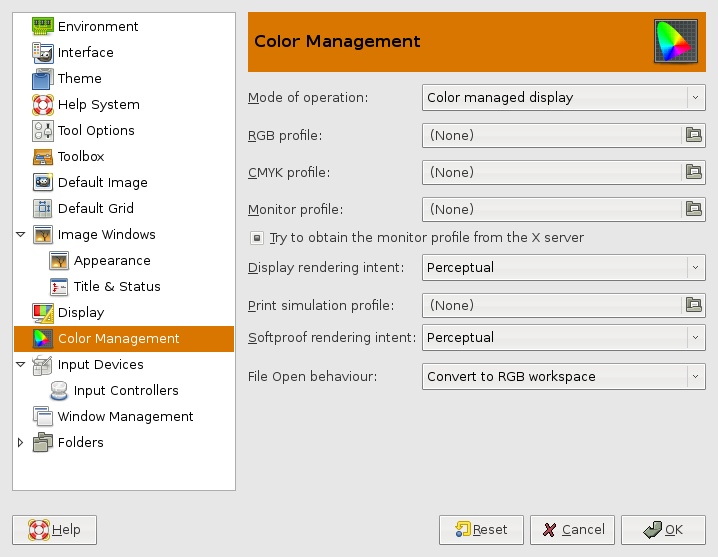
    Color management

    This is the first time you can use color profiles (.icc or .icm) in the GIMP. GIMP can now read color profiles and convert/adjust it on your wish!
    finally: color profiles in GIMP 2.4
    Click to enlarge
  20. 20
    Use Del to remove

    No more Ctrl+K to remove certain parts in the image. You can use Del from now on to delete or remove parts of the picture.
  21. 21
    Fullscreen edititing

    Use the Tab key to toggle visibility of all dialogs. So you can use the whole screen (the maximized full picture window) for your image editing without having to move around dialogs that disturb you from viewing some parts of the image.
  22. 22
    Crop tool redesigned

    The crop tool gains all advantages of the new selection tools (live resizing... etc.)!
  23. 23
    New: Perspective cloning

    This brand new tool allows the well known cloning tool to be used in perspectives. Specify a perspective in the picture. The cloned parts are the automatically drawn in the correct perspective! Very cool feature!
  24. 24
    Heal image irregularities

    The new heal tool lets you easily remove unwanted parts on an image, for example pimples on a person's face. It clones a given part by readjusting the neighbour pixels so the cloning is not so obvious.
  25. 25
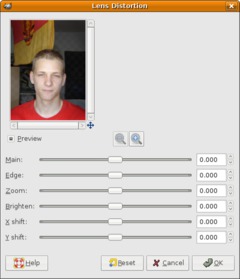
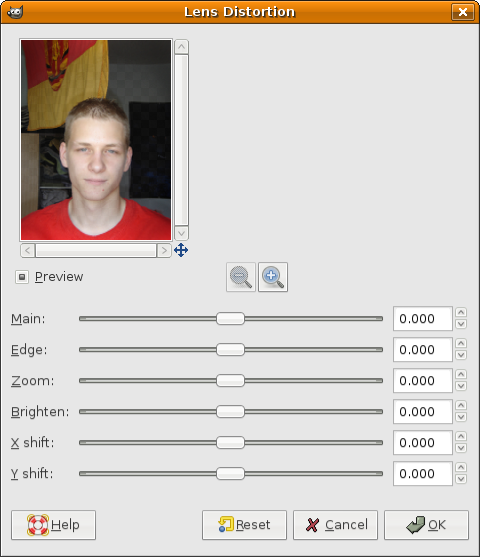
    New filter: Lens distortion

    There is also a very cool new plugin in the Filter / Distorts menu that is very useful for photographers. Lens distortion allows you to correct lens distortions or to apply some changes only to the 4 corners of an image, e.g. if your corners are a little darker then the rest of the picture.
    Screenshot of step 25
    Click to enlarge
  26. 26
    Adobe Photoshop V2 brushes (.abr) are supported now. You can use and import them to GIMP 2.4.
  27. 27
    Miscellaneous enhancements

    - .bmp files now have support for 16/32 bits and alpha channel support.
    - better status displays for plugins, filters
    - 24 bit Vista icons can be opened and saved
    - layer masks can be saved to psd files
    - very long layer names in psd files are now supported
    - enhanced EXIF support for JPEG files
    - new speed control for the animation plugin

    ... and many more small but useful improvements ;)
  28. 28
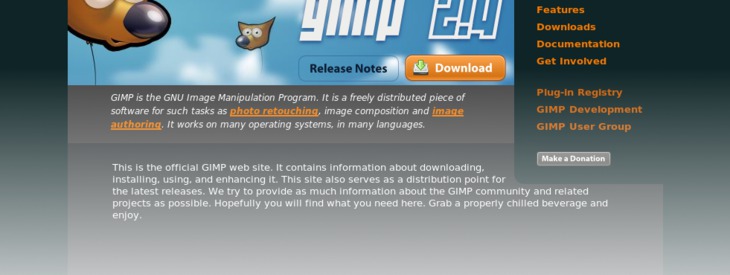
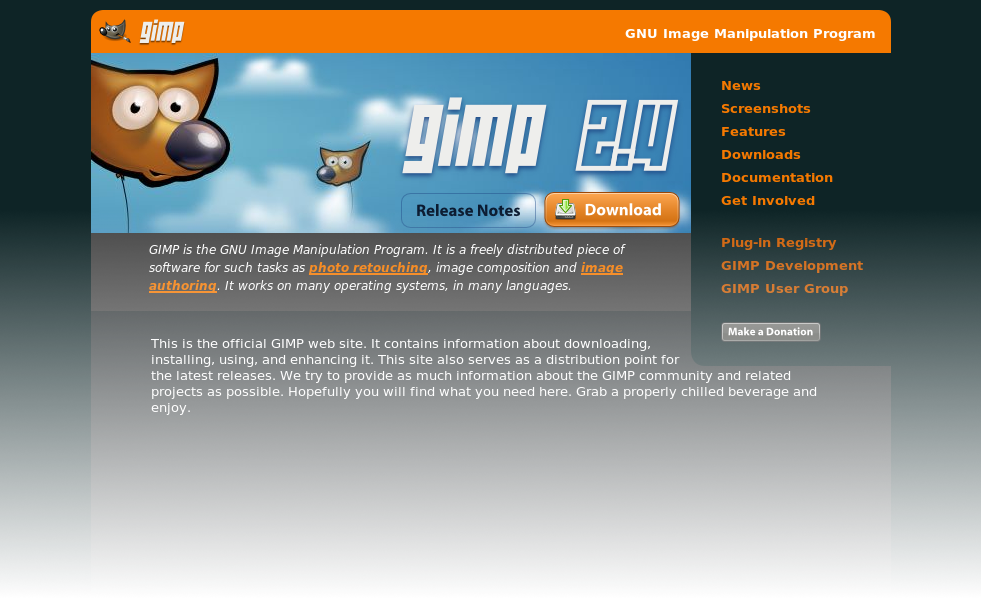
    Last but not least, the gimp.org Website has been redesigned and comes with a fresh cool orange/black look! Great work.
    Screenshot of step 28
    Click to enlarge

This article is licensed under the following license: Attribution-Noncommercial 3.0 Austria

Comments

Post your own comments, questions or hints here. The author and other users will see your posting and can reply to it. Of course, you can also ask in the chat.

Comments are chronologically arranged.

  1. http://www.gimpusers.com/tutorials/gimp-2-4-new-features.html Wed 01 Aug 2007 06:32:44 AM CEST xtudiux, 01 Aug 2007 06:32 AM

    This is cool...man...nice time when i am in the process of adapting GIMP a new version comes up...

    Life is good...Praise be God...

  2. http://www.gimpusers.com/tutorials/gimp-2-4-new-features.html Wed 01 Aug 2007 06:34:00 AM CEST xtudiux, 01 Aug 2007 06:34 AM

    It also means a new shortcut will be along the way replacing the ones in this site???

    Very Good

  3. http://www.gimpusers.com/tutorials/gimp-2-4-new-features.html Fri 03 Aug 2007 06:40:52 AM CEST herman, 03 Aug 2007 06:40 AM

    Thanks, for new GIMP 2.4

  4. http://www.gimpusers.com/tutorials/gimp-2-4-new-features.html Fri 03 Aug 2007 05:16:27 PM CEST henriquemaia, 03 Aug 2007 05:16 PM

    Nice explanation of Gimp’s new features. Thanks.

  5. http://www.gimpusers.com/tutorials/gimp-2-4-new-features.html Sat 04 Aug 2007 11:28:39 AM CEST CHEYROU Robert, 04 Aug 2007 11:28 AM

    have you informations about the langage used for plugins named tiny fu in place of script-fu ?

    my blog: http://blog.photeur-de-troubles.com

  6. http://www.gimpusers.com/tutorials/gimp-2-4-new-features.html Tue 07 Aug 2007 08:36:02 PM CEST Goosey, 07 Aug 2007 08:36 PM

    Well, for such a long development cycle, it doesn't seem like that much has really been added. What about 32bit support and incorporating the jpeg 2000 from last years summer of code?

  7. http://www.gimpusers.com/tutorials/gimp-2-4-new-features.html Tue 07 Aug 2007 09:32:58 PM CEST devvv, 07 Aug 2007 09:32 PM

    Much preperation has been done for the upcoming implementation of GEGL into GIMP which will open a new dimension for the next releases (2.6 etc...). GEGL will offer 32bit support for example.

    The problem of the summer of code is that if some implementations are not good enough done by the SoC-peoples they will not be implemented since it costs lots of time to change code from other developers. Thats what my opinion is of this. you couls maybe ask this in the official #gimp channels (you can get into the chatroom by using the chat link on our top menu)

  8. http://www.gimpusers.com/tutorials/gimp-2-4-new-features.html Sun 12 Aug 2007 03:29:10 AM CEST melissa, 12 Aug 2007 03:29 AM

    wow..when is it coming out??

  9. http://www.gimpusers.com/tutorials/gimp-2-4-new-features.html Sun 12 Aug 2007 08:51:05 AM CEST devvv, 12 Aug 2007 08:51 AM

    pretty soon ;) the developers are only fixing bugs atm. when this is done gimp2.4 will be released

  10. http://www.gimpusers.com/tutorials/gimp-2-4-new-features.html Sun 12 Aug 2007 09:09:34 AM CEST Mr.Dust, 12 Aug 2007 09:09 AM

    to Devvv // hey, your email is not correct.
    BTW I want to translate this to my language, korean. would you permit?

    the korean version will be published on http://gimp.kr

  11. http://www.gimpusers.com/tutorials/gimp-2-4-new-features.html Sun 12 Aug 2007 10:11:41 AM CEST devvv, 12 Aug 2007 10:11 AM

    hey mr. dust. would be cool if you translate this into korean! when you're done send me an email (the one in my profile that looks like an email is my jabber id ;)) to devvv(at)devvv(dot)de. i will link to your version then from this site!

  12. http://www.gimpusers.com/tutorials/gimp-2-4-new-features.html Sun 12 Aug 2007 01:30:10 PM CEST Mr.Dust, 12 Aug 2007 01:30 PM

    good. I finished.
    my work is here, http://gimp.kr/entry/new-features-of-GIMP-2-4
    (violet text is my opinion)

    and thank so much devvv,
    for your tutorial and the permission :-)

  13. http://www.gimpusers.com/tutorials/gimp-2-4-new-features.html Sun 12 Aug 2007 02:25:56 PM CEST devvv, 12 Aug 2007 02:25 PM

    very good! i added it to the details to the right and also added a link with the flag in the menu!

    thank you!

  14. http://www.gimpusers.com/tutorials/gimp-2-4-new-features.html Thu 16 Aug 2007 05:56:09 PM CEST rgnkjnva, 16 Aug 2007 05:56 PM

    It may seem odd but faster startup is the biggest thing I'm looking forward to. Viva la GIMP!

  15. http://www.gimpusers.com/tutorials/gimp-2-4-new-features.html Fri 24 Aug 2007 02:09:39 PM CEST kmkl, 24 Aug 2007 02:09 PM

    what about for mac? will 2.4 be realesed on the mac os, will it be univeral app? will it run as a native program? will it have native GUI? OR Vista style??

  16. http://www.gimpusers.com/tutorials/gimp-2-4-new-features.html Mon 03 Sep 2007 05:12:50 AM CEST Trevor Andrews, 03 Sep 2007 05:12 AM

    Wow! I cannot wait for the 2.4 release! It is because of GIMP that I decided to make my future in graphic design, thanks GIMP!

  17. http://www.gimpusers.com/tutorials/gimp-2-4-new-features.html Sat 08 Sep 2007 12:13:23 PM CEST Boron, 08 Sep 2007 12:13 PM

    Thank you very much for review!

  18. http://www.gimpusers.com/tutorials/gimp-2-4-new-features.html Fri 14 Sep 2007 01:48:06 PM CEST chris, 14 Sep 2007 01:48 PM

    any idea where the Selection Script-Fu's went...like distress? we have been looking all over the menus for it.

    Thanks
    Chris

  19. http://www.gimpusers.com/tutorials/gimp-2-4-new-features.html Fri 14 Sep 2007 07:01:42 PM CEST saulgoode, 14 Sep 2007 07:01 PM

    From: chris (today 03:48 PM)

    any idea where the Selection Script-Fu's went...like distress? we have been looking all over the menus for it.

    The Script-fu menu commands have been relocated to more appropriate locations in the menu tree. This was done because the programming language of a script or plug-in really doesn't matter to a user.

    The Distress Selection has been moved to "Select->Distort" along with the commnand for rounding corners.

    The old Selection To Pattern/Brush/Image have been superceded by "Edit->Paste As..." commands. (You can also use the contents of clipboard as a pattern or brush directly.)

  20. http://www.gimpusers.com/tutorials/gimp-2-4-new-features.html Fri 26 Oct 2007 11:28:43 PM CEST BarnArt, 26 Oct 2007 11:28 PM

    Downloaded 2.4 today, and now script-fu's don't work.
    For instance, water paint effect brings up an error message saying WPE left image in inconsistent state, closing open undo groups.
    WPE Message: Error while exeucuting.
    Error set!: unbound variables: current selection.

    Any ideas about what could be causing this?

  21. http://www.gimpusers.com/tutorials/gimp-2-4-new-features.html Sat 27 Oct 2007 12:54:55 AM CEST bilbo, 27 Oct 2007 12:54 AM

    I get the following error whenever I run any script:

    "Plug-In 'xxxx' left image undo in inconsistent state, closing open undo groups."

    This is happening with almost all the scripts. Only my 2 EG ones are working.

    I am using 2.4. Just downloaded it. The version includes GTK. Clean install!

    Are the v2.2 scripts suppose to be compatible with the new version? also, it is being run on WinXP

  22. http://www.gimpusers.com/tutorials/gimp-2-4-new-features.html Sat 27 Oct 2007 06:43:21 PM CEST devvv, 27 Oct 2007 06:43 PM

    there have been really big changes as i know, so likely no 2.2-script will run in 2.4. they need to be adjusted by the developers of the scripts...

  23. http://www.gimpusers.com/tutorials/gimp-2-4-new-features.html Sat 01 Mar 2008 03:29:40 AM CET Justin, 01 Mar 2008 03:29 AM

    best thing ever

  24. http://www.gimpusers.com/tutorials/gimp-2-4-new-features.html Thu 20 Mar 2008 07:16:09 AM CET anjana, 20 Mar 2008 07:16 AM

    what GIMP versions r available to download for Linux users

  25. http://www.gimpusers.com/tutorials/gimp-2-4-new-features.html Thu 20 Mar 2008 11:32:53 AM CET devvv, 20 Mar 2008 11:32 AM

    linux users can have all versions, they can compile it on their own - currently the latest stable is 2.4.5 - the link to the sourcecode is found in our downloads section

  26. http://www.gimpusers.com/tutorials/gimp-2-4-new-features.html Sat 31 May 2008 12:19:04 AM CEST George Gerhold, 31 May 2008 12:19 AM

    Adjustable brushes are changed by
    "Alt Gr+[" . What does the Gr represent?

  27. http://www.gimpusers.com/tutorials/gimp-2-4-new-features.html Sat 31 May 2008 12:21:05 PM CEST devvv, 31 May 2008 12:21 PM

    thats the Alt-key to the very right of the space-key

  28. http://www.gimpusers.com/tutorials/gimp-2-4-new-features.html Wed 17 Jun 2009 04:05:09 PM CEST xanibas, 17 Jun 2009 04:05 PM

    For the error "Plug-In 'xxxx' left image undo in inconsistent state, closing open undo groups." in Gimp 2.4.6 just replace the instructions "(gimp-undo-push-group-start inImage)" and "(gimp-undo-push-group-end inImage)" with "(gimp-undo-push-group-start inImage)" and "(gimp-undo-push-group-end inImage)".

Registered users can log in (top right of the page) to use their profile name to post comments, request email notification on new comments and attach images (e.g. their versions of the effect) to their postings.

Are you human?

Adobe® Photoshop® is a registered trademark of Adobe Systems, Inc. Linux is a trademark of Linus Torvalds. Ubuntu and Canonical are registered trademarks of Canonical Ltd. | Clock times are shown as CET / CEST | Imprint / Privacy policy | powered by bitfire it services