Last online: Marcel2, eatofid13, bam0, Pianist2, MyOwnOwner0, Avarra24, MaxPhilip14, devvv535, RedHawk20210, Tille0, deni6642, Wambo0
The GIMP
» All GIMP shortcuts / hotkeys
» GIMP changelog
» What's new in GIMP 2.4
» GIMP manual
» Books about GIMP
Making a pencil drawing from a photo Spicing up black/white images Deletion of unused user accounts GIMP 2.4.6 released MeetTheGimp.org is again not reachable Libre Graphics Meeting 2008: Videos online!
Rounded Corners Smelting text / Creating blood text Spicing up black/white images Create a cool starfield Creating a simple Company Logo Generate a cool tech pattern
- today 06:11 PM [gimp-docs] GIMP help in 2.6
- today 02:56 PM [gimp-tutorials.net] Colourful and glowing text effect tutorial
- today 01:18 PM [gimp-docs] GIMP help in 2.6
- today 10:53 AM [gimp-docs] Migration to *.po
- today 07:04 AM [gimp-developer] potfiles
- today 06:05 AM [gimp-developer] potfiles
- 04 Jul 2008 06:38 PM [gimp-developer] potfiles
- 04 Jul 2008 06:26 PM [meetthegimp] Focus Ring 15 - All Access Le Mans
Difficulty: 
GIMP version: 2.3.10
Category: Simple effects
Author: devvv
Steps: 4
Needed time: ca. 5 min
Hits: 10171
Related pages:
Others from this category:

Facts and numbers
Current version: 2.4.6
Dev. version: 2.5.1
38 tutorials with
36 downloads,
175 news and
11290 list messages

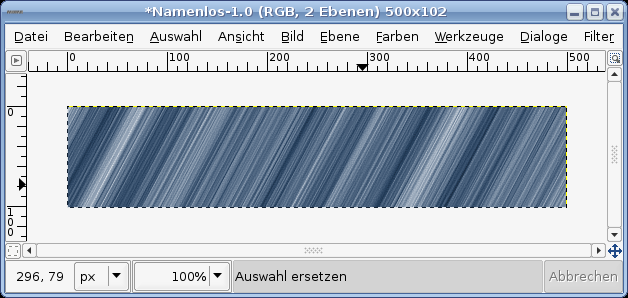
Tutorial: Generate a stripe-like texture
Written by devvv (14 May 2007 11:50 PM)
You'll often need some short techniques to create a website banner, a forum signature or wallpapers. In this tutorial I'll show you how to create such a simple "texture" in less than five minutes!
- Open up a new file: 500x500px.
Add a new empty layer.
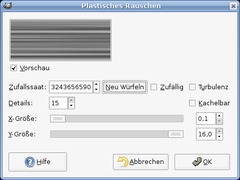
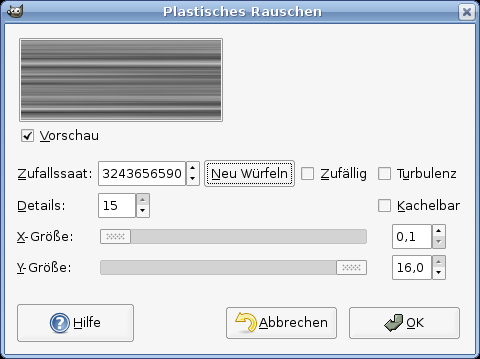
Choose Filter / Render / Clouds / Solid noise.
Choose the values shown in the picture below:
(x:0.1, y:16, random)
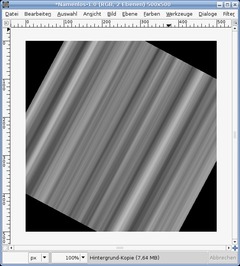
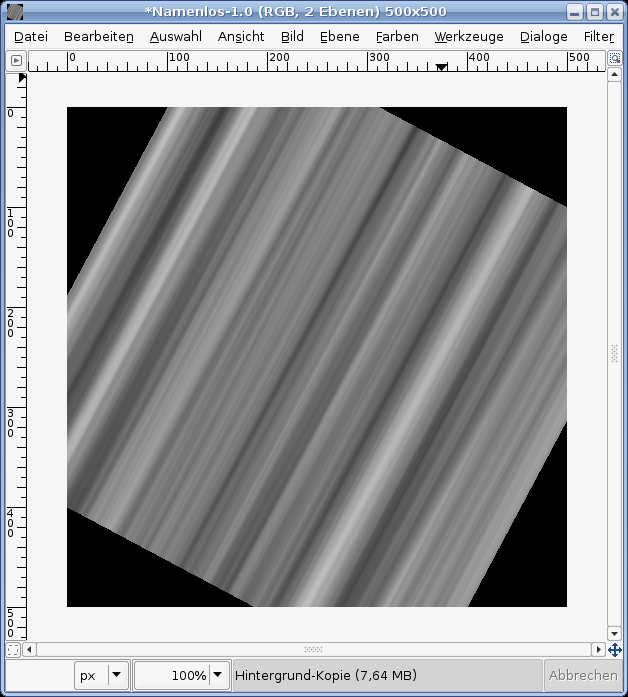
click to enlarge - Go to: Layer / Rotate Layer or just press SHIFT+R. Rotate it for 25°

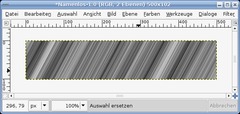
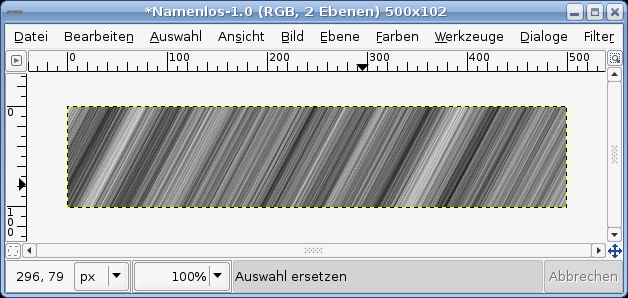
click to enlarge - Choose the crop tool, adjust it to a certain part of the picture so that everything inside the selection is covered by the texture. Press ENTER.
Optional: Filter / Enhance / Sharpen if you want to see more detail in your texture.
click to enlarge - Now choose (in GIMP 2.2: Layer /) Colors / Colorize.
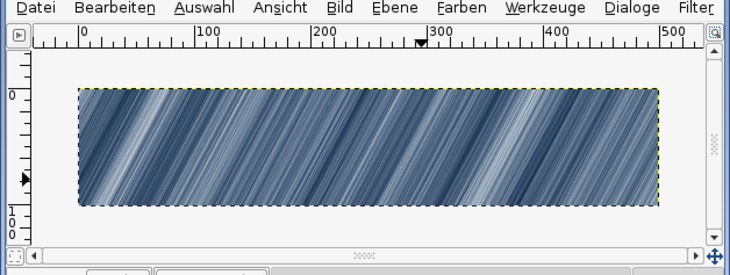
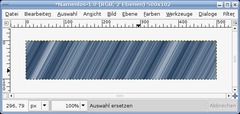
Move the brightness up a bit and take a color of your choice! I've taken a soft blue.
Thats it!
click to enlarge

This work is licensed under the following license: Creative Commons Attribution-NonCommercial 2.0 Austria.
Discussion / comment this tutorial
Post your own comments, questions or hints here. The author and other users will see your posting and can answer to it. Of course, you can also ask in the chat.
Newer comments are displayed first!
From: amethyste (05 Oct 2007 12:16 PM)
Got a problem (i am new on Gimp) how can I add a new texture on my gimp?
From: Amyk13 (15 Sep 2007 10:24 AM) – Send a private message
Hihi, nice efect
From: devvv (28 May 2007 09:32 PM) – Send a private message
looks nice ;)
From: xTAB3Nx (28 May 2007 09:27 PM) – Send a private message
heres what i got by combining my text and changing the opacity
From: Next1One (24 May 2007 12:45 AM) – Send a private message
I like that, simple, but really handy!
Registered users can log in to use their profile name to post comments, request email notification on new comments and attach images (e.g. their versionen of the effect) to their postings.
Post a comment:
Adobe® Photoshop® is a registered trademark of Adobe Systems, Inc. Linux is a trademark of Linus Torvalds. Ubuntu and Canonical are registered trademarks of Canonical Ltd. | Imprint | powered by bitfire.at