Titelbild gimpusers.de

German version of this page English version of this page

Not logged in
Sign up
Login

Last online: Marcel2, eatofid13, bam0, Pianist2, MyOwnOwner0, Avarra24, MaxPhilip14, devvv535, RedHawk20210, Tille0, deni6642, Wambo0

The GIMP
» All GIMP shortcuts / hotkeys
» GIMP changelog
» What's new in GIMP 2.4
» GIMP manual
» Books about GIMP

new tutorials

Making a pencil drawing from a photo Spicing up black/white images Deletion of unused user accounts GIMP 2.4.6 released MeetTheGimp.org is again not reachable Libre Graphics Meeting 2008: Videos online!

random tutorials

Creating a simple Company Logo Hot text on flames / fire Creating a bloody splatter texture Vexel Simulation on Photos Create a cool starfield Rays of Light (behind text)

[show all tutorials]

» email archive

Join the GIMP chat!

tutorial details

Difficulty: difficulty 1/5

GIMP version: 2.4.4

Category: Simple effects

Author: devvv

Steps: 9

Needed time: ca. 15 min

Hits: 3541

Others from this category:

» 4 comments

Miscellaneous

Facts and numbers
Current version: 2.4.6
Dev. version: 2.5.1

38 tutorials with
36 downloads,
175 news and 11290 list messages

Feedburner

Umfrage

Which section should we put focus on here on gimpusers.com?

Please put focus on community stuff (forum, discussions, galleries etc.)

more written tutorials

more video tutorials

more news and information / articles

all kind of gimp resources (i.e. plugins, brushes, fonts etc.)

other stuff (please post a comment)


→ Poll results

Tutorial: Create futuristic looking tech pattern

Written by devvv (22 Feb 2008 11:45 PM)

This is one of these simple to do tutorials, but the effect just looks cool and pretty futuristic. So I've written a tutorial for it. Enjoy!

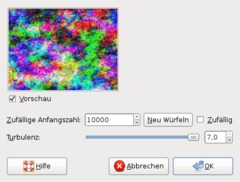
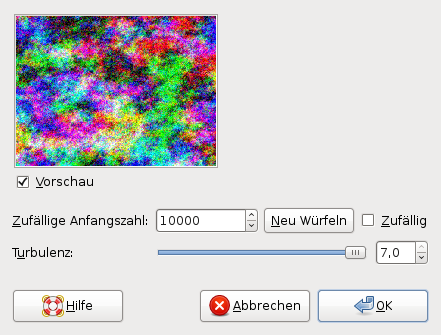
  1. Create a new image: 640x480 px. The Background should be plain white. Now choose Filters / Render / Clouds / Plasma.

    Take these values: 10.000 / tubulence: 7
    screenshot of step 1
    click to enlarge
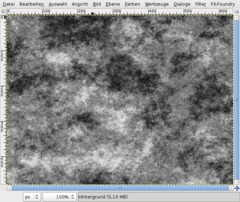
  2. Go to Colors / Desaturate: Brightness and choose OK.
    screenshot of step 2
    click to enlarge
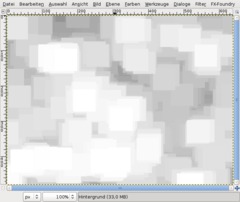
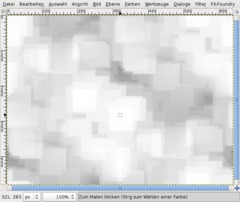
  3. Now we're giving our pattern the special look which it will have at the end. We're using the Dilate filter, a very simple filter that smallens the dark areas in an image. Don't be confused if you look at the quick description when hovering the entry in the filter menu - I think currently in Gimp 2.4.4. this is a wrong description.

    Choose Filter / General / Dilate.

    After this repat that filter 30 times. Use CTRL+F to repeat the filter quickly.
    screenshot of step 3
    click to enlarge
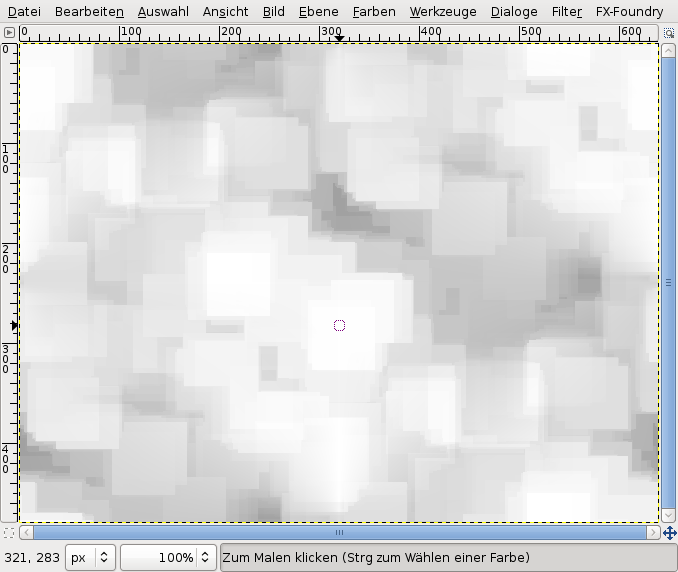
  4. Got to Filter / Map / Make seamless.
    screenshot of step 4
    click to enlarge
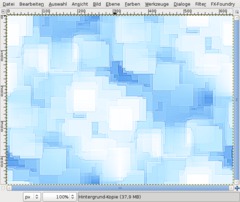
  5. Sharpen the picture now using Filter / Enhance / Sharpen: ~85.

    Now we're giving our picture some color: Use Colors / Color Balance
    Shadows: -50 | 30 | 30
    Mids: 0 | 30 | 50
    Highlights: -65 | -40 | 20
    screenshot of step 5
    click to enlarge
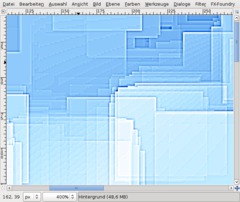
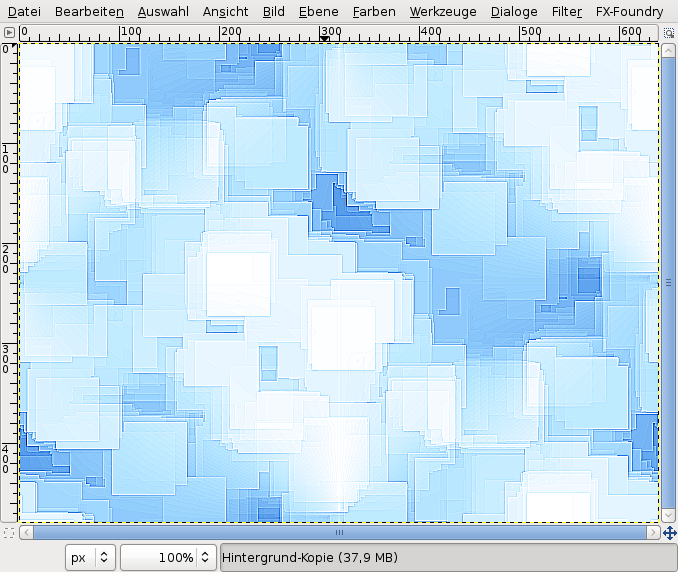
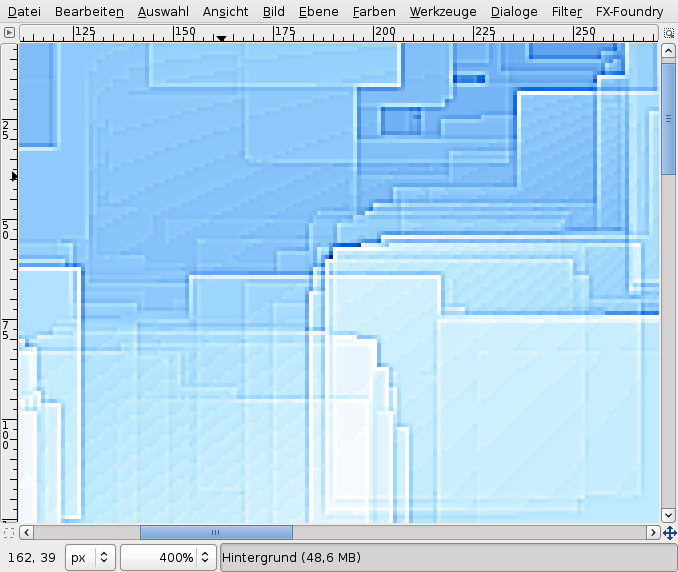
  6. If you zoom into the image very closely you'll notice some gradients that are not very nice looking.
    screenshot of step 6
    click to enlarge
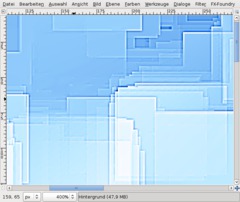
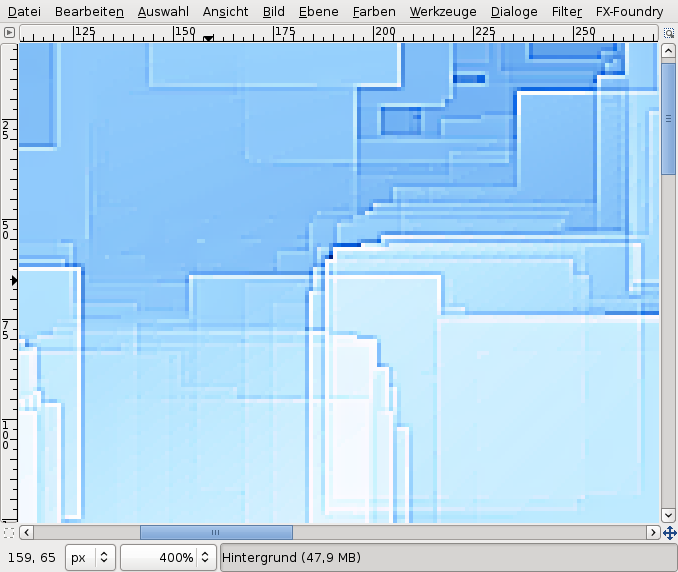
  7. To get rid of this we use Filter / Blur / Selective Gaussian Blur.

    Values: 5 / Max Delta: 13
    screenshot of step 7
    click to enlarge
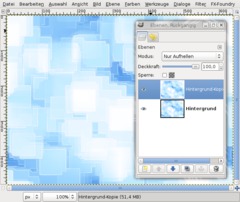
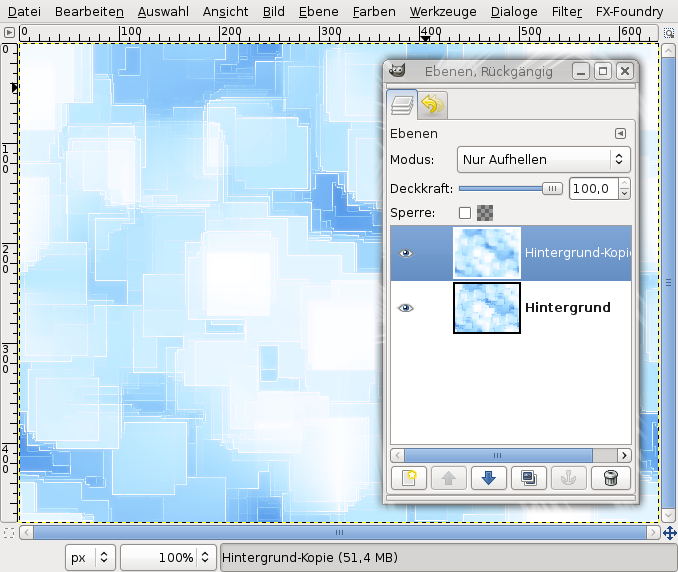
  8. Now we want to have some cool glowing edges so that everything look really future style like.

    Zoom back to 100% (do this fast by clicking the "1"-key).

    Click "duplicate layer" in the layers dialog or just use the hotkey: CTRL+SHIFT+D

    On the duplicate use Filter / BLur / Gaussian Blur: 10.

    Set the layers mode (directly above the opacity ruler in the layers dialog) to "Lighten only".
    screenshot of step 8
    click to enlarge
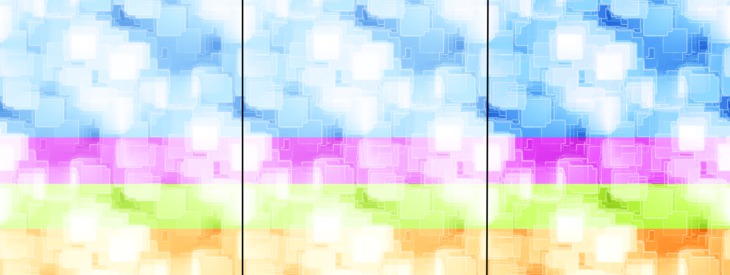
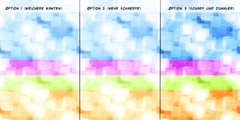
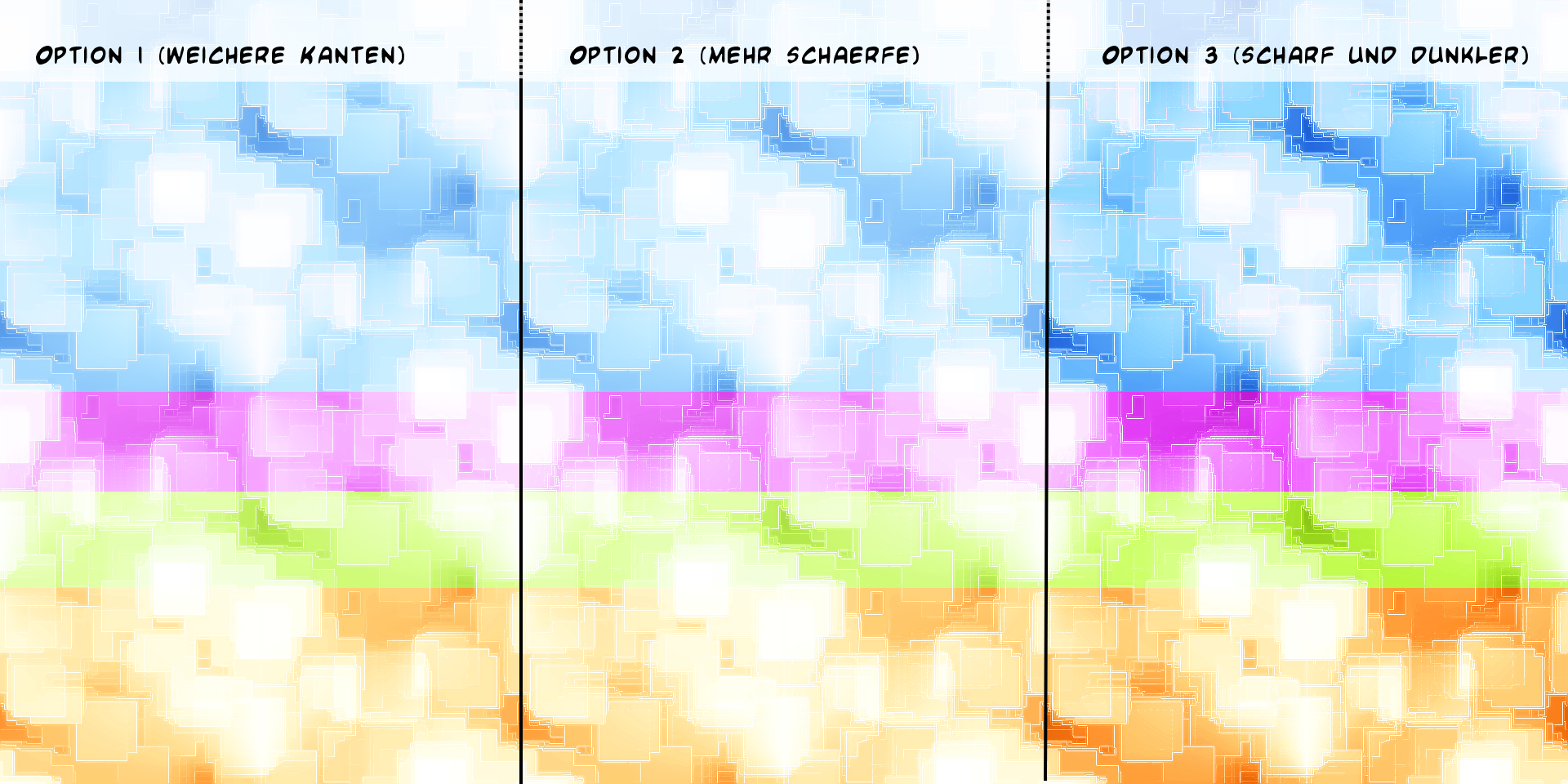
  9. Thats all, we are finished! The softer result is in the left part of the picture below.

    Option 1: If you want your edges to be sharper and more clearly looking use Filter / Enhance / Sharpen (40/50) again on the background-layer.

    Option 2: If you want the whole picture a bit darker (less white glow and more saturated colors) simply create a new totally black layer above all layers and set the layers mode to "Overlay".

    Have fun with this ;) Hope you enjoyed this easy tutorial.
    screenshot of step 9
    click to enlarge
Creative Commons Attribution-NonCommercial 2.0 Austria
This work is licensed under the following license: Creative Commons Attribution-NonCommercial 2.0 Austria.

Discussion / comment this tutorial

Post your own comments, questions or hints here. The author and other users will see your posting and can answer to it. Of course, you can also ask in the chat.

Newer comments are displayed first!

From: Zavael (19 Apr 2008 07:01 PM)

perfect and great :) thanks man

From: Robert (26 Feb 2008 04:55 PM)

Yes very nice tech looking pattern! Thanks

From: Gimper (24 Feb 2008 03:27 PM) – Send a private message

nice work devv, might come in handy

thanks

From: Pixkid (23 Feb 2008 05:12 AM) – Send a private message

Wow... really simple yet really awesome! Thanks for sharing.

Registered users can log in to use their profile name to post comments, request email notification on new comments and attach images (e.g. their versionen of the effect) to their postings.

Post a comment:

Your name:
Not logged in yet? Register at gimpusers.com or log in if you already have an account!
Email address: (optional, wird nicht angezeigt!)
Comment:
Security code:

Adobe® Photoshop® is a registered trademark of Adobe Systems, Inc. Linux is a trademark of Linus Torvalds. Ubuntu and Canonical are registered trademarks of Canonical Ltd. | Imprint | powered by bitfire.at