Titelbild gimpusers.de

German version of this page English version of this page

Not logged in
Sign up
Login

Last online: myke4, AvatarOfDeath0, Marcel2, eatofid13, bam0, Pianist2, MyOwnOwner0, Avarra24, MaxPhilip14, devvv535, RedHawk20210, Tille0

The GIMP
» All GIMP shortcuts / hotkeys
» GIMP changelog
» What's new in GIMP 2.4
» GIMP manual
» Books about GIMP

new tutorials

Making a pencil drawing from a photo Spicing up black/white images Deletion of unused user accounts GIMP 2.4.6 released MeetTheGimp.org is again not reachable Libre Graphics Meeting 2008: Videos online!

random tutorials

Create futuristic looking tech pattern How to generate realistic mass waterdrops on a surface Exploding Planet Creating a simple Company Logo Create a cool starfield A colored swirl of light

[show all tutorials]

» email archive

Join the GIMP chat!

tutorial details

Difficulty: difficulty 1/5

GIMP version: 2.3.13

Category: Buttons, icons, web

Author: devvv

Steps: 11

Needed time: ca. 10 min

Hits: 15286

Others from this category:

» 5 comments

Miscellaneous

Facts and numbers
Current version: 2.4.6
Dev. version: 2.5.1

38 tutorials with
36 downloads,
175 news and 11290 list messages

Feedburner

Umfrage

Which section should we put focus on here on gimpusers.com?

Please put focus on community stuff (forum, discussions, galleries etc.)

more written tutorials

more video tutorials

more news and information / articles

all kind of gimp resources (i.e. plugins, brushes, fonts etc.)

other stuff (please post a comment)


→ Poll results

Tutorial: Stylish buttons

Written by devvv (25 May 2007 06:47 PM)

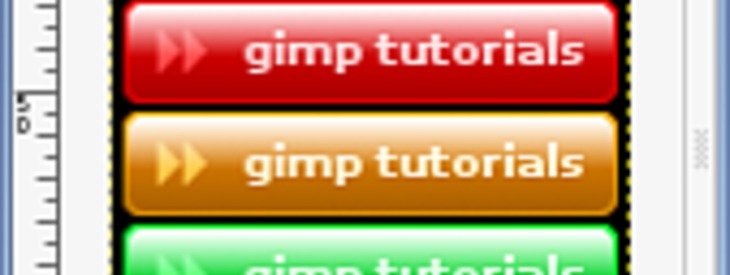
Buttons are pretty nice for many things in the web. As long as you dont use them too much they can give your website a good look. In the following tutorial, we're going to make some cool and stylish looking buttons. At the end you can colorize them with a very simple technique.

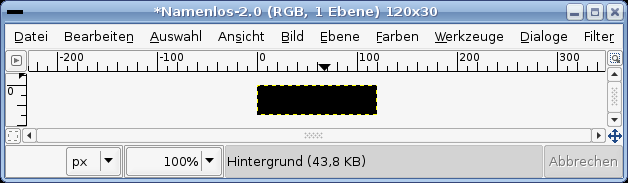
  1. Open a new file. 120x30px. Black background.
    screenshot of step 1
    click to enlarge
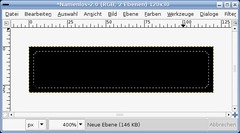
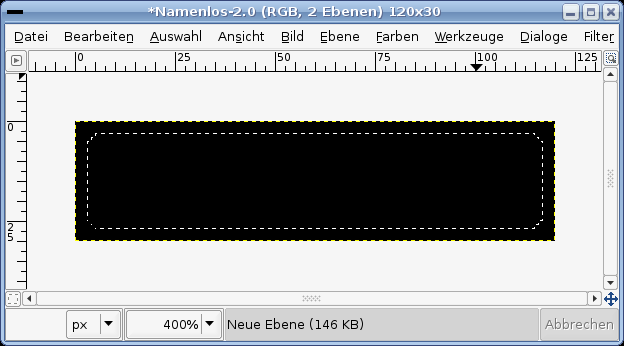
  2. Create a new transparent layer.
    - Selection / All (or just press CTRL A)
    - Selection / Shrink: 3px.
    - Selection / Rounded Rectangle.
    screenshot of step 2
    click to enlarge
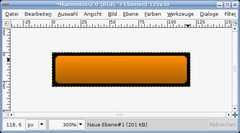
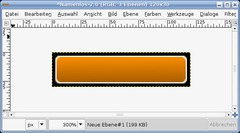
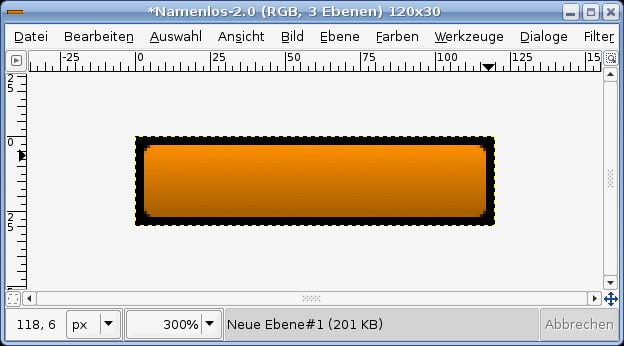
  3. Now choose any fore- and background-color you like. i.e.: FG #ab6000 and BG: #f88c00. Fill this new layer with the standard gradient. (Take the Gradient-Tool and draw a gradient from top to bottom), so that the brighter color is seen at the top.
    screenshot of step 3
    click to enlarge
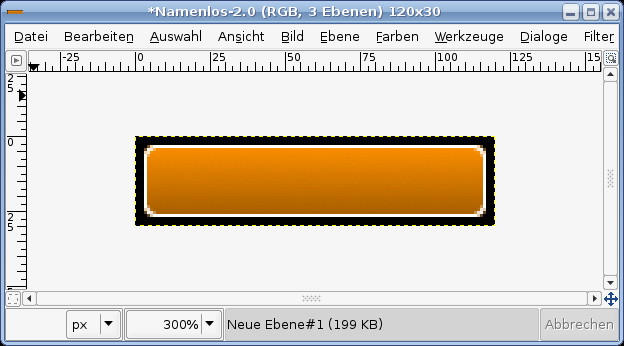
  4. Still let the selection active! Create a new layer, fill it totally white. Go to Selection / Shrink: 1px and remove the selected part. A 1px border should remain.

    -Selection / None
    screenshot of step 4
    click to enlarge
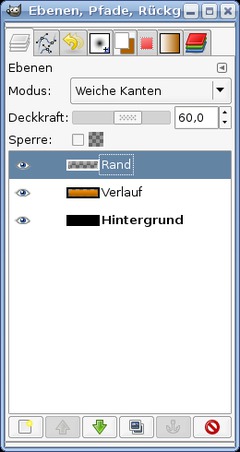
  5. In the layers dialog set the layers mode to "Soft light". Transparency / Opacity to 60%. The layers look like this now.
    screenshot of step 5
    click to enlarge
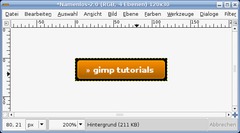
  6. Now choose the Text-Tool (T). Write any text you like, choose white as color for this text.
    screenshot of step 6
    click to enlarge
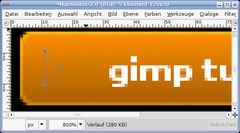
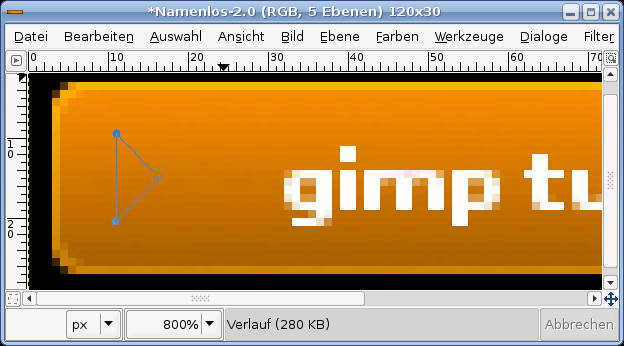
  7. Move the text a little to the right and choose the paths-tool (B).

    - Add a new empty layer.
    - Do a path as seen in the picture.
    You can end the path while holdig CTRL down and clicking the point of your beginning.
    screenshot of step 7
    click to enlarge
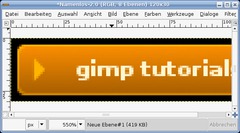
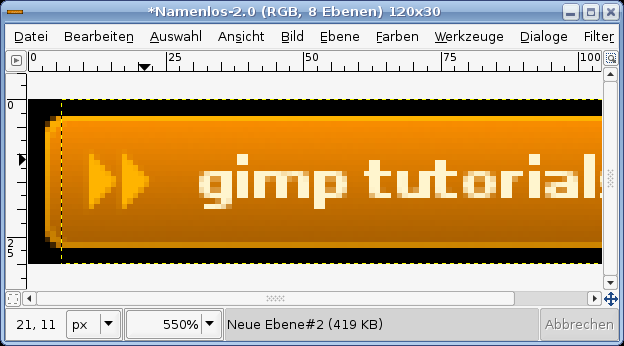
  8. After that press ENTER to become a selection out of the path. Fill this selection with any color brighter that your background. I.e.:##ffcb4b.

    - Selection / None to get rid of the selection.
    screenshot of step 8
    click to enlarge
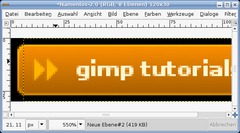
  9. Duplicate the layer and move the duplicate a little bit to the right.
    screenshot of step 9
    click to enlarge
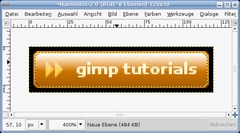
  10. Now we're doing the glossy part of the button.

    Activate the colored gradient layer. Right click it in the layers dialog and choose "Selection from Alpha". Click the layer at the most top - then add a new layer on top of it.

    - Selection / Shrink: 1px.
    - Press L to active the Gradient-Tool.

    As gradient choose the 4. one from the drop down menu (named "Color to transparent"). Click in the top are of the button and move your mouse a little to the bottom. When holding CTRL while drawing the gradient it helps you to get an exact horizontal gradient.
    screenshot of step 10
    click to enlarge
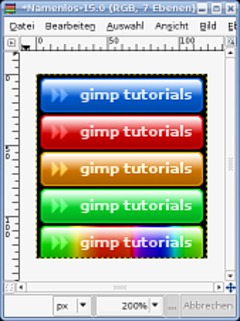
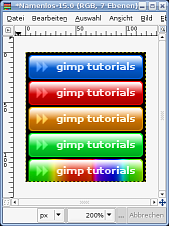
  11. Now if you want you button in any other color do the tutorial again, haha. Damn no, I'm just joking ;) If you want to test some other colors do this:

    Above all layers create a new empty one, fill this layer with the color you want to test. Select "Color" in the layers mode drop down. And instantly your buttons color has changed. You can also try gradients!

    Tip: You can only use the base color tones. Fades to grey don't have any effect.

    Your buttons could look like this:
    screenshot of step 11
    click to enlarge
Creative Commons Attribution-NonCommercial 2.0 Austria
This work is licensed under the following license: Creative Commons Attribution-NonCommercial 2.0 Austria.

Discussion / comment this tutorial

Post your own comments, questions or hints here. The author and other users will see your posting and can answer to it. Of course, you can also ask in the chat.

Newer comments are displayed first!

From: Amyk13 (10 Nov 2007 09:37 AM) – Send a private message

Yes! I did it, look at my button!

From: devvv (25 Aug 2007 10:01 PM) – Send a private message

you could maybe enhance the glossy part when you mouseover the button ;)

From: click (25 Aug 2007 07:39 PM)

I like it! But how would you make it look like it's being clicked?

From: AtenTora (24 Aug 2007 04:17 PM)

Great tutorial. I did the gradient at the end from the top of the image not the button and down about 15px. I think it turned out well.

And Amyk13, set the color of the gradient to white, and use the FG to Transparency setting. Also, for me anyways, it's Alpha to Selection.

From: Amyk13 (21 Aug 2007 05:38 PM) – Send a private message

I don't understand stepp 10

Registered users can log in to use their profile name to post comments, request email notification on new comments and attach images (e.g. their versionen of the effect) to their postings.

Post a comment:

Your name:
Not logged in yet? Register at gimpusers.com or log in if you already have an account!
Email address: (optional, wird nicht angezeigt!)
Comment:
Security code:

Adobe® Photoshop® is a registered trademark of Adobe Systems, Inc. Linux is a trademark of Linus Torvalds. Ubuntu and Canonical are registered trademarks of Canonical Ltd. | Imprint | powered by bitfire.at