gimpusers.com logo
German version English version

Not logged in

Sign up! | Lost password?

Latest discussion

  1. gimp-user | today 01:45 AM
    Crashes in GIMP 2.6.6
  2. gimp-docs | yesterday 11:28 PM
    Can the gimp-help-2 module be maintained using Damned-Lies?
  3. gimp-user | yesterday 11:25 PM
    Error on script-fu
  4. gimp-developer | yesterday 10:55 PM
    Summary: How to submit gimp/gegl bugzilla with GIT patch
  5. gimp-docs | yesterday 10:01 PM
    Where have all my pictures gone?

External news

Poll

Did you ever buy products (books, video dvds) about GIMP?

No, never did

Yes, helped alot (please post)

Yes, helped a little bit (please post)

Yes but I was disappointed (why? please post)

See results

Stats

gimpusers.com RSS feed

RSS feed Retweet this!

06 Jul 2007 11:10 PM, by devvv (Bernhard Stockmann)

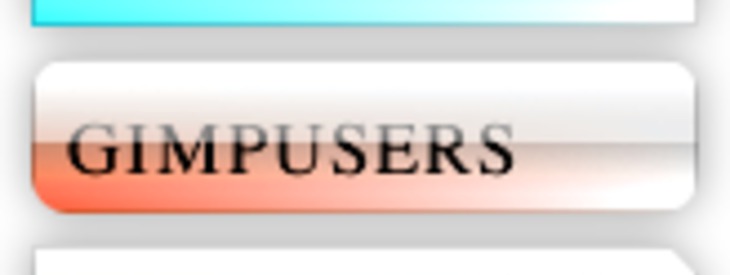
Create soft glassy buttons

This tutorials shows you how to create a soft and glassy / glossy button.

This article has been written using GIMP 2.3.14. It's divided into 14 steps and takes about 15 min to complete for an average user. 27041 times read so far. Category: Buttons, icons, web, required skill: 1 of 5

11 comments have been posted so far.

Available in other languages:

  1. 1
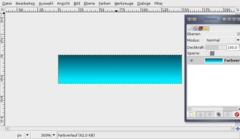
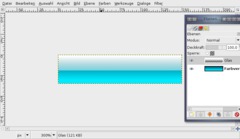
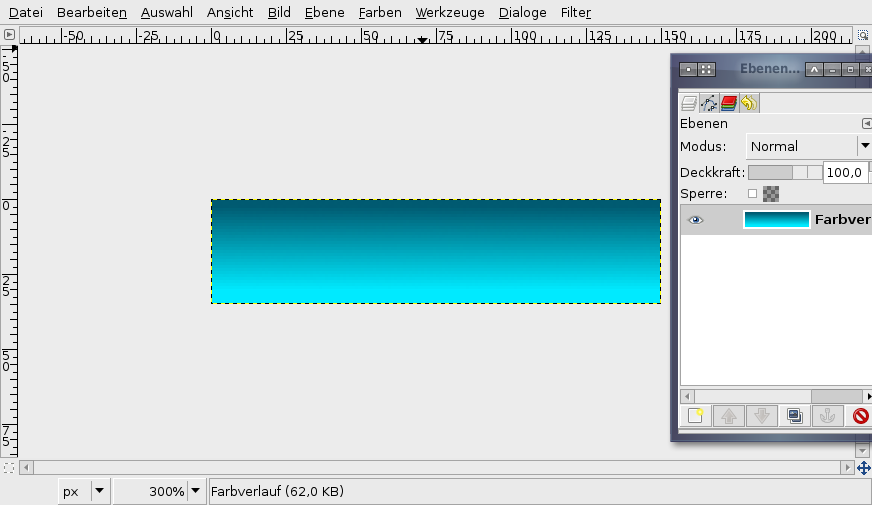
    Create a new file: 150x35 px. White background. Activate the gradient-tool (L). Now choose #005a71 as primary (foreground) color. Use #00eaff as background-color. Drag the gradient from inside the upper edge of the image to the bottom: cname the layer: "Gradient". I named it "Farbverlauf" which is the german word for gradient.
    Screenshot of step 1
    Click to enlarge
  2. 2
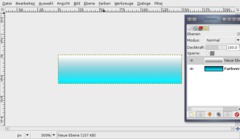
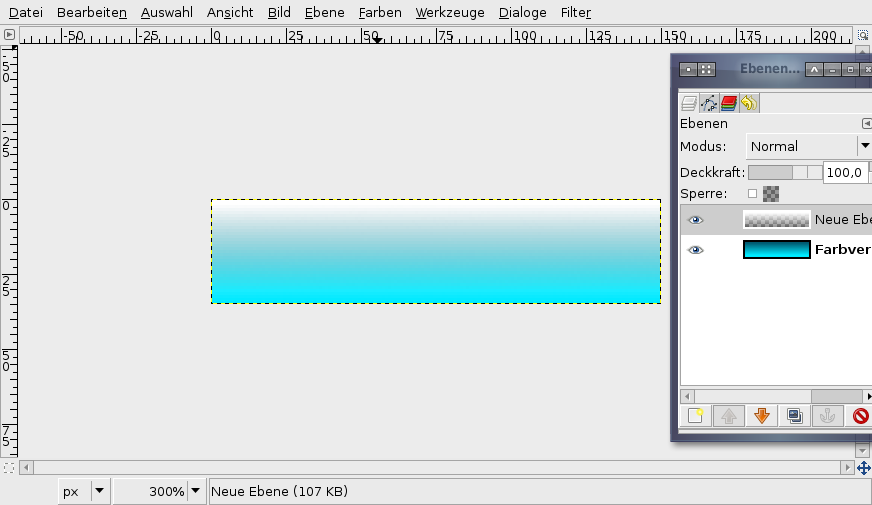
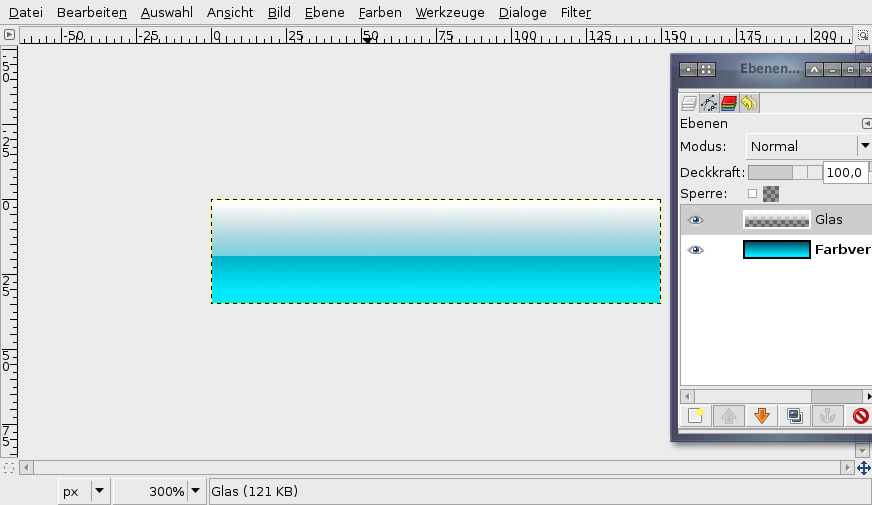
    Create a new transparent layer. Name it "Glass".

    Choose white as foreground color. In the preferences of the gradient-tool use the drop-down and choose the "Foreground to Transparent"-gradient (the 4th one). Make a gradient again on this layer from top to bottom.
    Screenshot of step 2
    Click to enlarge
  3. 3
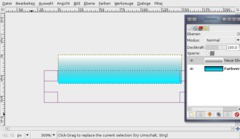
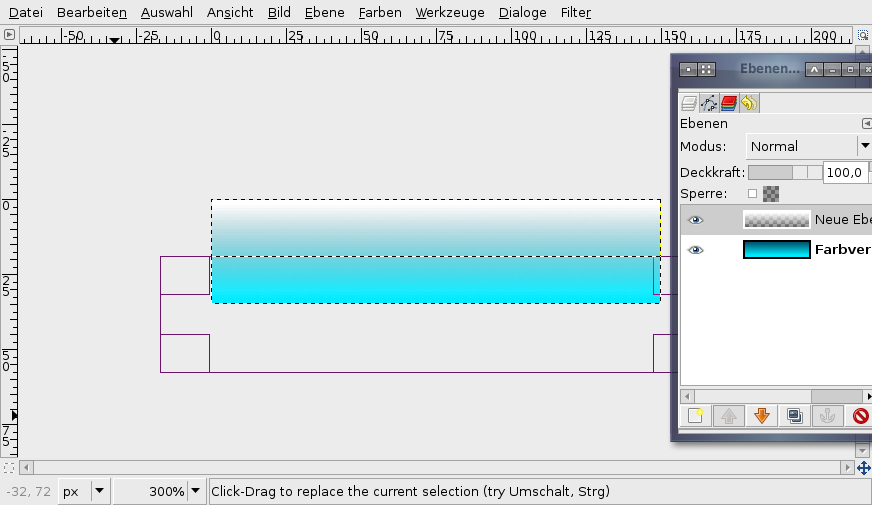
    Take the Rectangle Selection-Tool and make a new selection starting from the bottom left as seen on the image below.
    Screenshot of step 3
    Click to enlarge
  4. 4
    Cut this part by pressing DEL or (CTRL+K if you still use GIMP 2.2).

    - Selection / None to deselect all.
    Screenshot of step 4
    Click to enlarge
  5. 5
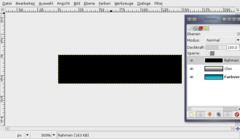
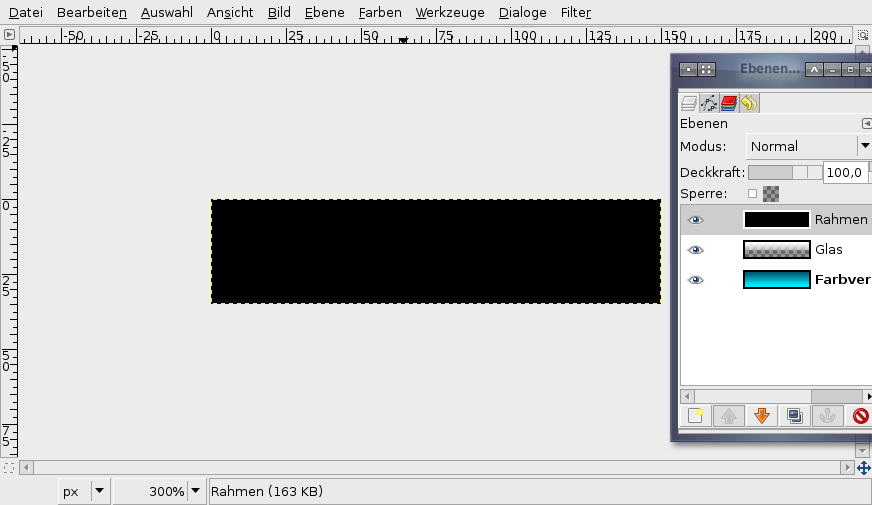
    Next we create a small little border. Add a new layer, fill it totally black. Name it "Border" or "Rahmen" as i did in the picture.
    Screenshot of step 5
    Click to enlarge
  6. 6
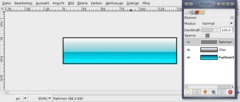
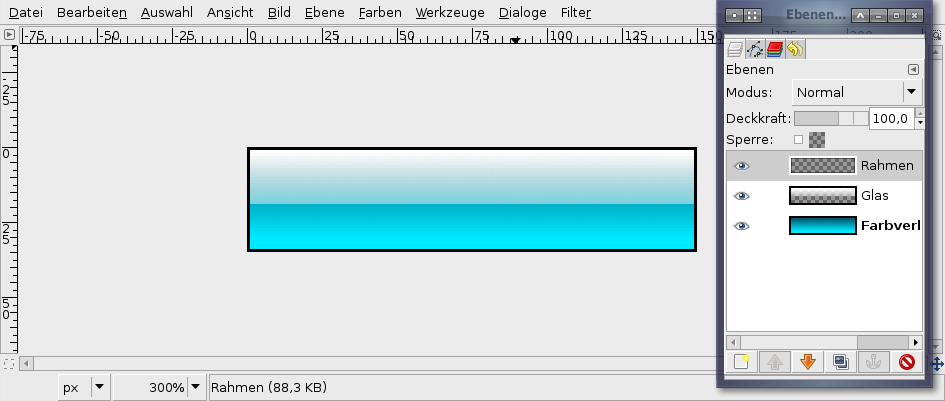
    Press CTRL+A to select all, then go to SELECTION / SHRINK: 1px.

    Remove the selected part and a border should remain.
    Screenshot of step 6
    Click to enlarge
  7. 7
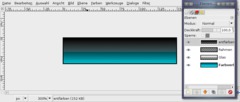
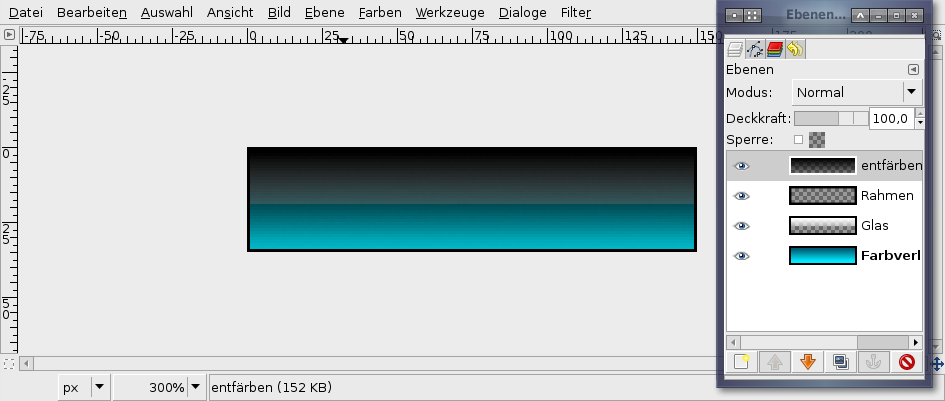
    Add a new layer again (transparent). Name it "Desaturate" (i called it "entfärben").

    Now activate the Gradient-Tool again. Make sure the "Foreground to Transparent"-Option is still selected in the preferences.

    Use black as foreground-color. Drag the gradient again from top to bottom, but this time a bit below the bottom edge/border of the image (into the gray space).
    Screenshot of step 7
    Click to enlarge
  8. 8
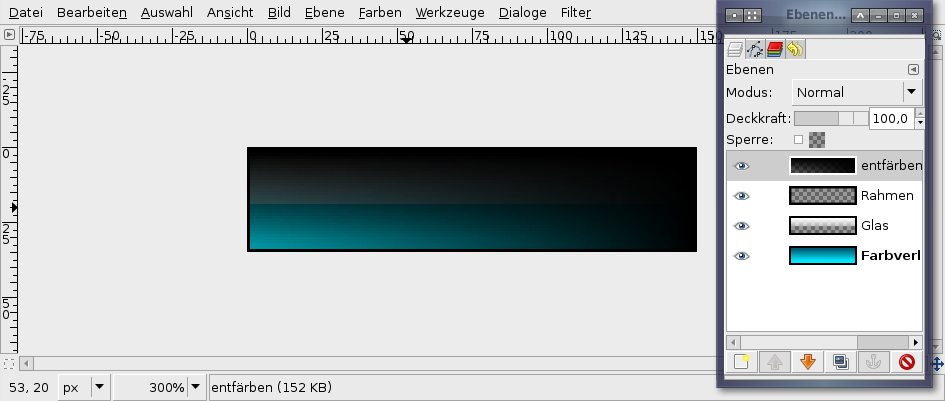
    On the same layer do the same gradient but from right to left, again a little bit into the gray space of the left image border.

    At the end only little blue to the bottom left should shine through.
    Screenshot of step 8
    Click to enlarge
  9. 9
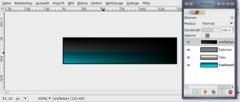
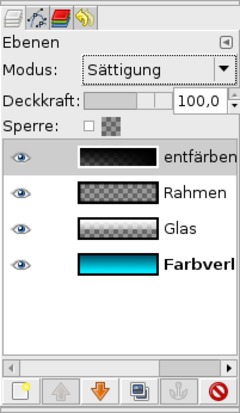
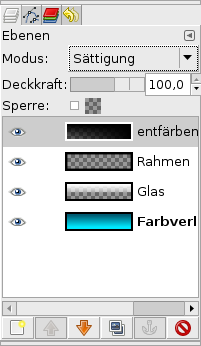
    Now press CTRL+L to view the layers dialog or go to Dialog / Layers. Set the layers mode to "Saturate" - in the image its called "Sättigung".

    This mode makes all parts of the layers below gray (all parts that are filled with the black on this layer).
    Screenshot of step 9
    Click to enlarge
  10. 10
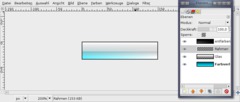
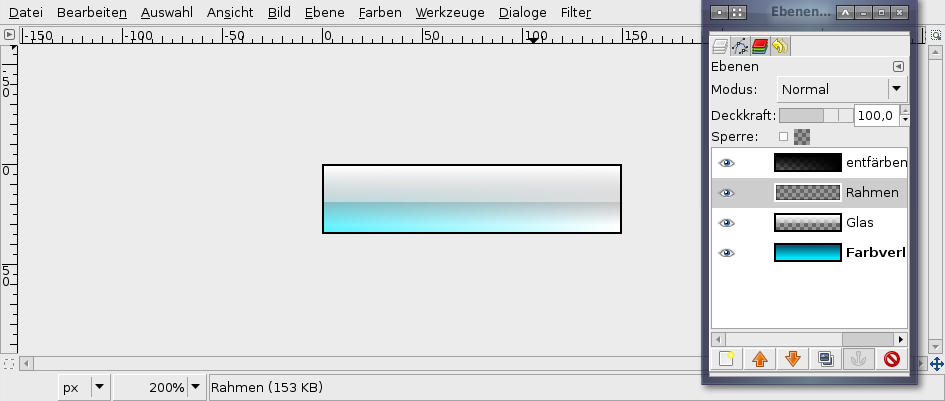
    The button should look like this now:
    Screenshot of step 10
    Click to enlarge
  11. 11
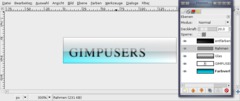
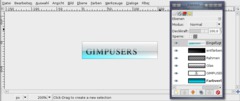
    Now take the text-tool and write any text to the layer. Move the text to the left corner.

    The text layer has to be below the black "Saturate"-layer.

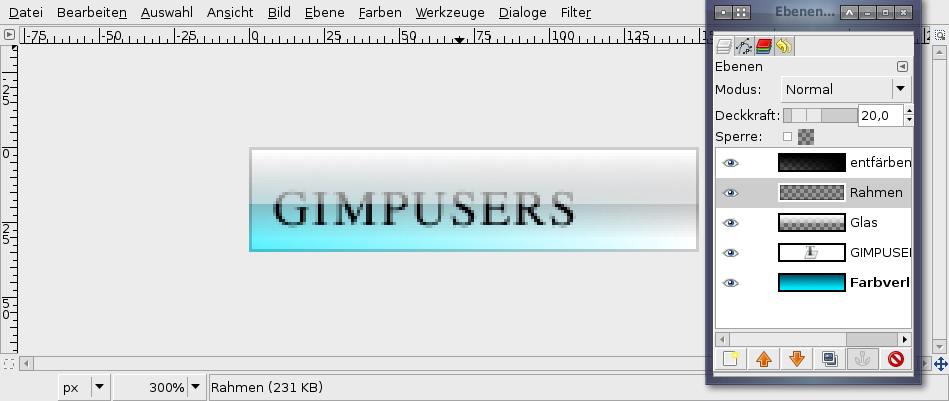
    Activate the "Border"-layer and set the transparency of this layer to 20%.
    Screenshot of step 11
    Click to enlarge
  12. 12
    Now we're making the whole button a little nicer.

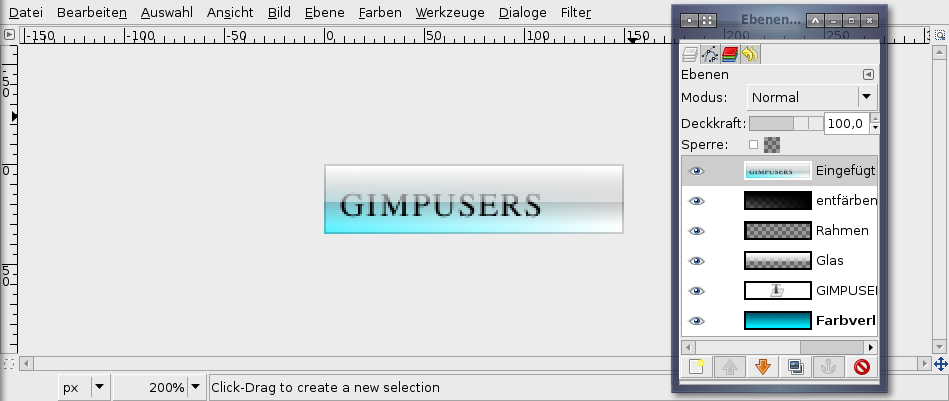
    - Edit / Copy visible
    - Edit / Paste

    Then press the add layer button to get the pasted on a new layer.
    Screenshot of step 12
    Click to enlarge
  13. 13
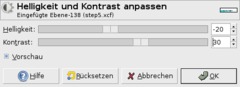
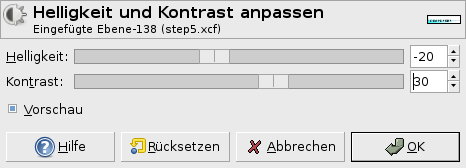
    - Colors / Brightness & Contrast: -20 / +30
    Screenshot of step 13
    Click to enlarge
  14. 14
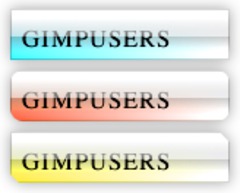
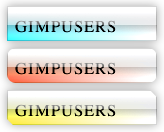
    You're done ;) If you want to test some other colors do it the fast way ->

    - Add layer
    - Fill with your preferred color
    - set Layer mode to "Color".

    A little tip: The buttons look best on white background with a very slight black shadow.
    Screenshot of step 14
    Click to enlarge

This article is licensed under the following license: Attribution-Noncommercial 3.0 Austria

Comments

Post your own comments, questions or hints here. The author and other users will see your posting and can reply to it. Of course, you can also ask in the chat.

Comments are chronologically arranged.

  1. Rusdianto, 18 Aug 2007 06:54 AM

    I can Study

  2. TeremiNandor, 05 Sep 2007 10:45 AM

    Very good tutorial I had only one problem in the 3. I couldn't use rectangle selection tool I could always select always only a littler area just 30×13 px and I dont know why I use GIMP 2.2 and sometimes I found not the sames thing in the Dialog boxes like in the tutorials and sometimes the shortcouts are not the same. It is because of the diference between GIMP 2.2 and GIMP 2.3 or GIMP 2.4 or not isn't it? How could I update to version 2.3 or 2.4? I must reinstal the whole program or is there a easier way? Thanks for the answers! a lot

    Nandor

  3. devvv, 05 Sep 2007 11:09 AM

    yes there are lots of differences between 2.2 and 2.4.

    take a look into our downloads section. if you're using windows xp/vista gimp 2.4 rc1 is the latest version for you, if you're using linux or ubuntu gimp 2.4 rc2 is the latest at the moment.

  4. Anonymous, 09 Jun 2008 08:42 PM

    Great work! Thanks a lot. Now I can make nice buttons for my homepage.

  5. mohd, 03 Oct 2008 08:08 AM

    NICE TUTORIAL MAN, help me a lot.. thanks :-)

  6. Evu, 24 Oct 2008 05:25 PM

    Awesome.. :)

  7. content_writer, 12 Mar 2009 10:35 PM

    Step 2: "Choose white as foreground color. In the preferences of the gradient-tool use the drop-down and choose the "Foreground to Transparent"-gradient (the 4th one). Make a gradient again on this layer from top to bottom."

    I use Gimp 2.6.4 in Windows Vista, and I couldn't find that option. I created a workaround. Simply make a gradient in the "glass" layer, as devvv indicated, in normal mode. Then add a layer mask [right-click glass layer / Add layer mask / make sure the white (full opacity) option is selected and click on Add]. Finally create a white-black gradient (white on the top) on the layer mask you just created...whew, a lot of steps for a lost function but Gimp 2.6 users can carry on to step 3.

  8. content_writer, 13 Mar 2009 03:16 AM

    After carefully looking at all the menus and checking all the drop downs, I came up with the workaround listed above. I should have checked Youtube first, before posting my comment here. For future reference, you just simply click on the gradient swatch for a hidden menu. Sorry if I confused anyone.

  9. Dilyn Corner, 16 Mar 2009 02:23 AM

    I can't quite seem to get the text to look like yours? I've checked the layers order over and over, reread the directions, etc., but I still can't get the text to look like yours. It's just a sold black, instead of saturated near the top. The rest looks just like it should, except for the text.

  10. ShockwaveLover, 26 Mar 2009 03:43 AM

    Awesome. Easy to follow, and the fact that the screenshots include the layer display is very helpful.

  11. nil, 12 Jun 2009 11:31 PM

    Thank you! Very useful

Registered users can log in (top right of the page) to use their profile name to post comments, request email notification on new comments and attach images (e.g. their versions of the effect) to their postings.

Are you human?

Adobe® Photoshop® is a registered trademark of Adobe Systems, Inc. Linux is a trademark of Linus Torvalds. Ubuntu and Canonical are registered trademarks of Canonical Ltd. | Clock times are shown as CET / CEST | Imprint / Privacy policy | powered by bitfire it services