gimpusers.com logo
German version English version

Not logged in

Sign up! | Lost password?

Latest discussion

  1. gimp-user | today 08:53 PM
    image resize
  2. gimp-user | today 03:28 PM
    Edit Zoom ratios?
  3. gimp-user | today 02:54 PM
    Installing gegl for gimp-2.7
  4. gimp-user | today 05:37 AM
    gimp
  5. gimp-user | today 03:30 AM
    Enlarge Canvas: Is there a way to do it by dragging? Could/Should there be?

External news

Poll

Would you like to be able to use your Google/Yahoo/MSN (OpenID) login on gimpusers, too?

Definately! I would enjoy the possibility to use my OpenID on different websites!

I don't have a special need for OpenID but I think it could be useful

Doesn't matter to me

Never, OpenID is a pain regarding privacy and personal data protection!

No. (please post a comment)

See results

Stats

gimpusers.com RSS feed

RSS feed Retweet this!

15 Dec 2009 01:27 AM, by devvv (Bernhard Stockmann), translated to English by devvv (Bernhard Stockmann)

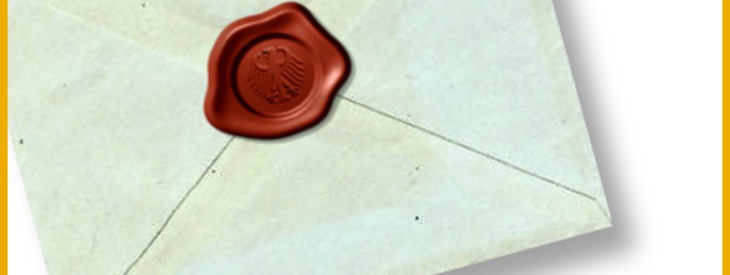
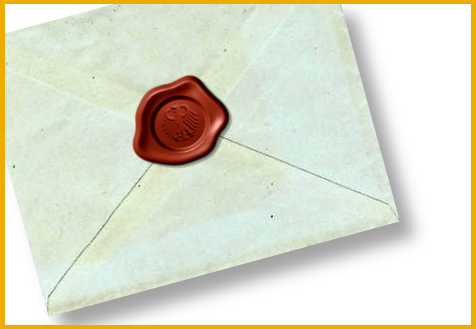
Create a cool wax seal with an engraved eagle

You maybe know this: In the very past important letters have been sealed using a so called wax seal. This is a hot wax drop on the opening of the envelope - then a seal ring containing the unique emblem of the empire was pressed on the wax to harden the wax. So the letter was secured from spys from now on - because any opening would have breached the original letter. This tutorial shows how to create such a wax seal in GIMP! Have fun ;)

This article has been written using GIMP 2.6. It's divided into 16 steps and takes about 15 min to complete for an average user. 5923 times read so far. Category: Special FX, required skill: 2 of 5

14 comments have been posted so far.

Available in other languages:

  1. 1
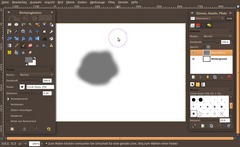
    We're starting with the base form of the wax drop. It must not ne an exact round circle.

    - Open a new empty image: 640x480px.
    - Set the foreground color to #777777 (it is a middle gray tone)
    - Create a new, transparent layer
    - paint an area like shown in the picture below using the brush tool (use a soft 19px-brush and scale it to 5)
    Screenshot of step 1
    Click to enlarge
  2. 2
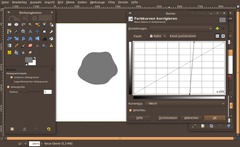
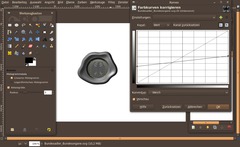
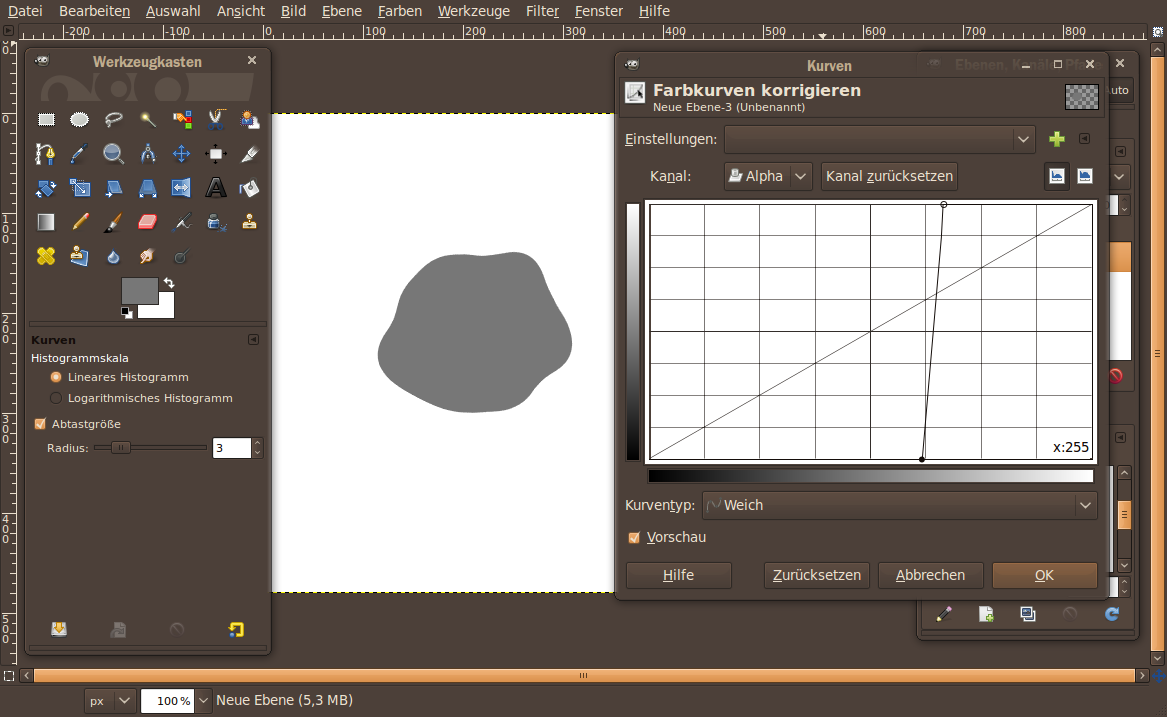
    Next we want to get rid of the semi transparent parts of the "wax drop".

    - Colors / Curves

    Set the channel to Alpha and move the points to the center as shown in the image below.
    Screenshot of step 2
    Click to enlarge
  3. 3
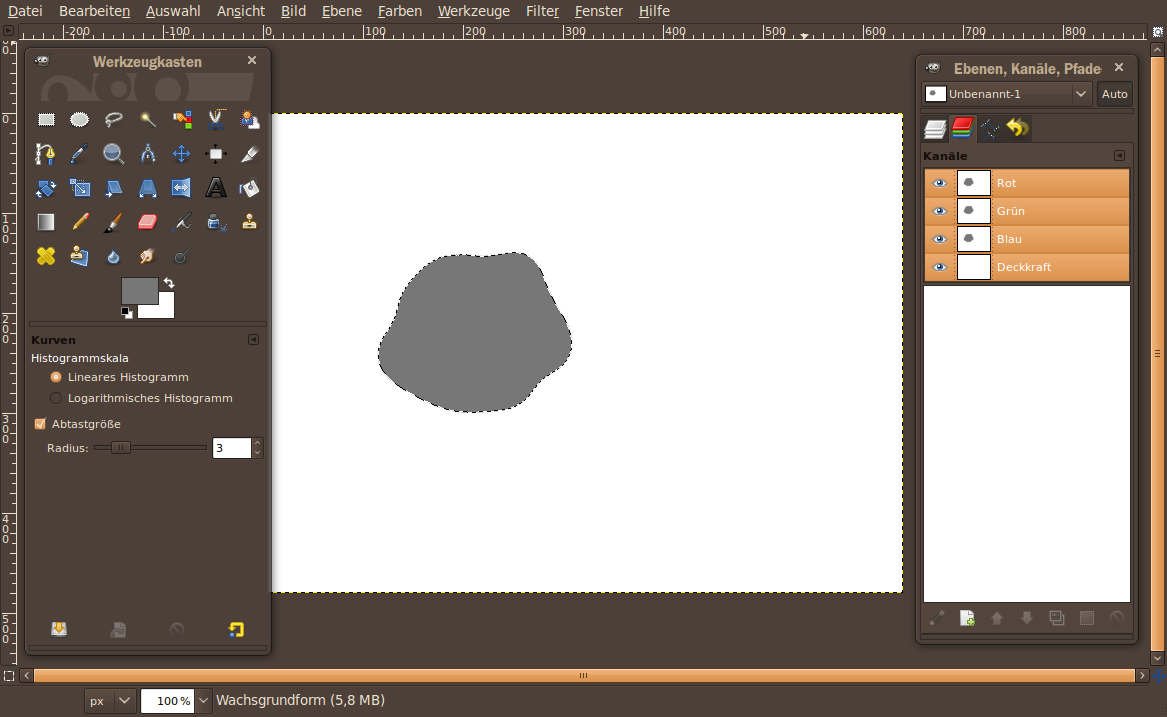
    Now we're finished with the base form of the wax. The next few steps show the realisation of the glossyness of the wax. The difficult part on this is that we need a soft rounding on the outer side of the wax, while we need a harder one inside which represents the mark/cast of the seal ring.
    Have a short look at the result image to see what i mean.

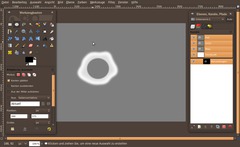
    To realize such complex roundings we gonna use a depth channel (this shows our wax drop how "deep" the roundings should be on a specific place).

    - right click the mouse button on the layers dialog of the wax layer: choose "Selection from Alpha".
    - click the eye symbol to make the wax disappear temorarily (we enable it again at a later time).

    - open up the Channels dialog: Windows / Dockable Dialogs / Channels
    Screenshot of step 3
    Click to enlarge
  4. 4
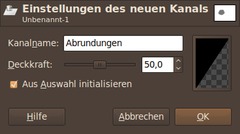
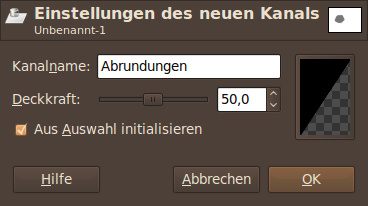
    Click "Initialize from Selection". Name the channel "Depth".
    Screenshot of step 4
    Click to enlarge
  5. 5
    - Selection / None

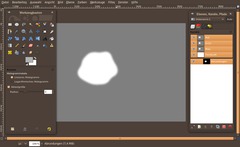
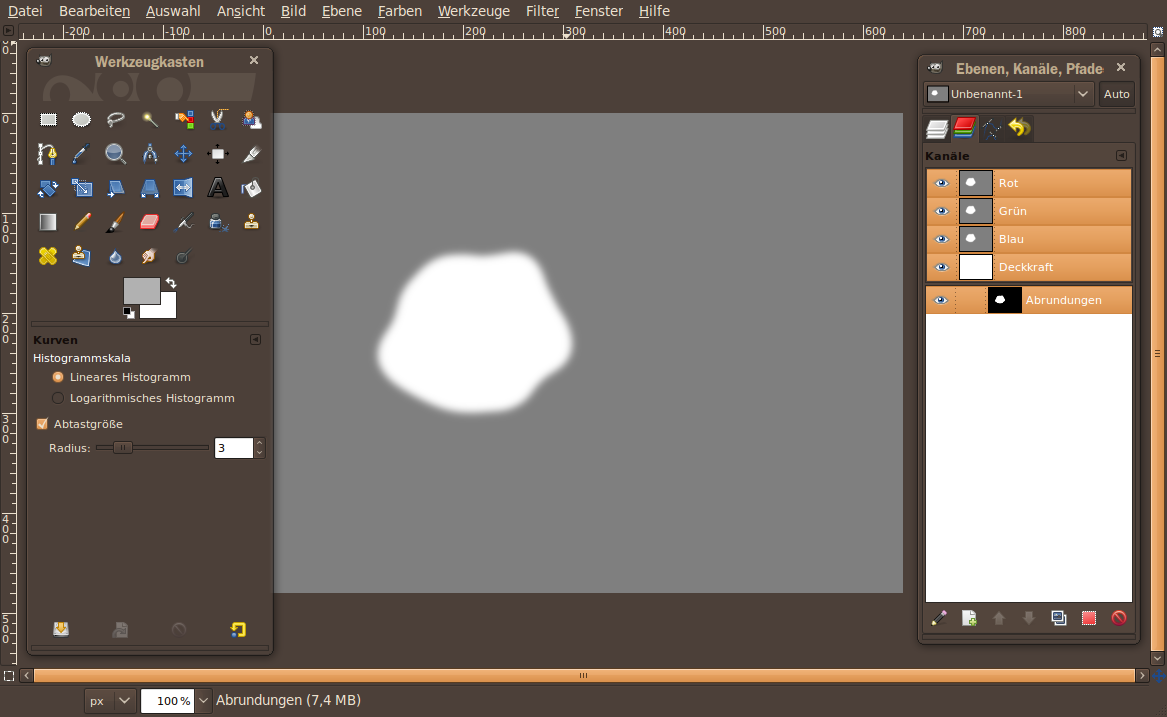
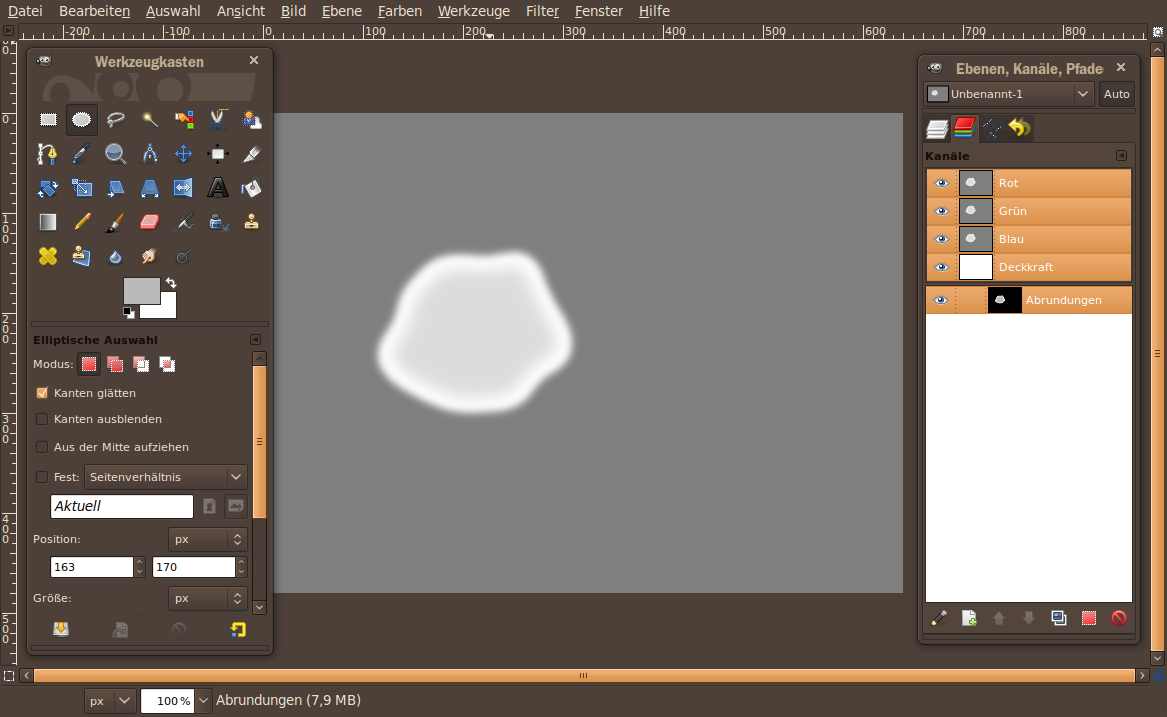
    Now we've a BLACK/WHITE layer. The purpose of a channel in this kind of picture manipulation is to show a layer what specific roundings the object (in our case the wax drop) shall receive using the Lighning effects filter later on.

    Lets start with the outer roundings/depth. Use the Gaussian Blur filter to change the hard crossing from black/white to some gray tones which represent smooth roundings.

    - Filter / Blur / Gaussian Blur: 9px. Repeat the step using CTRL+SHIFT+F with 6px, 3px and finally 1px. This gives us a very smooth fading.
    Screenshot of step 5
    Click to enlarge
  6. 6
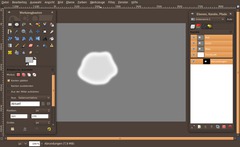
    Change to the layers dialog for a second and choose "Selection from Alpha" again from the context menu of the wax layer.

    With the selection active change back to the channels dialog. Click the channel we're working to activate it.

    - Select / Shrink: 15px
    - Select / Fade: 25px
    - Choose #bababa as new foreground color.
    - Edit / Fill FG color (or just press CTRL+, on your keyborad)
    - Select / None

    This slight coloring will make the wax itself be a little more anomalous.
    Screenshot of step 6
    Click to enlarge
  7. 7
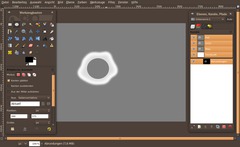
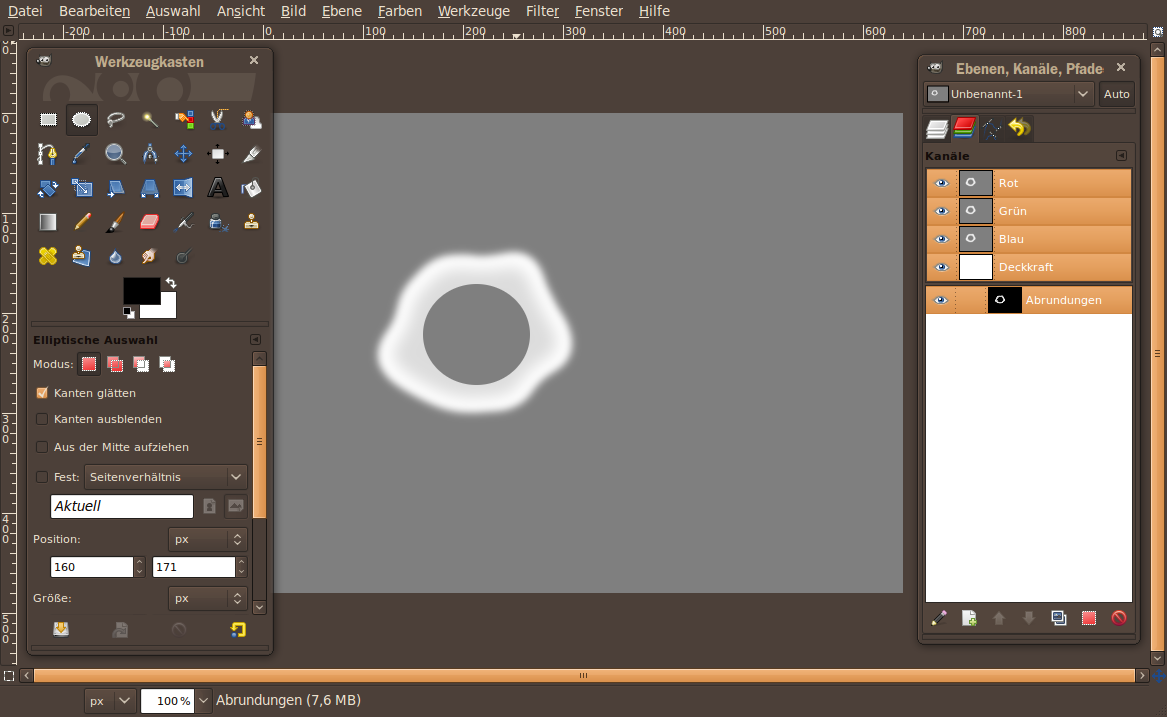
    Now we get to the part of the pressed ring.

    - Choose the Elliptical/Circle Selection tool
    - Drag a circle inside the wax on the channel.
    - Press D to reset to base colors (black/white).
    - Press CTRL+, to fill the selection with black (actually it is a gray tone, because we've told the channel to be 50% transparent when creating it. So a full black fill becomes a 50% black which means a middle gray)
    - Select / None.
    Screenshot of step 7
    Click to enlarge
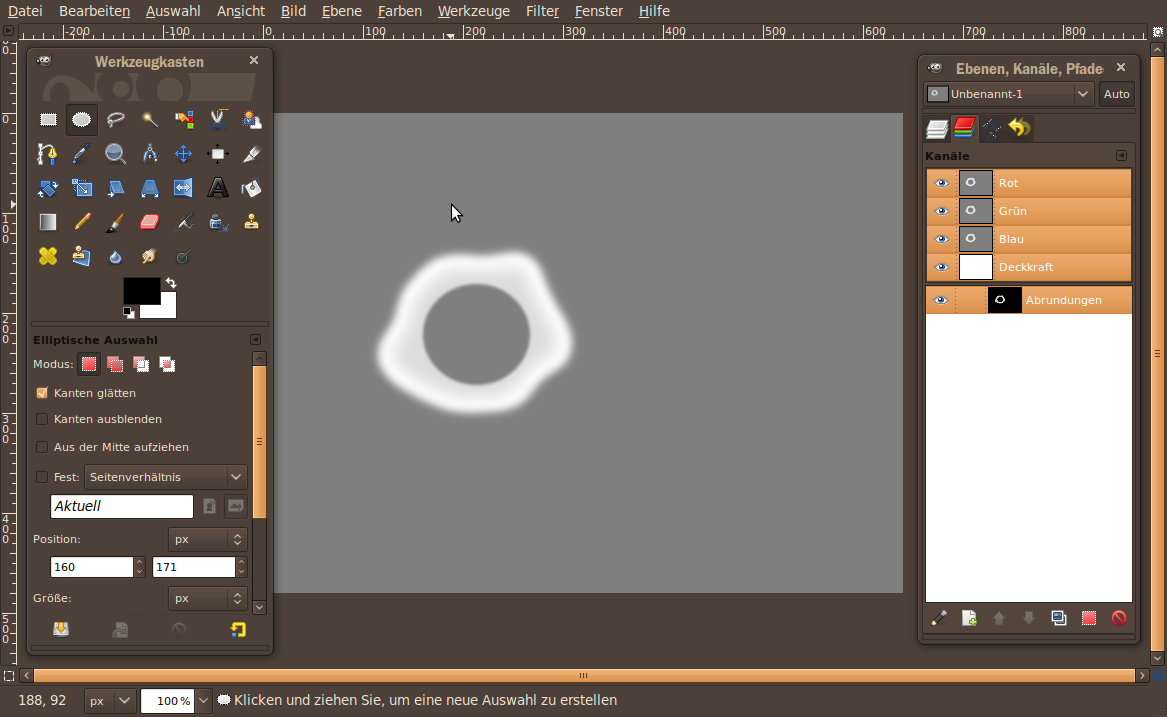
  8. 8
    - Filter / Blur / Gaussian Blur: 4px.
    Screenshot of step 8
    Click to enlarge
  9. 9
    - Make the channel invisible now (click the eye icon next to the channel in the channels dialog)
    - change to the layers dialog. Make the wax layer visible again.

    - Filter / Light & Shadow / Lightning Effects
    - Move the little blue dot in the preview window to the top left of the wax area.
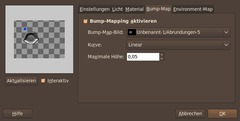
    - In the Bump-Map tab use the depth channel set the maximum height to 0.05.
    Screenshot of step 9
    Click to enlarge
  10. 10
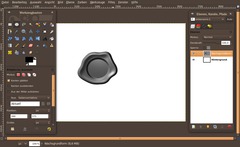
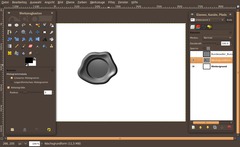
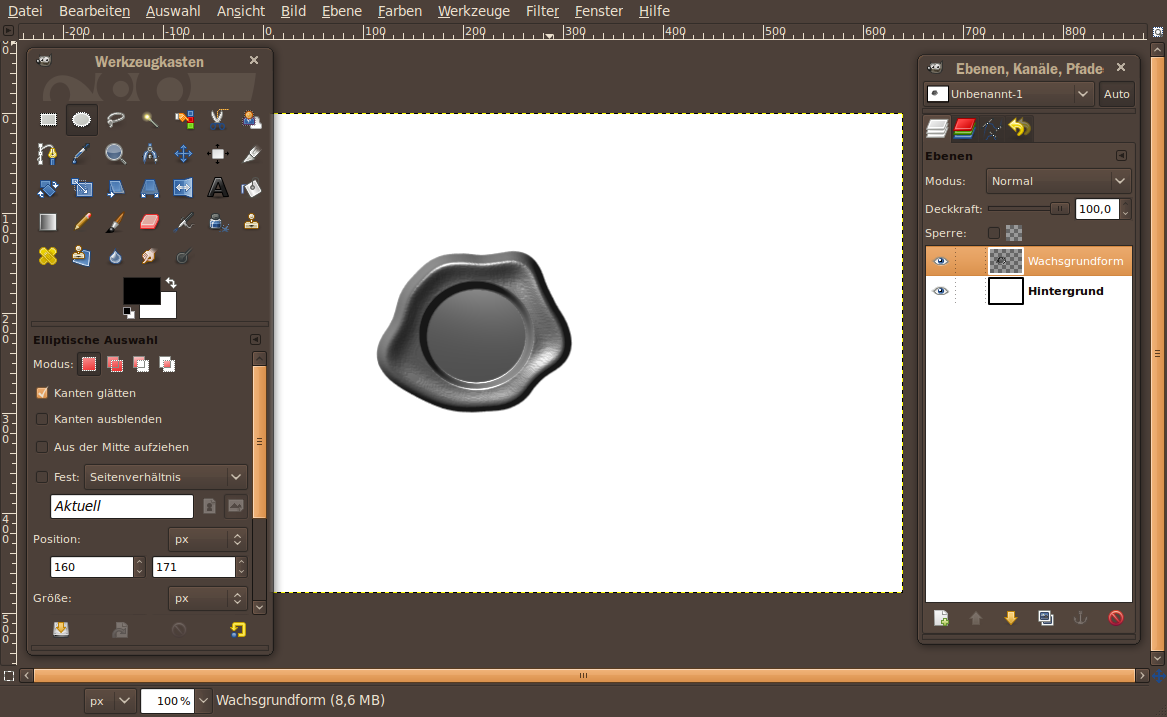
    After clicking OK the wax looks pretty cool already ;)
    Screenshot of step 10
    Click to enlarge
  11. 11
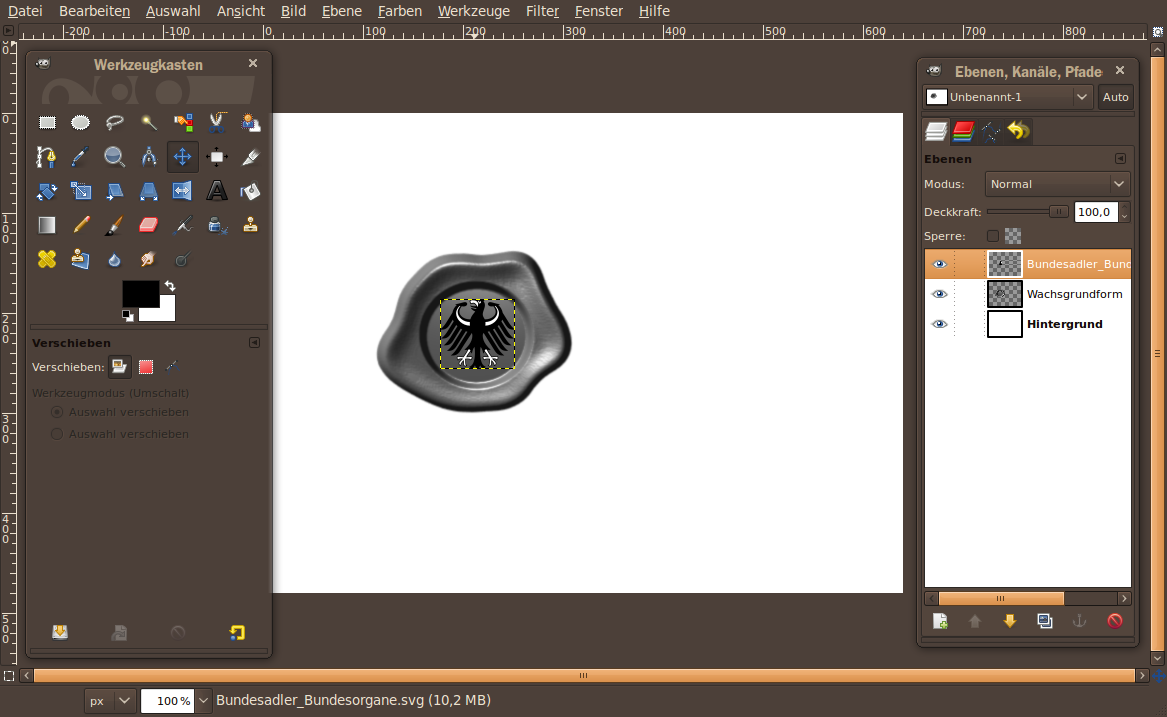
    Now we're getting a step futher to the engraved eagle.

    There is Germanys federal eagle available on wikipdeia commons here as vector graphics: http://de.wikipedia.org/wiki/Datei:Bundesadler_Bundesorgane.svg

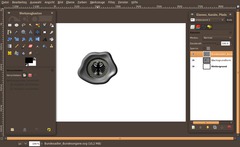
    Move the eagle image into your open image. GIMP asks you what size the eagle shall be. Choose: i.e. 75x70px. Then the eagle should appear in the desired size. Move it to the right direction inside the wax circle.
    Screenshot of step 11
    Click to enlarge
  12. 12
    Now we've to convert the black and white in the eagle image to some gray tones - that is because the Bump-Map filter needs gray tones to determine the depth of the engravness of the eagle inside the wax. To change colors use the curves:

    - Colors / Curves: Read the values from the image.
    Screenshot of step 12
    Click to enlarge
  13. 13
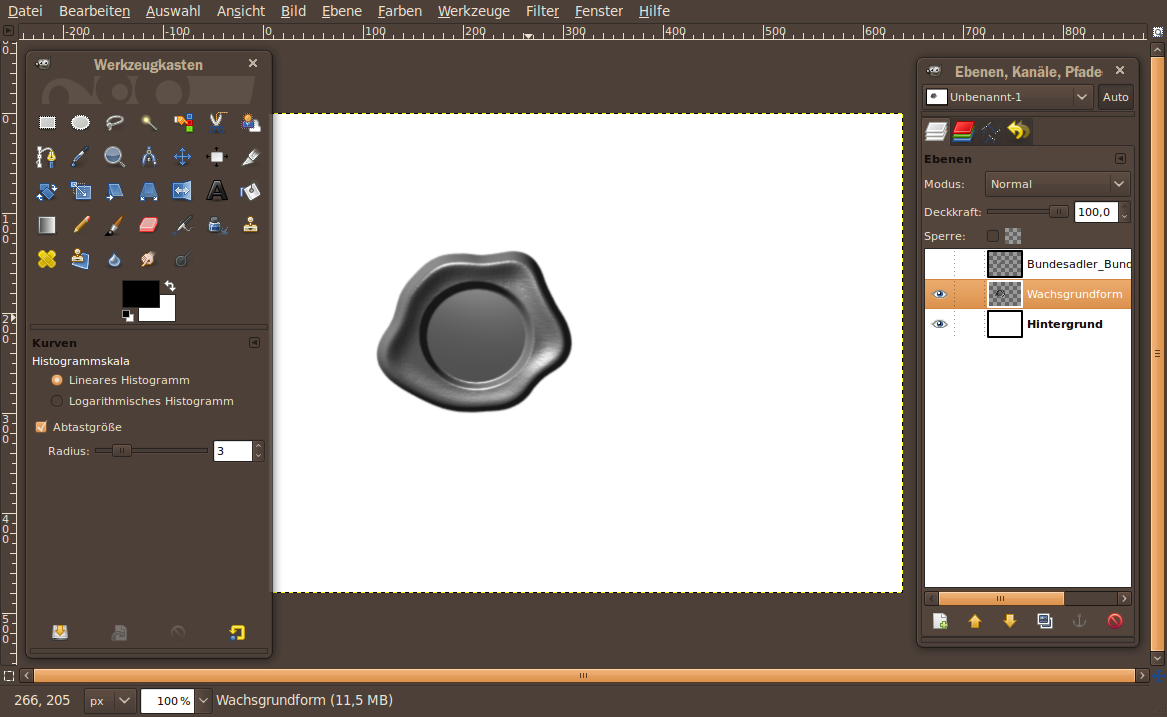
    - Important: Layer / Layer to Image size! If you skip this the Bump map filter will fail to allocate the right position of the eagle engraving and it will not even show you the eagle as an available bump map to choose.

    - Make the layer containing the eagle invisible using the eye icon.
    Screenshot of step 13
    Click to enlarge
  14. 14
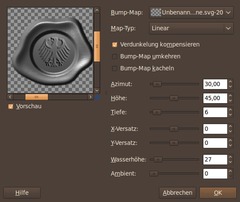
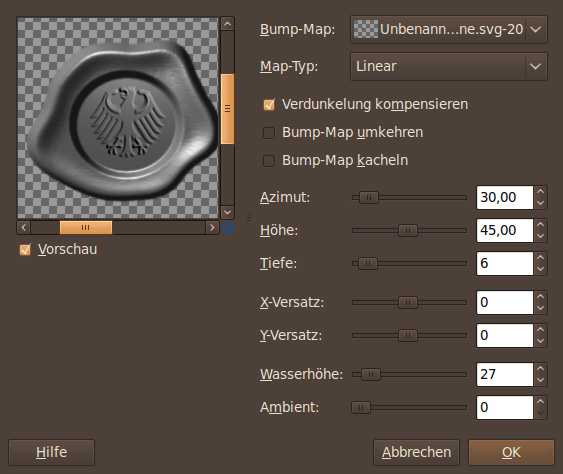
    - Filter / Map / Bump map:

    Choose the egale layer from the drop down menu and use the values from the image below:
    Screenshot of step 14
    Click to enlarge
  15. 15
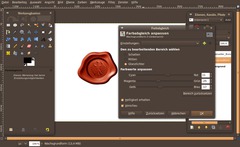
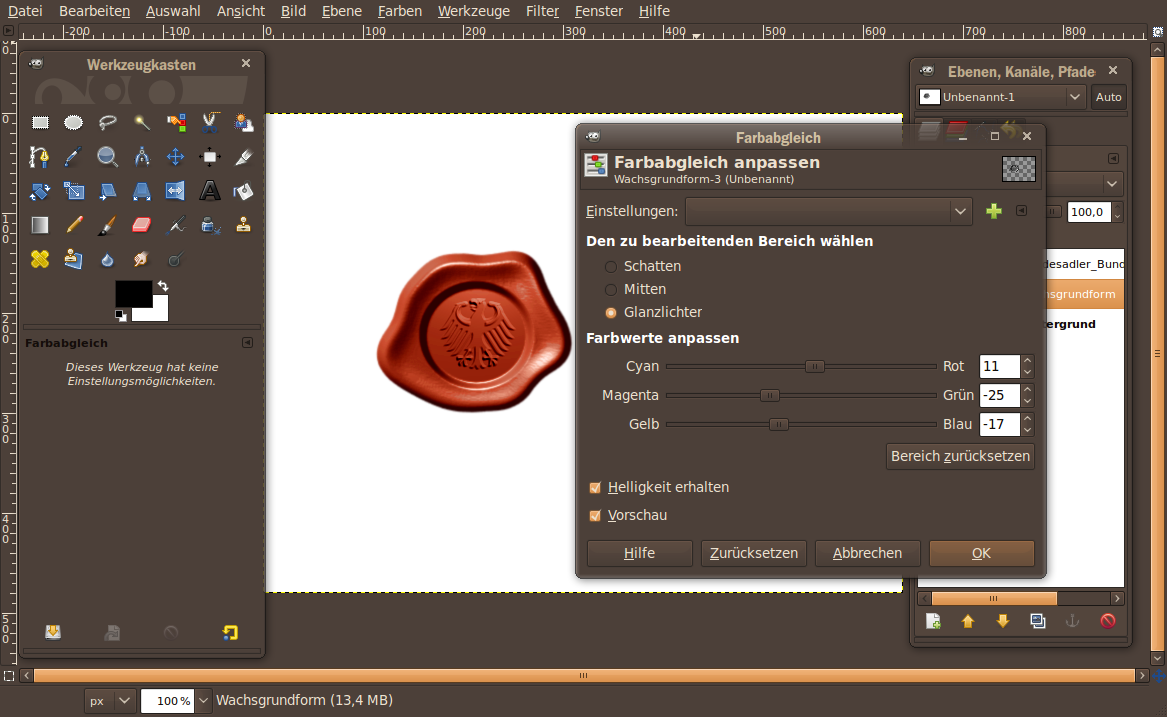
    To finish the image we need to colorize the wax using a saturate red waxy color ;)

    - Colors / Color Balance:

    Shadows: 17 / -22 / -52
    Midtones: 50 / -14 / -30
    Highlights: 11 / -25 / -17

    Darken it afterwards using Brightness & Contrast or the Curves again!
    Screenshot of step 15
    Click to enlarge
  16. 16
    We're done ;) I'm curious what you will engrave into the wax, heh...
    Screenshot of step 16
    Click to enlarge

This article is licensed under the following license: Attribution-Noncommercial 3.0 Austria

Comments

Post your own comments, questions or hints here. The author and other users will see your posting and can reply to it. Of course, you can also ask in the chat.

Comments are chronologically arranged.

1 rating(s) with 5.0 of 5 stars in average

  1. http://www.gimpusers.com/tutorials/create-a-wax-seal-with-an-engraved-eagle.html Tue 15 Dec 2009 04:11:26 AM CET Wes, 15 Dec 2009 04:11 AM

    Step 2 needs more detail. It took me a while to figure out you were in the histogram window (Sorry, I don't know German), and mine doesn't look like the picture. I can't seem to get the settings to do what you're doing.

  2. http://www.gimpusers.com/tutorials/create-a-wax-seal-with-an-engraved-eagle.html Tue 15 Dec 2009 04:13:12 AM CET Wes, 15 Dec 2009 04:13 AM

    Ok, I'm an idiot, if I just follow the "Color, Curves" part of it, it works out fine. Sorry.

  3. http://www.gimpusers.com/tutorials/create-a-wax-seal-with-an-engraved-eagle.html Tue 15 Dec 2009 04:32:47 AM CET Jose, 15 Dec 2009 04:32 AM

    The final result is pretty cool!

  4. http://www.gimpusers.com/tutorials/create-a-wax-seal-with-an-engraved-eagle.html Tue 15 Dec 2009 09:29:40 AM CET mahvin, 15 Dec 2009 09:29 AM

    Excellent tutorial, thanks Bernhard!

  5. http://www.gimpusers.com/tutorials/create-a-wax-seal-with-an-engraved-eagle.html Wed 16 Dec 2009 01:19:30 AM CET Camilla, 16 Dec 2009 01:19 AM

    I can't select the Alpha channel in step 2...Can anyone tell me how to make it work? It's just grayed out.

  6. http://www.gimpusers.com/tutorials/create-a-wax-seal-with-an-engraved-eagle.html Wed 16 Dec 2009 02:08:35 AM CET mahvin, 16 Dec 2009 02:08 AM

    @Camilla, are you sure you created a new transparent layer in step 1? If not, try doing that, first. If you did create a transparent layer then it means you are most likely working on the background layer and not the transparent layer.

  7. http://www.gimpusers.com/tutorials/create-a-wax-seal-with-an-engraved-eagle.html Wed 16 Dec 2009 02:09:04 AM CET devvv, 16 Dec 2009 02:09 AM

    most likely you painted the "wax" on the background layer. you need to paint it on a transparent newly created layer. otherwise there will be no option for Alpha in the dropdown menu of the curves dialog.

  8. http://www.gimpusers.com/tutorials/create-a-wax-seal-with-an-engraved-eagle.html Wed 16 Dec 2009 05:40:01 AM CET PixelOz, 16 Dec 2009 05:40 AM

    Terrific1 I love it! Nice tutorial.

  9. http://www.gimpusers.com/tutorials/create-a-wax-seal-with-an-engraved-eagle.html Wed 27 Jan 2010 10:47:57 AM CET Rob, 27 Jan 2010 10:47 AM

    A little hard to follow in places due to the wording and slight variations in the GUI, but the end result is excellent. Thank you.

  10. http://www.gimpusers.com/tutorials/create-a-wax-seal-with-an-engraved-eagle.html Sun 31 Jan 2010 06:18:19 AM CET Jose (Coche), 31 Jan 2010 06:18 AM

    Thanks devv! Really nice tutorial!!
    I don't get the point in step 7, it says "because we've told the channel to be 50% overlay"... I think I've lost myself in the road, but can anybody explain me how this works.

  11. http://www.gimpusers.com/tutorials/create-a-wax-seal-with-an-engraved-eagle.html Sun 31 Jan 2010 02:15:23 PM CET devvv, 31 Jan 2010 02:15 PM

    Hello Jose! I've clarified step 7 a bit more now. All i meant was, that, when creating a channel with 50% transparency, and if you then fill the channel with total black it is actually not a black but a gray (50% transparent black becomes gray)

    Hope that helps!

  12. http://www.gimpusers.com/tutorials/create-a-wax-seal-with-an-engraved-eagle.html Wed 03 Mar 2010 11:24:18 PM CET Julio, 03 Mar 2010 11:24 PM

    OK, I'm not getting the results well. When I make the circle and you say that then you need to make the Depth channel invisible and the wax layer visible, nothing i made in the Depth channel translates to the layer. I verified that the channel is made from the selection, everything stays the same. I'm doing the tutorial exactly as is stated here but is not working at all.

  13. http://www.gimpusers.com/tutorials/create-a-wax-seal-with-an-engraved-eagle.html Thu 04 Mar 2010 12:08:39 AM CET Julio, 04 Mar 2010 12:08 AM

    Sorry, I finally got it to work. I should jump a building for not been more aware.

  14. http://www.gimpusers.com/tutorials/create-a-wax-seal-with-an-engraved-eagle.html Mon 08 Mar 2010 03:17:47 AM CET Cadaver, 08 Mar 2010 03:17 AM

    After part 2, when I have to use the curve option, rather than Gettting an image that looks like the image, I get the same product as before, but with a black hue. Please help?

Registered users can log in (top right of the page) to use their profile name to post comments, request email notification on new comments and attach images (e.g. their versions of the effect) to their postings.

Are you human?

Adobe® Photoshop® is a registered trademark of Adobe Systems, Inc. Linux is a trademark of Linus Torvalds. Ubuntu and Canonical are registered trademarks of Canonical Ltd. | Clock times are shown as CET / CEST | Imprint / Privacy policy | powered by bitfire it services