gimpusers.com logo
German version English version

Not logged in

Sign up! | Lost password?

Latest discussion

  1. gimp-docs | yesterday 10:55 PM
    a new user perspective
  2. gimp-developer | yesterday 08:04 PM
    scanner support should be File->Acquire
  3. gegl-developer | yesterday 06:24 PM
    babl docs
  4. gimp-docs | yesterday 12:46 PM
    GIMP Manual
  5. gimp-user | yesterday 09:42 AM
    Bug

External news

Poll

How good are you at programming?

OMG, that is nothing for me at all!

I've been coding a little bit but I'm not very fit at it

I'm pretty good at programming and would maybe be able to write a Plug-In for GIMP

I'm very good at programming and I would theoretically be able to hack for the GIMP core

See results

Stats

gimpusers.com RSS feed

RSS feed Retweet this!

10 Dec 2009 02:11 AM, by Nooster , translated to English by devvv (Bernhard Stockmann)

Create a live 3D-Earth with live clouds!

Our user Nooster wrote a cool tutorial on his blog. He shows uns how to generate a realistic 3D globe with clouds that have been snapped by a sattelite live from space! Enjoy

This article has been written using GIMP 2.6. It's divided into 12 steps and takes about 10 min to complete for an average user. 10767 times read so far. Category: Photos / wallpapers, required skill: 1 of 5

2 comments have been posted so far.

Available in other languages:

Relevant links:

  1. 1
    We're going to create the Live-Earth from 2 images - The earth itself and the clouds:

    Download the sample earth here from wikipedia:
    http://de.wikipedia.org/w/index.php?title=Datei:Whole_world_-_land_and_oceans.jpg&filetimestamp=20050522223323

    If you're on linux use a terminal console and use this script to generate a real day/night brightness on the earth:
    http://ubuntued.info/wp-content/uploads/2008/12/changer.sh

    Second, please download these real clouds image that is snapped by a sattelite from space every 3 hours:
    http://xplanet.sourceforge.net/clouds.php
  2. 2
    Open the image of the earth with GIMP and scale it to the size of your cloud-picture, for example 2048×1024 or 4096×2048) pixel. Click Image → Scale Image.
  3. 3
    Use drag&drop to get the clouds image into your earth image. Then overlap the image with the clouds with the image of the earth.
  4. 4
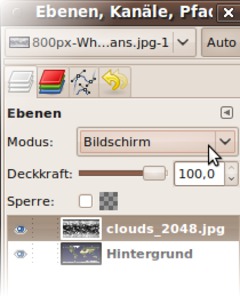
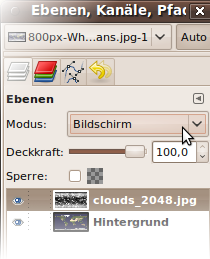
    Change the layers mode of this layer to „screen“.
    Screenshot of step 4
    Click to enlarge
  5. 5
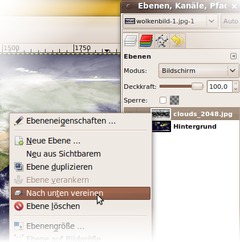
    Combine the two layers into one: Right click in the layers dialogue on the clouds layer - select „merge down“
    Screenshot of step 5
    Click to enlarge
  6. 6
    Filter → Map → MapObject…
  7. 7
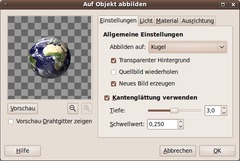
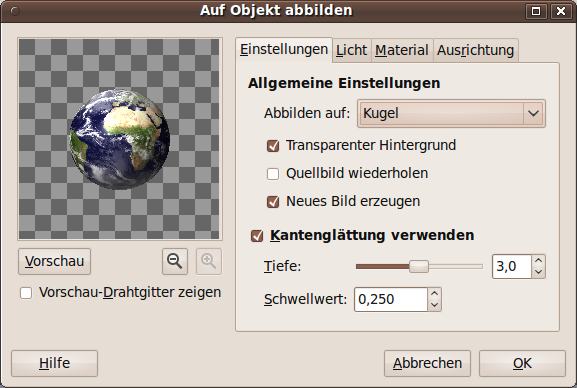
    Pick "Ball" and "No background".

    I disabled the light, but you can try it, let the sun shine ;-)
    Screenshot of step 7
    Click to enlarge
  8. 8
    I took the following for earth rotation: x=0,0; y=5,1;z=15,4
  9. 9
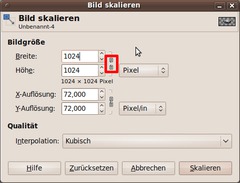
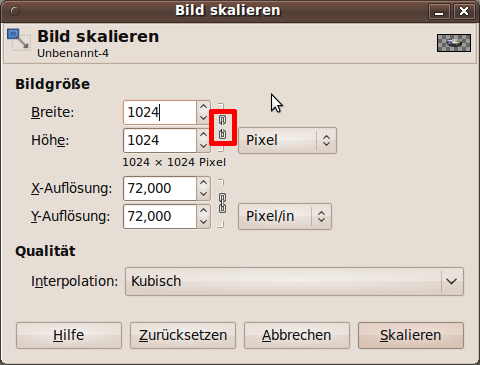
    After clicking OK the image is generated within seconds. Don’t forget to rescale the new image! Use the same size for width and height.
    Screenshot of step 9
    Click to enlarge
  10. 10
    Image → Autocrop deletes the transparent border
  11. 11
    optional: To generate a spacy picture you need stars! So create a new layer, color it black and click on Filter → noise → HSV-noise ;-)
  12. 12
    Voilà: The realtime globe is ready! :-)
    Screenshot of step 12
    Click to enlarge

This article is licensed under the following license: Attribution-Noncommercial 3.0 Austria

Comments

Post your own comments, questions or hints here. The author and other users will see your posting and can reply to it. Of course, you can also ask in the chat.

Comments are chronologically arranged.

2 rating(s) with 3.0 of 5 stars in average

  1. http://www.gimpusers.com/tutorials/create-a-realtime-globe.html Thu Mar 25 16:18:11 2010 chrimdl, 25 Mar 2010 04:18 PM

    Practical

  2. http://www.gimpusers.com/tutorials/create-a-realtime-globe.html Fri Aug 6 05:22:15 2010 ViolaCarlson, 06 Aug 2010 05:22 AM

    I will recommend not to hold off until you earn enough money to order all you need! You should just take the <a href="http://bestfinance-blog.com/topics/business-loans">business loans</a> or sba loan and feel yourself free

Registered users can log in (top right of the page) to use their profile name to post comments, request email notification on new comments and attach images (e.g. their versions of the effect) to their postings.

Are you human?

Adobe® Photoshop® is a registered trademark of Adobe Systems, Inc. Linux is a trademark of Linus Torvalds. Ubuntu and Canonical are registered trademarks of Canonical Ltd. | Clock times are shown as CET / CEST | Imprint / Privacy policy | powered by bitfire it services | sponsored by Hirners Hotel Guide