Last online: Marcel2, eatofid13, bam0, Pianist2, MyOwnOwner0, Avarra24, MaxPhilip14, devvv535, RedHawk20210, Tille0, deni6642, Wambo0
The GIMP
» All GIMP shortcuts / hotkeys
» GIMP changelog
» What's new in GIMP 2.4
» GIMP manual
» Books about GIMP
Making a pencil drawing from a photo Spicing up black/white images Deletion of unused user accounts GIMP 2.4.6 released MeetTheGimp.org is again not reachable Libre Graphics Meeting 2008: Videos online!
Perfect masking using a highpass Compiling GIMP 2.4.5 with Ubuntu 7.10 Creating 3D icons Rounded Corners How to generate realistic mass waterdrops on a surface Smoke and Flames
- today 06:11 PM [gimp-docs] GIMP help in 2.6
- today 02:56 PM [gimp-tutorials.net] Colourful and glowing text effect tutorial
- today 01:18 PM [gimp-docs] GIMP help in 2.6
- today 10:53 AM [gimp-docs] Migration to *.po
- today 07:04 AM [gimp-developer] potfiles
- today 06:05 AM [gimp-developer] potfiles
- 04 Jul 2008 06:38 PM [gimp-developer] potfiles
- 04 Jul 2008 06:26 PM [meetthegimp] Focus Ring 15 - All Access Le Mans
Difficulty: 
GIMP version: 2.3.12
Category: Photos / wallpapers
Author: devvv
Steps: 6
Needed time: ca. 15 min
Hits: 45007
Others from this category:

Facts and numbers
Current version: 2.4.6
Dev. version: 2.5.1
38 tutorials with
36 downloads,
175 news and
11290 list messages

Tutorial: Creating the Che Guevara Effect
Written by devvv (19 May 2007 01:02 PM)
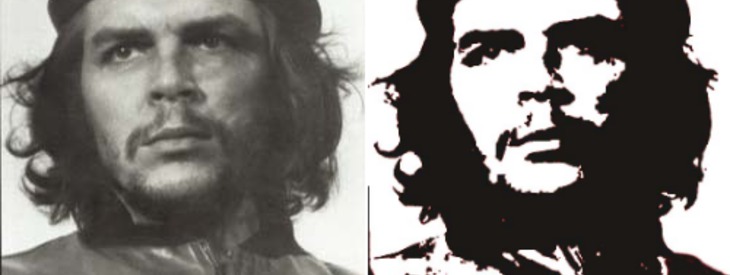
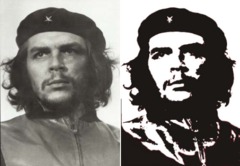
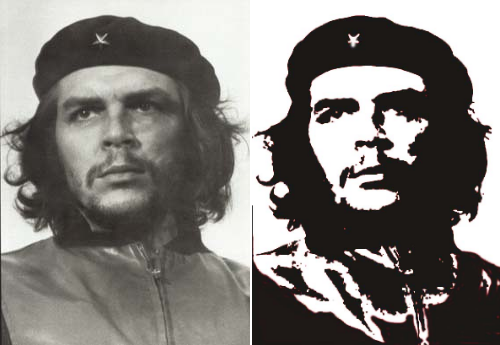
Probably the most popular picture that uses this black/white-effect is one of the famous revolutionist of Cuba: Che Guevara. To create such an effect for your own it is only necessary to take a few minutes of time.
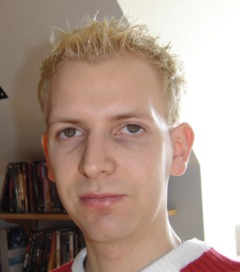
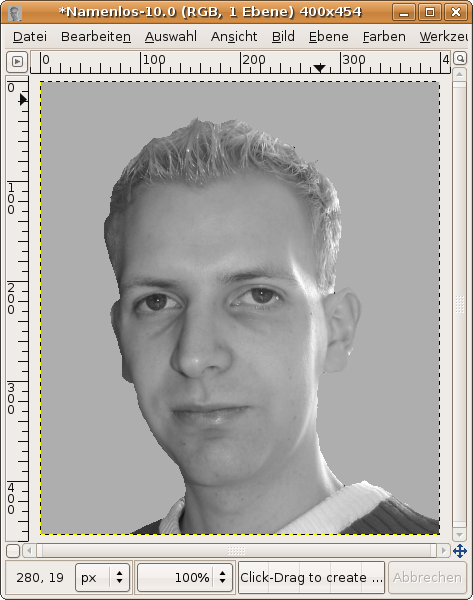
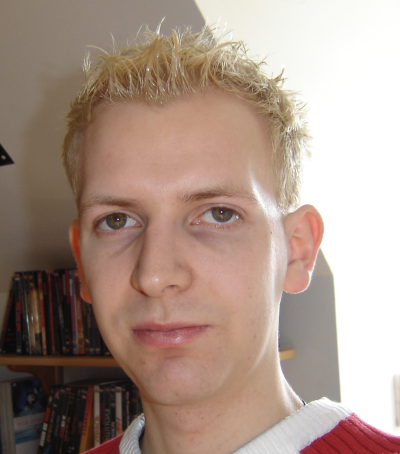
- Take a picture of yourself or anyone else. Open it.

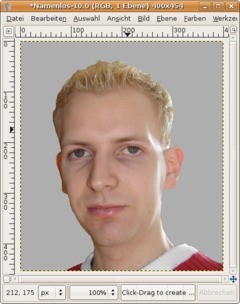
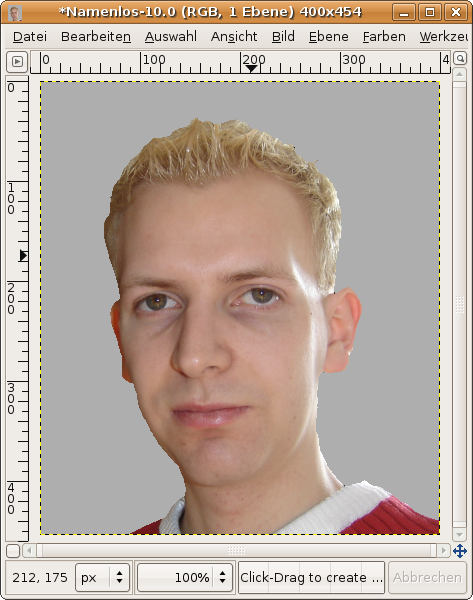
click to enlarge - To get an optimal effect you've to mask your face. You don't have to take special time being very exact. Maybe the fastest way to this us the free selection tool. Make a selection around your face, invert the selection (Select / Invert) and remove the parts.
Again, it is not important to be too exact.
Now choose #aeaeae as FG-Color and press CTRL+, (EDIT / Fill FG) to fill the selection with that color. Press CTRL SHIFT A to deselect.
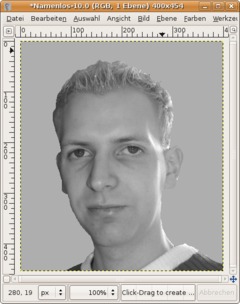
click to enlarge - Now go to (Layer /) Colors / Desaturate. That step is not totally necessary but i helps us to higher the amount of gray tones in the picture.

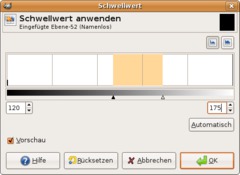
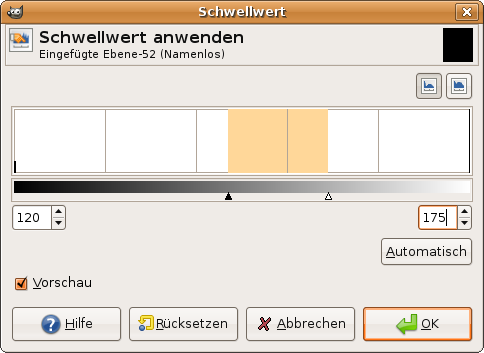
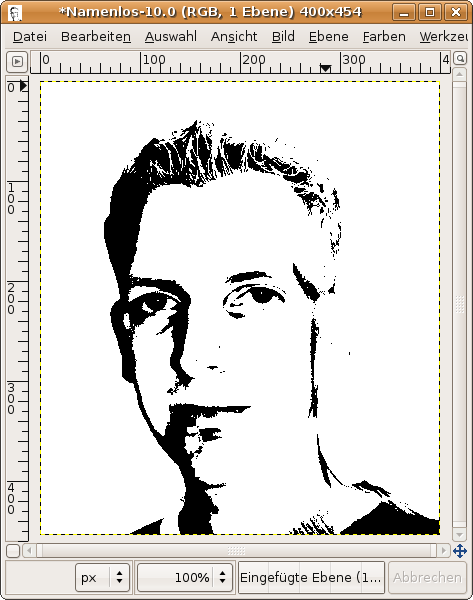
click to enlarge - Next go to: (Layer/) Colors / Threshold and move the little triangle-controls to similar places as I did. Alternatively you could enter 120 to the left and 215 to the right.
You should have good results with it.
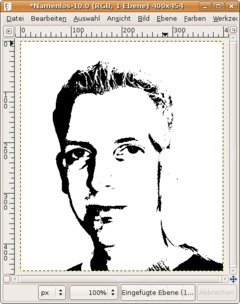
click to enlarge - You're done ;) Congratulations!

click to enlarge - Here we see the famous original picture of Che Guevara:
click to enlarge

This work is licensed under the following license: Creative Commons Attribution-NonCommercial 2.0 Austria.
Discussion / comment this tutorial
Post your own comments, questions or hints here. The author and other users will see your posting and can answer to it. Of course, you can also ask in the chat.
Newer comments are displayed first!
From: moatedknight (03 Jun 2008 09:35 PM) – Send a private message
I find it helps to use the Photocopy filter (Filters -> Artistic -> Photocopy) [settings: every bar to the furthest right except sharpness[0 to (.6)] and mask radius [30 to 50] both of those depended on the picture and how you want it to look. The above makes the image look bolder and it removes those pointless little black/white dots.
Also the Che from the attached picture was made with this tutorial.
From: ducttape (20 Mar 2008 12:00 AM) – Send a private message
Very nice, the exact values isn't bad, just give a base, I played with mine some.
From: ader10 (20 Sep 2007 10:03 PM) – Send a private message
I forgot to say, nice tutorial. I was going to get up and make one pretty much the same but you got to it before I did :)
From: ader10 (20 Sep 2007 10:00 PM) – Send a private message
Saying specific values is bad, because people can get a variety of brightness and contrast in different images.
What I do: Click and drag in the long white bar until I get something that I like.
Registered users can log in to use their profile name to post comments, request email notification on new comments and attach images (e.g. their versionen of the effect) to their postings.
Post a comment:
Adobe® Photoshop® is a registered trademark of Adobe Systems, Inc. Linux is a trademark of Linus Torvalds. Ubuntu and Canonical are registered trademarks of Canonical Ltd. | Imprint | powered by bitfire.at