gimpusers.com logo
German version English version

Not logged in

Sign up! | Lost password?

External news

Poll

Would you like to be able to use your Google/Yahoo/MSN (OpenID) login on gimpusers, too?

Definately! I would enjoy the possibility to use my OpenID on different websites!

I don't have a special need for OpenID but I think it could be useful

Doesn't matter to me

Never, OpenID is a pain regarding privacy and personal data protection!

No. (please post a comment)

See results

Stats

gimpusers.com RSS feed

RSS feed Retweet this!

15 Jun 2007 11:49 PM, by devvv (Bernhard Stockmann)

Creating a bloody splatter texture

Today we will create a cool bloody texture that should look as there were random splatter all over the place.

This article has been written using GIMP 2.3.18. It's divided into 6 steps and takes about 10 min to complete for an average user. 49382 times read so far. Category: Simple effects, required skill: 1 of 5

34 comments have been posted so far.

Available in other languages:

  1. 1
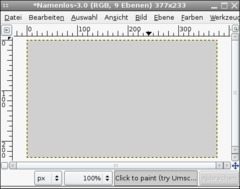
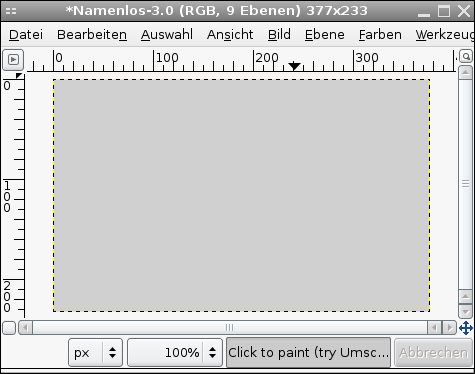
    Open a new file, any size. I used 377 x 233 px. Fill the background with #d0d0d0.
    Screenshot of step 1
    Click to enlarge
  2. 2
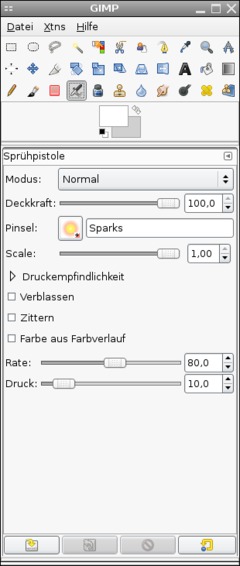
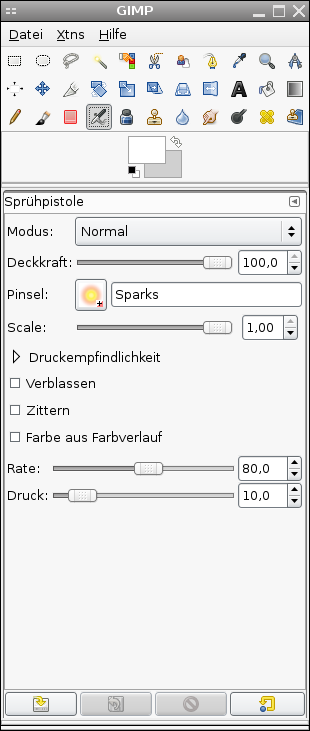
    Use the Airbrush-Tool and use the brush named "Sparks". It is the yeloow one.
    Screenshot of step 2
    Click to enlarge
  3. 3
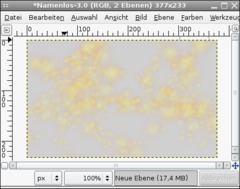
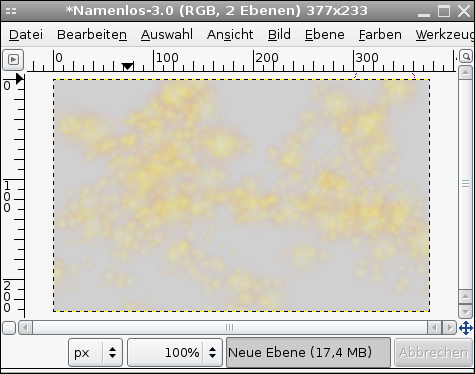
    Add a new empty layer and paint around randomly. It is important that the sparks overlay each other sometimes.
    Screenshot of step 3
    Click to enlarge
  4. 4
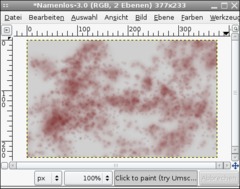
    Now click the "lock transparency" icon in the layers dialog. This option is found right above the transparency-changer.

    Choose a new color as foreground-color: #680000.
    - Edit / Fill FG-Color.

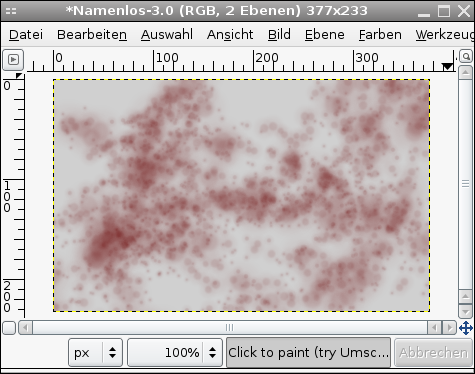
    Everything should now be in a slight dark red.
    Screenshot of step 4
    Click to enlarge
  5. 5
    Now please deactivate the "lock transparency"-option again.

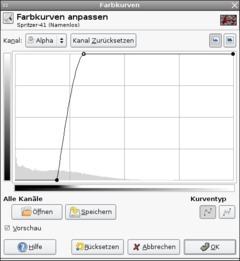
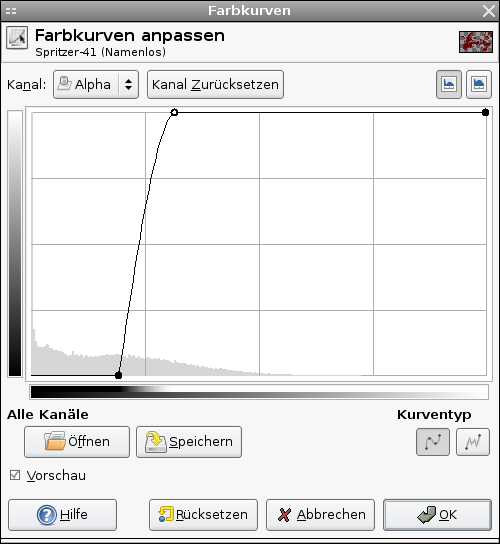
    Go to Colors / Curves, choose "Alpha" as channel (top left). Apply the curve as seen on the picture.
    Screenshot of step 5
    Click to enlarge
  6. 6
    After that you're done ;)

    Easy, right?
    Screenshot of step 6
    Click to enlarge

This article is licensed under the following license: Attribution-Noncommercial 3.0 Austria

Links (pingbacks)

Comments

Post your own comments, questions or hints here. The author and other users will see your posting and can reply to it. Of course, you can also ask in the chat.

Comments are chronologically arranged.

  1. http://www.gimpusers.com/tutorials/blood-splatter-texture.html Mon 18 Jun 2007 06:45:29 AM CEST Peter Grosse, 18 Jun 2007 06:45 AM

    Wow, very nice tutorial, here is my resualt
    I made a screen saver size one....
    http://img513.imageshack.us/img513/4356/bloodpenguinwk1.png

  2. http://www.gimpusers.com/tutorials/blood-splatter-texture.html Thu 19 Jul 2007 10:35:55 AM CEST gallinula, 19 Jul 2007 10:35 AM

    Great technique. I've been looking for an effective way to create splatter for some time. This is brilliant. Thank you.

  3. http://www.gimpusers.com/tutorials/blood-splatter-texture.html Sat 21 Jul 2007 06:58:27 AM CEST corban, 21 Jul 2007 06:58 AM

    please help, i can't find how to lock transparency

  4. http://www.gimpusers.com/tutorials/blood-splatter-texture.html Sat 21 Jul 2007 09:42:31 AM CEST devvv, 21 Jul 2007 09:42 AM

    if you look at the layers dialog, look above all layers. ther is a little checkbox - this is the option to lock transparency

  5. http://www.gimpusers.com/tutorials/blood-splatter-texture.html Sat 21 Jul 2007 03:59:39 PM CEST corban, 21 Jul 2007 03:59 PM

    does it say keep transparency, i tried that, doesn't work

    also i clicked on fill WITH fg color, not fill fg color

  6. http://www.gimpusers.com/tutorials/blood-splatter-texture.html Sat 21 Jul 2007 04:37:16 PM CEST corban, 21 Jul 2007 04:37 PM

    i updated to the version u are using, but now even when i click lock transparecny, the edit fill fg color, it fills it all with fg color

  7. http://www.gimpusers.com/tutorials/blood-splatter-texture.html Sat 21 Jul 2007 04:39:30 PM CEST corban, 21 Jul 2007 04:39 PM

    omg got it to work thank you thank you thank you

  8. http://www.gimpusers.com/tutorials/blood-splatter-texture.html Sat 21 Jul 2007 04:41:48 PM CEST devvv, 21 Jul 2007 04:41 PM

    wow nice ;) what was the hard part for you or what was the difficulty. maybe i can add this to the tutorial then. that would help other users!

  9. http://www.gimpusers.com/tutorials/blood-splatter-texture.html Tue 21 Aug 2007 09:19:35 PM CEST Sarah, 21 Aug 2007 09:19 PM

    Wow, that's really cool. I'm a first time GIMP user and I had trouble finding my curve tool because I didn't have it activated yet. ^_^'

  10. http://www.gimpusers.com/tutorials/blood-splatter-texture.html Sat 15 Sep 2007 10:20:20 AM CEST Amyk13, 15 Sep 2007 10:20 AM

    Wow!!! I love it! It's very cool!!

  11. http://www.gimpusers.com/tutorials/blood-splatter-texture.html Sun 04 Nov 2007 12:41:09 AM CET Mergh, 04 Nov 2007 12:41 AM

    I have the same problem,, it fills the whole screen with RED. Not Th Sparks. The Transparency is also locked.

  12. http://www.gimpusers.com/tutorials/blood-splatter-texture.html Tue 06 Nov 2007 09:37:45 PM CET Jommi, 06 Nov 2007 09:37 PM

    Just some notes that weren't immediately obvious to a new user like myself.

    For 2.4.0 Windows users:
    When he says empty layer, he means transparent.
    When you are ready to fill with FG color,mouse over the the air brushed splatter, then try right click edit>Fill with FG.
    For the Lock transparency, in the layer window, click on your transparent layer, then mouse over to the left and click the empty box next to the eye. You'll see a chain link.
    And to get the curve to bend like he shows, click on it and stretch it.

  13. http://www.gimpusers.com/tutorials/blood-splatter-texture.html Tue 06 Nov 2007 09:48:34 PM CET Jommie, 06 Nov 2007 09:48 PM

    Opps I made a mistake.
    For the lock transparency part. It's not the chain link like I said previously. It's the "Lock alpha channel" just under the Opacity slider. (I had both selected.)
    Also you don't need to mouse over the air brush splatter, the lock takes care of it.
    And again this description is for Windows users.
    I forgot to say thanks for this nice short guide!

  14. http://www.gimpusers.com/tutorials/blood-splatter-texture.html Sat 01 Mar 2008 11:39:44 AM CET ales, 01 Mar 2008 11:39 AM

    can u tell me how to change the background to #d0d0d0 ??????

  15. http://www.gimpusers.com/tutorials/blood-splatter-texture.html Sat 01 Mar 2008 11:47:20 AM CET ales, 01 Mar 2008 11:47 AM

    and how to lock transparency?? please!!!!!

  16. http://www.gimpusers.com/tutorials/blood-splatter-texture.html Wed 09 Apr 2008 04:43:30 PM CEST ur mother, 09 Apr 2008 04:43 PM

    ur mother

  17. http://www.gimpusers.com/tutorials/blood-splatter-texture.html Sat 12 Apr 2008 10:33:07 PM CEST zac, 12 Apr 2008 10:33 PM

    IVe Copied It step by step so far.

    But When I click Fill Fg Colour Everything goes Red..

    I've got lock and chain on..

    Please Help

  18. http://www.gimpusers.com/tutorials/blood-splatter-texture.html Thu 15 May 2008 10:21:03 PM CEST Thebeaner1, 15 May 2008 10:21 PM

    Nice tut man, easy, sipmle, and looks great!

  19. http://www.gimpusers.com/tutorials/blood-splatter-texture.html Wed 21 May 2008 02:30:50 AM CEST mothergoose, 21 May 2008 02:30 AM

    just like everyone else's problem i've been following the instructions perfectly (so i think) then once i have to fill in FG color it just makes the whole layer completely red. i need help. please!

  20. http://www.gimpusers.com/tutorials/blood-splatter-texture.html Wed 21 May 2008 10:44:36 AM CEST devvv, 21 May 2008 10:44 AM

    did you make sure that you're working on the layer that contains the yellow sparks?

    it is very important to have the "lock transparency" option activated. it is found right besinde the ruler that lets you change the opacity of the layer (in the layers dialog - below the layer modes drop down menu)

  21. http://www.gimpusers.com/tutorials/blood-splatter-texture.html Wed 16 Jul 2008 07:06:46 PM CEST Mike Mire, 16 Jul 2008 07:06 PM

    Well I did everything by the step by step guide but when I do the curves and click Ok, the image stays the same...

    Yes the curve is done on the alpha channel and yes I used the right curve...I don't know whats wrong..

  22. http://www.gimpusers.com/tutorials/blood-splatter-texture.html Wed 16 Jul 2008 07:43:18 PM CEST gallinula, 16 Jul 2008 07:43 PM

    If the alpha channel is still locked while using the curves tool there will be no visible effect. Make sure that the layer is unlocked before applying the curve tool. I keep forgetting this myself.

  23. http://www.gimpusers.com/tutorials/blood-splatter-texture.html Tue 05 Aug 2008 03:53:42 AM CEST Ticerot, 05 Aug 2008 03:53 AM

    Thank you, excellent tutorial.

  24. http://www.gimpusers.com/tutorials/blood-splatter-texture.html Mon 25 Aug 2008 05:57:27 PM CEST jleaf, 25 Aug 2008 05:57 PM

    Nice tutorial. worked like a charm. I did the splatter in blue though, and it looked just as good- not that it looked like blood then, but it was for something i was doing. Anyways for all you people who keep having trouble, you need to create a new layer for the sun thing, then fill it with FG. When you need to "lock the transparency just lock the alpha (its a little block with a square next to it.) It's actually very easy and effective- and it doesn't really matter what size or backround color you have it: i had a white backround with a 450x100 size frame. Still worked like a charm.

  25. http://www.gimpusers.com/tutorials/blood-splatter-texture.html Sat 15 Nov 2008 12:13:08 AM CET Michael, 15 Nov 2008 12:13 AM

    This is bogus, There is NO lock transparency button, Im on GIMP 2.6, help?

  26. http://www.gimpusers.com/tutorials/blood-splatter-texture.html Sat 15 Nov 2008 09:59:53 AM CET gallinula, 15 Nov 2008 09:59 AM

    Michael, look on the layers tab (CTRL-L if you can't find it).
    Just above the list of layers you will find the lock transparency button. (Its a checkbox actually but we all love semantics).
    This technique really does work if you get to the end.
    Happy splattering.

  27. http://www.gimpusers.com/tutorials/blood-splatter-texture.html Sun 28 Dec 2008 07:33:59 PM CET ño, 28 Dec 2008 07:33 PM

    thank u! great tutorial ^^

  28. http://www.gimpusers.com/tutorials/blood-splatter-texture.html Sun 22 Feb 2009 06:11:19 AM CET Nott, 22 Feb 2009 06:11 AM

    Absolutely nothing suggested is working, my image still fills with red.
    However, I did get around that by making a white layer in the back, putting a filled red layer above, and setting the red layer to "Hue". To be honest, it still looks like fine spray instead of splatter.
    I don't understand the Alpha Curves thing. I tried to get it clsoe to that picture, and when I hit OK nothing happened.

  29. http://www.gimpusers.com/tutorials/blood-splatter-texture.html Sun 22 Feb 2009 06:15:55 AM CET Nott, 22 Feb 2009 06:15 AM

    Ok, the alpha thing is making me angry. No matter what I do, it has NO effect!
    -30 seconds later...-
    OH, you have to set it to the sparks layer, at least the way I do it (new layer, red, "hue").
    I still can't do the fill-with-fg-color like you do.

  30. http://www.gimpusers.com/tutorials/blood-splatter-texture.html Sun 22 Feb 2009 06:19:58 AM CET Nott, 22 Feb 2009 06:19 AM

    Last spampost, sorry!
    I think if you use sparks, and have your red color ready, you can go to "Brush Dynamics" in the toolbox and check everything on "Velocity". Not as compeltely blood-like, but ok for me.

    ......I have 2.0
    Must be why nothing works. >.>

  31. http://www.gimpusers.com/tutorials/blood-splatter-texture.html Mon 23 Mar 2009 03:55:06 AM CET bobdotexe, 23 Mar 2009 03:55 AM

    this is cool, I used it on a sword I made!


    Click to enlarge

  32. http://www.gimpusers.com/tutorials/blood-splatter-texture.html Fri 07 Aug 2009 02:16:41 AM CEST gimpygirl, 07 Aug 2009 02:16 AM

    um, what was the curve you used? mine looks a bit different thean yours.

  33. http://www.gimpusers.com/tutorials/blood-splatter-texture.html Sun 11 Oct 2009 06:43:16 AM CEST Bandit, 11 Oct 2009 06:43 AM

    I just wanted to say this tutorial was great!

    I ended up making http://i29.tinypic.com/n4ebli.jpg and http://i32.tinypic.com/iqy2k6.jpg using bloody textures I made with this tutorial

  34. http://www.gimpusers.com/tutorials/blood-splatter-texture.html Wed 30 Dec 2009 02:31:48 AM CET :-D, 30 Dec 2009 02:31 AM

    http://i8.photobucket.com/albums/a47/Authiel/bloodspatterattempt2.png

Registered users can log in (top right of the page) to use their profile name to post comments, request email notification on new comments and attach images (e.g. their versions of the effect) to their postings.

Are you human?

Adobe® Photoshop® is a registered trademark of Adobe Systems, Inc. Linux is a trademark of Linus Torvalds. Ubuntu and Canonical are registered trademarks of Canonical Ltd. | Clock times are shown as CET / CEST | Imprint / Privacy policy | powered by bitfire it services