gimpusers.com logo
German version English version

Not logged in

Sign up! | Lost password?

Latest discussion

  1. gimp-developer | yesterday 11:09 PM
    [PATCH] OpenRaster: optimize PNG saving
  2. gimp-user | yesterday 10:21 AM
    ?? Status of remembering Layers setting for Canvas Resizing -- in most recent version
  3. gimp-user | yesterday 09:52 AM
    What do web designers want from GIMP?
  4. gimp-developer | yesterday 09:34 AM
    Adding ability to reverse curves dialog
  5. gimp-user | 11 Mar 2010 06:26 PM
    Enlarge Canvas: Is there a way to do it by dragging? Could/Should there be?

External news

Poll

Would you like to be able to use your Google/Yahoo/MSN (OpenID) login on gimpusers, too?

Definately! I would enjoy the possibility to use my OpenID on different websites!

I don't have a special need for OpenID but I think it could be useful

Doesn't matter to me

Never, OpenID is a pain regarding privacy and personal data protection!

No. (please post a comment)

See results

Stats

gimpusers.com RSS feed

RSS feed Retweet this!

21 Dec 2008 01:08 AM, by devvv (Bernhard Stockmann), translated to English by redforce (Richard H.)

Creating an abstract chaos explosion

I saw this tutorial recently for Photoshop and have ported it to GIMP. Doing this effect is quite simple and you will achieve good results even if you have no GIMP experience. We will create an "abstract explosion" with a little painting and a few filters. Have fun!

This article has been written using GIMP 2.6.3. It's divided into 11 steps and takes about 10 min to complete for an average user. 14118 times read so far. Category: Simple effects, required skill: 1 of 5

9 comments have been posted so far.

Available in other languages:

  1. 1
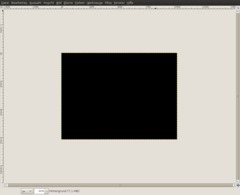
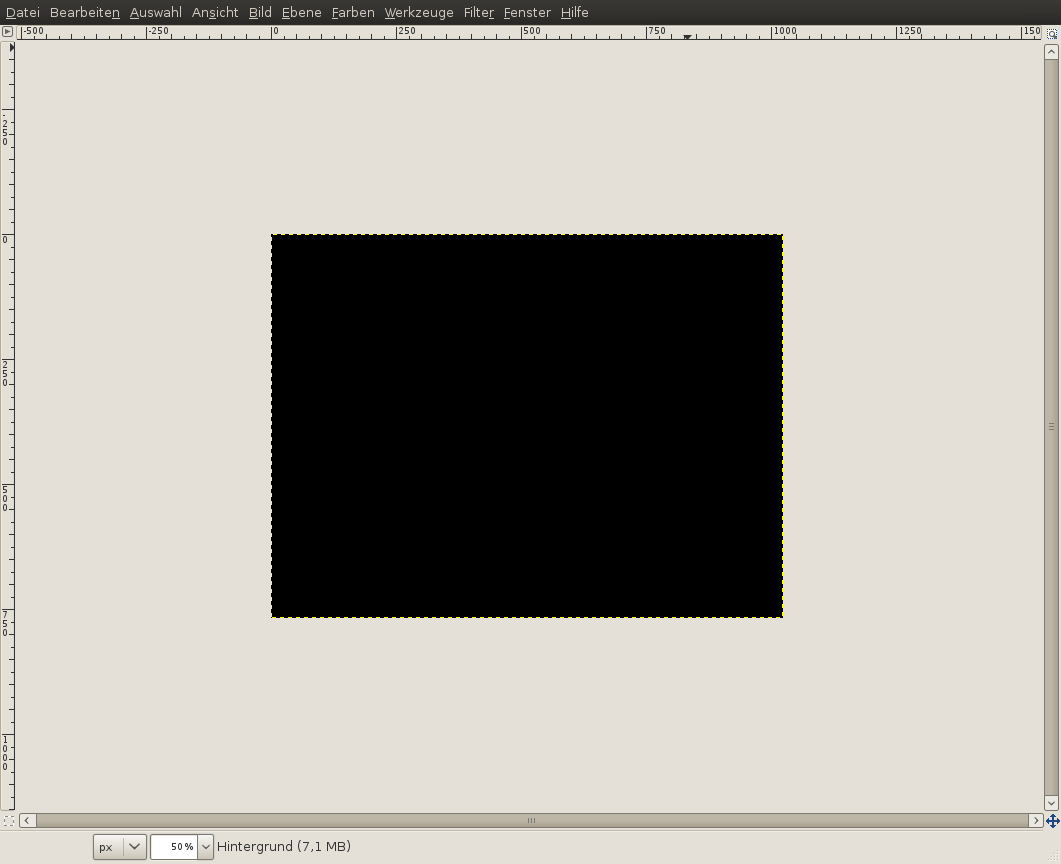
    Create a new empty image: 1024x768px.

    - Set foreground color: black
    - Then: Edit / Fill with FG Color

    The whole image should now be black.
    Screenshot of step 1
    Click to enlarge
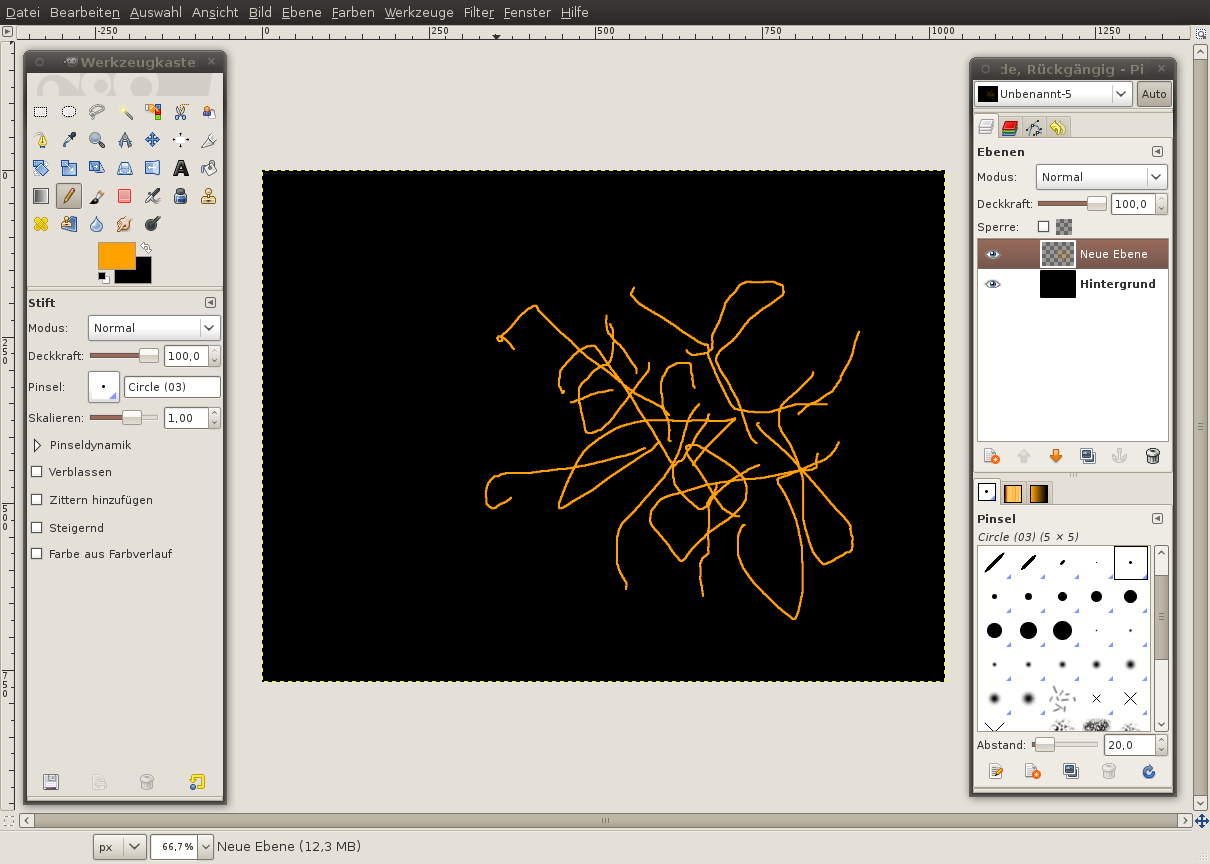
  2. 2
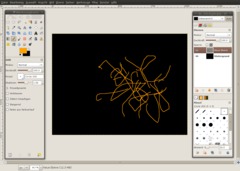
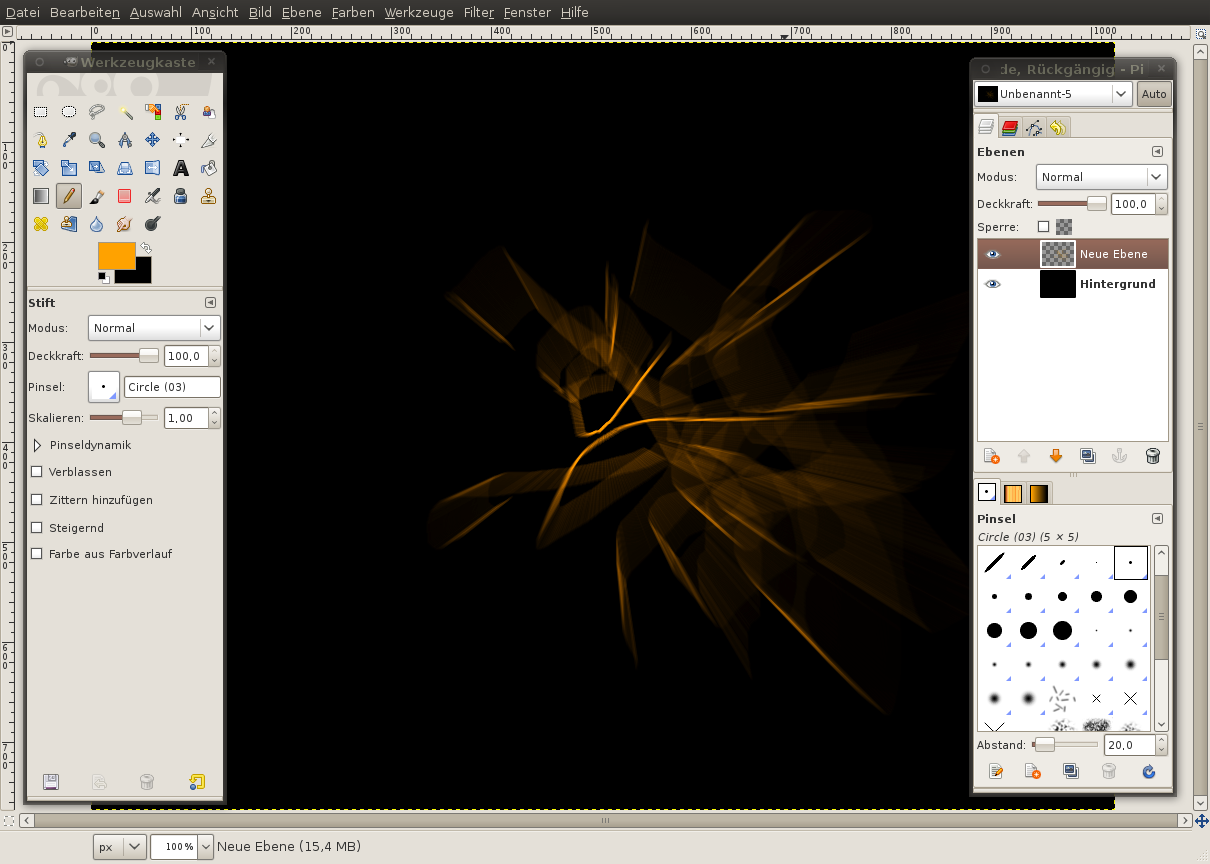
    - In the layers window (show with Ctrl+L), create a new transparent layer.
    - Choose the color #ffa200 as the foreground color.
    - Select the pencil tool with the "Circle (3)" brush.
    - Then draw some mazy lines on the new layer.
    Screenshot of step 2
    Click to enlarge
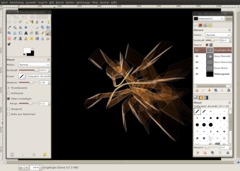
  3. 3
    Now choose

    - Filters / Blur / Motion Blur

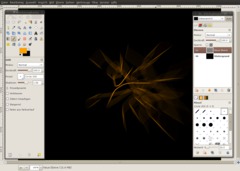
    There you select blur type "Zoom" and set the blur parameter "Length" to 90. Don't modify the other values. Make sure that "Blur outward" is not selected.
    Screenshot of step 3
    Click to enlarge
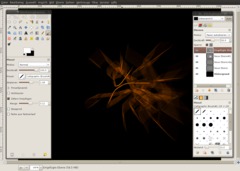
  4. 4
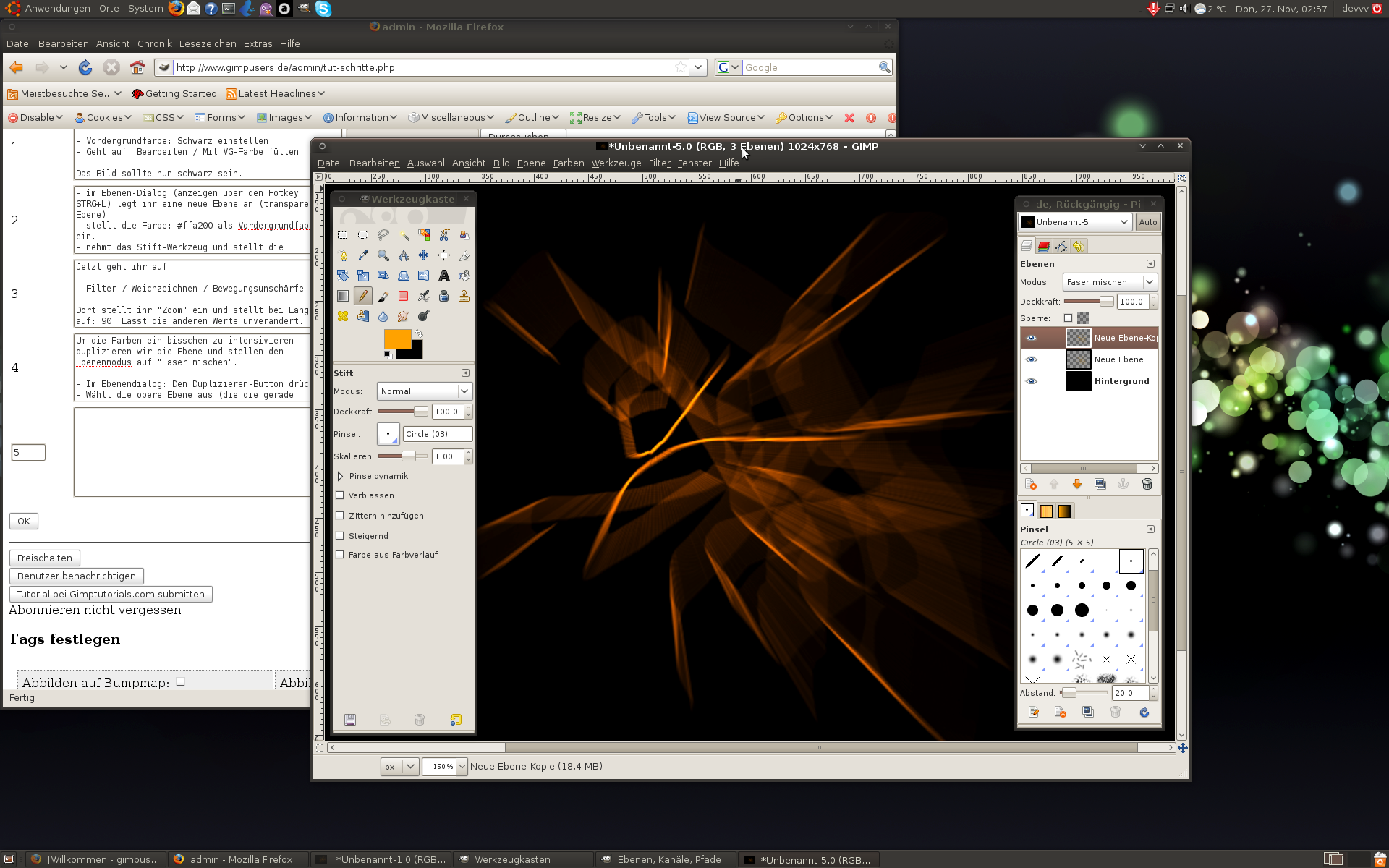
    To intensify the colors, duplicate the layer and change the layer mode to "grain merge":

    - In the layers window, press the "duplicate" button.
    - Select the top layer (the one that has been created by the duplication)
    - A bit above, you can find a dropdown menu named "mode". There you select "grain merge".

    Now the whole thing should look a little more igneous.
    Screenshot of step 4
    Click to enlarge
  5. 5
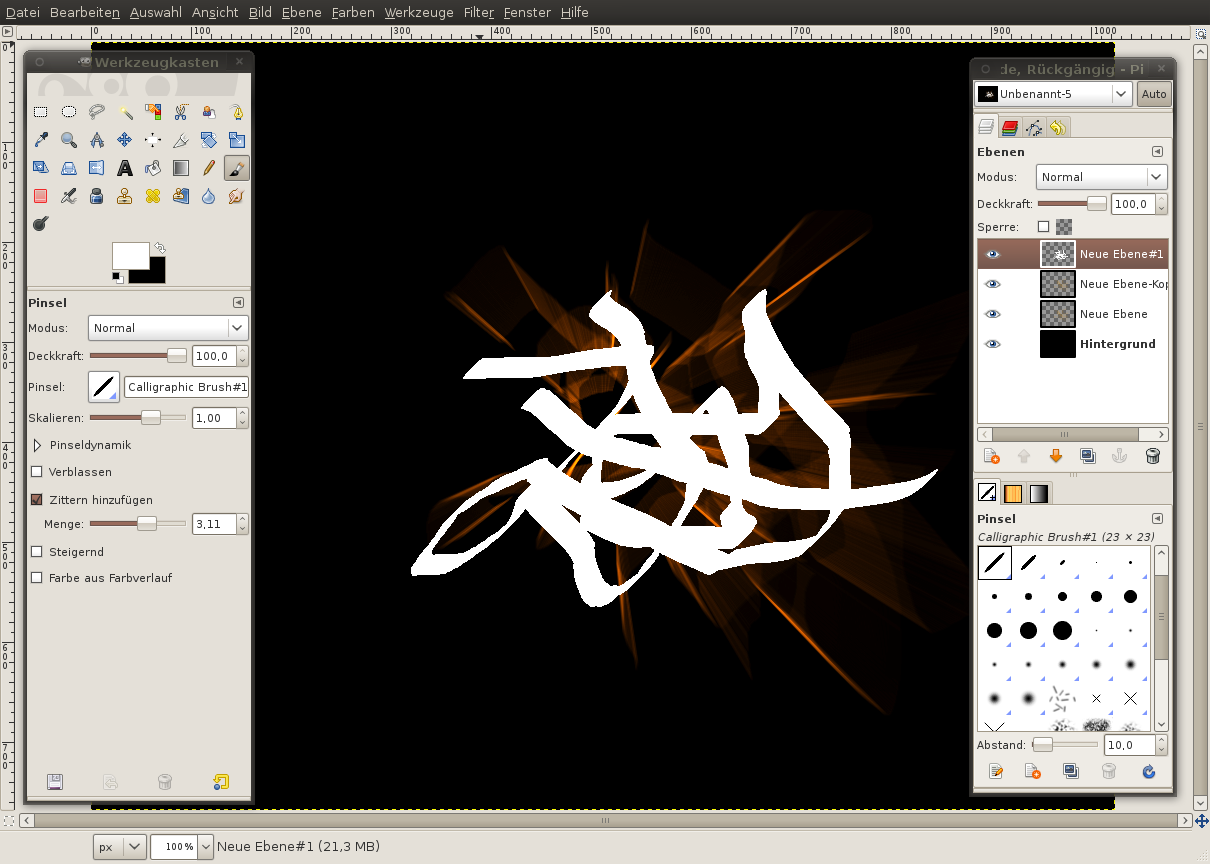
    Now we bring some more chaos into the image and the rays:

    - Create a new transparent layer.
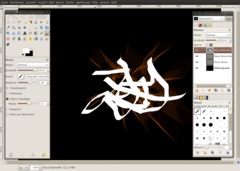
    - Select the Paintbrush tool, choose "Calligraphic Brush #1" aus (see screenshot) and draw some rampant lines onto the layer again.
    Screenshot of step 5
    Click to enlarge
  6. 6
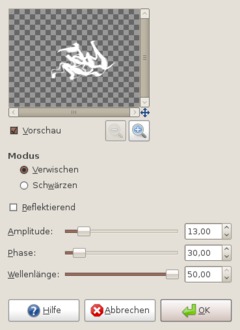
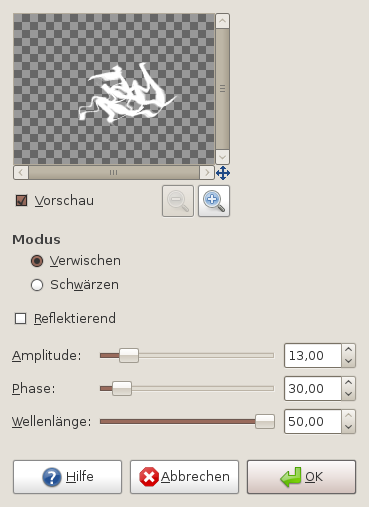
    - Filters / Distorts / Waves:

    Choose the vales like on the screenshot:
    Screenshot of step 6
    Click to enlarge
  7. 7
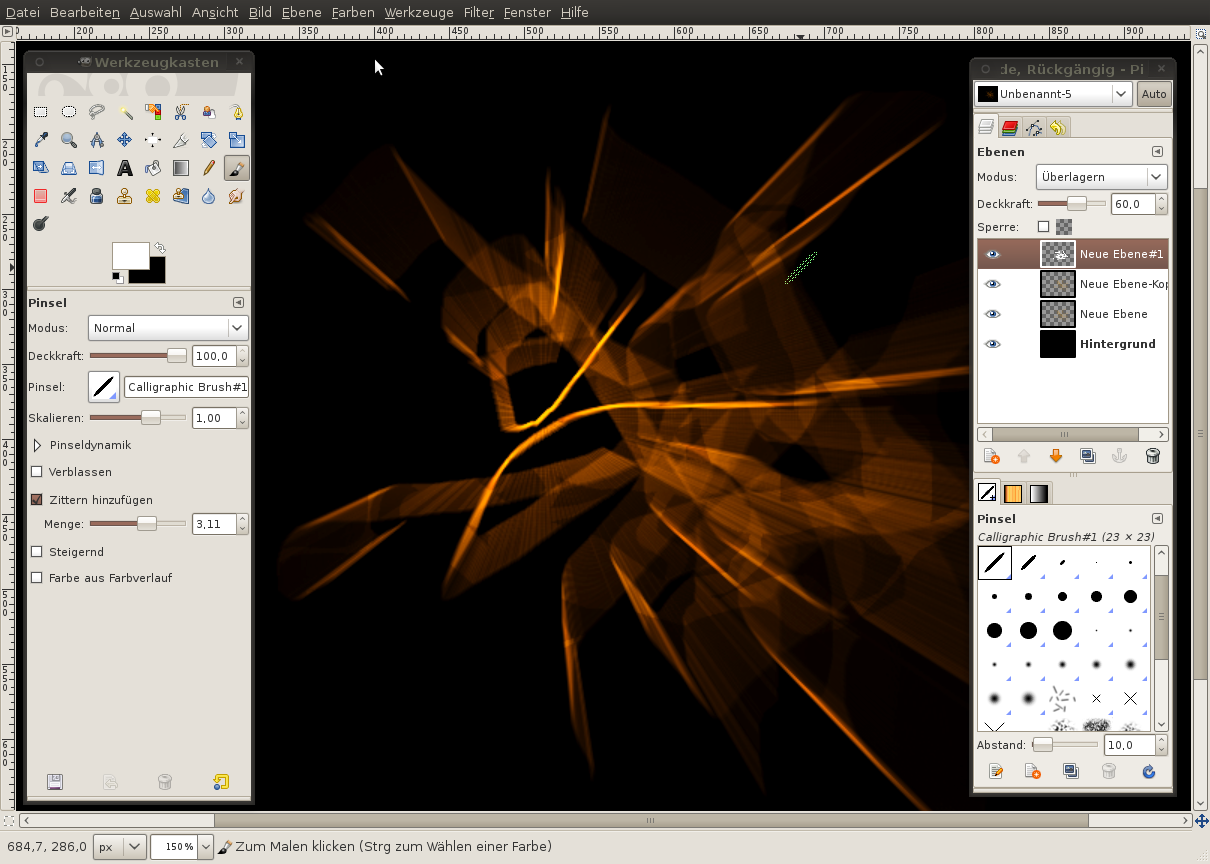
    Set the layer mode of this layer to "Overlay".

    Hint: If you think the chaos effect looks too strong, you can use the opacity control to modify the strength of the effect. I used opacity 60%.
    Screenshot of step 7
    Click to enlarge
  8. 8
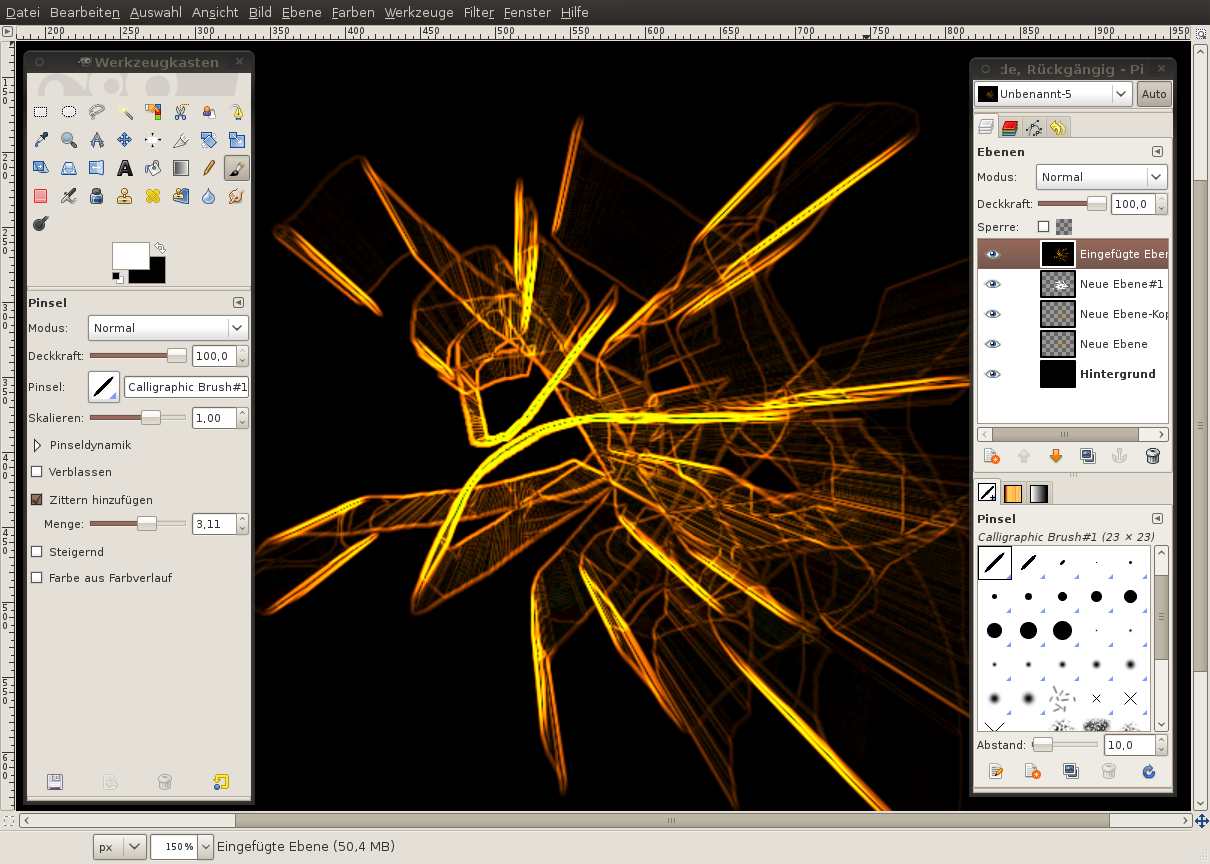
    Now the last step that reduces the luminance and thereby brings some more abstractness and details into the image (it doesn't look like a simple zoom/blur filter combination then, too).

    - Edit / Copy visible
    - Edit / Paste as / New layer
    - Filters / Edge-detect / Edge: (Sobel, amount: 2)

    Looks cool already -- if you want to leave it like that, just do so, but originally it's intended for something else.
    Screenshot of step 8
    Click to enlarge
  9. 9
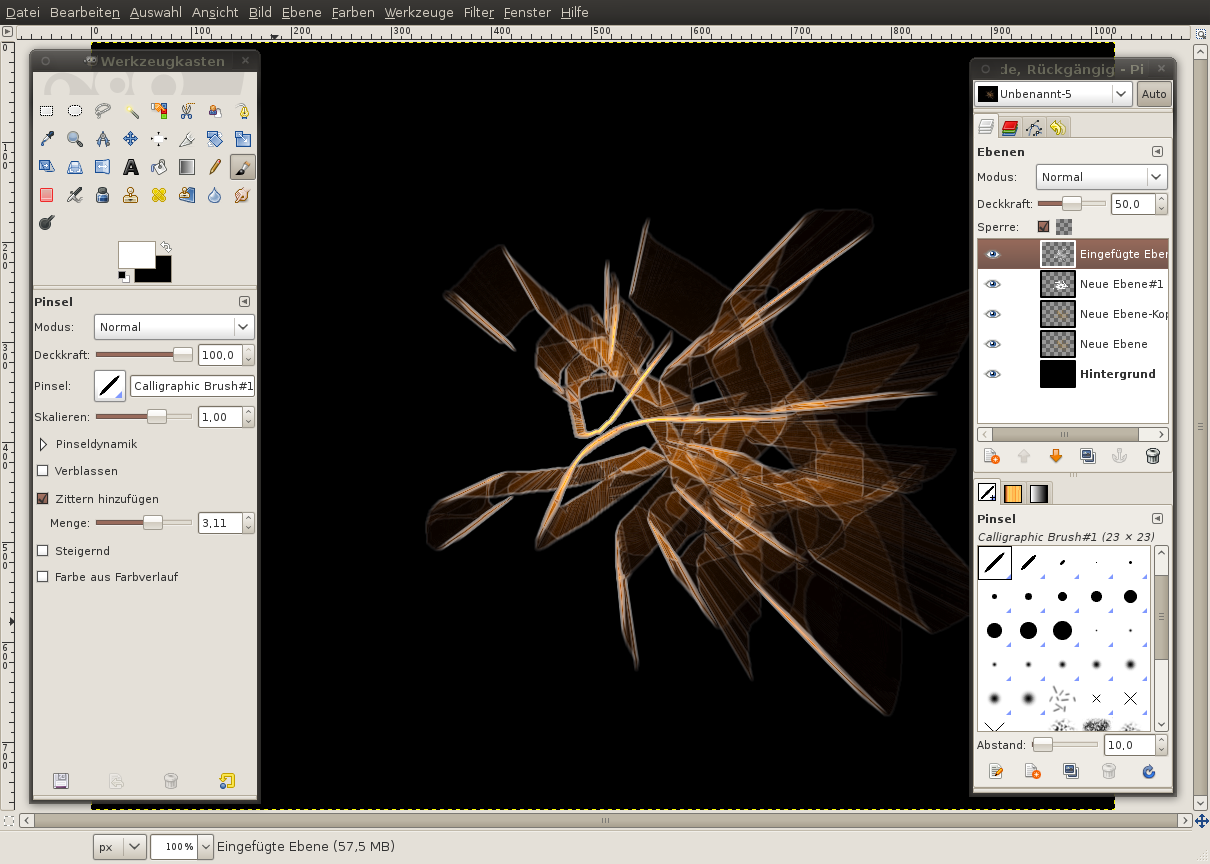
    - Colors / Color to Alpha: from black to alpha.

    Now everything black has been removed from the layer.

    For the next step, the yellow lines have to become white. Click on the "lock" checkbox right below the opacity ruler so that it is selected.

    - Choose white as new foreground color and choose Edit / Fill with FG color -- the lines are now white.
    Screenshot of step 9
    Click to enlarge
  10. 10
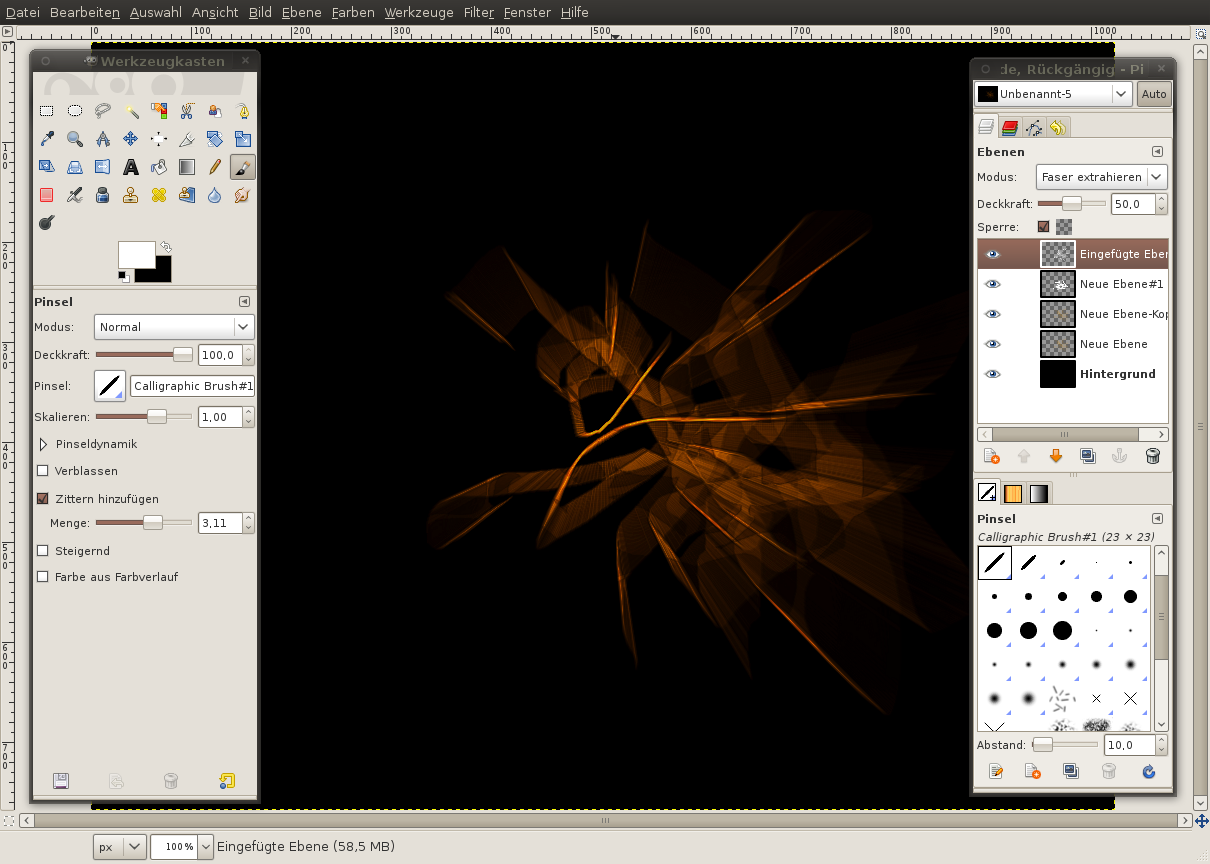
    - Set the opacity to 50% in the layer window.
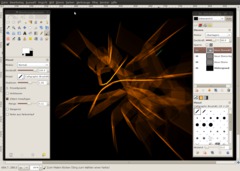
    - Then set the layer mode to "Grain extract" so some of the glowing orange color is removed.

    That's all. I hope you like the effect and have fun when playing around with it. You can also make nice desktop wallpapers with this effect.
    Screenshot of step 10
    Click to enlarge
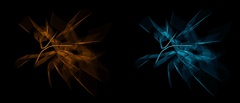
  11. 11
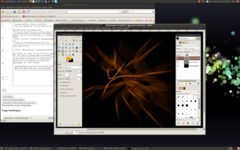
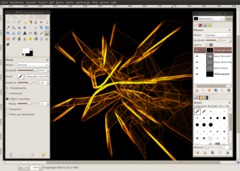
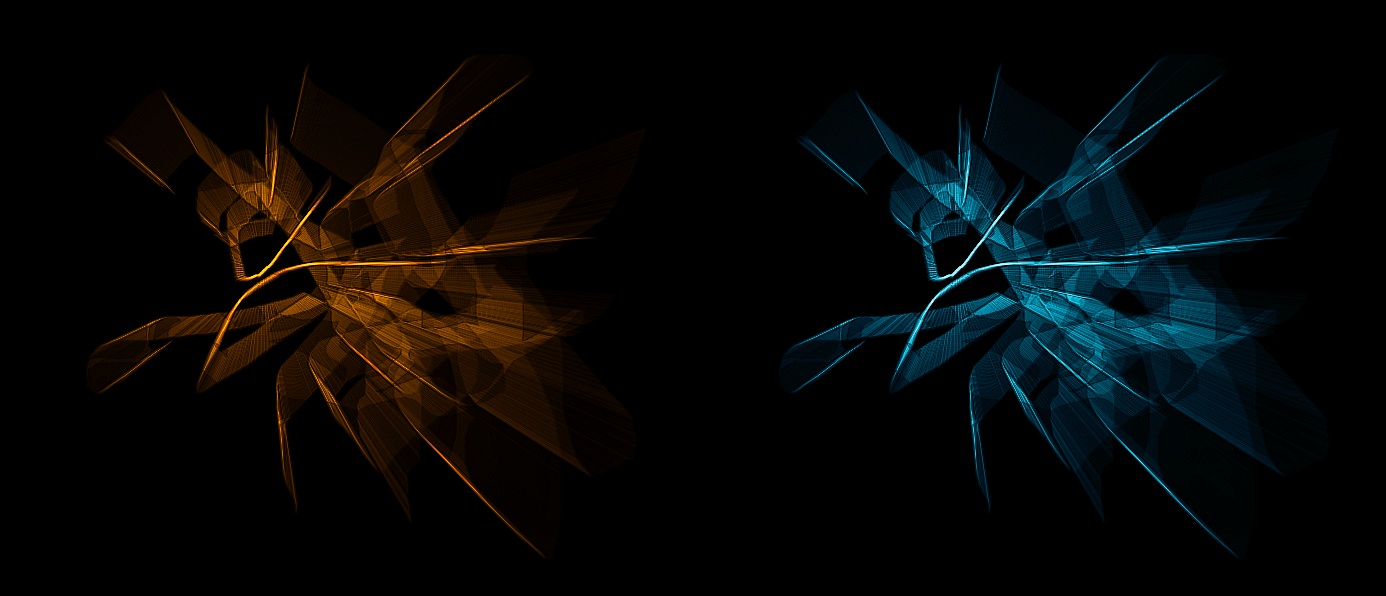
    Here are 2 different color versions of the result:
    Screenshot of step 11
    Click to enlarge

This article is licensed under the following license: Attribution-Noncommercial 3.0 Austria

Comments

Post your own comments, questions or hints here. The author and other users will see your posting and can reply to it. Of course, you can also ask in the chat.

Comments are chronologically arranged.

  1. http://www.gimpusers.com/tutorials/abstract-chaos-explosion.html Sun 21 Dec 2008 05:04:49 AM CET Nynee, 21 Dec 2008 05:04 AM

    Great tutorial! I'm new to gimp and I'm finding all of the tutorials very informative and makes creating images and graphics quite simple. Thanks.

  2. http://www.gimpusers.com/tutorials/abstract-chaos-explosion.html Sun 21 Dec 2008 11:42:24 PM CET prairiekittin, 21 Dec 2008 11:42 PM

    Interesting and fun. Thank you!
    Kittin


    Click to enlarge

  3. http://www.gimpusers.com/tutorials/abstract-chaos-explosion.html Mon 22 Dec 2008 04:20:04 AM CET Robert, 22 Dec 2008 04:20 AM

    Wow it looks very impressive, thanks

  4. http://www.gimpusers.com/tutorials/abstract-chaos-explosion.html Fri 26 Dec 2008 11:13:31 PM CET TheJoe, 26 Dec 2008 11:13 PM

    oh my god.. what is that?? didn't u had anythin more interesting to post?? this ain't a good tutorial..

  5. http://www.gimpusers.com/tutorials/abstract-chaos-explosion.html Fri 26 Dec 2008 11:49:19 PM CET redforce, 26 Dec 2008 11:49 PM

    TheJoe: If you want to publish your good tutorials on this site, please just submit them via email (team@gimpusers.com). Thanks

  6. http://www.gimpusers.com/tutorials/abstract-chaos-explosion.html Sun 28 Dec 2008 07:02:29 PM CET ño, 28 Dec 2008 07:02 PM

    OMG! Thanks to you i saw the light xDDD
    Great tutorial ^^

  7. http://www.gimpusers.com/tutorials/abstract-chaos-explosion.html Mon 02 Mar 2009 11:46:04 PM CET Dom, 02 Mar 2009 11:46 PM

    Cool, was looking for a cool way to make a splash screen. I think I've found it!

  8. http://www.gimpusers.com/tutorials/abstract-chaos-explosion.html Thu 12 Mar 2009 06:39:04 PM CET hari, 12 Mar 2009 06:39 PM

    thanxz for your tutorial.It was really helpful

  9. http://www.gimpusers.com/tutorials/abstract-chaos-explosion.html Wed 18 Nov 2009 11:04:18 PM CET Jackster111, 18 Nov 2009 11:04 PM

    Hi I am new to Gimp and found this tutorial very helpful. Thanks for posting!

Registered users can log in (top right of the page) to use their profile name to post comments, request email notification on new comments and attach images (e.g. their versions of the effect) to their postings.

Are you human?

Adobe® Photoshop® is a registered trademark of Adobe Systems, Inc. Linux is a trademark of Linus Torvalds. Ubuntu and Canonical are registered trademarks of Canonical Ltd. | Clock times are shown as CET / CEST | Imprint / Privacy policy | powered by bitfire it services